
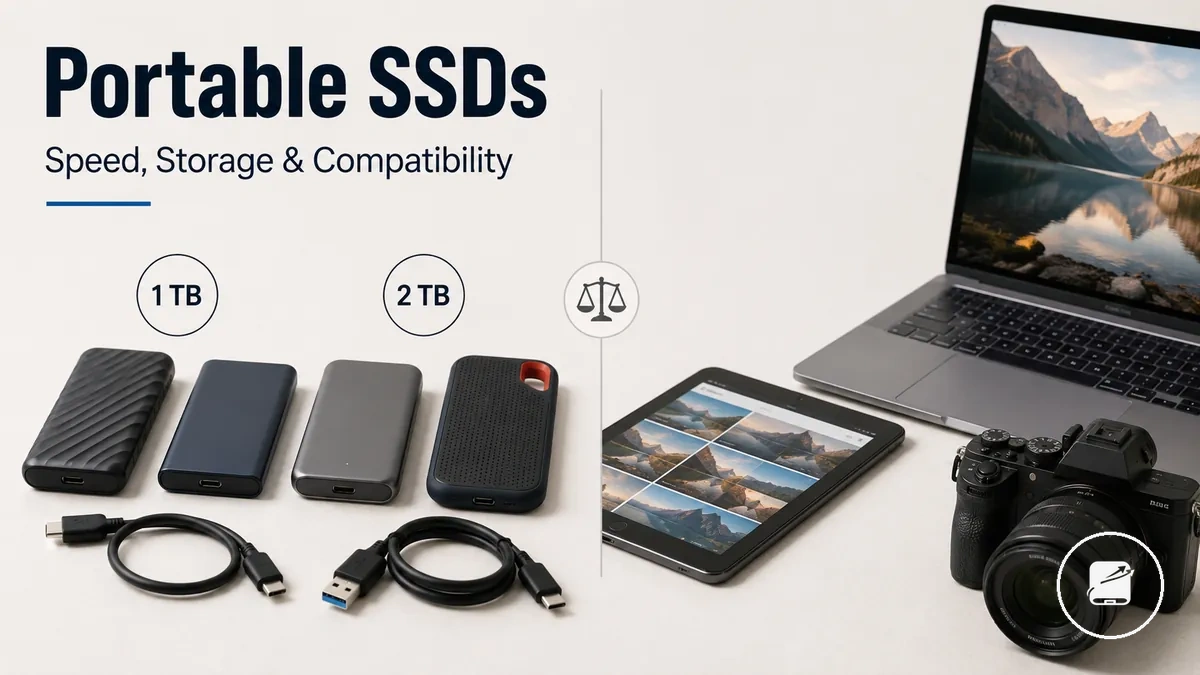
Portable SSDs for External Storage Decisions
A portable SSD is a removable solid-state storage drive used for file transfer, backup, and additional capacity outside a computer or tablet. It offers external storage without the moving parts found in an external hard drive, so the main decision is whether its speed, capacity, compatibility, durability, security, and value match the intended use.
A portable SSD is a removable solid-state storage drive used for file transfer, backup, and additional capacity outside a computer or tablet.
A portable SSD suits active project files when faster access is more important than the lower cost per unit of capacity commonly associated with external hard drives. Backup use places greater weight on sufficient capacity and encryption, while frequent travel increases the importance of physical durability. The category offers better value when those benefits match the workload rather than when the drive is chosen only for its highest advertised performance.
Compatibility requires the portable SSD, cable, and host device to support the same connection protocol.
Compatibility requires the portable SSD, cable, and host device to support the same connection protocol. A USB-C connector identifies the port shape, but file-transfer speed is limited by the slowest supported link among the drive, cable, and computer or tablet. For example, a high-performance external SSD connected through a lower-bandwidth USB-C port remains usable when the protocols match, but its transfer performance is restricted by that port.
A USB-C connector identifies the port shape, but file-transfer speed is limited by the slowest supported link among the drive, cable, and computer or tablet.
Portable SSDs provide removable external storage, external hard drives prioritise economical high capacity, and internal SSDs require installation inside a compatible device. Encryption is not universal, so storing sensitive files requires a drive that explicitly supports hardware encryption or compatible password-protection software.
Table of Contents
What a Portable SSD Is and What It Is Not
A portable SSD is an external solid-state drive that stores data in flash memory and connects to a device through a USB connector or another supported external interface. It combines solid-state storage, a protective enclosure, and a device connection in one portable unit. Its primary role is to provide removable external storage without being installed inside the host device.
It combines solid-state storage, a protective enclosure, and a device connection in one portable unit.
What a portable SSD is and what it is not becomes easier to understand by identifying the device's physical role and boundaries in the illustration below. The image highlights the enclosure, connector, cable, and external storage function rather than internal computer components.
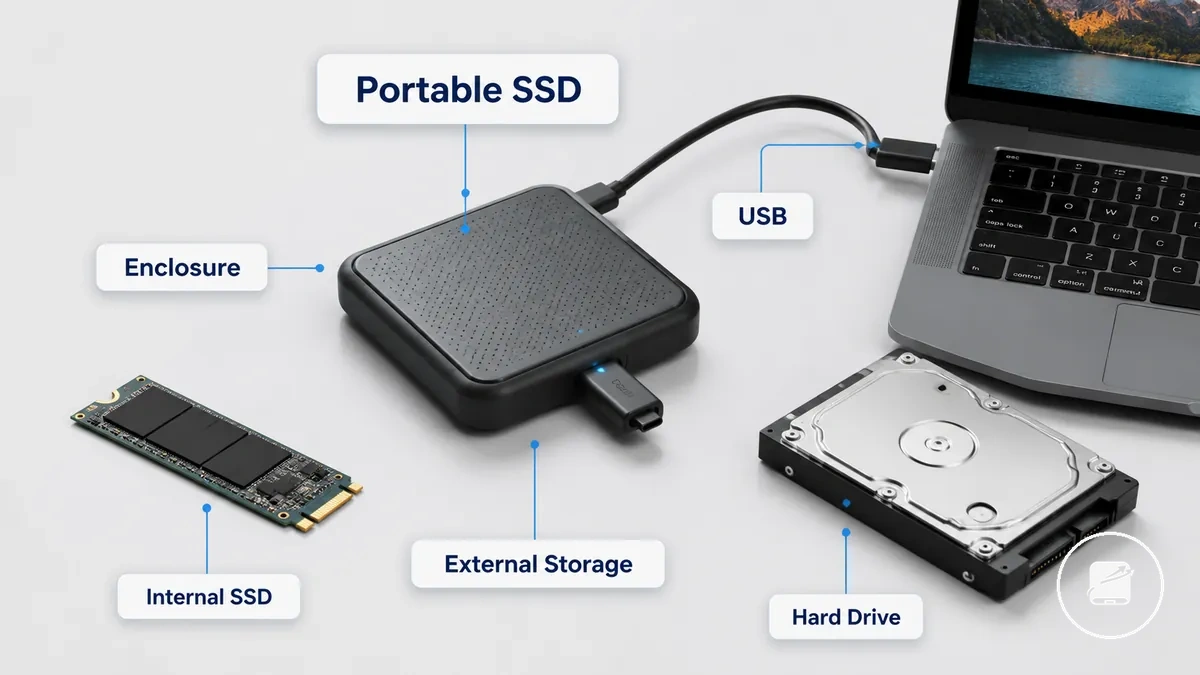
The term what portable SSDs are describes complete external storage devices that integrate solid-state storage, an enclosure, and a connector into a ready-to-use product. An internal SSD also uses solid-state storage, but it is designed for installation inside a compatible computer or device rather than external portability. An external SSD enclosure is only the housing and interface; it becomes a functional external solid-state drive after a compatible internal SSD is installed inside the enclosure.
A portable hard drive is also an external storage device, but it stores data on mechanical spinning disks instead of solid-state memory.
A portable hard drive is also an external storage device, but it stores data on mechanical spinning disks instead of solid-state memory. These distinctions define the device role and prevent confusion between portable SSDs, external hard drives, external SSD enclosures, and internal SSDs, while detailed performance and feature comparisons are covered in later sections.
Portable SSD Speed, Capacity, and Real-World Performance
Portable SSD performance depends on both the drive's capabilities and the workload it handles. Read speed, write speed, sustained transfer behavior, and capacity together determine how quickly files move and how well the drive suits everyday storage tasks. Your real-world experience will reflect the type and size of files you transfer rather than advertised peak speeds alone.
Portable SSD performance depends on both the drive's capabilities and the workload it handles.
Portable SSD speed, capacity, and real-world performance are easier to understand when speed and storage size are viewed together. The illustration below shows how file size, available capacity, and workload influence perceived transfer performance.
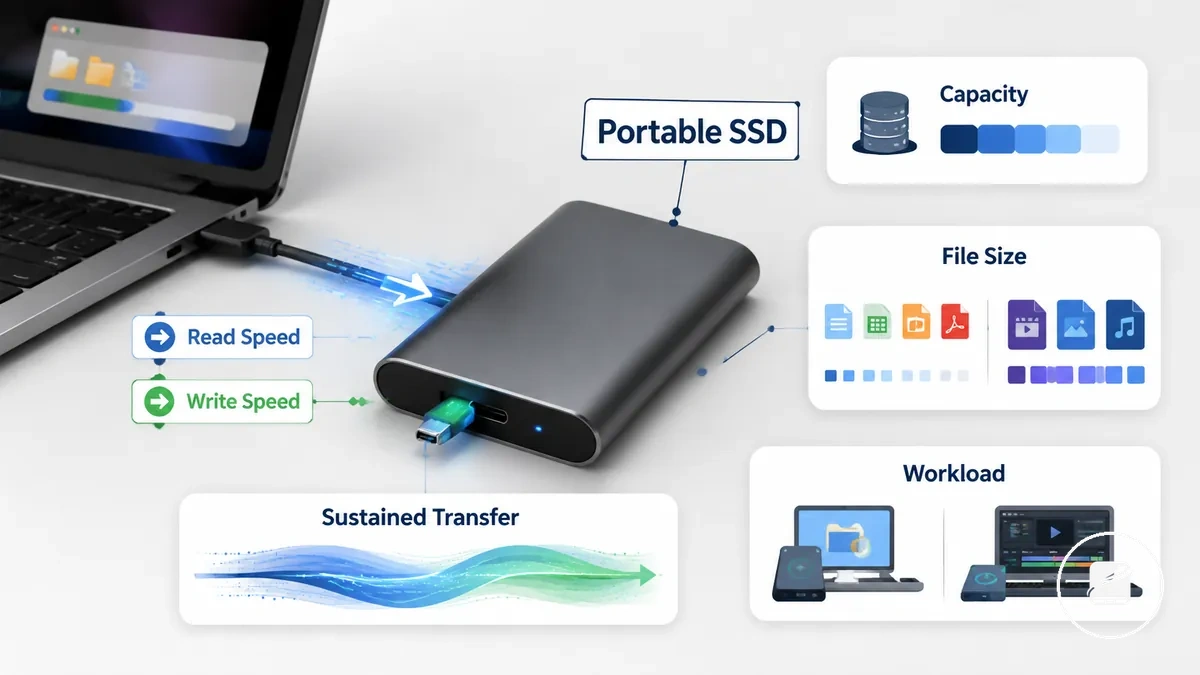
Read speed affects how quickly existing files can be accessed or copied, while write speed affects how quickly new files are saved. Sustained transfer describes how consistently a portable SSD maintains transfer performance during long copy sessions, and larger file sizes or extended backups place more demand on the drive than short transfers of small documents. Capacity determines how much data can be stored and whether the drive remains suitable for backups, media libraries, or active project files.
Read speed affects how quickly existing files can be accessed or copied, while write speed affects how quickly new files are saved.
The table below summarizes how the main performance attributes influence practical use before moving into more detailed speed discussion.
| Attribute | What it affects | When it matters most | Decision cue |
|---|---|---|---|
| Read speed | Opening and copying existing files | Large media collections and frequent file access | Prioritize for read-heavy workloads |
| Sustained transfer | Performance consistency during long transfers | Large backups and extended file copy sessions | Useful when transferring large files continuously |
| Capacity | Available storage space | Backups, creative projects, and growing file libraries | Select enough storage for current and future needs |
| Workload pressure | Perceived real-world performance | Large files, repeated transfers, or editing directly from the drive | Match the portable SSD to your typical workload instead of advertised peak performance |
For example, backing up office documents mainly benefits from sufficient capacity, while editing large video files benefits more from sustained transfer performance and faster read and write speeds. For a deeper explanation of performance characteristics, see portable SSD speed.
Read and Write Speed by Port Class
Read speed and write speed are determined by the entire connection path rather than the port label alone. Port class, the cable, the drive controller, and the workload together establish the practical speed ceiling, so the slowest component becomes the bottleneck. Evaluating the complete connection path gives a more reliable expectation of transfer performance than relying on a connector name by itself.
Read speed and write speed are determined by the entire connection path rather than the port label alone.
Read and write speed by port class becomes easier to understand when the full connection path is visible. The diagram below identifies the connection stages that can limit transfer performance between the host device and the portable SSD.
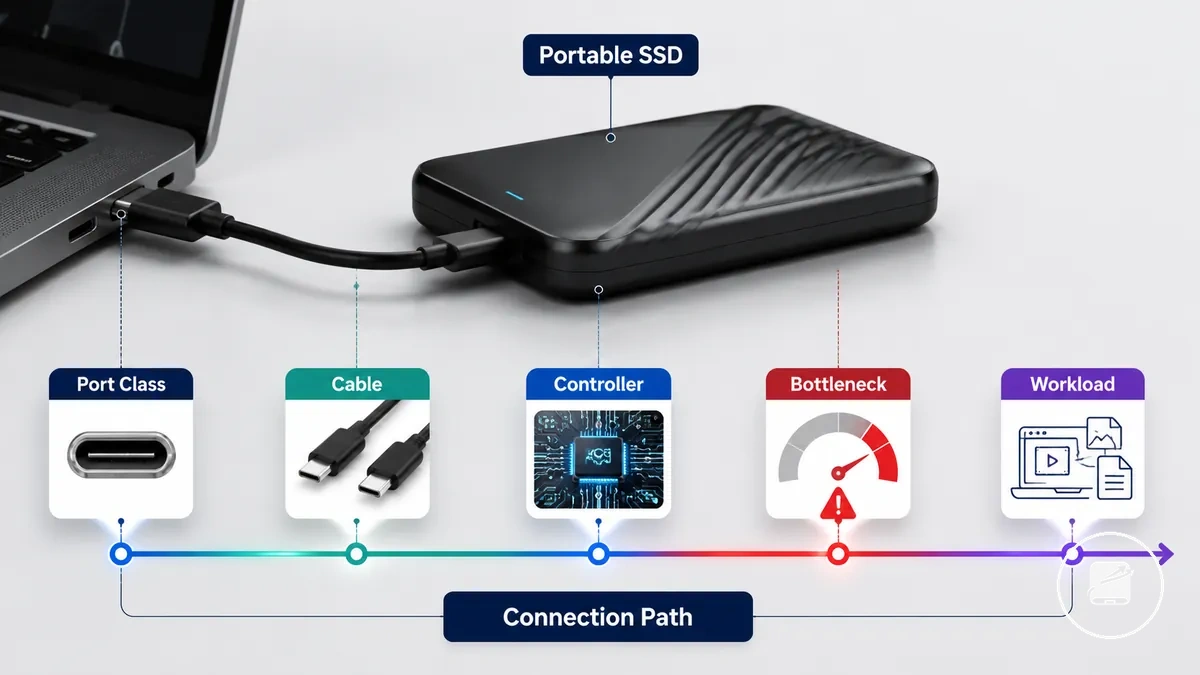
The table summarizes how USB generation, Thunderbolt support, cable rating, the drive controller, and workload influence practical read and write speed without implying that any single port label guarantees maximum performance.
| Connection factor | What it controls | Possible limit | Writing cue |
|---|---|---|---|
| Port class | Connection capability through supported USB generation or Thunderbolt support | The supported connection standard sets the transfer ceiling | Use the highest port class supported by both devices |
| Cable rating | Data transfer capability between the device and portable SSD | A lower-rated cable can reduce available bandwidth | Choose a cable rated for the selected connection standard |
| Drive controller | Processing of read and write requests through the drive interface | Controller capability can become the practical bottleneck | Assess the complete drive design rather than the connector alone |
| Workload | Peak and sustained transfer behavior | Large or continuous file transfers can reduce sustained performance compared with short transfers | Evaluate speed using your typical file transfer workload |
For example, copying a handful of small documents may remain close to peak transfer behavior, while backing up a large video collection places sustained demand on the connection path, making the slowest cable, controller, or supported port class the effective bottleneck.
Capacity Ranges for Files, Backups, and Workflows
Capacity choice should match the types of files you store, the backups you retain, and the workflow you plan to run from a portable SSD. Everyday files create lower storage pressure than large media files or active project folders, while backup retention steadily reduces available space. Selecting the right capacity tier is therefore a decision based on storage needs rather than a universal recommendation.
Capacity ranges for files, backups, and workflows become easier to compare when organized by common storage scenarios.
Capacity ranges for files, backups, and workflows become easier to compare when organized by common storage scenarios. The diagram below groups capacity pressure by use case so the relationship between files, backups, and active workflows is easier to interpret.
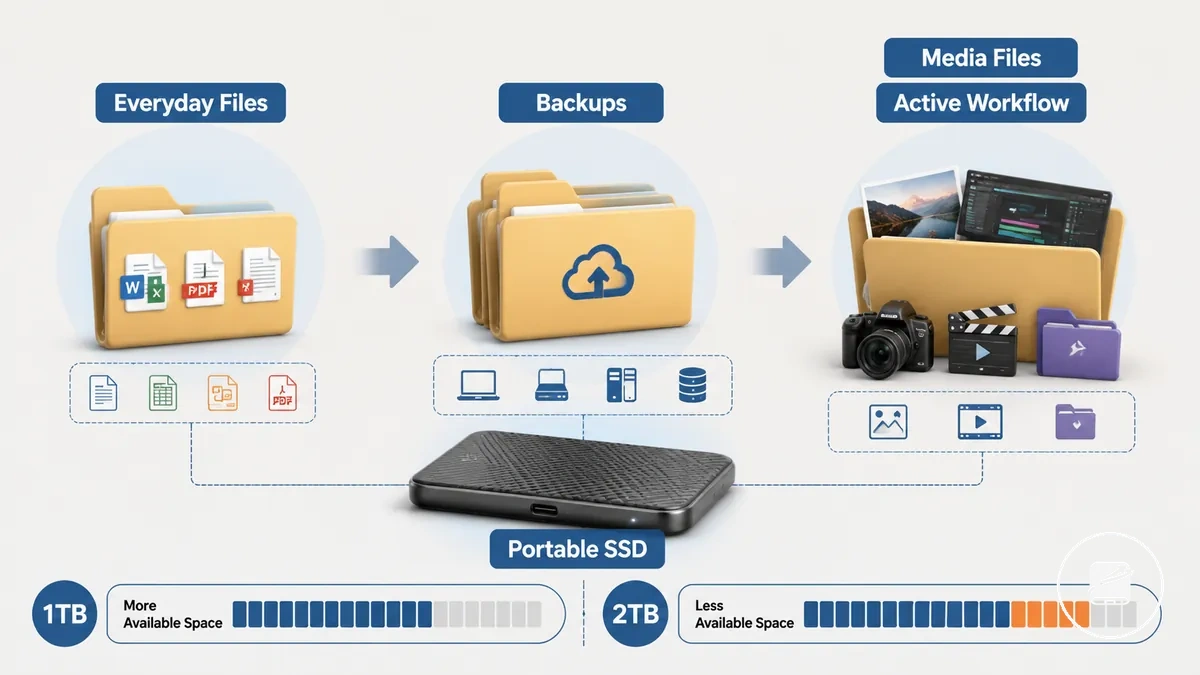
The checklist below matches common storage scenarios with capacity pressure and a practical decision cue.
- Everyday files: Documents and personal files usually create low capacity pressure, making smaller capacity tiers suitable when available space comfortably exceeds current storage needs.
- Backups: Backup sets increase in size as retention grows, so keeping multiple backup versions raises storage pressure and reduces available space over time.
- Media files: Large photo libraries and video collections consume storage more quickly, making 1TB a practical capacity tier for many expanding media libraries.
- Active workflows: Ongoing editing projects and working media files can generate substantial temporary data, making 2TB or higher a lower-risk capacity tier for sustained creative workflows.
- Future growth: Reserve available space for new files, additional backups, and expanding workflows to reduce the likelihood of early storage pressure.
For example, a portable SSD used for office documents and occasional backups typically experiences slower capacity growth than one storing active video-editing projects. Planning for future file growth helps avoid running short of available space as storage needs increase.
Compatibility across ports, cables, devices, and systems
Portable SSD compatibility is achieved when the complete connection chain matches: the drive connector, cable, device port, operating system, file system, and available power must all support the intended connection. A USB-C connector alone does not confirm full compatibility because cables and ports with the same shape can support different data capabilities. Verify each part of the connection chain before expecting reliable recognition.
| Check | What to verify | Why it matters | Possible limitation |
|---|---|---|---|
| Cable | The cable supports data transfer and the required USB standard. | Data-capable cables allow the portable SSD to communicate with the device. | A charging-only cable supplies power but prevents recognition. |
| Port | The device provides a compatible USB-C or supported USB port, with a suitable adapter if required. | The port determines whether the connection can be established. | Matching connector shapes do not guarantee matching USB features. |
| Device | The host device supports external USB storage. | Device support determines whether the portable SSD can be accessed. | Some consoles and mobile devices apply model-specific storage restrictions. |
| Operating system | The operating system supports external storage and the selected file system. | Recognition depends on operating system support for the connected drive. | An unsupported file system can prevent normal access. |
| File system | The drive uses a file system supported by every device that will access it. | Cross-device use requires compatible file-system support. | Read and write capabilities can differ between operating systems. |
| Power | The port or adapter provides sufficient power for the portable SSD. | Stable power allows the drive to initialize and remain connected. | Insufficient power can interrupt recognition or disconnect the drive. |
Ports, cables, adapters, and power should be evaluated together because each contributes to successful compatibility. For example, a portable SSD connected through a USB-C charging cable instead of a data-capable cable can receive power without appearing as external storage. An adapter must also support data transfer rather than only providing a physical connector fit.
Device support extends beyond the physical connection to the operating system and file system.
Device support extends beyond the physical connection to the operating system and file system. A portable SSD intended for cross-device use should use a file system supported by every target device, while consoles and mobile devices can impose additional model-specific storage rules. Use the portable SSD compatibility guide as a criteria reference when verifying ports, cables, devices, operating systems, file systems, and power before connecting a drive.
USB-C, USB, Thunderbolt, and power limits
A portable SSD is compatible when the port shape, connection standard, cable capability, and available power form a supported data path. The lowest supported capability in that chain sets the speed ceiling, while insufficient power or a charge-only cable can prevent recognition. A visible USB-C connector identifies the physical shape, not the USB generation, Thunderbolt support, bandwidth, or power output.
A visible USB-C connector identifies the physical shape, not the USB generation, Thunderbolt support, bandwidth, or power output.
The comparison below separates connector appearance from the connection capabilities that determine speed, power delivery, and recognition.
| Connection factor | What it affects | Common confusion | Safe wording |
|---|---|---|---|
| USB-C shape | Physical connection fit and plug orientation. | Every USB-C port is assumed to provide the same bandwidth and features. | USB-C identifies the connector shape; supported USB, Thunderbolt, and power capabilities must be checked separately. |
| USB generation | The maximum data mode available between the portable SSD, port, and cable. | The drive's stated interface speed is expected through any USB connection. | The slowest supported USB mode in the connection chain sets the speed ceiling. |
| Thunderbolt support | Whether a Thunderbolt data path is available between the drive and host device. | A USB-C port is assumed to include Thunderbolt because both can use the same connector shape. | Thunderbolt operation requires support from the portable SSD, device port, and cable; without that shared support, the connection is limited to a mutually supported USB mode or is not recognised. |
| Cable rating | Supported bandwidth, data transfer, and power delivery. | Any cable that fits the port is assumed to carry high-speed data. | Use a data-capable cable rated for the required connection standard; a charge-only cable prevents data recognition, while a lower-rated cable reduces the speed ceiling. |
| Power | Drive initialisation and connection stability. | A physically compatible port or adapter is assumed to provide sufficient power. | The host port, hub, or adapter must provide the power required by the portable SSD; an underpowered connection can cause failed recognition or disconnection. |
An adapter or hub preserves only the connection capabilities it supports. For example, a USB-C adapter that provides physical fit but supports a lower USB data mode reduces the portable SSD's speed ceiling, while a power-limited hub can cause intermittent recognition even when the cable and port shapes match.
Windows, Mac, consoles, phones, and tablets
The same portable SSD can function as ordinary file storage on Windows, appear read-only on a Mac, or remain unrecognised by a console, phone, or tablet. Its usable role is determined by the host device's operating system, supported file system, port access, available power, and app or console rules. Check those conditions for the specific device before changing the drive's formatting.
Check those conditions for the specific device before changing the drive's formatting.
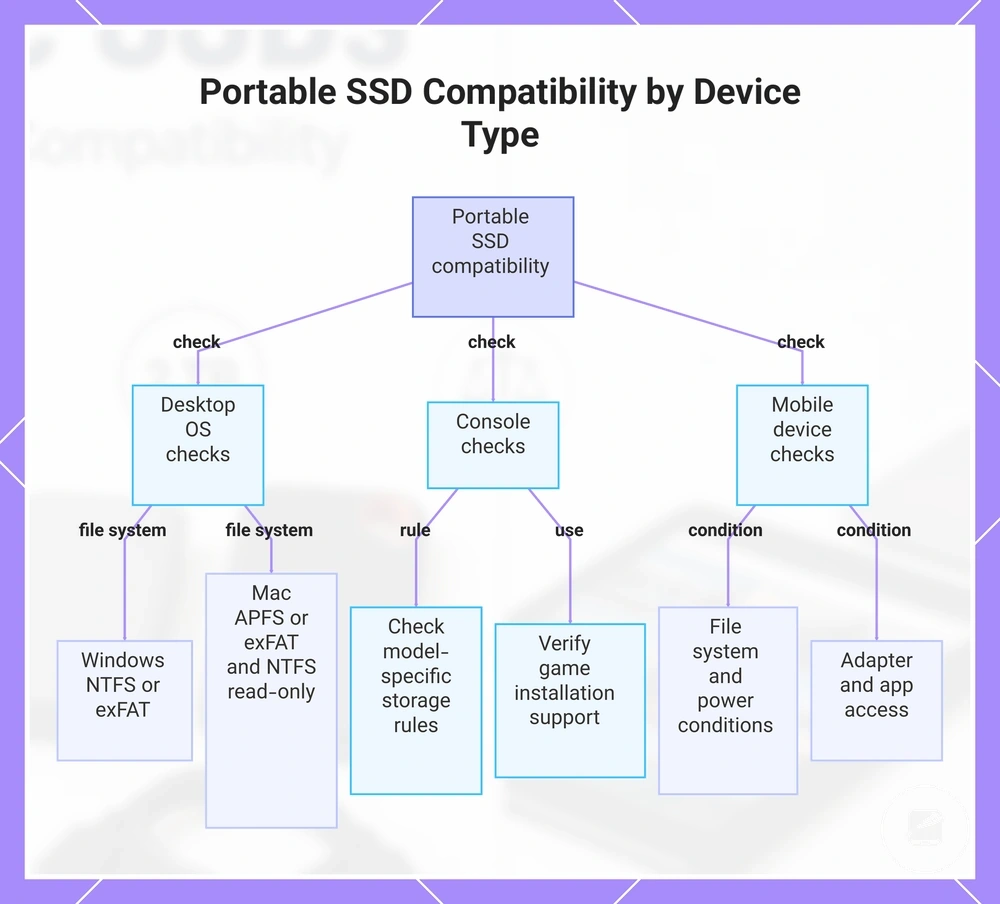
The main compatibility factors differ by device family:
- Windows: Windows can recognise external USB storage when the connection and file system are supported. NTFS is suited to Windows-focused use, while exFAT is the practical format to check when the same drive needs read-and-write access on both Windows and Mac.
- Mac: macOS supports APFS, Mac OS Extended, FAT, and exFAT through Disk Utility. APFS suits Mac-focused SSD use, while exFAT is the relevant choice for shared Windows and Mac access; an NTFS-formatted drive may be readable but not writable without additional software.
- Consoles: Consoles apply model-specific storage, formatting, port, and software rules, so physical connection alone does not establish recognition or game-storage support. Check whether the console permits the drive for game installation, media storage, or backup before reformatting it.
- Phones: A phone can use a portable SSD when its port or adapter supports external storage, the connection supplies sufficient power, and a compatible app provides file access. If the drive is not recognised, the limiting condition is commonly the file system, power path, adapter capability, or app access rather than the SSD alone.
- Tablets: Tablets follow the same file system, power, adapter, and app access checks as phones, although port access differs by model. A tablet with supported external-drive access can use the SSD for files and media, while a power-limited or unsupported connection can prevent recognition.
This chart summarizes the key compatibility checks for using a portable SSD across different device families.
Portable SSD feature trade-offs
Portable SSD feature trade-offs should be judged against the user's workload, travel conditions, security risk, and connection limits rather than treated as universal upgrades. Ruggedness can improve protection but add bulk, encryption can improve security but add password-management risk, and a high-speed design can provide little extra value when the port, cable, or workload sets a lower speed ceiling. The useful feature set is the one that fits the buyer's actual conditions.
The useful feature set is the one that fits the buyer's actual conditions.
The decision matrix organises each design choice by its practical benefit, principal limitation, and best-fit use.
| Feature | Best-fit need | Trade-off | Decision cue |
|---|---|---|---|
| Ruggedness | Frequent travel, field work, or handling where drops, dust, or moisture exposure are credible risks. | Protective construction can increase size, weight, and cost compared with a less protected enclosure. | Prioritise ruggedness when physical exposure is likely; for desk-based use, the added protection may deliver limited value. |
| Encryption | Sensitive files, shared workplaces, or travel where loss or unauthorised access is a meaningful risk. | Password or encryption controls improve security but can complicate access and recovery if credentials are lost or required software is unavailable. | Choose encryption when the data risk justifies the access-management burden, not merely because the feature is included. |
| Compact size | Daily portability, small bags, and mobile use with phones, tablets, or lightweight computers. | A compact enclosure improves convenience but may provide less surface area for heat dissipation or less room for protective construction. | Prioritise compact design when portability is used regularly; otherwise, a slightly larger enclosure may offer a better balance of protection and heat handling. |
| High-speed class | Large-file transfers, media editing, or repeated workloads that can use the drive's supported bandwidth. | A high-speed portable SSD can cost more and generate more heat, while a slower port, cable, or workload reduces the realised benefit. | Match the speed class to the host connection and workload; paying for bandwidth above that shared limit adds little practical value. |
| Heat handling | Sustained transfers or demanding workloads where the drive remains active for extended periods. | Larger enclosures or additional thermal materials can reduce compactness and increase cost. | Prioritise heat handling for sustained high-speed use; short, occasional transfers place less value on this design choice. |
| Included cable | Immediate use across the buyer's available USB-C, USB-A, or Thunderbolt-capable ports. | An included cable adds convenience only when its connector and data rating match the intended port and speed class. | Check the cable type and supported data path before assigning value to the accessory; an unsuitable cable still requires replacement or an adapter. |
Avoid overbuying by separating features that resolve a real condition from paid-but-unused extras. For example, a desk-based backup drive may gain more value from a suitable cable and stable heat handling than from rugged construction, while a travel drive carrying confidential work may justify both protection and encryption. Compare each feature with the risk, workload, and connection that will actually determine its use.
Rugged, encrypted, compact, and high-speed designs
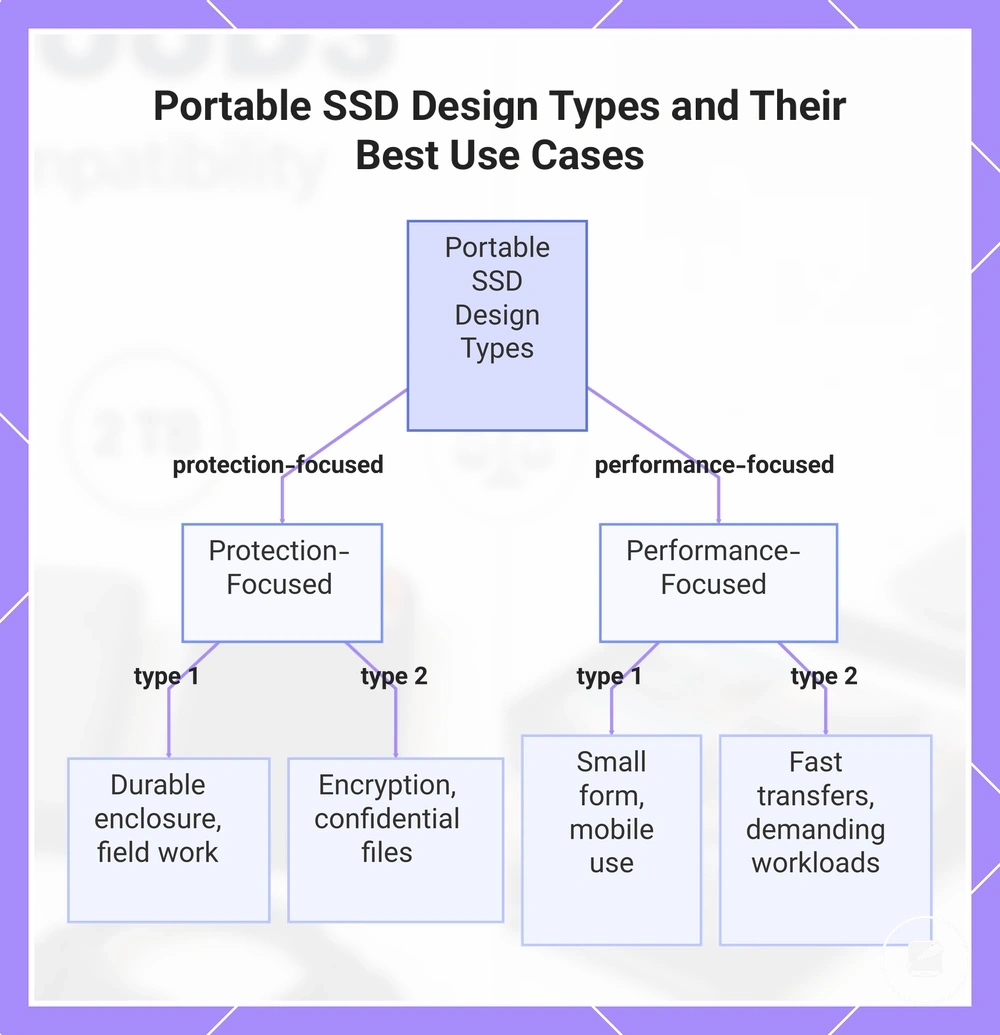
A portable SSD used during frequent travel benefits more from rugged protection, while a drive carrying sensitive files benefits more from encrypted security controls. Compact and high-speed designs prioritise portability or workload performance, so the useful category is the one whose advantage matches the use case and whose compromise remains acceptable.
A portable SSD used during frequent travel benefits more from rugged protection, while a drive carrying sensitive files benefits more from encrypted security controls.
The four design types differ in protection, security, portability, heat behaviour, and cable needs:
- Rugged: A durable enclosure provides greater protection against travel-related handling than a basic shell, but the protective structure can add size, weight, and cost. This design best fits field work or frequent transport where physical exposure is a credible risk.
- Encrypted: Hardware or software encryption improves security by requiring authorised access to stored data, but password loss or unavailable supporting software can create an access risk. This design best fits confidential files when the user can manage credentials and recovery procedures reliably.
- Compact: A small-form enclosure improves portability and convenience in a pocket or lightweight bag, but reduced surface area can limit heat dissipation compared with a larger casing. This design best fits mobile use when low bulk matters more than sustained high-speed workloads, and the required cable should remain short and easy to carry.
- High-speed: A fast design provides its main advantage during large or repeated transfers when the host port, workload, and cable support the same performance class. Sustained activity can produce more heat, while an under-rated cable or slower port reduces usable speed, so this design best fits demanding workloads with a matched connection path.
This chart compares the four main portable SSD design types, grouping them into protection-focused and performance-focused categories, and shows their key advantages and best use cases.
Portable SSDs compared with external hard drives
Portable SSDs and external hard drives differ mainly in the trade-off between speed and durability versus capacity and cost per GB. A portable SSD is generally the better fit for active files, travel, and responsive workflows, while an external hard drive remains a practical choice for large archives and capacity-focused backup. The better storage option depends on the intended use rather than on one technology being universally superior.
The comparison below highlights the decision factors that most often influence an external storage decision.
The comparison below highlights the decision factors that most often influence an external storage decision.
| Factor | Portable SSD tendency | External hard drive tendency | Decision cue |
|---|---|---|---|
| Speed | Higher transfer speed for active files and demanding workloads when the host port and cable support the available performance. | Lower transfer speed, particularly during frequent file access. | Choose a portable SSD when responsive file access is the priority. |
| Durability | Better shock tolerance because it has no moving mechanical parts. | More vulnerable to impact during operation because it contains spinning mechanical components. | Prefer a portable SSD for regular travel or mobile use. |
| Capacity | Available in high capacities, although equivalent storage typically costs more. | Commonly offers a higher capacity ceiling for the same budget. | Choose an external hard drive for extensive archives. |
| Cost per GB | Higher cost per GB. | Lower cost per GB. | An external hard drive provides better value for storing large amounts of infrequently accessed data. |
| Noise | Silent operation because there are no moving parts. | Mechanical operation can produce audible noise and vibration. | A portable SSD is preferable where quiet operation matters. |
| Size | Typically smaller and lighter, improving portability. | Usually larger and heavier. | A portable SSD is easier to carry between locations. |
| Backup role | Well suited for frequently updated backups and active project copies. | Well suited for large backup archives where capacity and lower cost per GB are more important than transfer speed. | Select the storage option that matches how often backup data will be accessed or restored. |
Both storage options can provide reliable external storage when handled appropriately and supported by a sound backup strategy. A portable SSD is often the better choice for portability and active workloads, while an external hard drive remains a sensible option for high-capacity storage and archive-focused backup. For a broader feature-by-feature discussion, see portable SSDs vs external hard drives.
Speed, durability, capacity, and cost differences
A portable SSD generally offers higher speed and better shock resilience for active files and travel, while an external hard drive generally offers more capacity for the same budget and remains useful for archive-focused storage. The practical advantage changes with the storage role, and the table treats speed, durability, capacity, and cost as decision variables rather than universal winners.
| Difference | Why it matters | SSD tendency | Hard drive tendency |
|---|---|---|---|
| Speed | Transfer performance affects repeated access, active-file workflows, and large file operations. | Flash storage and no moving parts usually provide faster access when the host port, cable, and workload support the available performance. | Mechanical access is slower, but it remains suitable for infrequently accessed archives and routine backup tasks. |
| Durability | Shock exposure increases risk during travel and mobile use. | No moving parts improve shock tolerance, although ruggedness still depends on enclosure design and handling conditions. | Spinning platters and moving read/write components are more vulnerable to impact, especially while the drive is operating. |
| Capacity | Storage size determines how much backup or archive data one device can hold. | Portable SSDs provide substantial capacity, but their maximum capacity is commonly lower or more expensive than a comparable hard drive option. | External hard drives commonly provide a higher capacity ceiling for capacity-focused storage roles. |
| Cost | Price per capacity determines the value of storing large data sets. | Price per capacity is generally higher, reflecting the performance, size, and resilience advantages of solid-state storage. | Price per capacity is generally lower, making hard drives practical for large archives and budget-focused backup. |
Available capacity and cost change by model, market, and purchase date, so the useful comparison is the current price at the required storage size rather than a fixed cost claim. A portable SSD offers the stronger trade-off for mobile performance and shock exposure, while an external hard drive offers the stronger trade-off when maximum capacity and lower price per capacity define the storage role.
How to choose a portable SSD by need and value
Choose a portable SSD by matching its capacity, speed, cable, compatibility, durability, security, price, and warranty to the intended use. A drive for video editing needs a different balance from one used for backup, travel, or everyday files, so the practical choice depends on user need, device fit, and value. Use the criteria below to decide which feature should carry the most weight.
Use the criteria below to decide which feature should carry the most weight.
Capacity should cover the planned storage need without paying for unused space, while speed should match the workload and the performance supported by the device port and cable. Compatibility requires the correct connector, operating-system support, file-system support, and sufficient host-device capability for the intended transfer rate. Durability and security deserve more weight for travel or sensitive files, while price and warranty act as value signals only when compared with the required features and the manufacturer's stated coverage.
The table connects each user need with the most relevant buying criterion.
The table connects each user need with the most relevant buying criterion. Check the stated condition before prioritising a feature, because a higher specification adds limited value when the connected device or actual storage role cannot use it.
| Need | Priority criterion | Condition to check | Decision cue |
|---|---|---|---|
| Backup | Capacity and value | Confirm that usable capacity covers the planned backup set and that the cable and device support the required transfer method. | Prioritise sufficient capacity and price over peak speed when backups are created less frequently. |
| Travel | Durability and ruggedness | Check the enclosure's stated resistance to shock, dust, or water and whether those claims require covers or specific handling conditions. | Prioritise a compact, resilient design when regular movement or environmental exposure increases risk. |
| Video editing | Speed and compatibility | Confirm that the SSD, cable, port, file system, and editing device support the workflow's required transfer performance. | Prioritise sustained speed when projects will be edited directly from the portable SSD. |
| Everyday files | Fit, price, and capacity | Check connector compatibility, expected file volume, and whether the included cable works with the main device. | Choose a balanced model when documents, photos, and media do not require specialist ruggedness or encryption. |
| Security | Encryption and access control | Check whether security is hardware-based or software-based and which operating systems support the required controls. | Prioritise supported encryption when loss or unauthorised access presents a greater risk than maximum speed. |
A portable SSD buying checklist helps verify compatibility, cable type, required capacity, durability claims, security support, current price, and warranty terms before making a decision.
Use best portable SSDs by need to move from these criteria to suitable product categories without treating one model as the right choice for every workload.
Use best portable SSDs by need to move from these criteria to suitable product categories without treating one model as the right choice for every workload.
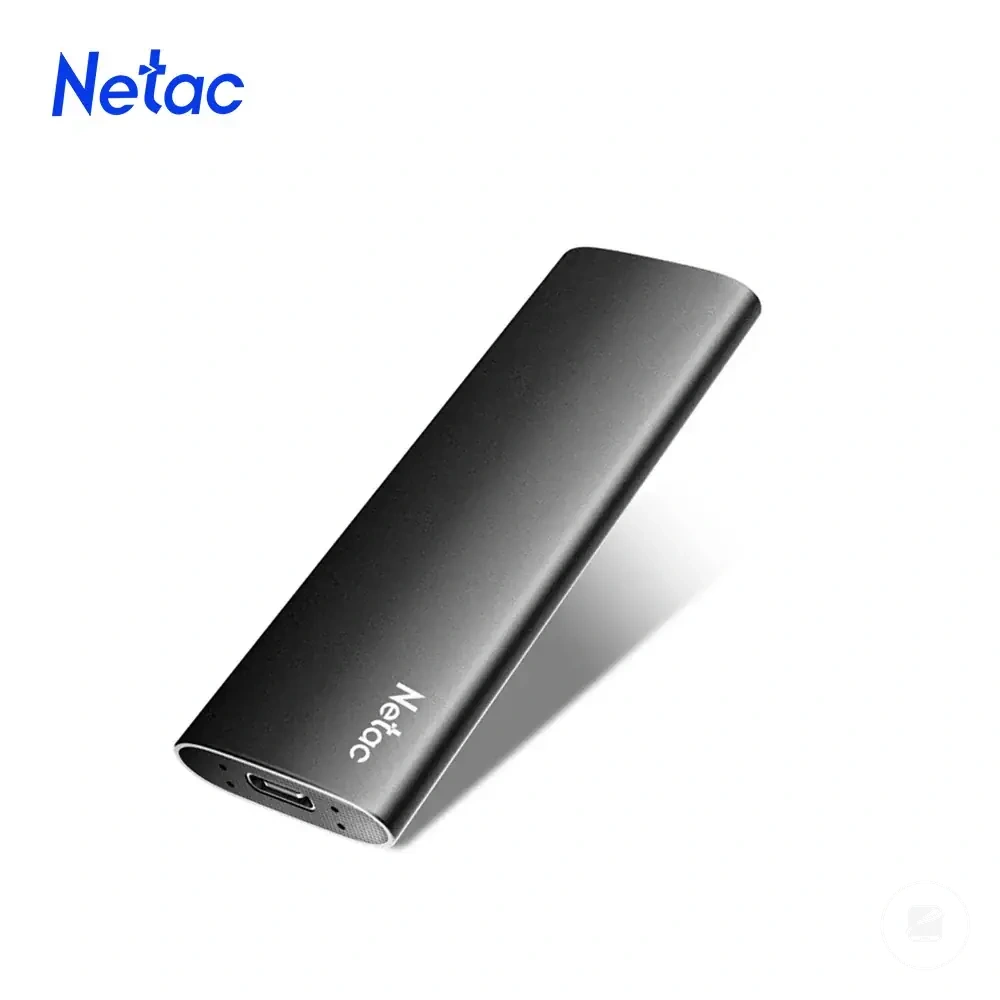
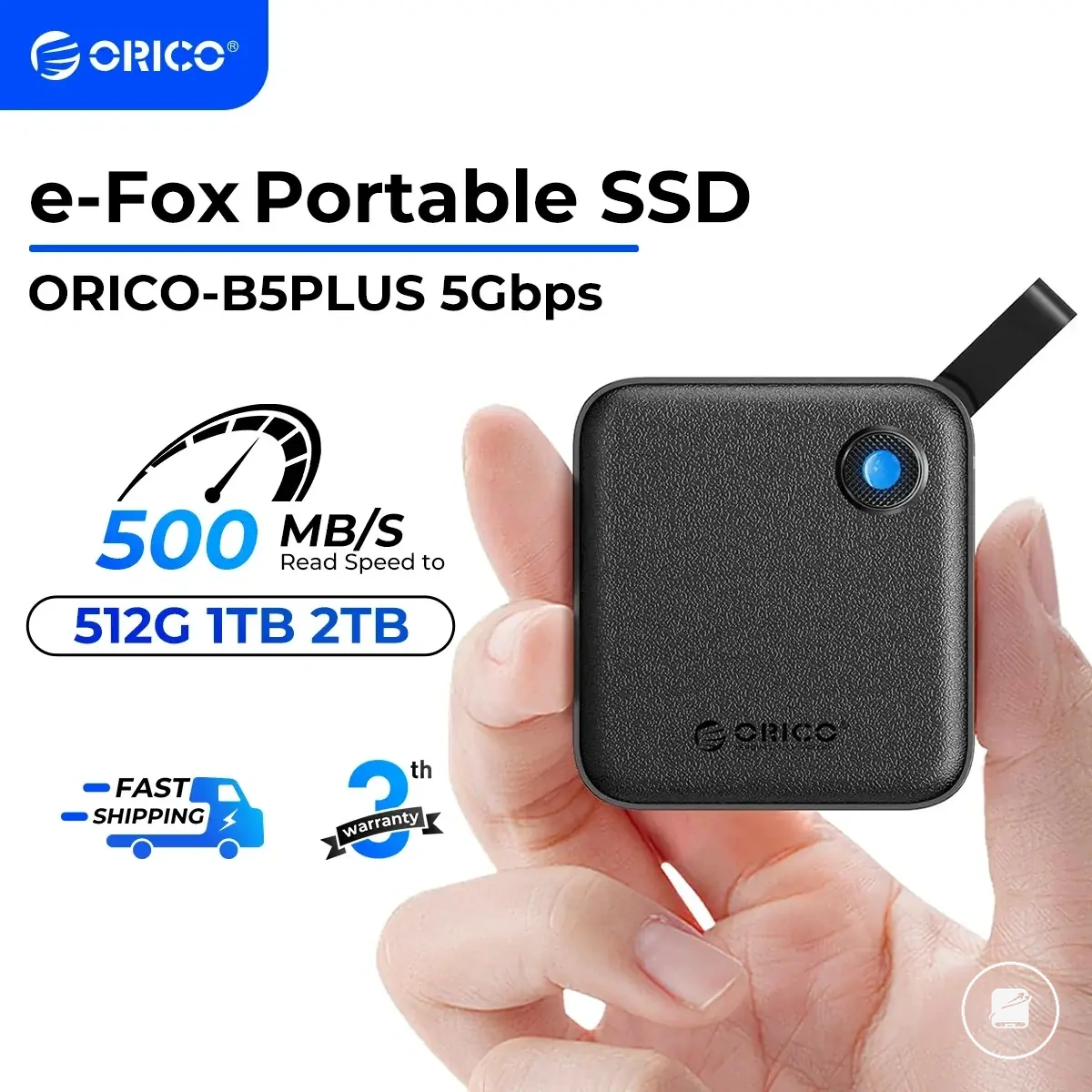
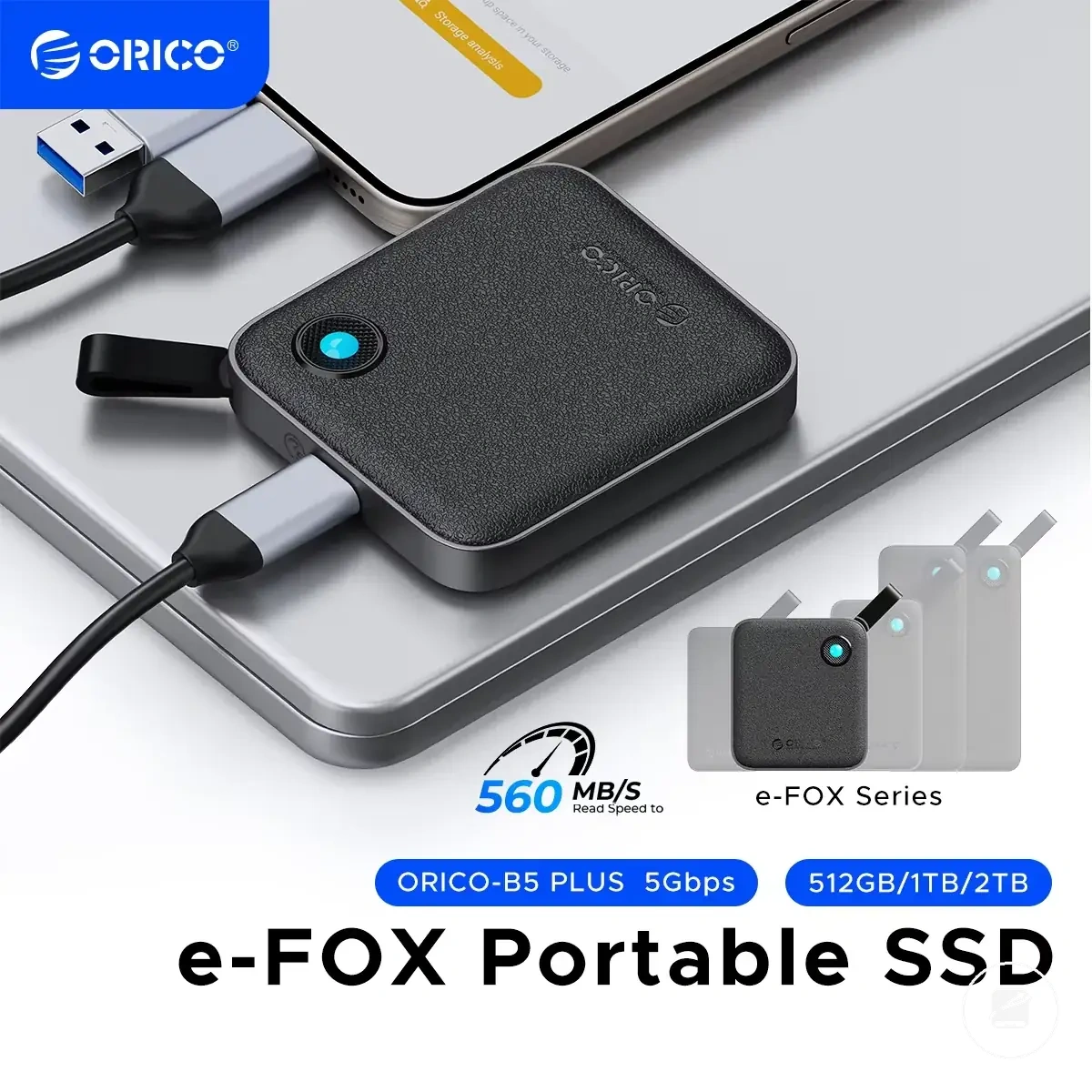
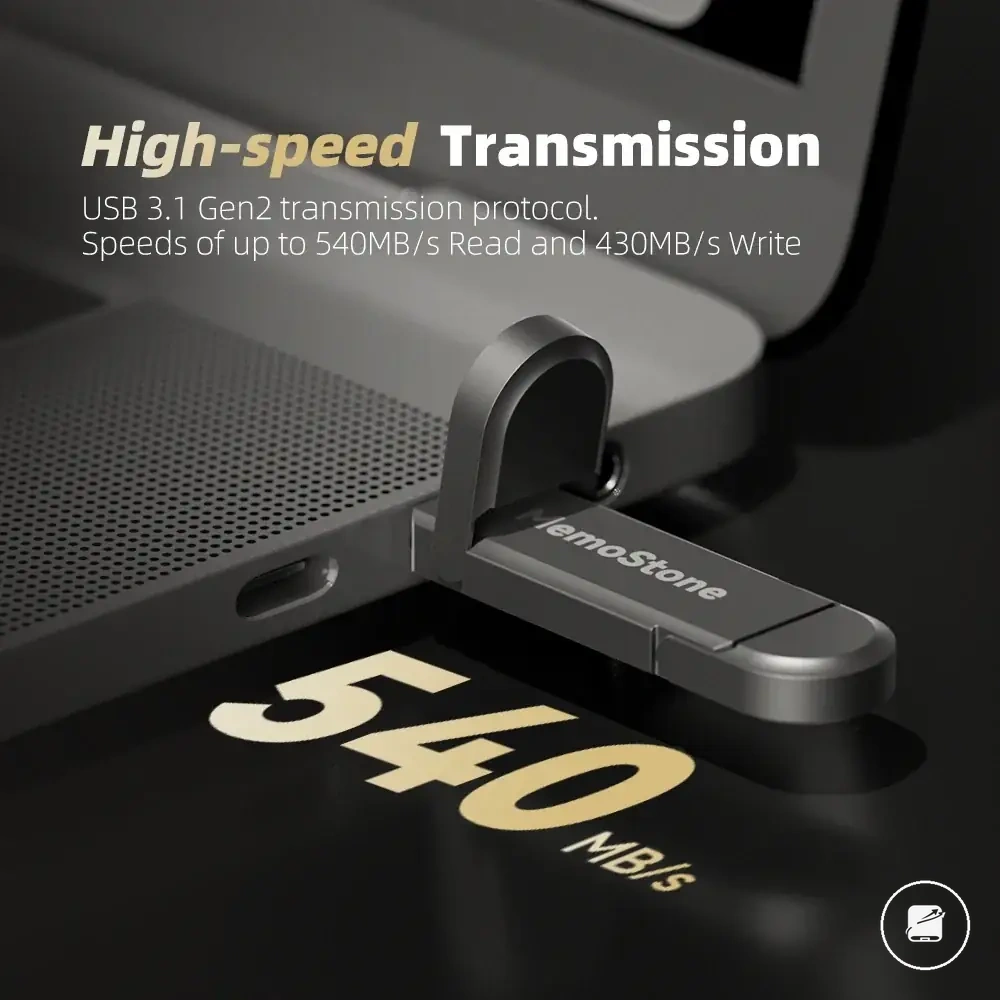
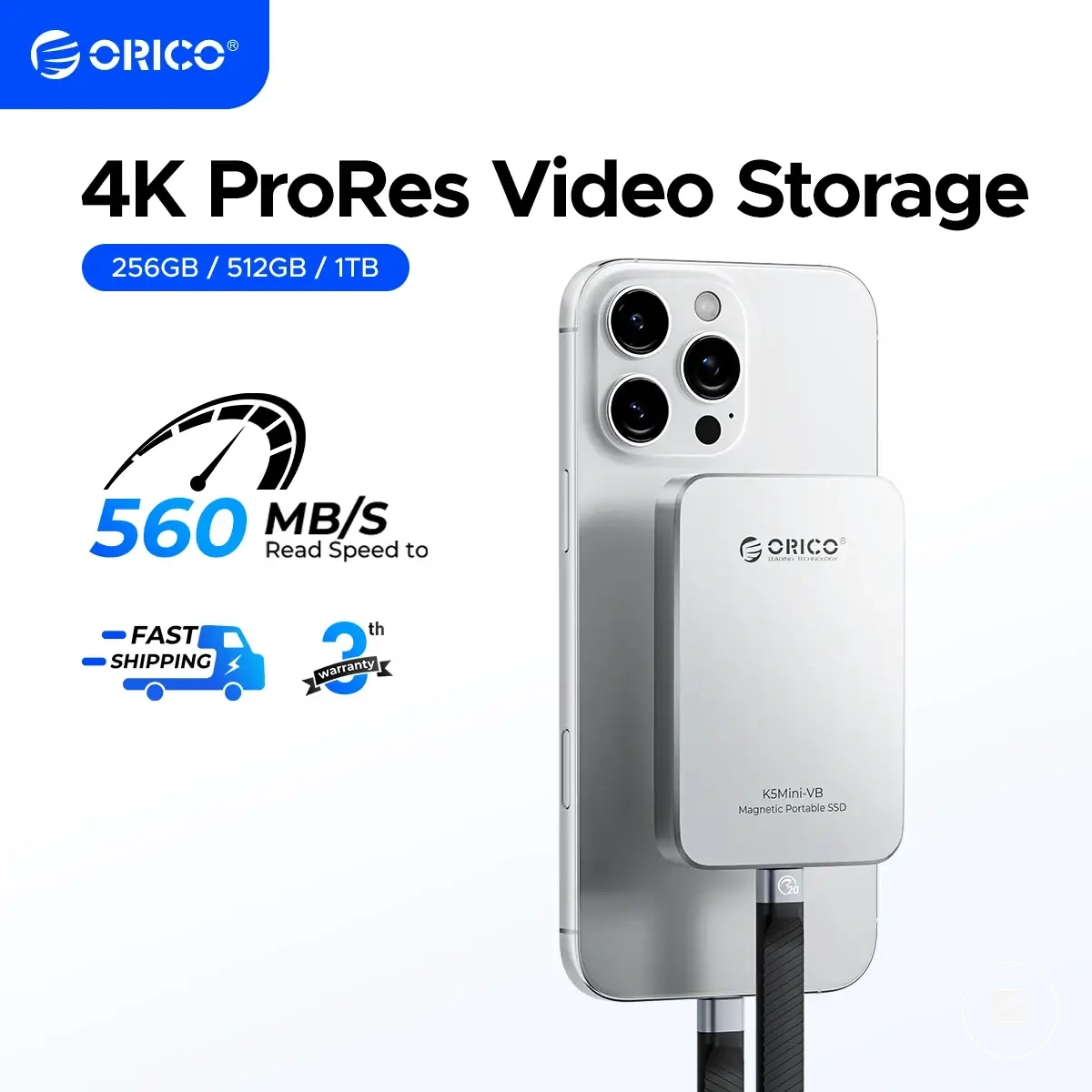
Here are product examples that may make comparison easier.
Here are product examples that may make comparison easier. Before buying, always review the compatibility criteria, essential features, and product details.
Backup, everyday files, and long-term storage fit
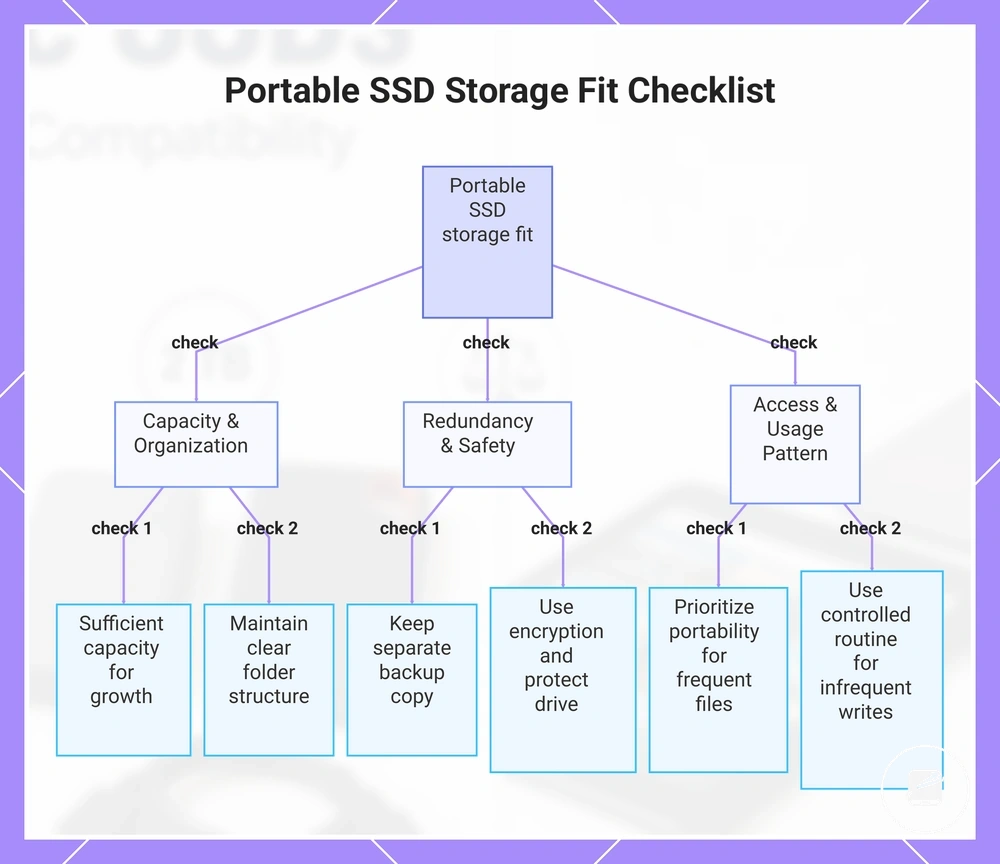
Backup use prioritises capacity, redundancy, and safety, while everyday files prioritise portability, file organization, and frequent access. Long-term storage places more weight on retention, low write frequency, and periodic access checks because a portable SSD should support the storage routine rather than serve as the only copy of important data. Match the drive behaviour to the risk and access pattern of each storage role.
Match the drive behaviour to the risk and access pattern of each storage role.
Use this local checklist to decide whether a portable SSD fits the intended storage routine. Each criterion links a practical need to a suitable drive behaviour or caution.
- Capacity: Choose enough usable capacity for the current file set and expected growth without treating unused space as a substitute for file organization.
- Redundancy: Keep important data on at least one separate storage location because a single portable SSD remains a single point of failure.
- File organization: Use clear folders, consistent names, and dated backup sets so everyday files and retained copies remain identifiable.
- Access and write frequency: Prioritise portability and convenient access for frequently used files, but use a controlled storage routine for long-term storage that receives infrequent writes.
- Security and safety: Use supported encryption for sensitive files and protect the drive from loss, unauthorised access, and physical damage during travel or storage.
Use portable SSDs for backup when the drive will hold scheduled copies or provide portable recovery access within a wider backup routine. A portable SSD can support backups, but redundancy still requires another independent copy of important data.
This checklist helps you decide if a portable SSD fits your backup, everyday, or long-term storage routine.
This checklist helps you decide if a portable SSD fits your backup, everyday, or long-term storage routine.
Travel, video editing, gaming, and security fit
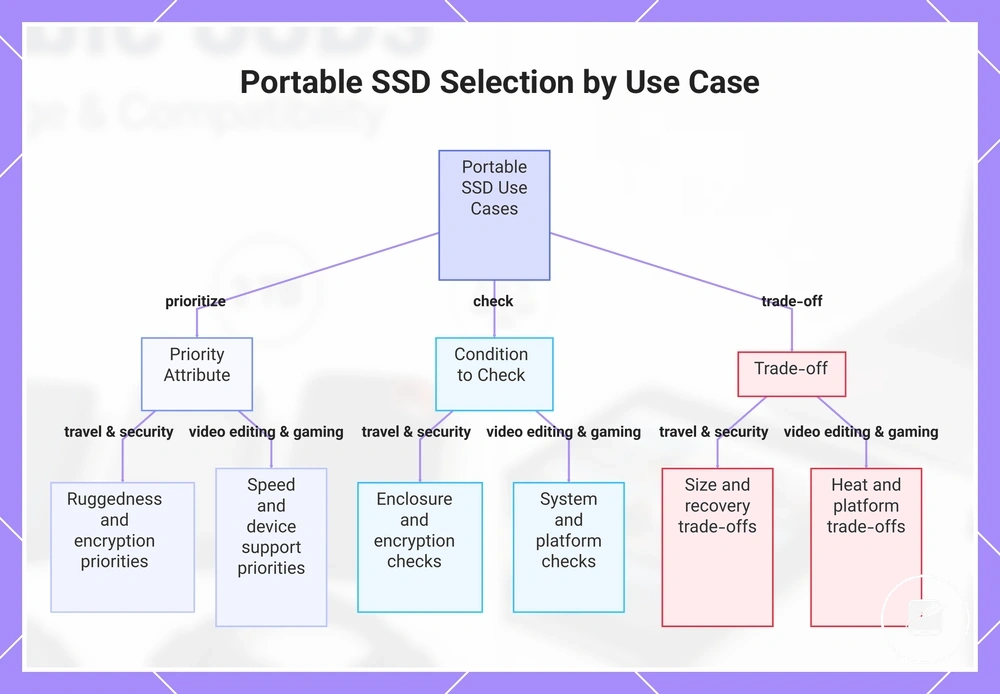
Travel, video editing, gaming, and security place different demands on a portable SSD, so each use case changes the priority given to speed, ruggedness, heat behaviour, capacity, and security. Larger files, longer transfers, frequent movement, and sensitive data increase the importance of bandwidth, durability, device support, and encryption. Prioritise the attribute that controls the main workload risk instead of treating every feature as equally important.
Prioritise the attribute that controls the main workload risk instead of treating every feature as equally important.
Use the grouped selection points below to match each scenario with its priority attribute, the condition to check, and the main trade-off.
- Travel: Prioritise ruggedness, compact portability, and a secure cable connection. Check that the enclosure, connector, and cable suit repeated mobile use. The trade-off is that stronger physical protection can increase size, weight, or cost.
- Video editing: Prioritise sustained speed, enough capacity for active media files, and stable heat behaviour. Check that the computer, port, cable, and file system support the intended media workflow because the slowest part of that chain limits transfer performance. The trade-off is that higher sustained workloads can produce more heat and reduce portability through larger enclosures or cooling features.
- Gaming: Prioritise device support, compatible external storage behaviour, and enough capacity for the intended game library. Check whether the target computer or gaming device permits external game storage for installation, transfer, or play because support differs by platform and use mode. The trade-off is that a fast SSD cannot override platform restrictions or unsupported game-loading rules.
- Security: Prioritise encryption, password-controlled access, and protection against loss or unauthorised use. Check whether the drive provides the required hardware or software encryption method and whether the supported device can manage it. The trade-off is that stronger access controls add setup and recovery responsibilities, including secure handling of passwords or recovery credentials.
This chart groups the four main use cases into two categories and shows the priority attribute, condition to check, and main trade-off for each group.
Price, capacity, and performance balance
Value comes from balancing useful capacity, usable performance, build quality, feature set, and price rather than choosing the lowest cost alone. A portable SSD offers stronger value when its storage tier and speed class match the expected use without paying for features that the workload cannot use. The cost-value decision should therefore favour practical fit over maximum specification.
The cost-value decision should therefore favour practical fit over maximum specification.
Capacity determines how much data the drive can hold, while speed class determines the level of performance available when the connected device, port, cable, and file system support it. A higher speed class improves value for sustained or transfer-heavy workloads, but adds cost without benefit when the system cannot use the extra bandwidth. A larger capacity reduces storage pressure, whereas unused capacity increases overbuying risk.
A larger capacity reduces storage pressure, whereas unused capacity increases overbuying risk.
The table compares each value factor by its practical role, the risk of ignoring it, and the decision cue that links it to expected use. Use these criteria to separate useful features from cost that does not improve the intended workload.
| Value factor | What to compare | Risk if ignored | Decision cue |
|---|---|---|---|
| Capacity tier | Available storage against current files and expected growth | Underbuying creates storage limits, while excess unused capacity increases cost | Select a tier that covers the expected use with reasonable room for growth |
| Speed class | Drive performance against the supported device, port, cable, and workload | Overbuying occurs when the connection cannot use the higher speed class | Choose usable speed rather than the highest stated performance |
| Durability | Build quality and protection against the actual handling and travel conditions | Insufficient protection raises damage risk, while unnecessary ruggedness raises cost | Match durability to the expected environment |
| Encryption | The required security level for ordinary files or sensitive data | Missing encryption increases access risk, while unused security features add cost and setup | Include encryption when secure storage is part of the expected use |
| Included cable | Connector type, cable support, and suitability for the intended device | An unsuitable cable can limit performance or require an additional purchase | Confirm that the included cable supports the intended connection |
Overbuying raises price without improving expected use, while underbuying can create capacity, performance, durability, or security limits. A balanced feature set provides better value when each added capability solves a defined workload or risk. Compare price against the useful capacity, usable performance, build quality, and features that the portable SSD will actually need.
Before buying, always review the compatibility criteria, essential features, and product details.
Here are product examples that may make comparison easier. Before buying, always review the compatibility criteria, essential features, and product details.
Basic setup, safe use, and care considerations
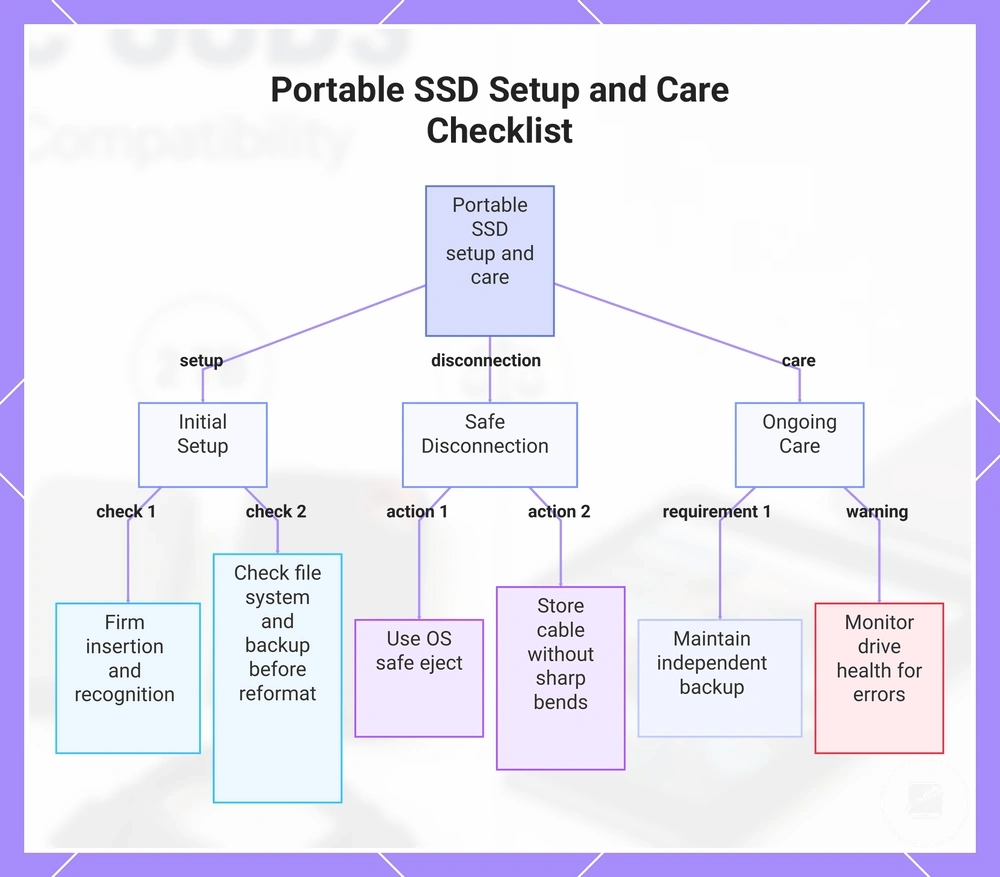
Basic setup begins with connecting the portable SSD through a supported port and cable, checking whether its current formatting suits the intended devices, and handling the connector without strain. Reformatting is appropriate only when the existing file system does not support the planned use, and Apple states that erasing and reformatting a storage device removes its existing files. These first-use checks reduce recognition problems and prevent avoidable data loss.
These first-use checks reduce recognition problems and prevent avoidable data loss.
Use this mini-checklist to keep safe use and routine care focused on connection stability, data safety, and drive health.
- Connection: Insert the cable firmly into a supported port and confirm recognition before starting a file transfer.
- Formatting: Check the current file system before changing it, and copy required files elsewhere before reformatting because the erase process removes existing data.
- Safe eject: Use the operating system's safe eject or removal control before disconnecting the drive; Microsoft recommends this step to reduce the risk of data loss from external storage.
- Cable storage: Remove the cable by its plug rather than the cord, then store it without sharp bends or pressure on the connectors.
- Heat: Keep the drive uncovered during sustained transfers and away from enclosed spaces or direct heat sources that trap heat around the enclosure.
- Backup: Keep important files on another independent storage location because a portable SSD should not be the only copy.
- Drive health: Treat repeated recognition failures, transfer errors, or unexpected disconnections as reasons to stop relying on the drive until the cable, port, file system, and device have been checked.
Safe eject does not replace a backup, and successful recognition does not confirm that every stored file is protected. For example, disconnecting the SSD during an active file transfer can leave the copied data incomplete, while recurring connection errors can indicate a cable, port, file-system, or drive health issue that requires checking before further use.
This chart shows the key steps and checks for safely setting up, using, and maintaining a portable SSD.
This chart shows the key steps and checks for safely setting up, using, and maintaining a portable SSD.
Formatting and first-time device recognition
If a portable SSD is not recognised during first-time setup, check the formatting, file system, cable, host device, and power conditions before treating the drive as faulty. Device recognition requires a readable partition, a supported file system, and a working connection, so verify these conditions first.
Use this diagnostic checklist to confirm the basic recognition conditions before moving to the next step.
Use this diagnostic checklist to confirm the basic recognition conditions before moving to the next step.
- Cable: Confirm that the cable is fully connected and supports data transfer rather than charging only.
- Port and power: Try another supported port or a powered connection when the current port does not maintain a stable link.
- Adapter: If an adapter is required, verify that it supports data transfer and the connector type used by the portable SSD.
- File system: Check whether the current file system is supported by the operating system attempting to mount the drive.
- Partition: Confirm that the drive contains an accessible partition because unallocated storage will not appear as a usable volume.
- Operating system prompt: Check for a prompt to initialise, format, or mount the drive before expecting it to appear in normal file storage.
If these basic checks do not restore recognition, continue with portable SSD not showing up for troubleshooting beyond the first-recognition boundary. For example, a drive that appears in the operating system's disk utility but not in the file manager points to a partition, mounting, or file-system condition rather than confirming hardware failure.
Storage cases, cables, heat, and drive health
During travel and everyday use, a portable SSD is less likely to develop avoidable transfer issues when handling includes physical protection, a suitable cable, limited heat exposure, and routine drive health checks. A storage case protects the enclosure during transport, while careful cable use and safe eject behaviour reduce connector strain and incomplete transfers. Treat these measures as practical care rather than a solution for every fault.
Use this compact checklist to support reliable day-to-day operation.
Use this compact checklist to support reliable day-to-day operation.
- Storage case: Keep the drive in a protective storage case during travel to reduce direct impact, scratches, and dust exposure.
- Cable quality: Use a cable with the connector type and data rating required by the portable SSD, and replace a cable that causes repeated disconnections or transfer issues.
- Connector strain: Hold the plug rather than the cord when disconnecting the cable, and avoid bending or pulling the connection while the drive is attached.
- Heat exposure: Keep the drive uncovered during sustained transfers and away from enclosed hot spaces because trapped heat can reduce operating stability.
- Safe eject: Use the operating system's safe eject control before unplugging the drive so pending writes can finish before the connection is removed.
- Drive health: Treat recurring recognition errors, unexpected disconnections, or file-transfer failures as a reason to check the cable, port, and drive health before continued use.