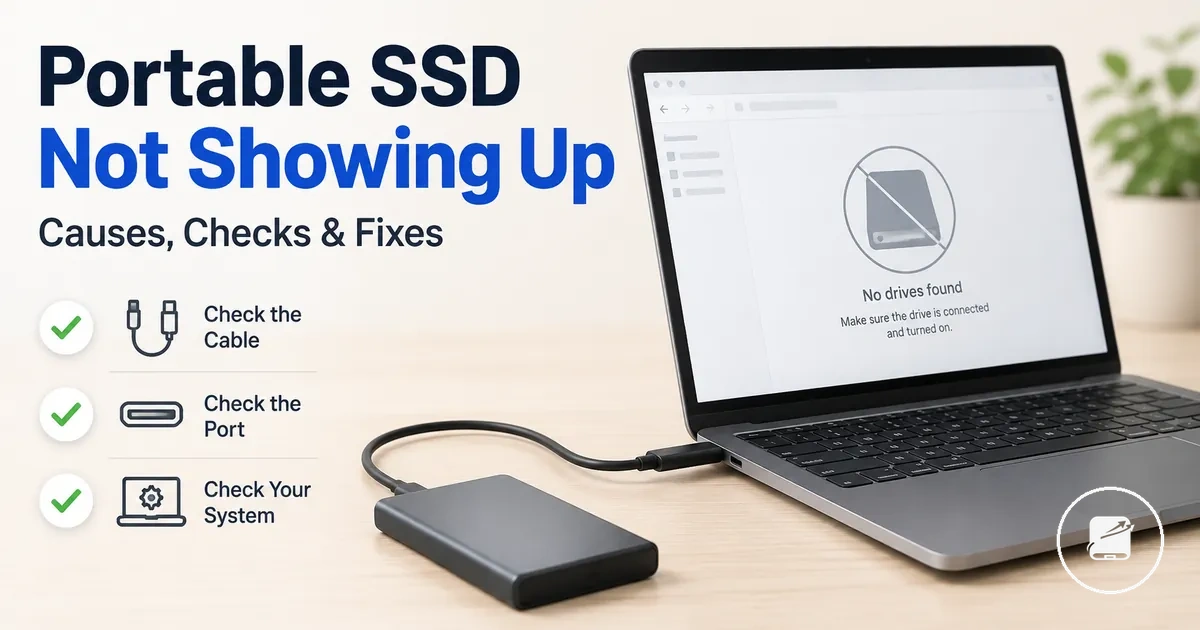
Portable SSD Not Showing Up
A portable SSD not showing up usually means the drive is either not detected through the connection path or is detected but not visible because of its mounting, partition, or file system state. Start by distinguishing whether the portable SSD appears in system utilities before considering any repair action. The main diagnostic paths involve the USB cable, USB port, adapter or hub, operating system, Disk Management or Disk Utility, the partition, the file system, and potential drive-health risk.
Start by distinguishing whether the portable SSD appears in system utilities before considering any repair action.
Check whether the portable SSD is visible in Windows Disk Management or macOS Disk Utility before responding to any formatting prompt. Microsoft documents Disk Management as the utility for viewing disks, partitions, and volume status, while Apple documents Disk Utility as the tool for viewing storage devices, mount status, and file systems. If the drive contains important files, formatting should be avoided until visibility has been confirmed and the potential need for data recovery has been considered.
Check whether the portable SSD is visible in Windows Disk Management or macOS Disk Utility before responding to any formatting prompt.
A portable SSD that is hidden from files is detected by the operating system but is not appearing in File Explorer or Finder because it may not have a mounted volume, an accessible partition, or a readable file system. In contrast, a portable SSD that is invisible to the system does not appear in Disk Management or Disk Utility, which shifts the diagnosis toward the connection path, USB cable, USB port, adapter, power, or hardware detection before examining the file system. For example, a drive listed in Disk Management without a drive letter is a different diagnostic case from a drive that does not appear there at all, and the next section follows that distinction.
Table of Contents
What Non-Detection Means for a Portable SSD
Non-detection means a portable SSD is connected but unavailable, or only partly visible to the operating system. What non-detection means for a portable SSD depends on where the drive remains visible, and the illustration below distinguishes partial visibility from full non-detection. The key contrast is between a drive that is visible in utilities but missing from files and a drive that is not visible anywhere.
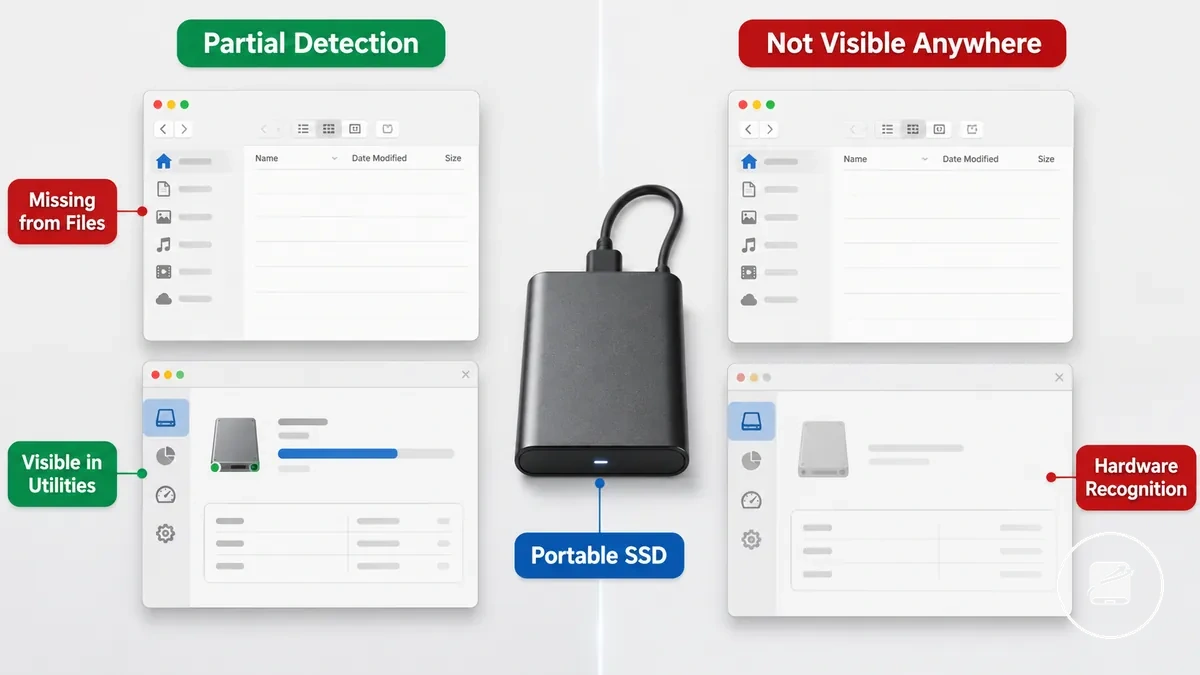
A portable SSD that is visible in utilities has hardware recognition, but its volume is unavailable in the file browser because the mounting, partition, or file system state is preventing normal access. A portable SSD that is not visible anywhere has no confirmed utility-level recognition, so the issue is broader than a file-browser display or mounting problem. This difference separates file-browser visibility from utility-level visibility without treating every missing drive as a hardware failure.
| Visibility state | What it usually means |
|---|---|
| Visible in utilities but missing from files | The system detects the portable SSD, but the mounted-volume, partition, or file-system state is preventing access through the file browser. |
| Not visible anywhere | The system has not confirmed hardware recognition, placing the condition beyond a simple mounting or display problem and closer to a hardware or data-risk boundary. |
Visible in System Tools but Missing from Files
Visible in system tools but missing from files means the portable SSD is detected by the operating system, but its storage is not available through the normal file browser. The image below illustrates the difference between detected hardware and accessible storage, because detection does not always mean the volume is readable or mounted.
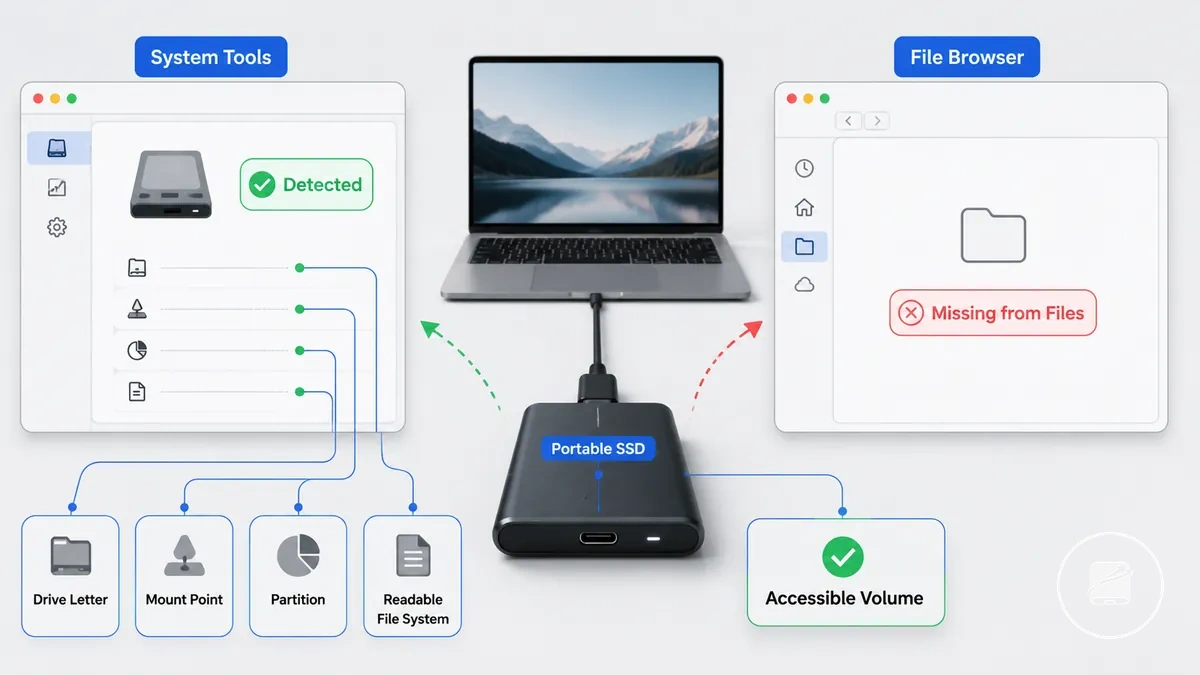
The checklist below verifies why a detected SSD can still be missing from files.
- Check whether a drive letter or mount point is assigned so the volume can appear in the file browser.
- Confirm the volume is mounted rather than detected but inactive.
- Verify the partition is present and recognised by system tools.
- Check whether the file system is readable, because an unreadable file system can leave detected hardware inaccessible as storage.
- For example, a portable SSD with a recognised volume but no assigned drive letter can appear in system tools while remaining absent from the file browser until the volume becomes accessible.
Not Visible in System Tools at All
If a portable SSD is not visible in system tools at all, the computer has not recognized the device at the hardware level. This is a stronger non-detection state than a drive that appears in system tools but is inaccessible, so the most likely diagnostic branch is the connection path or device recognition rather than file access. The image below identifies the connection points that can prevent recognition.
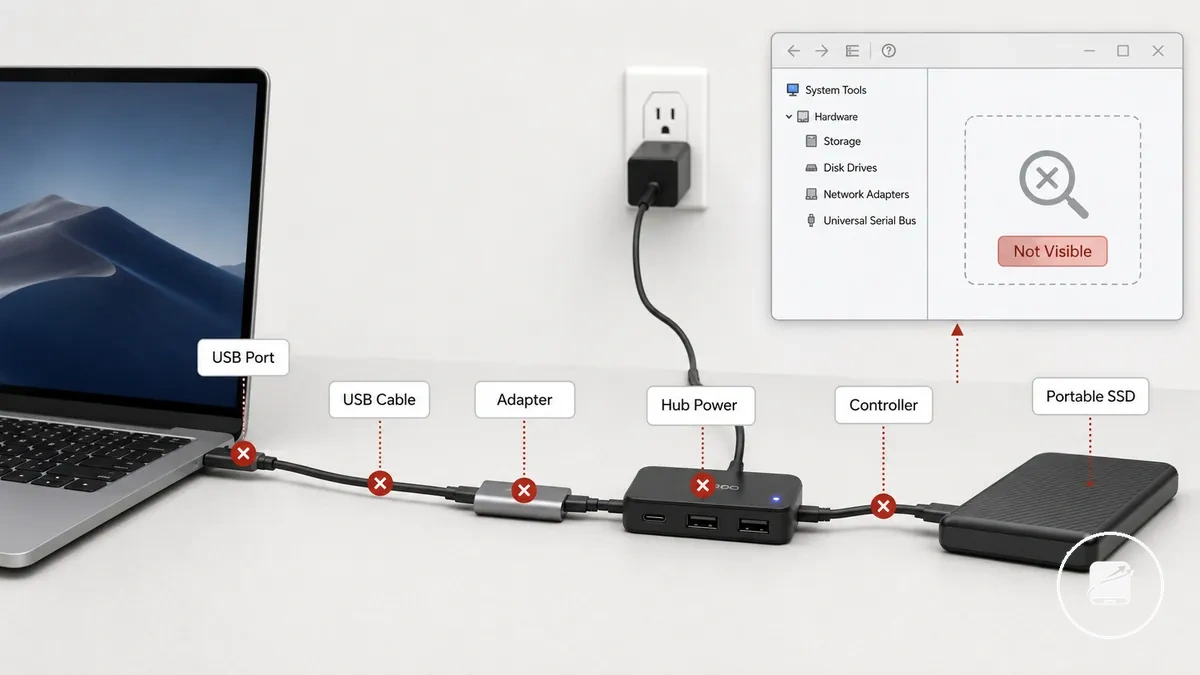
A faulty cable, an unresponsive USB port, an incompatible or unstable adapter, insufficient hub power, an enclosure problem, or a controller issue can each prevent device recognition in system tools. For example, if the SSD briefly appears and then disconnects, the intermittent connection increases data risk but does not confirm enclosure or controller failure, so repeated recognition testing is needed before drawing a conclusion.
The absence of the SSD from system tools raises the diagnostic risk because the operating system has not established device recognition.
The absence of the SSD from system tools raises the diagnostic risk because the operating system has not established device recognition.
Likely Causes of a Portable SSD Not Being Detected
A portable SSD that is not detected usually falls into three diagnostic categories: the physical connection path, device recognition by the operating system, or the storage state of the drive. Grouping the likely causes by category helps identify the correct diagnostic branch without implying that one solution fits every case. The image below organizes these causes into physical connection, recognition, and storage-state conditions.
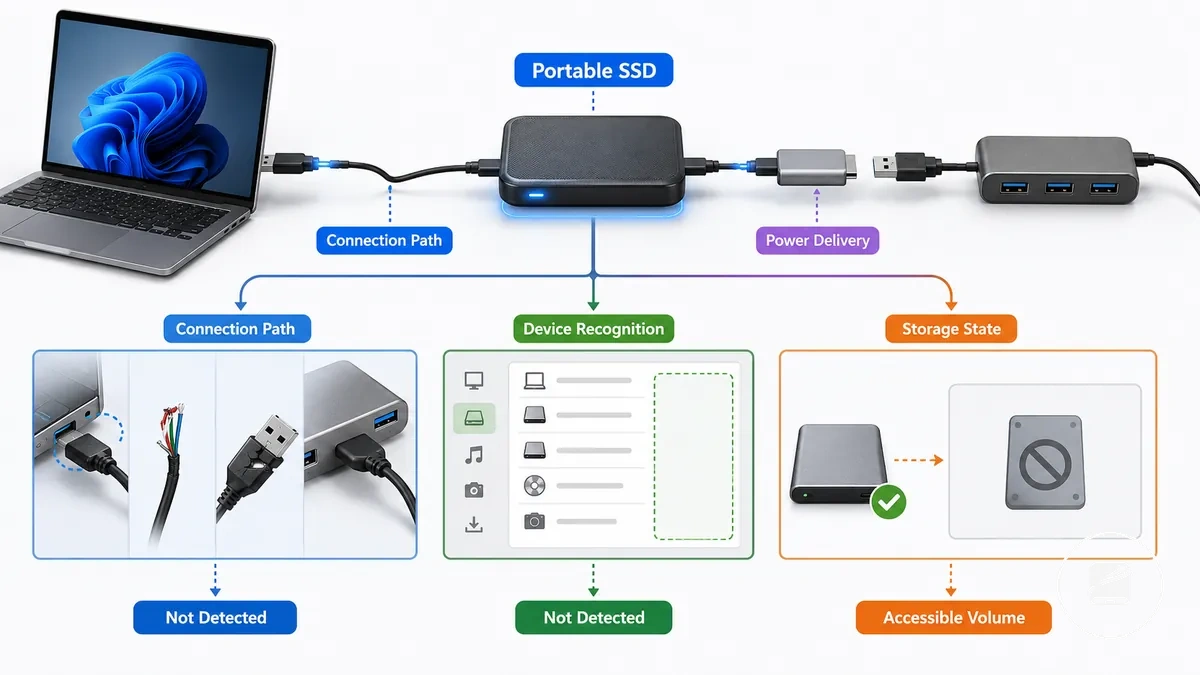
- Physical connection: A cable, USB port, adapter, or hub can interrupt the connection path, leaving the portable SSD not detected. Check whether reconnecting through a known-working connection changes the detection state before assuming a hardware fault.
- Power delivery: Insufficient power delivery can prevent the portable SSD from completing initialization, especially when a low-power hub or unstable adapter is part of the connection path. Testing a direct connection to a suitable USB port helps distinguish a power issue from another cause.
- Device recognition: If the operating system does not recognize the portable SSD, the device may remain absent from system tools even though it is physically connected. This symptom points toward the recognition branch rather than normal file access.
- Storage state: A partition, file system, or mounting status problem can leave the portable SSD recognized by the operating system but without an accessible volume. For example, a drive may appear in storage management utilities while remaining unavailable in the file manager because the partition or mounting state requires attention.
- Symptom routing: Match the observed symptom to its cause class before attempting a solution. A drive that is completely absent suggests checking the connection path or device recognition first, while a recognized drive without an accessible volume points toward the storage state.
Physical connection causes stop communication between the portable SSD and the operating system, whereas software visibility causes occur after the hardware has already been recognized. This distinction helps route troubleshooting toward the correct cause class instead of repeating unrelated checks. For connector and hardware matching details beyond this diagnostic overview, see port and device compatibility.
Cable, port, adapter, and hub faults
The connection chain is compatible when every component supports stable data communication from the portable SSD to the computer. A mismatch in connector fit, cable data support, port standard, adapter compatibility, hub power, or connection stability can interrupt detection even though the drive is physically connected. Test the cable first because it is the earliest point in the connection chain where data communication commonly fails.
- Cable: A USB cable should support both power and data. A charge-only cable can power the portable SSD while preventing the operating system from detecting it.
- Port: A USB port should provide a stable data connection. If the portable SSD is detected through another port, the original port or its connection stability is the more likely cause.
- Adapter: A USB-C adapter should maintain connector fit and uninterrupted data communication. An incompatible adapter can interrupt the data path even when the connectors fit correctly.
- Hub: A hub should provide sufficient power and a stable data path. If the drive is detected through a direct connection but not through the hub, the hub is the more likely point of interruption.
- Connection stability: Repeated connection and disconnection usually indicates an unstable connection chain rather than a storage-state problem. Check each component individually to identify which part introduces the interruption.
For example, a portable SSD connected with a charge-only USB cable may receive power while remaining undetected because the cable does not carry data. Likewise, an underpowered hub can interrupt device detection, whereas connecting the same drive directly to a compatible USB port helps determine whether the hub is causing the symptom.
Power delivery and device recognition limits
Power delivery and device recognition are compatible when the host device, USB port, SSD controller, and operating system complete both power initialization and the device handshake successfully. If either sufficient power delivery or the recognition process fails, the portable SSD can appear intermittently or remain undetected even though it is physically connected. When detection changes between devices or connection methods, investigate power delivery and device recognition before assuming the portable SSD has failed.
When detection changes between devices or connection methods, investigate power delivery and device recognition before assuming the portable SSD has failed.
Check these conditions to identify the recognition limit:
- Host device: If the portable SSD is detected on one host device but not another, the original device is the more likely source of the recognition limit.
- USB port or hub: If a direct USB port detects the drive but a low-power hub does not, the hub is more likely limiting stable power delivery or the device handshake.
- SSD controller: If the SSD controller does not complete initialization, the operating system can leave the drive undetected even though power is present.
- Operating system: If the operating system does not complete device recognition after the handshake, intermittent detection can occur until the recognition process succeeds.
For example, a tablet, an older laptop, or a low-power hub can detect the same portable SSD inconsistently because the available power delivery or device recognition process is not completed under that connection condition. Connecting the drive directly to another compatible host device helps distinguish a power or recognition limit from a storage-device fault.
Partition, file system, and mounting problems
A portable SSD can be detected by the operating system but remain unusable when its partition, file system, or mounting status prevents access to the storage volume. In this state, the hardware is recognised while the volume is unreadable, unsupported, or unmounted. Distinguish detected hardware from a usable volume before making changes.
Distinguish detected hardware from a usable volume before making changes.
The table separates partition, file system, and mounting problems by their likely meaning and the safest next check.
| Condition | What it can mean | Safe next check |
|---|---|---|
| Partition | No accessible partition or storage volume is present. | Confirm that the operating system shows an existing partition before changing the volume structure. |
| File system | The file system is unsupported or the SSD appears as a corrupted volume, so it is not readable. | Check whether the operating system identifies a supported readable file system before accepting a formatting prompt. |
| Mounting | The volume is unmounted or has no drive letter or mount point, which prevents normal file access. | Verify that the volume has an assigned drive letter or mount point. |
For example, an SSD may appear in a storage-management utility but not in the expected file location when its volume has no drive letter or mount point. A formatting prompt can indicate an unsupported file system or corrupted volume, but it does not prove that formatting is the correct next step. When files matter, formatting belongs to a separate data-risk decision because it can alter the volume and affect recovery options; review the file system and formatting checks before proceeding.
Safe checks before formatting or repairing the drive
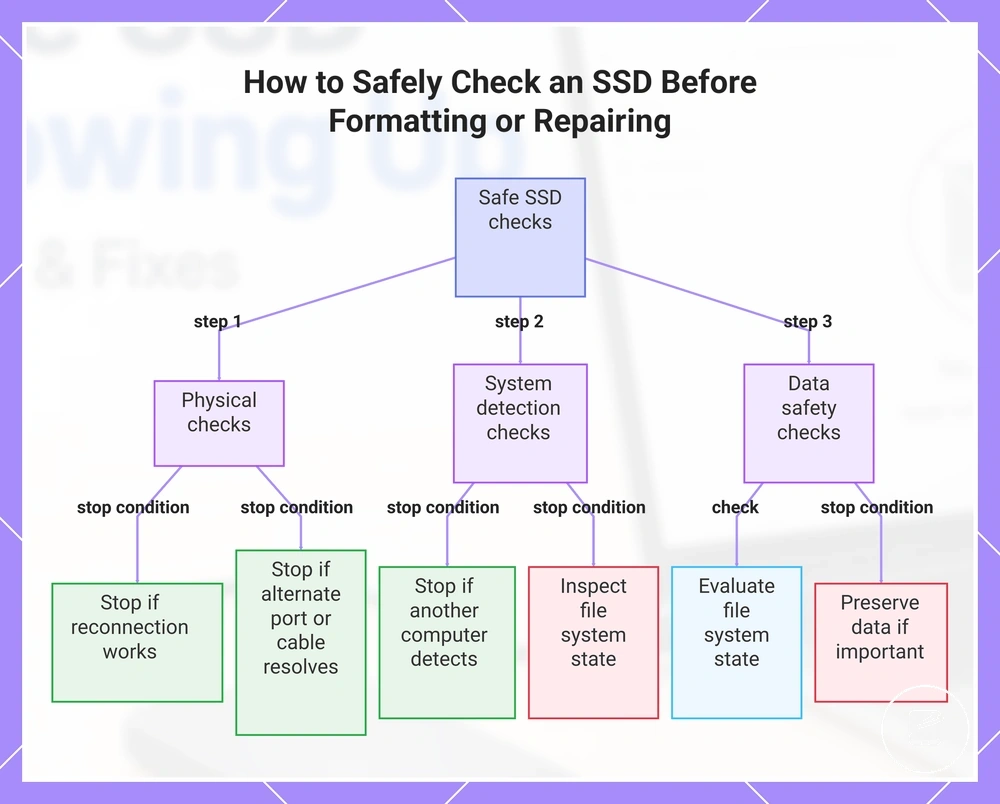
Confirm the SSD's detection conditions before formatting or repairing the drive because low-risk checks should always precede changes that could affect stored data. Start with the physical connection, then verify detection through alternate hardware before assessing the file system state. The safest order is connection, alternate port, alternate cable, another computer, system utilities, file system state, and data importance.
Continue only when the result of the current check justifies moving to the next one.
Follow the checklist below because each safe check reduces destructive risk and determines the appropriate next action. Continue only when the result of the current check justifies moving to the next one.
- Check the connection: Confirm the SSD is securely connected. If reconnecting restores detection, no repair attempt is required.
- Try an alternate port: If the SSD works on another port, investigate the original port instead of changing the drive.
- Use an alternate cable: If detection becomes stable with an alternate cable, replace the cable rather than repairing or formatting the SSD.
- Test on another computer: If another computer detects the SSD, focus on the original computer's configuration. If neither computer detects it, avoid formatting because the detection conditions are still unresolved.
- Check system utilities: If system utilities detect the SSD but normal file access is unavailable, inspect the file system state before considering any repair attempt.
- Evaluate file system state and data importance: If the drive shows a formatting prompt, an unreadable volume, or intermittent behavior, stop before making changes when the stored data is important because formatting or repairing could increase data risk.
For example, an SSD that appears in system utilities on another computer but not through normal file access is a signal to verify the file system state before taking any destructive action. When important files are involved or the SSD behaves intermittently, the correct stop condition is to preserve the current state instead of proceeding with formatting or repair.
This chart shows the sequential safe checks to perform before formatting or repairing an SSD, with the stop conditions that prevent unnecessary data loss or damage.
This chart shows the sequential safe checks to perform before formatting or repairing an SSD, with the stop conditions that prevent unnecessary data loss or damage.
Test the cable and USB port first
If the portable SSD is not detected, test the cable and USB port before changing the drive because connection problems are lower-risk to verify than formatting or repairing the SSD. Begin with the cable's data capability and connector seating, then complete a low-risk cross-test using an alternate cable or alternate port.
Connection checks come before software changes because they can identify faults without modifying the SSD.
Connection checks come before software changes because they can identify faults without modifying the SSD.
- Check the cable's data capability: Confirm the USB cable supports both power and data transfer. If the SSD powers on but is not detected, continue with a cross-test because the cable may not carry data.
- Verify connector seating: Disconnect and reconnect both ends of the cable until each connector is fully seated. If detection returns, the likely cause was an incomplete connection.
- Use a direct USB port: Connect the SSD directly to a USB port and inspect the port for visible damage or debris. If the SSD is detected through the direct port, the previous connection path is the likely source of the problem.
- Cross-test with an alternate cable or alternate port: If detection succeeds after changing only the cable or USB port, the original component is the likely cause. If there is no change, continue with the next diagnostic step instead of replacing hardware immediately.
For example, a charge-only USB-C cable can supply enough power for an SSD's indicator light to turn on while providing no data capability, so the operating system does not detect the drive. Recognizing this pattern helps identify a cable issue before investigating software or drive-related causes.
Check the SSD on another computer
Checking the SSD on another computer is an isolation test that helps distinguish computer-side issues from SSD-side issues. Compare the operating system response and the SSD's visibility status on the original computer and a second computer before changing settings or the drive. This comparison isolates whether the detection pattern is limited to one computer or appears across multiple systems.
This comparison isolates whether the detection pattern is limited to one computer or appears across multiple systems.
This test separates host-side and drive-side signals without confirming that file system or compatibility issues have been resolved.
- Connect the SSD to another computer: Observe whether the second computer detects the SSD during its normal operating system response. Result: If the SSD is visible only on the second computer, the evidence points to a possible device-specific issue affecting the original computer.
- Compare the visibility status: Check whether the SSD appears on both computers or whether repeated non-detection occurs. Result: If repeated non-detection occurs on both systems, the pattern is more consistent with a drive-wide issue or another condition that requires further investigation before making changes.
- Use the comparison to guide the next step: Base further troubleshooting on the difference between the two results rather than assuming the cause has been confirmed. Result: Detection on a second computer does not fully rule out file system or compatibility issues, while repeated non-detection provides a clear stop condition for broader diagnosis.
For example, if the SSD appears on a second computer but remains undetected on the original computer, the comparison suggests a device-specific issue. If the SSD remains undetected on both computers, the repeated non-detection pattern indicates that the problem is not limited to a single host.
Confirm whether the drive appears in system utilities
Checking whether the SSD appears in system utilities is the diagnostic checkpoint that determines the next troubleshooting branch. If the drive is visible at the utility level, continue with file access or mounting checks instead of connection diagnosis. If it is not visible, focus on connection detection before moving to operating system-specific repair steps.
Use the following checklist to confirm utility-level visibility and gather evidence before making changes.
Use the following checklist to confirm utility-level visibility and gather evidence before making changes.
- Disk Management (Windows): Confirm whether the SSD is listed and review its volume status. If the drive is visible but unreadable and the data is important, do not format or initialize it.
- Device Manager (Windows): Check whether the SSD is detected as storage hardware. If it appears here but not as a usable volume, treat that difference as an evidence signal rather than a reason to repair the drive.
- Disk Utility (Mac): Verify whether the SSD is listed and inspect its volume status. If the storage is visible but unreadable, do not erase the drive from this checkpoint.
- Storage utilities and error prompts: Record whether the SSD is visible, unreadable, or accompanied by error prompts. A visible drive points toward the next branch of file access or mounting, while a drive that is not listed in system utilities indicates that connection diagnosis should continue.
For example, if Disk Utility or Disk Management lists the SSD but the files cannot be opened, utility-level visibility indicates that the operating system has detected the drive, so the next step is non-destructive file access or mounting diagnostics rather than reformatting.
Windows fixes for a portable SSD not showing up
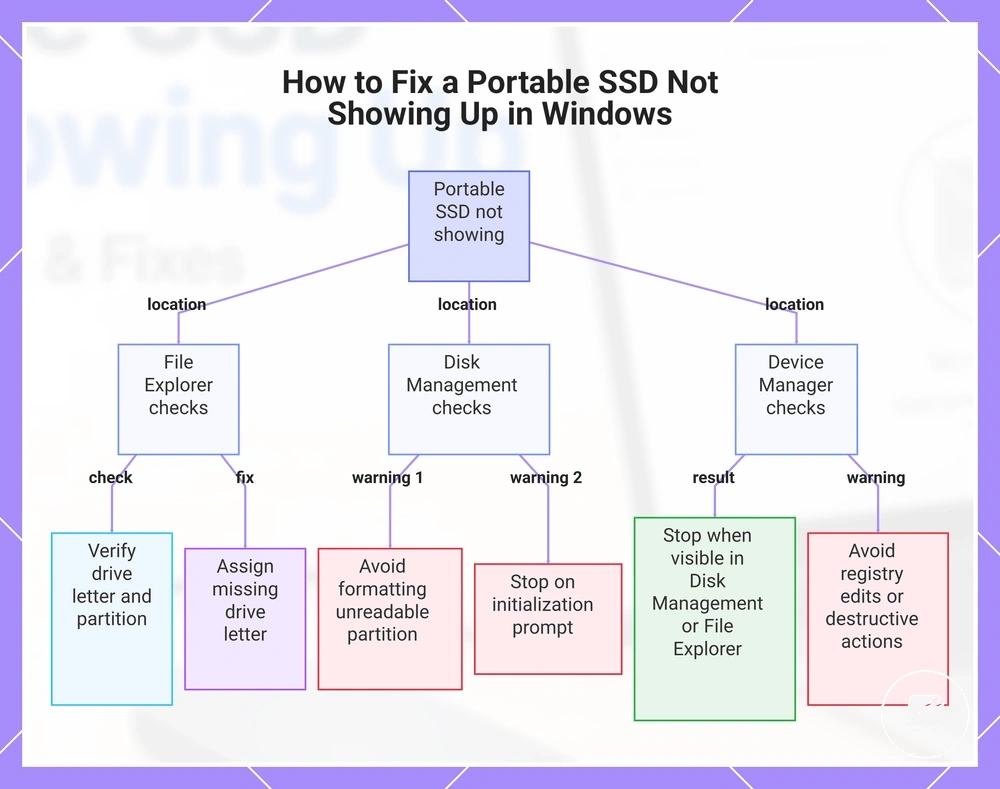
Windows fixes depend on whether the portable SSD is missing from File Explorer, Disk Management, or Device Manager. Identify where the SSD is visible before choosing a fix because each Windows visibility location leads to a different troubleshooting path. Start by confirming whether the drive appears in File Explorer, Disk Management, or Device Manager.
Assign an available drive letter if none is present, then stop if the SSD becomes accessible.
File Explorer checks: If the SSD is listed in Disk Management but not in File Explorer, verify that the volume has an assigned drive letter and is marked as a visible partition. Assign an available drive letter if none is present, then stop if the SSD becomes accessible. If the drive appears normally after the assigned letter is added, no further Windows-specific action is required.
If the drive appears normally after the assigned letter is added, no further Windows-specific action is required.
Disk Management checks: If the SSD is visible in Disk Management, review its initialization status and partition visibility before making changes. If the partition is visible but unreadable, avoid formatting because it increases data-risk when important files are present. If Windows displays an initialization or formatting prompt, stop and confirm whether the data must be preserved before continuing. For example, an SSD that appears in Disk Management but not in File Explorer commonly indicates a missing drive letter or a partition visibility issue rather than a failed USB connection.
If the partition is visible but unreadable, avoid formatting because it increases data-risk when important files are present.
Device Manager checks: If the SSD does not appear in Disk Management, check whether Device Manager recognizes the storage device. If it is recognized, verify that the drivers load correctly and that Windows storage services are operating before continuing with additional troubleshooting. Stop this branch when the SSD becomes visible in Disk Management or File Explorer, and avoid registry edits or destructive actions as an initial response.
Device Manager checks: If the SSD does not appear in Disk Management, check whether Device Manager recognizes the storage device.
This chart shows the troubleshooting path based on where the SSD is visible in Windows (File Explorer, Disk Management, or Device Manager).
File Explorer and drive letter issues
A drive letter gives a detected SSD an accessible file location in Windows so it can appear in File Explorer. If the SSD has a mounted volume but no assigned letter, it can remain hidden even though Windows recognizes it. Assigning a drive letter is different from formatting and does not erase or modify the existing data.
Assigning a drive letter is different from formatting and does not erase or modify the existing data.
Use these steps to restore file-location visibility:
- Check the assigned letter: If the mounted volume has no assigned letter, assign an available drive letter and then check whether it appears in File Explorer.
- Confirm the volume label: Verify that the volume label is present and that the mounted volume is listed with the assigned letter so it has an accessible file location.
- Interpret the result: If the SSD becomes visible after letter assignment, the issue was limited to file-location visibility. If it remains hidden, the cause is likely unrelated to the assigned letter, so do not format the drive because letter assignment and formatting are separate actions.
Disk Management detection and initialization issues
If a portable SSD appears in Disk Management but not in File Explorer, use the Disk Management status to determine the next safe action. Check whether the drive is shown as initialized, unallocated, unknown, offline, or no media because each disk status represents a different partition state and level of data value risk. Disk Management status should guide troubleshooting before any repair action.
Status interpretation reduces the risk of unnecessary data loss.
Interpret the status before responding to an initialization prompt because the same prompt has different implications depending on the drive's data value. A new blank drive can legitimately require initialization before first use, while a drive containing needed files should not be initialized or formatted as a default repair. For example, an unallocated SSD that has never stored data can be prepared for use, whereas an unallocated SSD that previously contained files should be assessed before creating a new partition. Status interpretation reduces the risk of unnecessary data loss.
| Disk Management status | What it may indicate | Safer next action |
|---|---|---|
| Initialized | The disk is detected with a usable partition state and potential volume readability. | Verify that the volume is readable before investigating other Windows visibility issues. |
| Unallocated | No usable partition state is present. | Confirm whether the SSD is a blank drive or contains needed files before creating a partition. |
| Unknown or Offline | Disk detection exists, but Windows cannot make the drive available for normal access. | Determine why the disk is unknown or offline before considering further changes. |
| No Media | Windows detects the storage device but not usable storage media. | Treat this as a recognition issue and stop partition-level changes until the hardware condition is confirmed. |
| Initialization prompt | Windows requests initialization before the disk can be prepared for use. | Proceed only when the SSD is confirmed to be a new blank drive with no required data value. Otherwise, avoid treating initialization as the default solution. |
Device Manager and storage service issues
If a portable SSD is not appearing as a usable disk, check Device Manager to confirm whether Windows recognizes the hardware before attempting further troubleshooting. Review the entries under USB controllers and disk drives because they show the device status, driver state, and warning indicators even when the storage service has not presented the SSD as a usable disk. Device recognition is the correct troubleshooting branch at this stage.
Device recognition is the correct troubleshooting branch at this stage.
Use these checks to interpret recognition evidence before making changes.
- Device Manager: Check whether the portable SSD appears under Disk drives. If it is listed without device warnings, Windows has detected the hardware even if it is not yet available as a usable disk.
- USB controllers: Expand Universal Serial Bus controllers and look for a warning icon or an unknown device. These observations indicate a recognition issue that requires further diagnosis but do not confirm a fault with the SSD itself.
- Driver state and hardware refresh: Review the reported driver state, then perform a hardware refresh by scanning for hardware changes. For example, if the SSD appears after the refresh, Windows has re-detected the device and normal troubleshooting can continue without advanced system changes.
- Storage service behavior: If device warnings persist or the SSD never appears under disk drives after reconnecting and refreshing the hardware, stop further troubleshooting because repeated hardware recognition errors increase the risk of unnecessary actions when important data must be preserved.
Mac fixes for a portable SSD not showing up
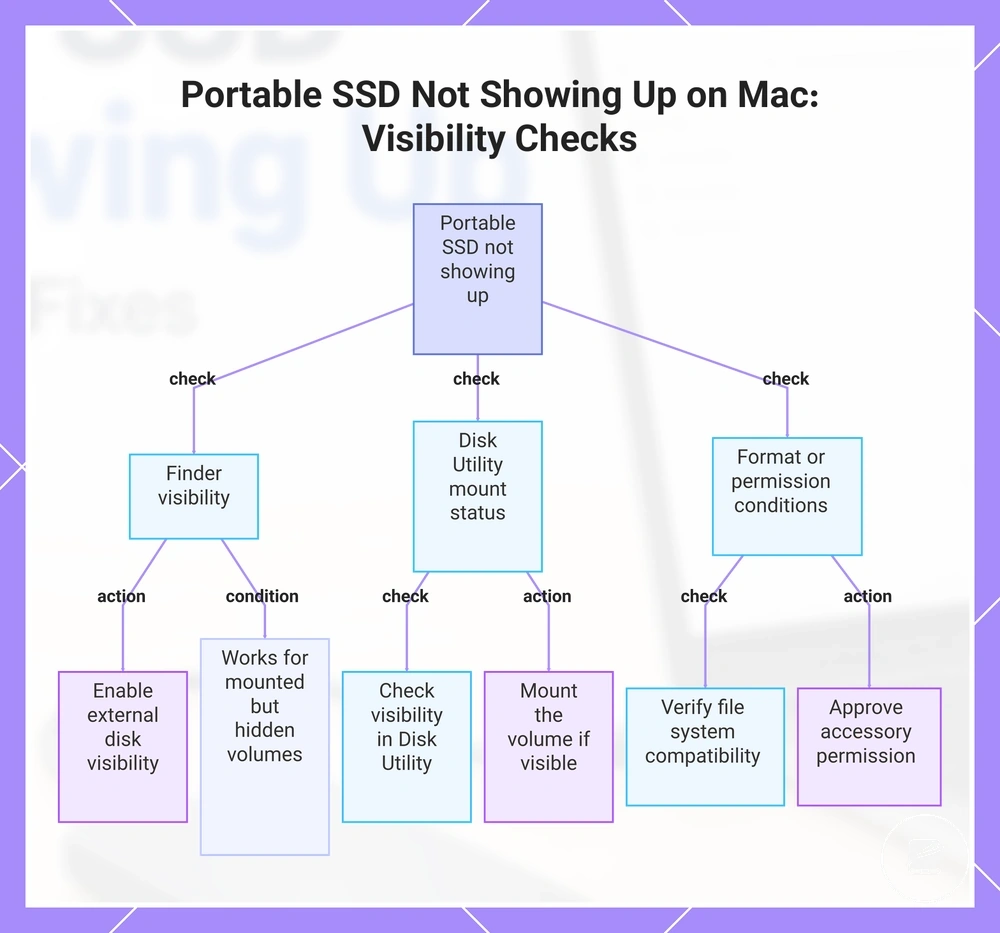
Mac fixes should begin by identifying whether the portable SSD is hidden in Finder, visible in Disk Utility, or blocked by file system support or an accessory permission condition. Each visibility state has a different action, so check where the SSD appears before changing any settings or considering formatting. This is the Mac visibility branch for troubleshooting a portable SSD that is not showing up.
This is the Mac visibility branch for troubleshooting a portable SSD that is not showing up.
Finder visibility: Open Finder settings and confirm that external disk visibility is enabled for both the desktop and the Finder sidebar. If the SSD is already a mounted volume but hidden in Finder, enabling these options can make it visible without changing the drive or its data.
If the volume appears, use the mount option before attempting other actions.
Disk Utility mount status: Open Disk Utility, select the option to show all devices if required, and check whether the SSD is visible even when it is not mounted. If the volume appears, use the mount option before attempting other actions. For example, if the mounted volume immediately becomes visible in Finder, the issue was related to visibility rather than hardware recognition.
Approve the accessory permission if requested, then reconnect the SSD if necessary.
Format or permission conditions: If the SSD mounts on Windows but not on Mac, check whether the file system is supported by macOS and whether an accessory permission prompt appears after connecting the drive. Approve the accessory permission if requested, then reconnect the SSD if necessary. Do not erase or reformat the drive until you have confirmed that its existing data is no longer required, because formatting changes the storage instead of diagnosing the visibility condition.
This chart shows the three visibility states to check when a portable SSD does not appear on a Mac, with specific actions for each condition.
This chart shows the three visibility states to check when a portable SSD does not appear on a Mac, with specific actions for each condition.
Finder visibility and external disk settings
If a portable SSD is hidden in Finder but already mounted on your Mac, the most likely cause is that Finder visibility settings are hiding its visible location rather than the drive being unavailable. Finder controls whether mounted external disks appear in the sidebar and on the desktop. A mounted volume becoming visible after changing these settings does not confirm that the file system or storage device is healthy.
Finder settings determine where a mounted volume is displayed.
Finder settings determine where a mounted volume is displayed. Check these items, then confirm whether the SSD appears in the expected visible location:
- Open Finder settings and enable external disks in the sidebar.
- Enable external disks for the desktop if you want mounted drives to appear there.
- Reconnect the SSD if needed, then verify that the mounted volume appears in the selected Finder location.
- For example, if the SSD appears in the Finder sidebar after enabling the setting, the issue was caused by display preferences rather than the drive being absent. The visible drive should still be treated as a mounted volume, not as proof that the file system is free of errors.
Disk Utility mounting and volume issues
If a portable SSD is detected by your Mac but is not accessible, check its state in Disk Utility before attempting other actions. A detected disk can appear as a physical disk, a container, or a volume, and only a mounted volume is normally available for use. Disk Utility clarifies the current device, container, and volume state.
Disk Utility clarifies the current device, container, and volume state.
Use Show All Devices to display every storage layer, then interpret the state before making changes. If the mount button is available for an unmounted volume, try mounting it first. For example, if the volume mounts successfully and becomes accessible, the issue was limited to mounting rather than device detection. A First Aid warning, a read-only volume, or an intermittently mounting volume indicates a condition that requires caution rather than a guaranteed repair. If Disk Utility offers to erase the SSD while important files are still needed, treat that as an erase risk and avoid erasing the drive until the data has been recovered or is no longer required.
| Disk Utility state | What it may mean | Safer next action |
|---|---|---|
| Physical disk detected | The Mac recognizes the storage device, but the accessible volume is not yet confirmed. | Enable Show All Devices and inspect the container and volume. |
| Container shown, volume unmounted | The storage structure exists, but the volume is not currently mounted. | Use the mount button and check whether the volume becomes accessible. |
| Read-only or intermittently mounting volume | The volume mounts with limited access or disconnects unexpectedly. | Avoid erasing the SSD if files are needed and investigate the condition before attempting further repair. |
macOS format and accessory permission issues
A portable SSD is locally compatible with macOS when the drive is physically recognized and its format is supported by the operating system, but physical recognition and file system support are separate conditions. APFS and exFAT provide native read and write support, while NTFS has readability limits because macOS normally reads NTFS volumes without native write capability. A recognized SSD can therefore remain inaccessible because of file system support even though the hardware connection is working.
A recognized SSD can therefore remain inaccessible because of file system support even though the hardware connection is working.
Check these compatibility conditions before considering other troubleshooting steps:
- Approve any accessory permission prompt if macOS requests access to the connected storage device.
- Verify that the cable and any adapter support data transfer as well as power, because charging-only accessories can prevent storage access.
- If the SSD uses NTFS, expect native read access only unless compatible third-party write support is installed.
- Consider Mac model and OS variation if the SSD behaves differently across devices, because accessory permission handling and hardware compatibility can differ between macOS versions.
For example, an exFAT-formatted SSD that becomes accessible immediately after approving an accessory permission prompt indicates that permission handling, rather than hardware detection, blocked access. Decisions about reformatting a drive for cross-device use belong outside this troubleshooting branch because formatting can place existing data at risk.
When cable, adapter, or enclosure replacement is justified
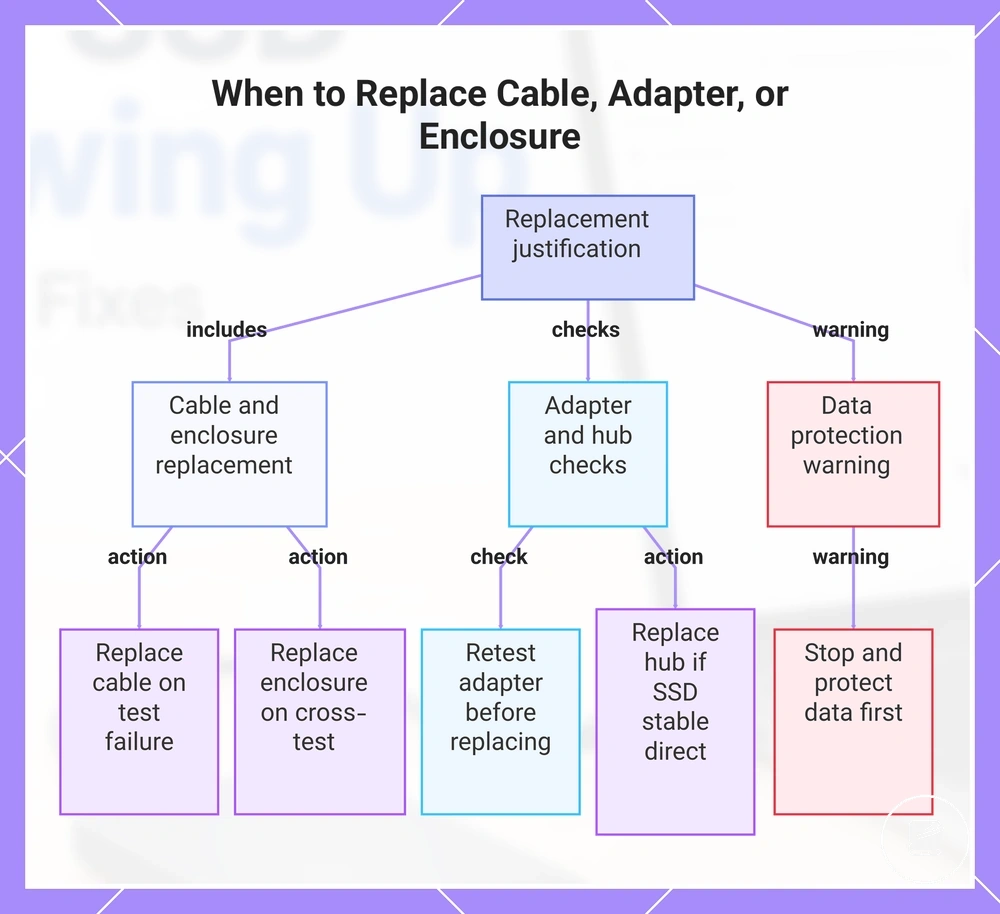
Replacement is justified only after low-risk cross-checks consistently identify the connection chain or enclosure as the likely cause rather than software configuration or SSD health. Replacing parts before these checks can lead to unnecessary changes without resolving the detection problem. Replacement should follow cross-checks, not precede them.
Replacement should follow cross-checks, not precede them.
The following checklist helps decide whether to replace, retest, or stop based on the observed test result:
- If a cable test succeeds with a known-working cable while the original repeatedly fails, replace the original cable because the fault has been isolated.
- If adapter behavior changes between systems or ports, retest using a direct connection before replacing the adapter because the connection chain has not yet been isolated.
- If poor hub reliability causes repeated disconnects but the SSD remains stable when connected directly, replace or stop using the hub instead of suspecting the SSD.
- If the SSD is consistently recognized in a different enclosure but not in the current one, replace the enclosure because testing isolates it as the failed component.
- If repeated disconnects continue and data importance is high, stop further replacement attempts until important files have been protected or recovered.
For example, if replacing only the cable restores a stable connection, the evidence supports a cable fault rather than an SSD failure. By contrast, if multiple verified cables behave identically but the SSD works normally in another enclosure, the enclosure is the stronger replacement candidate while the SSD itself is less likely to be the cause.
For example, if replacing only the cable restores a stable connection, the evidence supports a cable fault rather than an SSD failure.
This chart shows the conditions and actions for replacing cable, adapter, or enclosure based on cross-check results, including a data protection warning.
When to stop troubleshooting and protect the data
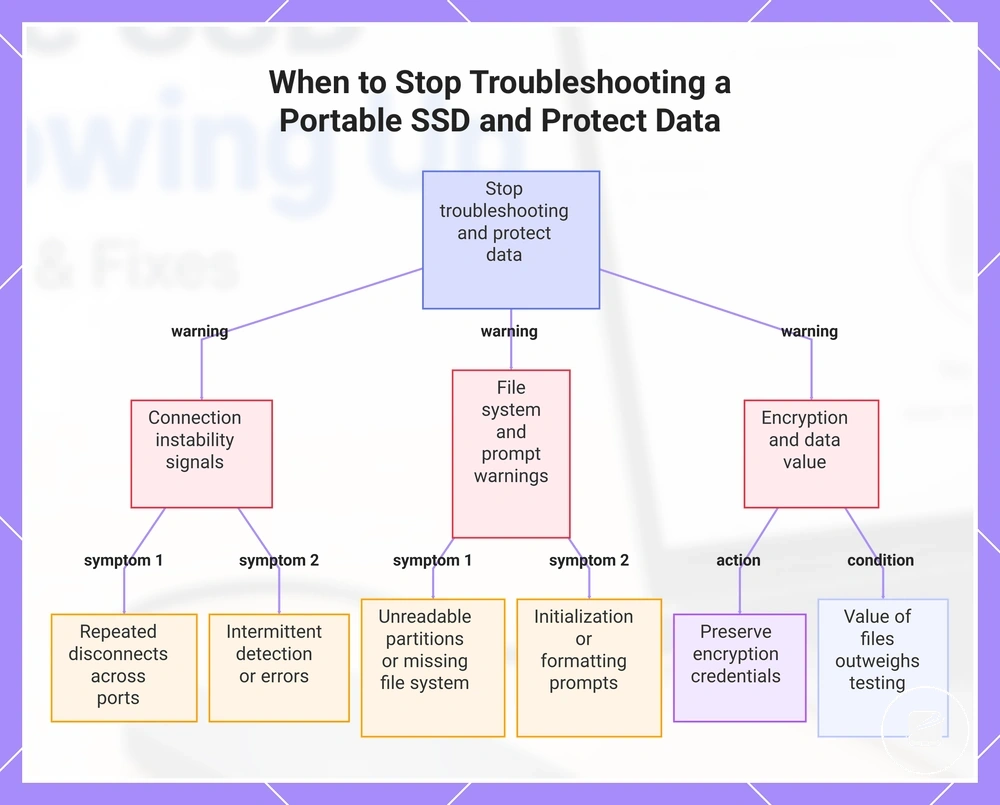
Stop troubleshooting when the portable SSD contains important data and its behaviour indicates instability, possible corruption, or potential hardware failure. Continued initialization, formatting, or repair attempts can alter the drive before recovery is assessed. The stop condition is reached when protecting the data matters more than confirming the exact cause.
The stop condition is reached when protecting the data matters more than confirming the exact cause.
The following warning checklist identifies risk signals that should change the next action from troubleshooting to protecting files because further changes can reduce the available data recovery options:
- If repeated disconnects continue across known-working ports and cables, stop write-intensive tests because the device or connection remains unstable.
- If the SSD shows unreadable partitions or missing file system information, avoid repair and erase actions that could change the remaining structure.
- If an initialization prompt appears for a drive that previously contained files, cancel it and do not initialize the SSD while those files are still needed.
- If a formatting prompt appears while irreplaceable files remain on the SSD, cancel it because formatting is not a safe default for preserving existing data.
- If the SSD uses encryption, preserve the password, recovery key, and relevant account details because access may require those credentials.
- If the drive becomes intermittently detectable, produces repeated errors, or disconnects during access, stop further repair attempts when the files cannot be replaced.
For example, a drive that repeatedly disconnects and then presents an initialization or formatting prompt should be treated as a data-risk case rather than a normal setup problem. These signs do not confirm hardware failure, but they justify stopping when important data remains on the SSD.
These signs do not confirm hardware failure, but they justify stopping when important data remains on the SSD.
When the value of the files outweighs the benefit of continued testing, move to portable SSD data recovery planning without assuming that recovery is guaranteed.
Use portable SSD setup guidance only after detection has been restored and the required files are protected or no longer needed.
Use portable SSD setup guidance only after detection has been restored and the required files are protected or no longer needed.
This chart shows the warning signs that indicate it's time to stop troubleshooting a portable SSD and focus on data protection.
This chart shows the warning signs that indicate it's time to stop troubleshooting a portable SSD and focus on data protection.