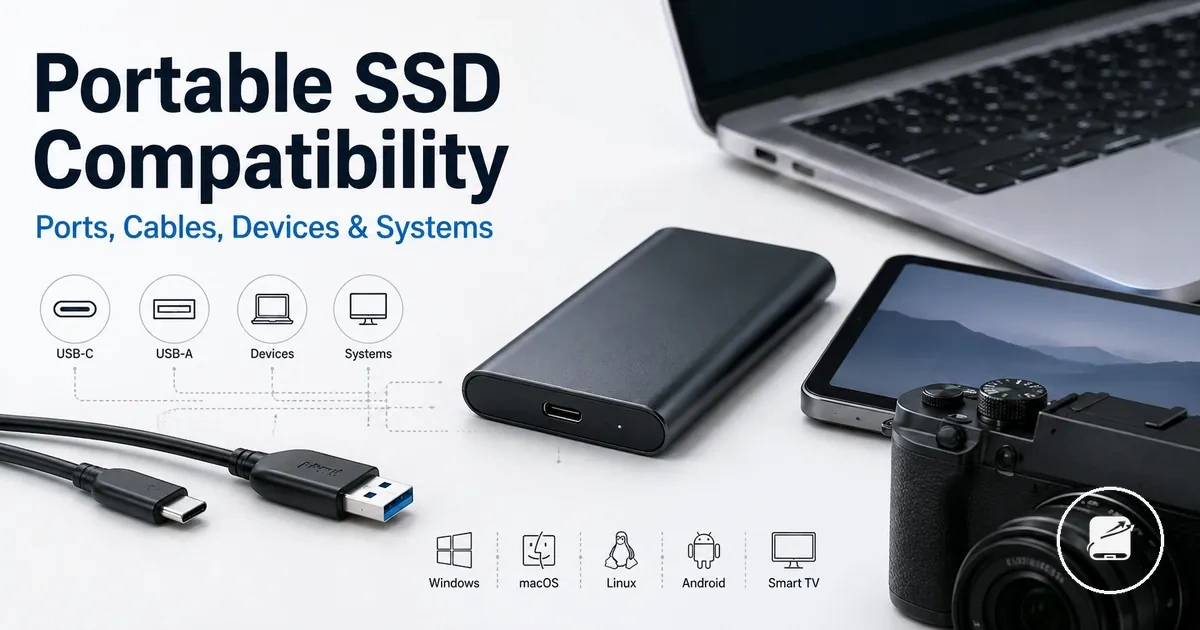
Portable SSD Compatibility Across Devices, Ports, and Systems
Portable SSD compatibility exists when the drive and its connection path meet the hardware and software requirements of the host device. Physical connector fit alone does not confirm recognition, writable access, or expected speed; the result is determined by the drive, cable, port, device, operating system, and file system.
These conditions set the practical boundary for cross-device use across different devices and systems.
The broader category of portable SSDs includes drives that connect through USB-C, USB-A, or a supported adapter and cable combination. Recognition requires the host device and operating system to support the drive connection, while writable access requires the file system to permit writing on that system. Realistic performance is limited to the slowest supported part of the path, such as the drive interface, cable capability, adapter capability, or port limit. These conditions set the practical boundary for cross-device use across different devices and systems.
Check the complete connection path before treating a matching plug as proof of compatibility.
Check the complete connection path before treating a matching plug as proof of compatibility. For example, a portable SSD with a USB-C connector may fit a tablet directly, but recognition and writable access occur only when the tablet supports external storage, the operating system supports the drive, and the file system is readable and writable in that environment.
The products below are useful examples for comparing available options.
The products below are useful examples for comparing available options. Before buying, check that the compatibility criteria, key features, and product details match your needs.
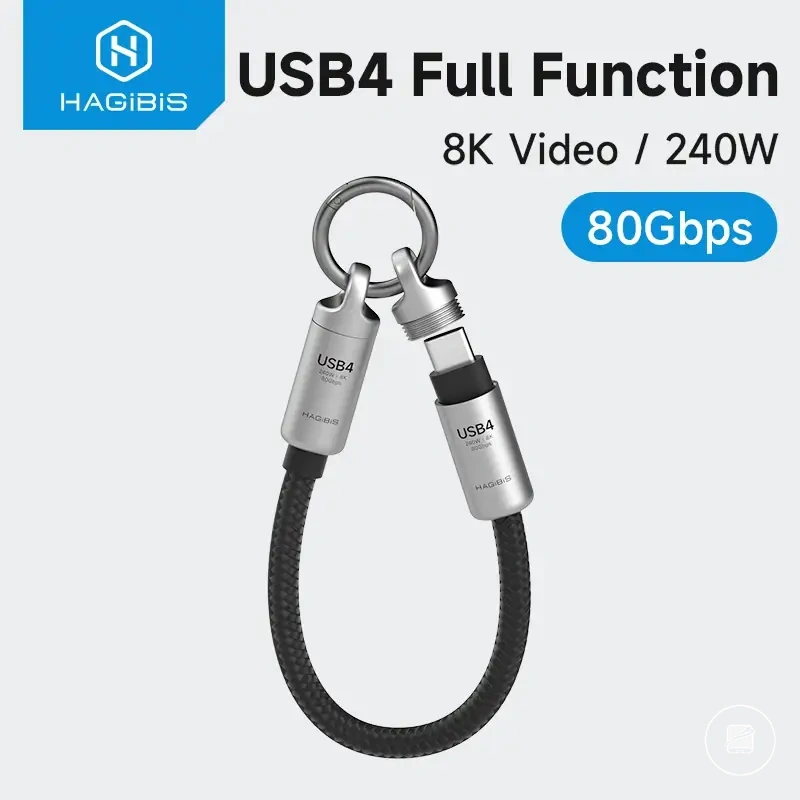
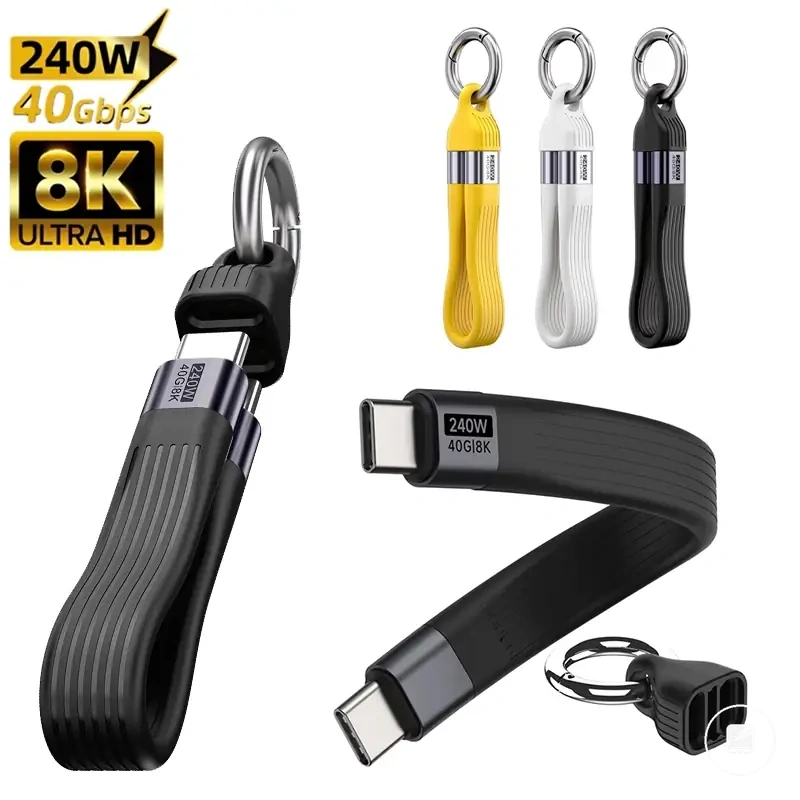
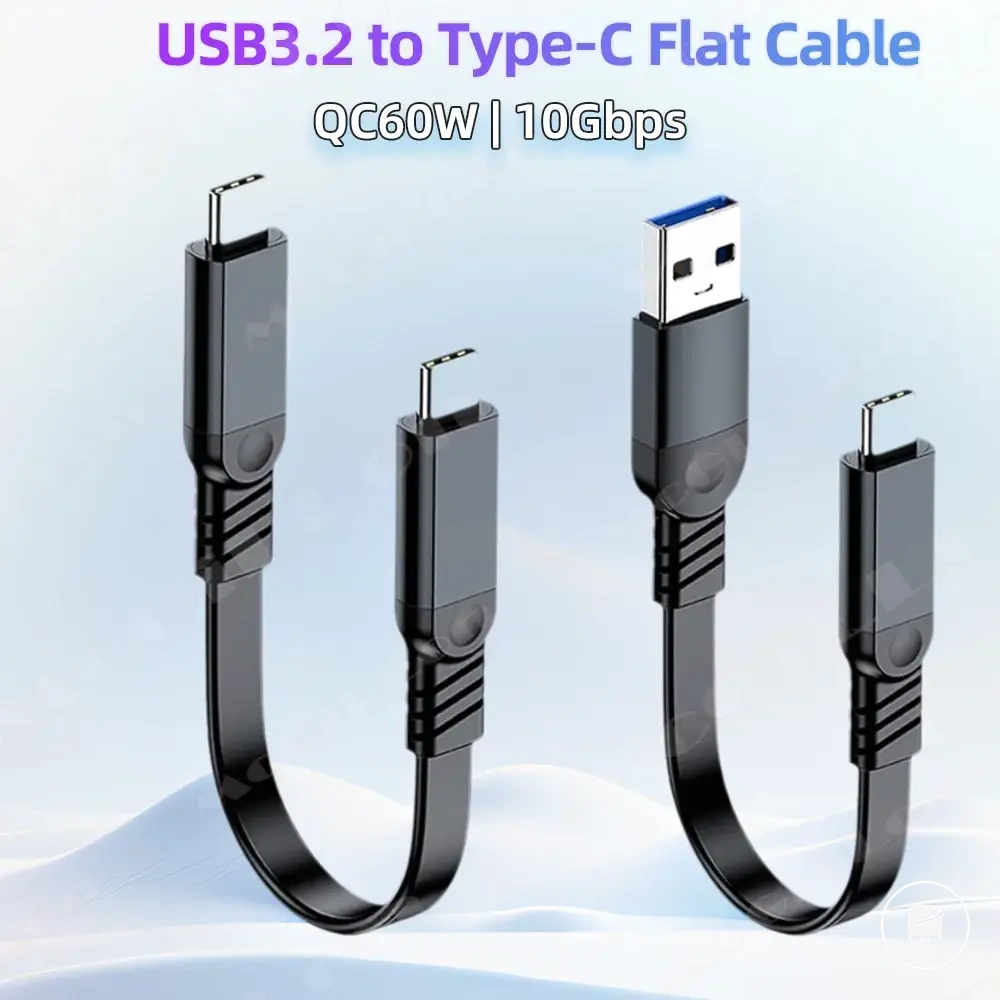
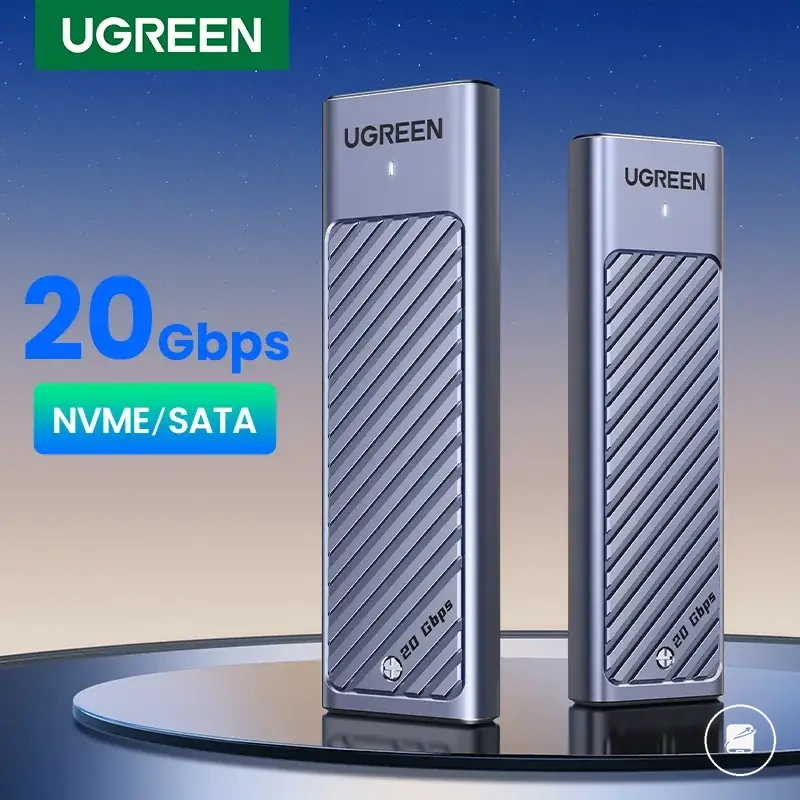
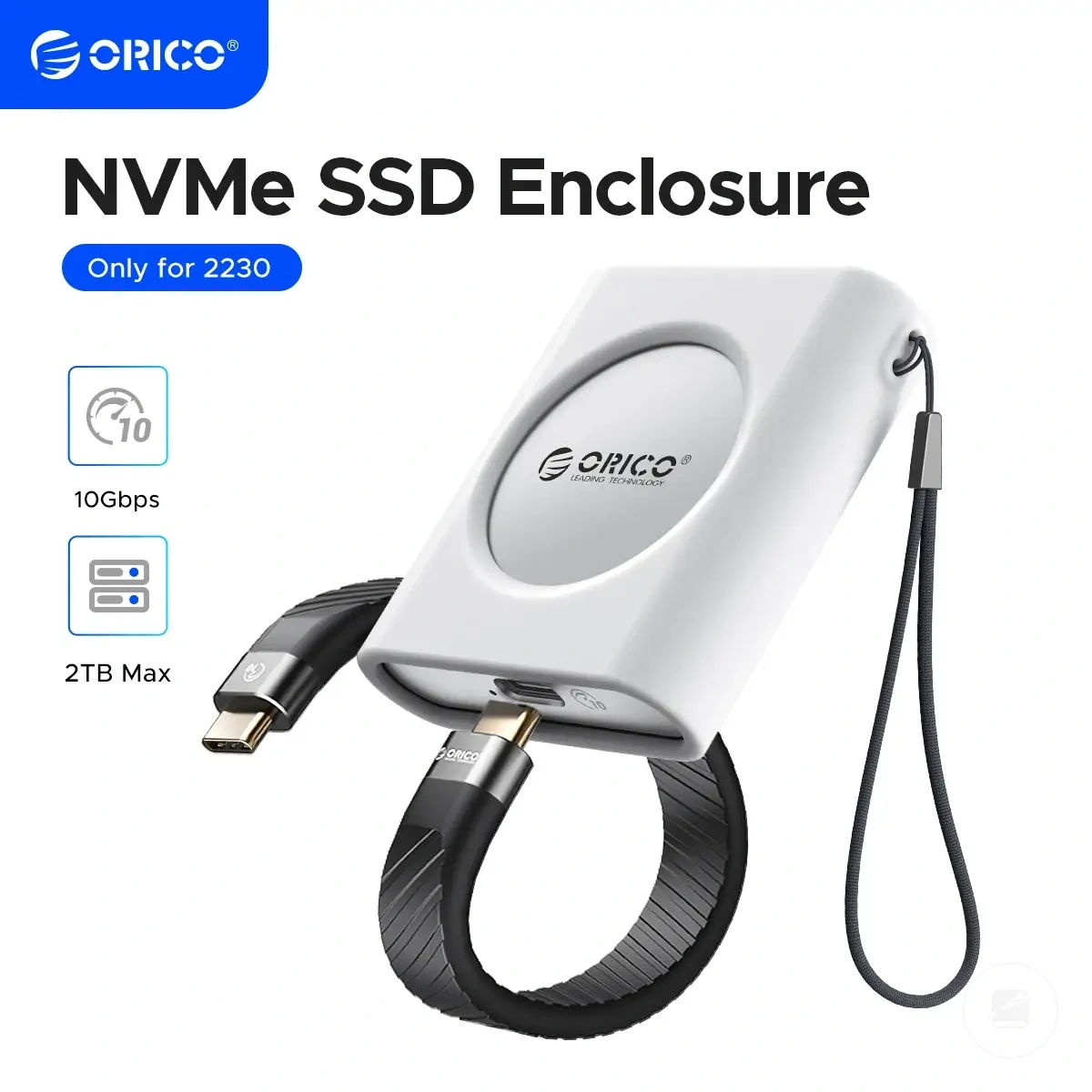
Table of Contents
What portable SSD compatibility depends on
Portable SSD compatibility is whether a portable SSD can connect, be recognized, and work correctly with a device under defined hardware and software conditions. Those conditions include the port type, cable capability, available power, operating system support, and the file system format used by the drive. This definition establishes compatibility as a functional state rather than a connector match alone.
This definition establishes compatibility as a functional state rather than a connector match alone.
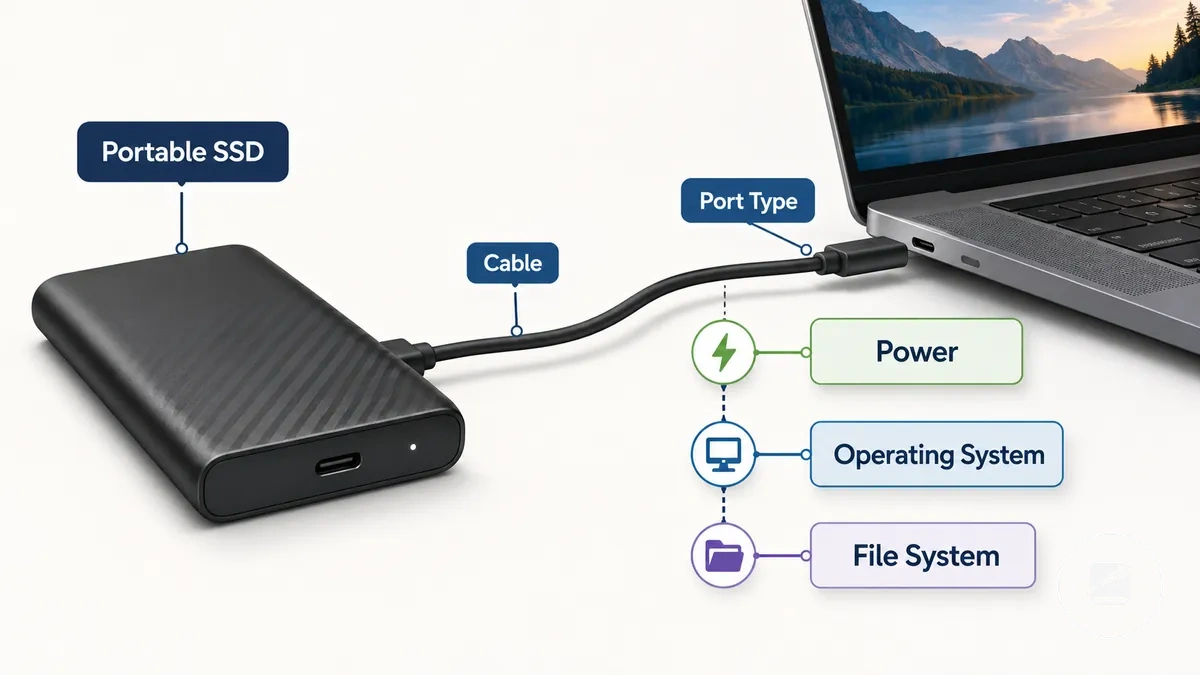
The image below illustrates the dependency chain from the portable SSD to the host device, showing how the cable, port, operating system, and file system all contribute to compatibility.
A matching connector provides only a physical connection. A portable SSD is recognized only when the host device supports the connection and the operating system can detect the drive, while writable storage requires a file system that the operating system supports for writing. Expected speed is a separate compatibility outcome because it is constrained by the supported capabilities of the drive, cable, port, and host device. Depending on the user's goal, compatibility may refer to physical connection, recognition, writable storage, or expected performance rather than all of these at the same time.
A matching connector provides only a physical connection.
For example, a portable SSD with a USB-C connector can plug into a USB-C port, but it becomes usable only when the device supplies sufficient power, the operating system recognizes the drive, and the file system is supported for reading or writing on that platform.
Port and interface conditions that control compatibility
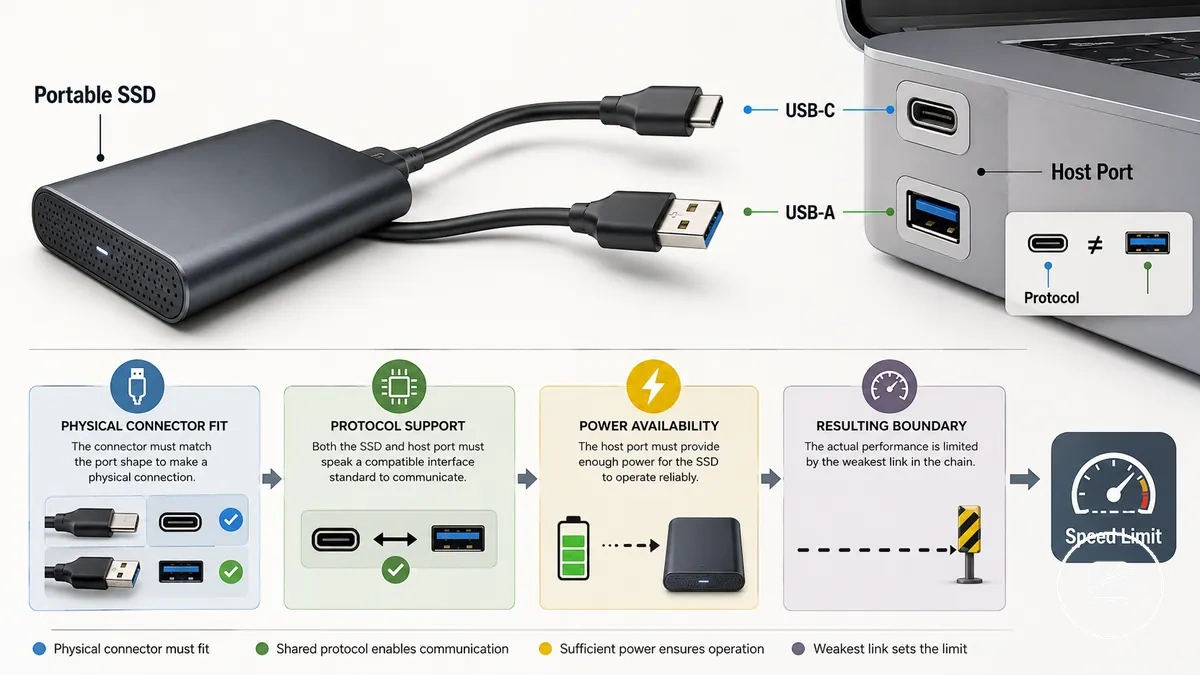
Port and interface compatibility is achieved when a portable SSD and the host device use a compatible connector, communication protocol, and power connection. Connector shape alone does not determine compatibility because the interface standard, available power, and host device capabilities also affect whether the drive can communicate and operate within realistic limits. The main compatibility conditions are connector, protocol, power, and speed effect.
The main compatibility conditions are connector, protocol, power, and speed effect.
The table below separates the key compatibility criteria so that physical connector fit, data protocol support, power availability, and expected performance are evaluated independently.
| Port or interface | Compatibility condition | Possible limitation | What to check |
|---|---|---|---|
| USB-C | The host device and portable SSD both support a compatible USB or Thunderbolt interface through the USB-C connector. | A matching connector does not confirm the same protocol or sufficient power. | Verify the supported interface standard and power capability of the host port. |
| USB-A | A compatible USB-A connection is available directly or through a suitable adapter or cable. | Backward compatibility can enable communication, but the older interface standard may restrict available power or speed. | Confirm the USB generation supported by the host device and any adapter. |
| Thunderbolt-capable ports | The portable SSD and host device both support a compatible Thunderbolt or USB interface. | A Thunderbolt-capable port does not guarantee every drive will operate at the same capability. | Check the supported protocol on both the drive and the host device. |
| Older USB ports | Older USB generations can communicate with newer portable SSDs through backward compatibility. | Communication remains limited by the capabilities of the older USB generation. | Identify the USB generation provided by the host device. |
| Hub or dock connections | The hub or dock must support the required interface while supplying sufficient power. | The hub or dock can become the limiting point for communication or power delivery. | Confirm both interface support and available power through the hub or dock. |
USB-C and USB-A identify connector shapes, while the interface standard determines how data is exchanged between the portable SSD and the host device. For example, a portable SSD with a USB-C connector can physically fit a USB-C port, but usable compatibility still requires matching protocol support and sufficient power. Backward compatibility allows many newer USB devices to connect to older USB ports, although the connection remains constrained by the capabilities of the older interface.
For more detail about those performance boundaries, see speed and port limits .
Port compatibility determines whether a portable SSD can connect and communicate, while performance remains a separate outcome defined by the supported interface and host device. For more detail about those performance boundaries, see speed and port limits.
Connector shape versus USB or Thunderbolt standard
Myth: a USB-C connector always provides the same features. Truth: the connector shape identifies the physical plug, while the USB standard or Thunderbolt standard identifies the data capability and supported features behind the port. The distinction is between connector shape and interface standard.
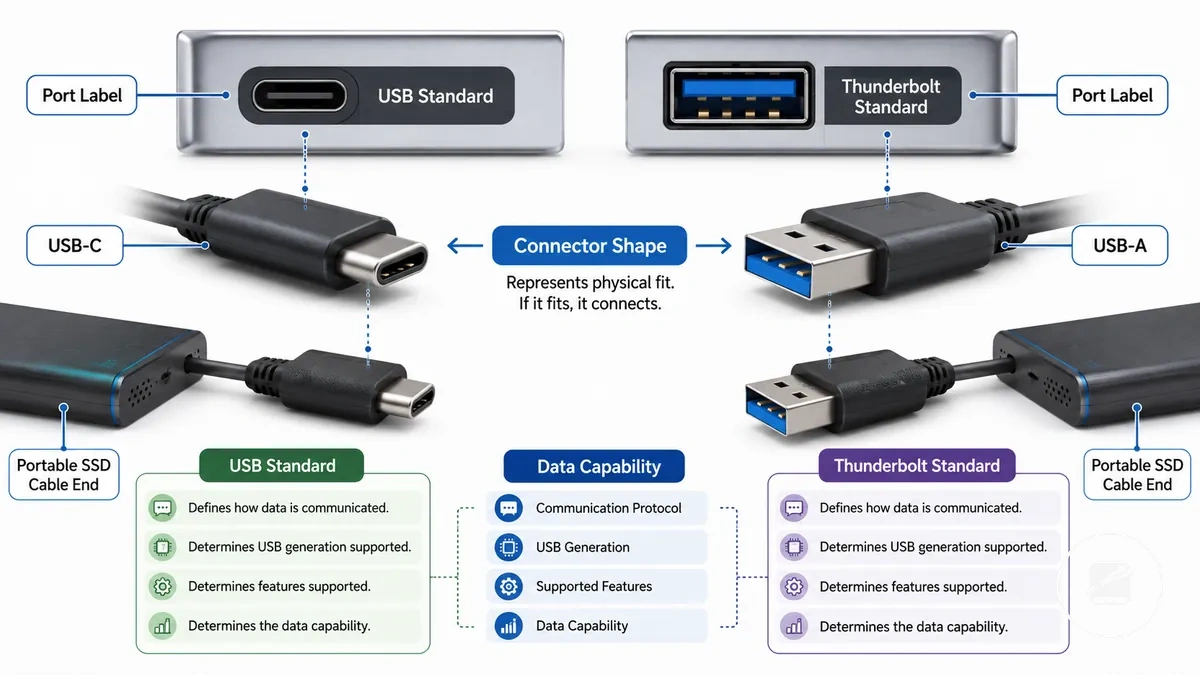
| Connector shape | USB or Thunderbolt standard |
|---|---|
| Defines the physical connector, such as USB-C or USB-A, and whether the cable fits the port. | Defines the communication protocol, data capability, supported features, and USB generation available through the host port. |
| A matching plug allows a physical connection. | A matching USB or Thunderbolt standard determines which functions the connection can support. |
Port labels identify the supported standard rather than the connector shape. For example, two laptops can both have USB-C ports, yet one port label may indicate Thunderbolt support while the other supports only a USB standard, so the available features differ even though the plug shape is the same. USB-A follows the same rule because its physical connector does not identify the USB generation or data capability. A matching connector shape enables the connection, while a compatible USB or Thunderbolt standard determines which functions the host port can support.
Power delivery and bus-powered drive requirements
A bus-powered portable SSD requires both a stable data connection and sufficient power delivery from the host device. A physically compatible connection can still become unstable if the host device cannot meet the drive's power draw through the complete connection path. Stable operation therefore depends on both data support and available device power.
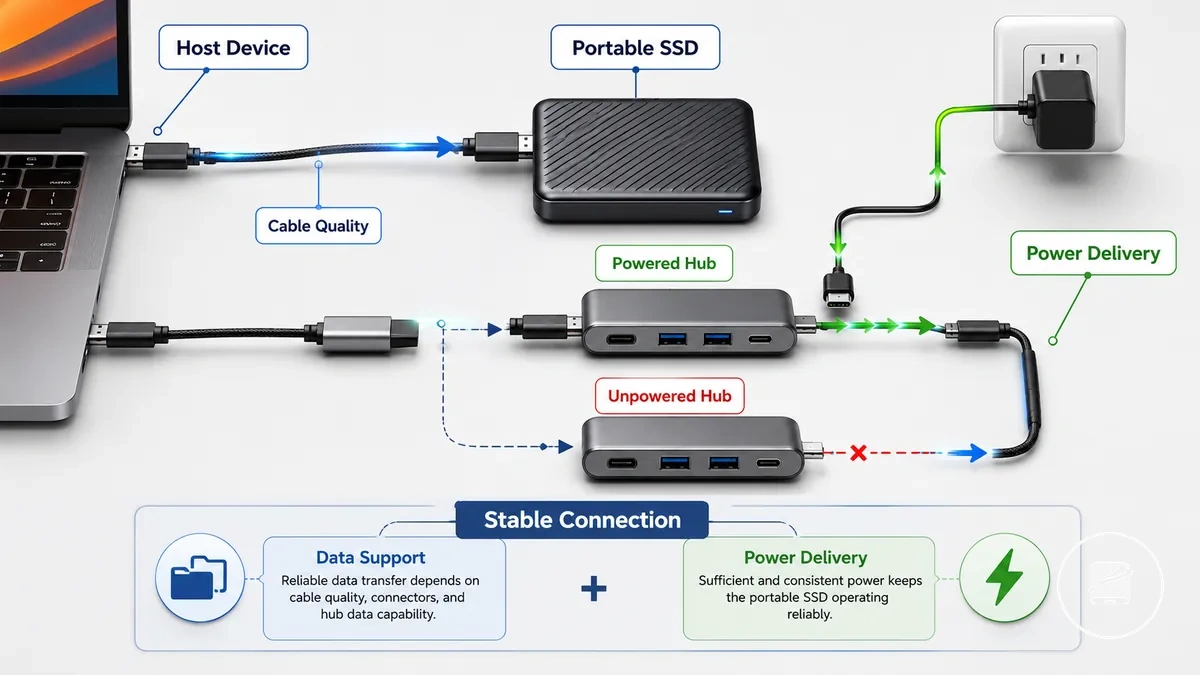
Power is one compatibility condition rather than the only explanation for connection problems. Use these practical checks to assess whether the connection path is likely to provide adequate power for a stable connection.
- If the host device provides sufficient power output for the bus-powered drive, stable operation is more likely.
- If the portable SSD has a higher power draw than a mobile device can supply, the drive may not be recognised consistently or may disconnect during use.
- If the connection passes through an unpowered hub, the hub shares the host device's available power, while a powered hub supplies additional device power through its own power source.
- If an adapter limits power delivery along the connection path, the drive can fit physically but operate less reliably.
- If cable quality is poor or the cable is damaged, both power delivery and connection stability can be affected.
- If the drive disconnects intermittently or appears only briefly, limited power is one possible cause, although interface or data-path issues can produce similar symptoms.
Cable and adapter compatibility for portable SSDs
A portable SSD is compatible through its cable and adapter path only when every connection supports the required connector type, data support, and power pass-through. Matching connector shapes alone do not confirm compatibility because a cable or adapter can limit recognition or performance even when it fits physically. Verifying the complete connection path reduces cable and adapter compatibility risks.
Verifying the complete connection path reduces cable and adapter compatibility risks.
Check the following conditions before using a portable SSD with a cable, adapter, or hub.
- Confirm that the connector ends match the required connection, such as USB-C to USB-C or USB-C to USB-A.
- Verify that the cable supports data transfer because a charge-only cable cannot carry data.
- Check that the cable's USB generation rating supports the connection level required by both the host device and the portable SSD.
- Ensure the adapter follows the correct connection direction so the intended data path remains available.
- Confirm that the connection path preserves both data support and power pass-through for a bus-powered portable SSD.
- Use a cable length that maintains a reliable connection because excessive cable length can reduce signal quality on some connection paths.
- If a hub is part of the connection, verify that the hub supports both the required data path and adequate power delivery.
For example, a USB-C portable SSD connected with a USB-C to USB-C data cable can preserve both data support and power delivery when the host device supports the same USB connection. A USB-C to USB-A adapter can also work when the adapter, cable, and USB-A port all support the required data path, although the available USB generation rating and power pass-through may limit recognition or transfer speed.
Verify the entire connection path before concluding that the portable SSD or host device is incompatible.
Hub-based connections follow the same compatibility rules because every cable, adapter, and hub in the connection path must support the required data and power conditions. Verify the entire connection path before concluding that the portable SSD or host device is incompatible.
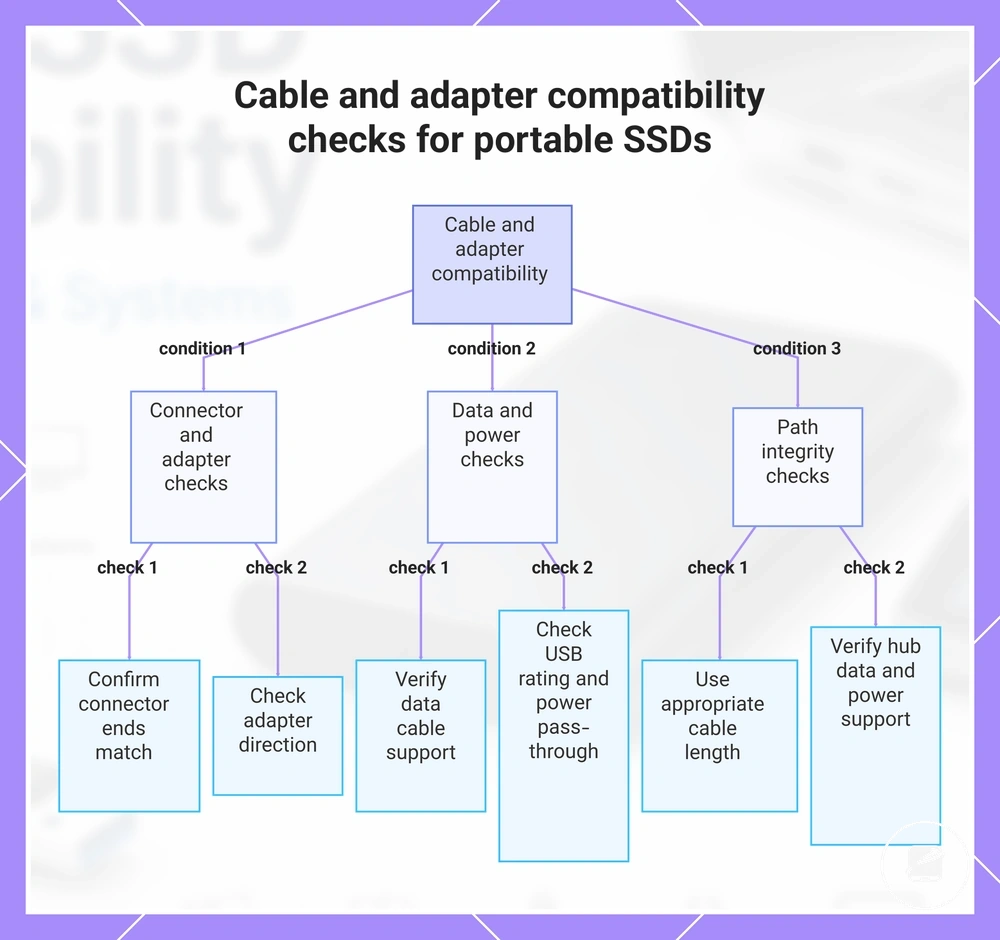
This chart shows the main conditions to verify before using a cable, adapter, or hub with a portable SSD to avoid compatibility issues.
This chart shows the main conditions to verify before using a cable, adapter, or hub with a portable SSD to avoid compatibility issues.
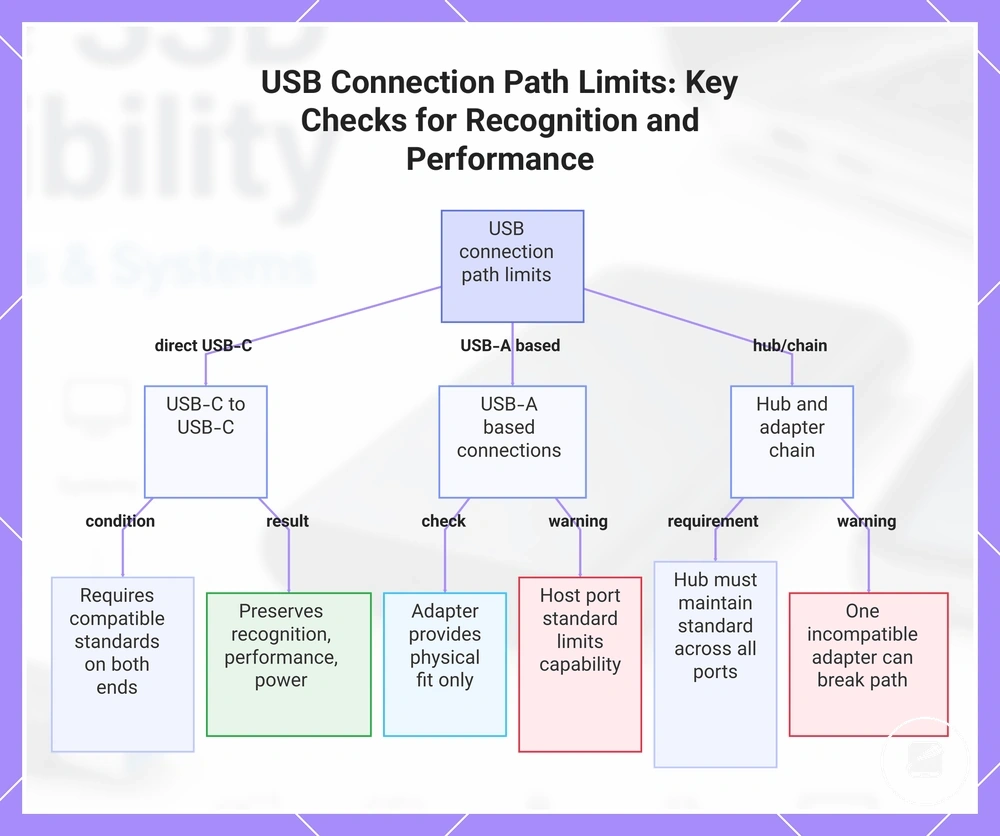
USB-C, USB-A, and adapter connection limits
USB-C, USB-A, and adapters change the physical connection path, but plug fit alone does not confirm recognition, performance, or power support. Recognition, transfer performance, and available power remain conditional on the supported standard of the host port and every component in the connection path. An adapter can solve a physical plug mismatch without guaranteeing full device support or performance.
Use these connection-path checks to understand what each configuration can and cannot preserve.
Use these connection-path checks to understand what each configuration can and cannot preserve.
- USB-C to USB-C: This connection path can preserve recognition, performance, and power only when the USB-C host port and the connected devices support compatible standards.
- USB-C to USB-A: An adapter provides physical plug compatibility, but the USB-A host port's supported standard can limit recognition, available power, or performance.
- USB-A host port: Backward-compatible connections can allow recognition when both ends support the required USB standard, although capability is limited to the highest standard shared across the connection path.
- Hub connection: A hub supports the intended connection only when its upstream connection, downstream ports, and supported standard maintain the required data and power functions.
- Adapter chain: Every adapter in the connection path must preserve the required connection direction and supported standard because one incompatible adapter can prevent recognition or reduce performance.
This chart shows the main USB connection scenarios and the conditions that determine whether recognition, performance, and power are preserved.
Cable data support, speed rating, and length limits
A data cable must support data transfer before speed rating or cable length becomes relevant. A charge-only cable supplies power but does not support device recognition because it does not carry data. The cable must be data-capable before its other specifications can contribute to portable SSD compatibility.
A data cable must support data transfer before speed rating or cable length becomes relevant.
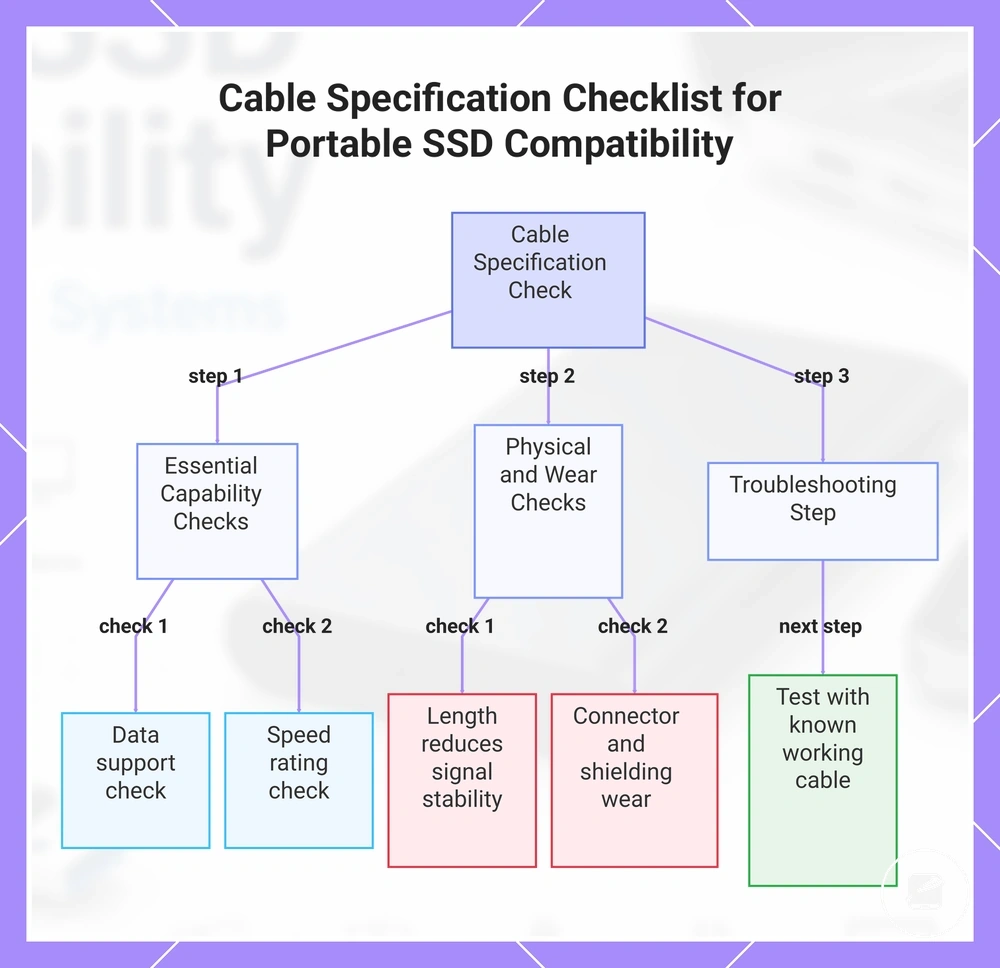
Use this mini-checklist to verify cable specifications in a logical order before assuming the portable SSD is at fault. If the connection remains unreliable after these checks, testing another known data-capable cable is a reasonable way to determine whether the cable is contributing to the problem.
- Data support: Confirm the cable is a data cable rather than a charge-only cable, because only a data-capable cable supports device recognition.
- Speed rating: Verify that the cable is rated for the intended USB standard, such as USB 3.x or USB4. A lower speed rating can limit available transfer speed even when the host and drive support higher-capability standards.
- Cable length: Longer cable length can reduce signal stability under some conditions, increasing the likelihood of connection problems compared with an appropriately specified cable.
- Shielding and connector wear: Damaged connectors, worn contacts, or inadequate shielding can contribute to intermittent disconnects, unstable recognition, or reduced transfer performance.
- Test substitution: If recognition or transfer speed remains inconsistent, test with another known data-capable cable of an appropriate speed rating before concluding that the portable SSD is faulty.
This chart shows the logical order of cable checks to verify specifications before assuming the portable SSD is at fault.
Device compatibility across laptops, tablets, phones, and desktops
A portable SSD is compatible when the host device provides a supported port, sufficient power, operating system recognition, and file access. The same portable SSD can behave differently across device classes because these conditions are not identical. The main groups are laptop, desktop, tablet, phone, and other host device types that support external storage.
The table groups each device class by its main connection, power, operating system, and workflow conditions.
The table groups each device class by its main connection, power, operating system, and workflow conditions.
| Device type | Main compatibility condition | Common limitation | What to verify |
|---|---|---|---|
| Laptop | A USB-C or USB-A port that supports data transfer and external storage | A charging-only port or lower-capability port can prevent recognition or limit performance | Port data support, available power, operating system recognition, and file access |
| Desktop | A data-capable USB-C or USB-A port with external storage support | Different ports on the same desktop can provide different data or power capabilities | Port specification, stable recognition, operating system support, and intended workflow |
| Tablet | A supported external-storage port, sufficient power, and a file app that exposes connected drives | File access is unavailable when the operating system or file app does not support external storage | Port support, available power, operating system recognition, and file app access |
| Phone | A supported data port, sufficient power, and operating system access to external storage | The drive remains inaccessible when external storage recognition or file access is not provided | Port capability, power delivery, operating system support, and file access |
| Other host devices | Explicit support for USB storage through a compatible data port | Recognition may be limited to specific storage functions or workflows | External storage support, supported file access, available power, and intended workflow |
A laptop or desktop may recognise a portable SSD through a data-capable USB port, while a tablet or phone also requires sufficient power and a file app that exposes external storage. For example, the same drive can appear in a laptop's file manager but remain unavailable on a mobile device whose operating system does not provide external-drive access. Verify the host device's port, power, operating system, and file access together before treating the portable SSD as incompatible.
Laptop and desktop connection requirements
A laptop or desktop is compatible with a portable SSD when the computer provides a data-capable USB-C port or USB-A port, the operating system provides recognition, and the user has permissions to access external storage. Basic storage access requires a recognised data connection, while maximum advertised speed requires the portable SSD, host port, and supported standard to align. Verify the port type, standard support, recognition, and permissions on the laptop or desktop before judging compatibility.
Use these computer-specific checks to separate basic access from speed limitations.
Use these computer-specific checks to separate basic access from speed limitations.
- Port type: Confirm that the laptop or desktop connection is a data-capable USB-C port or USB-A port; a charging-only connection does not provide storage access.
- Standard support: A Thunderbolt-capable machine reaches a Thunderbolt device's higher-speed mode only when the portable SSD and host port support the same Thunderbolt connection path.
- Front-panel port: A desktop front-panel port can provide a lower data standard than another port on the same computer, so verify the specification of the exact port in use.
- Hub or dock path: A hub or dock limits the connection to the standards and features supported across the complete path between the portable SSD and the computer.
- Permissions and recognition: Operating system recognition must be present, and security restrictions or user permissions must allow access to external storage before files become available.
- Speed expectation: For example, a portable SSD may provide basic storage access through a recognised USB-A port but remain below its maximum advertised speed when that host port supports a lower data standard.
Tablet and phone connection requirements
A tablet or phone is compatible with a portable SSD when the mobile device supports external storage through its USB-C connection, supplies sufficient power draw, recognises the drive's file system, and permits access through a file app. iPadOS and Android devices can impose different limits on recognition, supported format, and external storage access, so mobile compatibility remains conditional on all four checks.
Use these mobile-device checks before treating the portable SSD as incompatible.
Use these mobile-device checks before treating the portable SSD as incompatible.
- Connector: Confirm that the tablet or phone uses a USB-C connection that supports data and external storage rather than charging only.
- Power draw: The mobile device must supply enough power for the portable SSD; if low power prevents recognition, a powered hub can provide an alternate power path.
- Operating system support: Verify that the iPadOS or Android device supports external storage recognition for the connected drive.
- File app behaviour: The file app must expose the recognised portable SSD before the user can browse or manage files.
- Supported format: The drive must use a file system accepted by the mobile operating system; an unsupported format can block file access even when the USB-C connection is valid.
- Scenario: For example, a phone that fails to recognise a drive because of insufficient power may detect it through a powered hub, while a drive using an unsupported format remains inaccessible until it is reformatted to a supported format.
Operating system and file system compatibility boundaries
A portable SSD is compatible at the operating-system level when the operating system recognises its file system, mounts the volume, and provides the required read-write access. A valid physical connection does not ensure that Windows, macOS, Android, or iPadOS can use the stored files. The file system therefore determines recognition and writability after connection.
The file system therefore determines recognition and writability after connection.
The table compares the principal system and format boundaries that affect cross-device use.
| System or format | Recognition condition | Read-write behavior | Compatibility note |
|---|---|---|---|
| Windows | The portable SSD must use a file system supported by Windows, including NTFS or exFAT. | Windows provides native read-write access to NTFS and exFAT volumes. | APFS is not a standard native Windows file system. |
| macOS | The portable SSD can be mounted when it uses a macOS-supported format such as APFS or exFAT; macOS can also recognise NTFS. | macOS provides native read-write access to APFS and exFAT, while its built-in NTFS support is read-only. | APFS suits Apple-platform use, whereas exFAT provides broader native compatibility with Windows. |
| Android | Recognition requires external storage support and a file system implemented by the specific Android device. | Read-write access is available only when the device supports the format and exposes the mounted drive through a file app. | Android format support differs by device implementation, so the supported format must be checked for the phone or tablet. |
| iPadOS | Apple supports external drives with a single data partition using APFS, encrypted APFS, Mac OS Extended, exFAT, FAT32, or FAT. | A supported volume can provide read-write file access through the Files app, subject to permissions and any required encryption credentials. | NTFS is not included in Apple's supported external-drive format list for iPadOS. |
| exFAT | The operating system must include exFAT support; Windows, macOS, and iPadOS support the format. | exFAT provides native read-write access on Windows and macOS, while Android support remains device-specific. | exFAT offers broad cross-device compatibility among these systems but is not supported in every device configuration. |
| APFS | The host operating system must support Apple File System. | Supported Apple systems provide read-write access, subject to permissions and encryption credentials. | APFS is not a standard native read-write format for Windows or general Android use. |
| NTFS | Windows recognises NTFS natively, while macOS can mount an NTFS volume with built-in read-only access. | Windows provides native read-write access; macOS provides native read-only access. | NTFS suits Windows-centred use but limits native writability on macOS and is not listed as a supported external-drive format for iPadOS. |
Compatibility boundary: Connection compatibility confirms that the portable SSD can communicate with the host, while file system compatibility determines whether the volume is recognised, mounted, and writable. For example, an NTFS drive can connect to both a Windows computer and a Mac but provide native read-write access on Windows and native read-only access on macOS. Changing the format can alter cross-device usability, but formatting procedures and their data-erasure consequences belong in separate guidance.
Windows, Mac, Android, and iPadOS recognition conditions
A portable SSD is recognized when the operating system supports its file system, mounts the volume, and grants the required permissions or file app access. The same drive can be writable, read-only, or absent from the normal file interface on another system because recognition is conditional on format support and system-level access.
These system-specific conditions determine whether the portable SSD appears and how it can be used.
These system-specific conditions determine whether the portable SSD appears and how it can be used.
- Windows: Windows can recognize and mount a portable SSD when the drive uses a supported format and the system assigns it for storage access. Permissions or a security prompt can restrict access until the user authorises the volume.
- Mac: A Mac can mount supported file systems with read-write access, while an NTFS volume is normally mounted as read-only through built-in macOS support. For example, the same NTFS drive can appear on Windows and Mac but remain writable only on Windows.
- Android: Android can recognize external storage when the device supports the drive's format and exposes the mounted volume through a compatible file app. Storage permissions can prevent file access even when the drive is detected.
- iPadOS: iPadOS can display a supported external drive through the Files app when the volume is mounted and access conditions are satisfied. A system prompt can request authentication for protected storage, while unsupported format support can prevent the drive from appearing in the file app.
Formatting choices that affect cross-device use
Formatting choices determine how a portable SSD's file system supports cross-device use and read-write access. exFAT is intended for broad compatibility across modern operating systems, while NTFS primarily supports Windows and APFS is designed for Apple platforms, making file system selection a compatibility boundary rather than the formatting process itself.
The comparison below highlights how each common file system changes device compatibility.
The comparison below highlights how each common file system changes device compatibility. Formatting can erase data, so existing files should be backed up before changing a disk format.
| File system | Works best with | Likely limitation | Compatibility note |
|---|---|---|---|
| exFAT | Windows and macOS with shared read-write access | Android support remains conditional on device format support. | Common choice for cross-device use when every intended device supports exFAT. |
| NTFS | Windows | Mac provides native read-only access, and iPadOS does not provide native NTFS support. | Suitable when Windows is the primary platform and writable access on other systems is not required. |
| APFS | macOS and supported Apple devices | Windows and most Android devices do not provide native APFS read-write support. | Optimized for Apple ecosystems rather than broad cross-device compatibility. |
| FAT32 | Legacy devices requiring broad recognition | Individual files cannot exceed 4 GB. | Useful for older hardware but limited for modern large-file storage. |
Choosing a file system establishes the compatibility boundary, while performing formatting is a separate process that can erase data. For example, selecting exFAT can improve cross-device use, but changing an existing NTFS drive to exFAT removes its current contents unless they are backed up first. For the complete workflow, see portable SSD formatting.
How to check whether a portable SSD will work with your device
A portable SSD should work when its device port, cable or adapter, power needs, operating system, file system, and intended use all match the host device. Check compatibility across the complete connection path rather than relying on a product name or connector shape alone.
Check compatibility across the complete connection path rather than relying on a product name or connector shape alone.
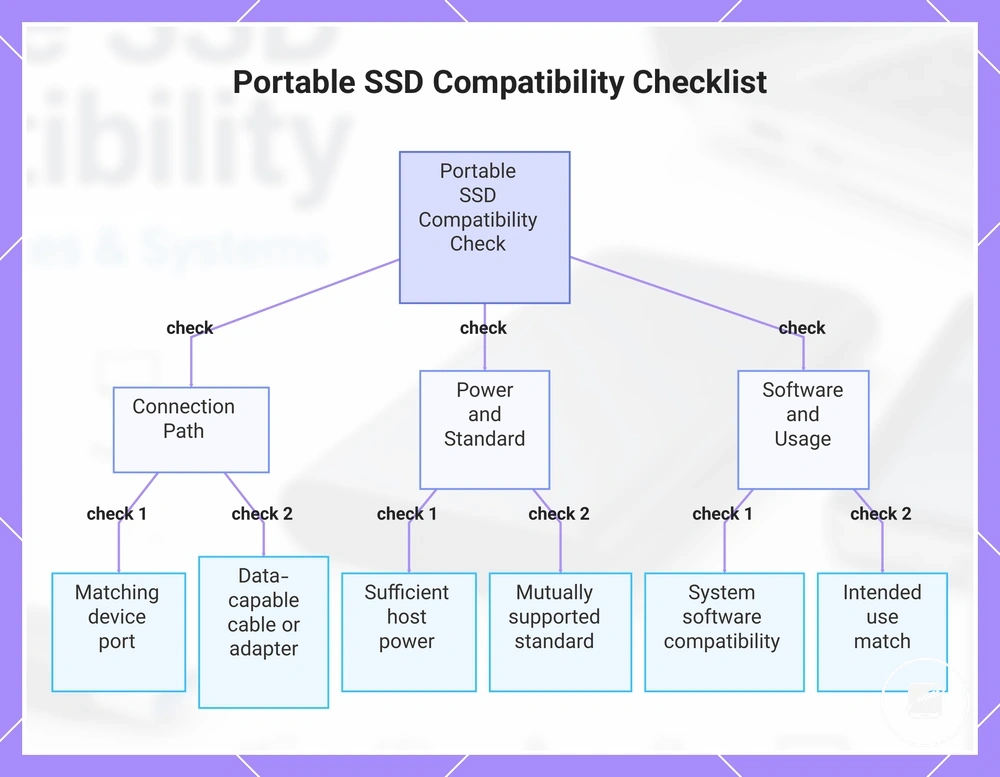
Use this mini-checklist to verify the conditions that determine whether the drive can connect, receive power, appear in the operating system, and remain usable for the intended task.
- Device port: Check whether the host device provides USB-C, USB-A, or a compatible Thunderbolt port; the physical port determines which direct connection or adapter path is possible.
- Cable: Verify that the cable supports data transfer rather than charging only; a power-only cable prevents the portable SSD from being recognised for storage access.
- Adapter: Confirm that any USB-C-to-USB-A or other adapter carries both data and power; an incompatible adapter can interrupt recognition or reduce connection stability.
- USB or Thunderbolt standard: Match the drive, cable, adapter, and host device to a mutually supported standard; the slowest part of the connection path limits the available transfer speed.
- Power needs: Check that the host device or powered hub can supply the drive's stated power requirement; insufficient power can cause failed recognition, disconnection, or unstable operation.
- Operating system: Verify that the portable SSD and any required security or management software support the device's operating system; unsupported software can restrict access even when the hardware connection works.
- File system: Confirm that the operating system can read and, when required, write to the drive's file system; a recognised drive can still be read-only or unusable for saving files.
- Intended use: Compare the complete connection path with the workload's capacity and speed need; document storage, backups, gaming, and direct video recording can require different levels of sustained performance and device support.
Positive decision signals include a matching device port, a data-capable cable or adapter, sufficient host power, operating-system support, and a writable file system. For example, a drive with a USB-C connector still requires a data-capable cable and a host port that supports the intended transfer mode before it is suitable for the intended use.
Follow setting up a portable SSD for the next usage steps.
After the compatibility check is complete, connect the verified cable or adapter, confirm that the operating system recognises the drive, and test access with a non-critical file before relying on it for regular storage. Follow setting up a portable SSD for the next usage steps.
Before buying, check that the compatibility criteria, key features, and product details match your needs.
The products below are useful examples for comparing available options. Before buying, check that the compatibility criteria, key features, and product details match your needs.
This chart shows the key compatibility checks to verify before using a portable SSD with a device.
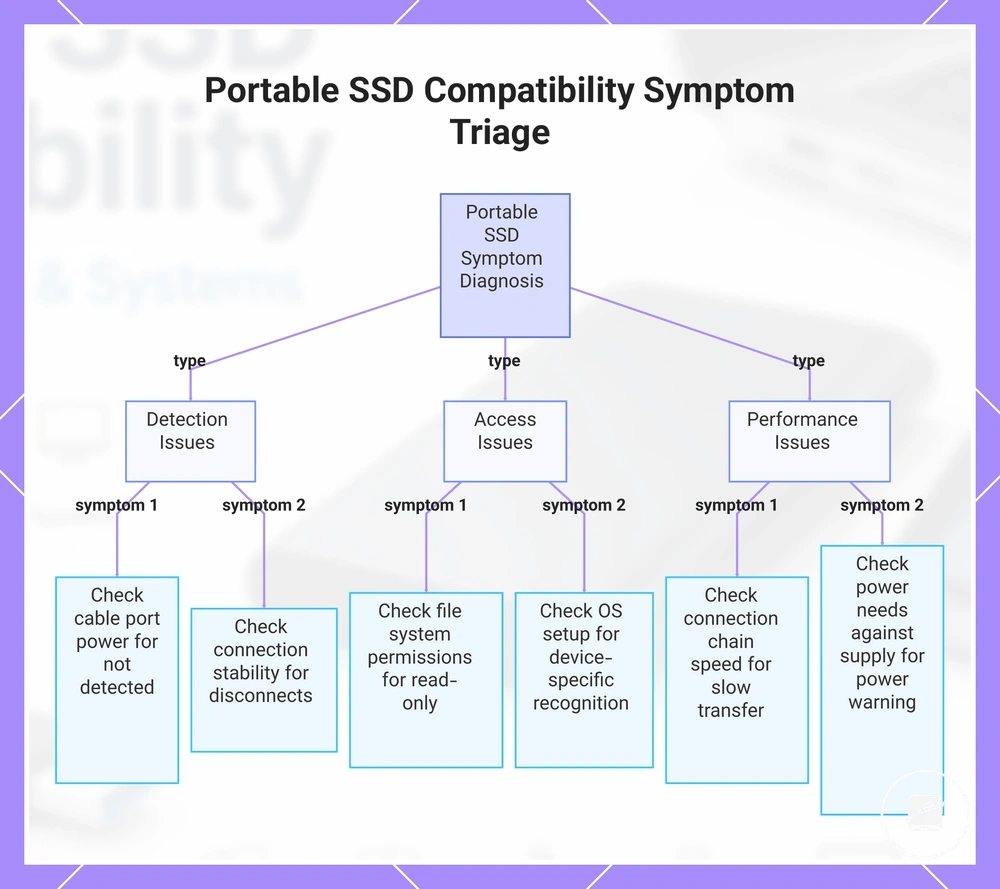
Compatibility issues that appear as detection or speed problems
A portable SSD that is not detected or shows slow transfer does not by itself prove a compatibility failure or a broken drive. The symptom may relate to the cable, port, power, formatting, setup, or performance limits, so separate the observed symptom from the likely cause before choosing the next check.
A portable SSD that is not detected or shows slow transfer does not by itself prove a compatibility failure or a broken drive.
Use this diagnostic order to determine whether the issue belongs to a basic compatibility check or a dedicated troubleshooting path.
- Not detected: The likely issue category is the cable, port, or power path. Check whether the drive is connected through a data-capable cable, a supported port, and a stable power source; continued absence after those checks points beyond basic connection compatibility.
- Read-only access: The likely issue category is the file system, permission state, or formatting. Check whether the operating system supports writable access to the current format; successful recognition with blocked saving indicates an access limitation rather than a detection failure.
- Slow transfer: The likely issue category is the connection path or host performance limit. Check the drive, cable, port, hub, and host interface as one chain; the slowest supported component sets the available transfer ceiling.
- Disconnects: The likely issue category is connection stability. Check for a loose cable, an unstable adapter or hub, and insufficient power; repeated reconnection after movement or load points to the connection path rather than file-system compatibility.
- Power warning: The likely issue category is insufficient host or hub power. Check the drive's stated power needs against the connected port or powered hub; inadequate supply can prevent stable recognition or sustained operation.
- Device-specific recognition: The likely issue category is operating-system support, file-system support, or incomplete setup. Check whether the same drive is recognised and writable on another supported device; recognition on one device but not another narrows the issue to the affected host configuration.
These symptom groups distinguish compatibility triage from full repair instructions. For example, slow transfer can indicate a speed limit in the cable, port, hub, or host even when the portable SSD remains compatible and usable.
These symptom groups distinguish compatibility triage from full repair instructions.
If the drive is still not showing up after the basic cable, port, power, formatting, and setup checks, continue with the dedicated portable SSD not detected guidance for deeper diagnosis.
This chart groups common portable SSD symptoms into three diagnostic categories and shows the recommended check for each symptom.
This chart groups common portable SSD symptoms into three diagnostic categories and shows the recommended check for each symptom.