
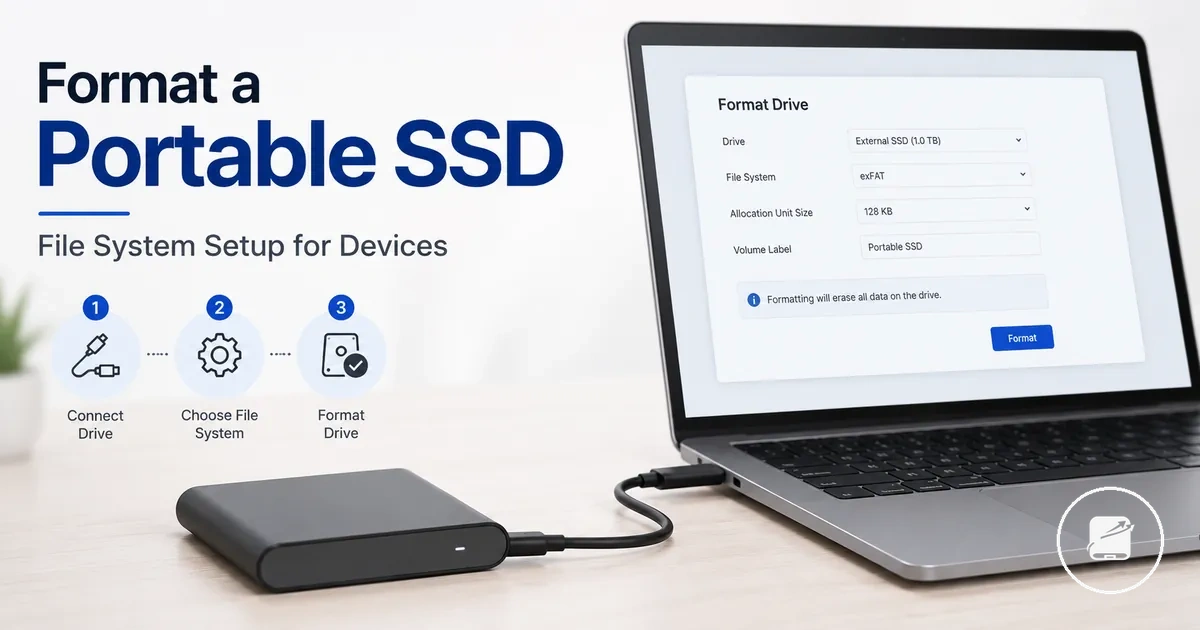
Portable SSD Formatting for Cross-Device Compatibility
A portable SSD is compatible with a device environment when its file system supports the required access. Formatting controls that file-system choice, which determines whether the drive can support Windows, Mac, or cross-device use.
The file system defines how an operating system organises and accesses that data.
Formatting prepares the portable SSD with a selected file system and normally erases the data already stored on it. The file system defines how an operating system organises and accesses that data. Microsoft identifies NTFS and exFAT as Windows-supported file systems, while Apple lists APFS and exFAT among the formats available in macOS Disk Utility, establishing the basic distinction between platform-focused storage and cross-platform use.
A Windows-only workflow may use NTFS, while a Mac-only workflow may use APFS.
A Windows-only workflow may use NTFS, while a Mac-only workflow may use APFS. For example, a shared-device workflow that moves files between a Windows computer and a Mac can use exFAT because Apple documents it as a format for external storage used with both systems. The appropriate format choice therefore follows the operating systems that need access and whether the priority is cross-platform sharing or platform-optimised storage.
An unsuitable file system can also limit device recognition or read-write access in the intended environment.
Changing the format can erase existing data, so Apple advises copying files to another storage device before reformatting. An unsuitable file system can also limit device recognition or read-write access in the intended environment. This compatibility decision is separate from partition scheme, drive letter, mount state, cable, port, backup method, and data-recovery issues.
Table of Contents
Portable SSD Formatting and File System Basics
Portable SSD formatting is the process of preparing a drive with a file system that an operating system can read from and write to. It also establishes the drive structure through a file system and partition scheme so the operating system can recognise the storage volume. Formatting therefore provides the basis for file-system readability and compatibility.
Formatting therefore provides the basis for file-system readability and compatibility.
Portable SSD Formatting and File System Basics explains how formatting connects a drive to operating-system readability. The diagram below illustrates the relationship between a portable SSD, its file system, and read-write access before the essential formatting elements are summarised.
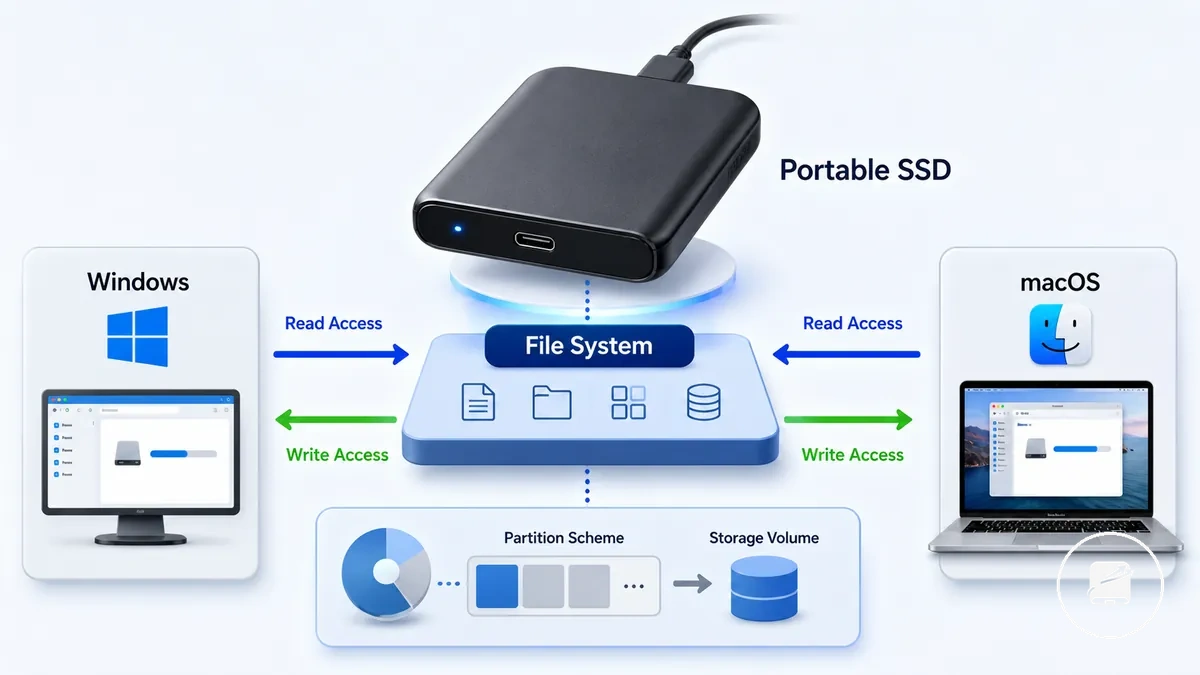
A file system defines how data is stored, organised, and accessed on a formatted drive. portable SSDs rely on a file system so an operating system can provide read access and write access to files stored on a volume. According to Apple Disk Utility documentation and Microsoft file-system guidance, operating systems support different file systems, including exFAT, NTFS, and APFS, so compatibility depends on selecting a format supported by the intended operating system and use case.
A file system defines how data is stored, organised, and accessed on a formatted drive.
Portable SSD Formatting and File System Basics can be summarised by the core elements below. The table organises each formatting component by what it changes, how it affects compatibility, and the associated data consideration.
| Element | What it controls | Compatibility effect | Data-risk note |
|---|---|---|---|
| File system | How files are organised and accessed | Determines which operating systems support read and write access | Changing the file system during formatting can erase existing data, depending on the selected formatting method |
| Partition scheme | How the drive structure is organised | Influences whether supported devices recognise the storage volume correctly | Changing the partition scheme can remove existing partitions and their data |
| Volume label | The storage volume name shown by the operating system | Does not change file-system compatibility | Renaming the volume alone does not erase data |
| Erase action | Creates a newly formatted volume | Applies the selected file system to the drive | Existing data can be removed unless the formatting utility explicitly provides a non-destructive option |
| Operating-system support | Which file systems the operating system can use | Read and write capability depends on the supported file system | Using a different operating system does not by itself erase stored data |
Formatting is different from deleting files. Deleting removes selected files while leaving the existing file system unchanged, whereas formatting prepares the drive with a new or refreshed file system that can also change compatibility. For example, changing a portable SSD from NTFS to exFAT changes the file-system format rather than simply removing stored files. Because formatting tools and options differ between operating systems, confirm whether the selected operation will erase existing data before proceeding.
What Formatting Changes on a Portable SSD
Formatting changes a portable SSD's file system, directory structure, and storage layout, and it can erase or reset accessible data depending on the selected format utility and formatting option. It can also update the volume name, recreate the partition map, and change how the operating system displays usable capacity. Data visibility after formatting depends on the selected formatting action and the drive's state.
Data visibility after formatting depends on the selected formatting action and the drive's state.
What Formatting Changes on a Portable SSD separates the visible changes from the system-level changes shown in the annotated example below. The image highlights the changes a user may see after formatting without implying that every formatting method produces the same data outcome.
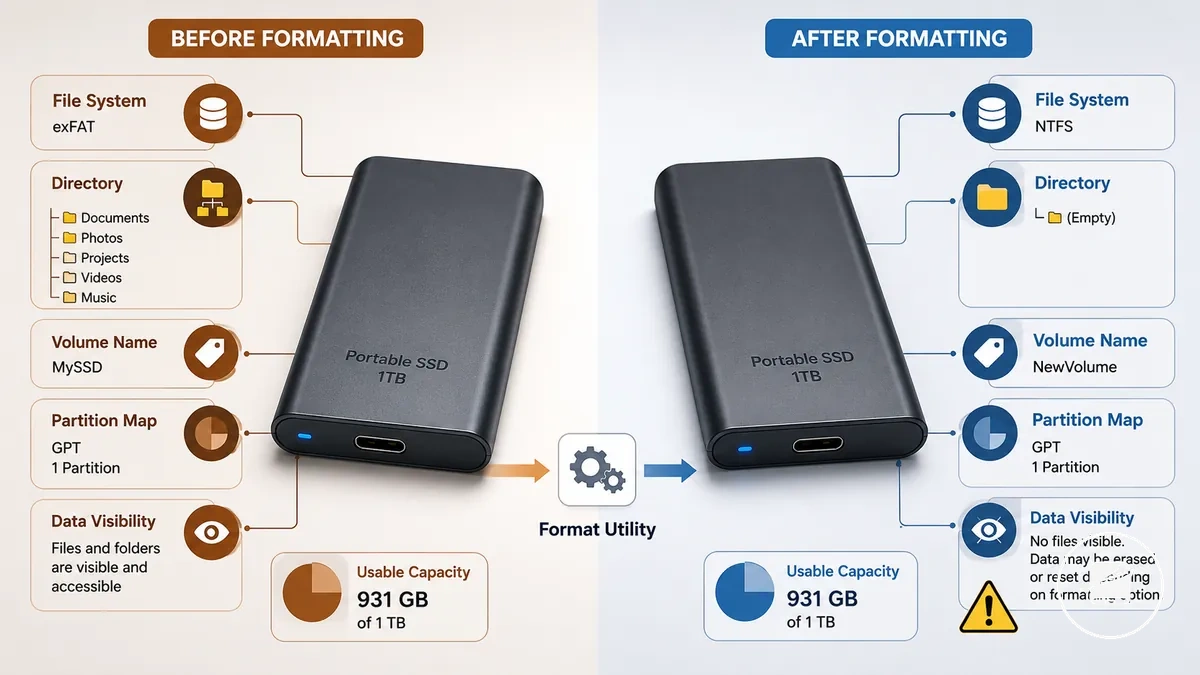
- File system: The selected file system is created or replaced, determining how the operating system organises files and provides read-write access.
- Directory structure: A new directory structure is established, changing how accessible files are organised and presented.
- Volume name: The drive label or volume name can be assigned or renamed so the storage volume appears with a new identifier.
- Partition map and usable capacity: The partition map can be recreated, affecting how the operating system recognises the drive and reports usable capacity.
- Permissions and data visibility: File permissions and data visibility can change after formatting, and existing data may become inaccessible or be erased depending on the chosen option, the operating system, the format utility, and the drive state.
Formatting changes storage structures rather than serving as a backup method. For example, changing only a volume name updates the drive label, while formatting rebuilds the file system and directory structure. According to Apple Disk Utility documentation and Kingston Technology's guidance, available formatting options and labels differ between operating systems and utilities, so verify the selected action before formatting a drive that contains important data.
Why File System Choice Affects Compatibility
File system choice determines compatibility by controlling whether Windows, macOS, and other supported devices provide read access, write access, or only partial access to a portable SSD. A file system with native read-write support on the intended operating systems enables easier shared use, while a platform-focused format can limit write access or require additional software. As a result, the same portable SSD can behave differently when connected to different operating systems.
As a result, the same portable SSD can behave differently when connected to different operating systems.
Why File System Choice Affects Compatibility compares the read-write support and practical trade-offs of common file systems. This comparison also clarifies portable SSD compatibility by contrasting Windows-Mac sharing with platform-optimized storage while recognising that operating-system version, connected device, and software support can affect the outcome.
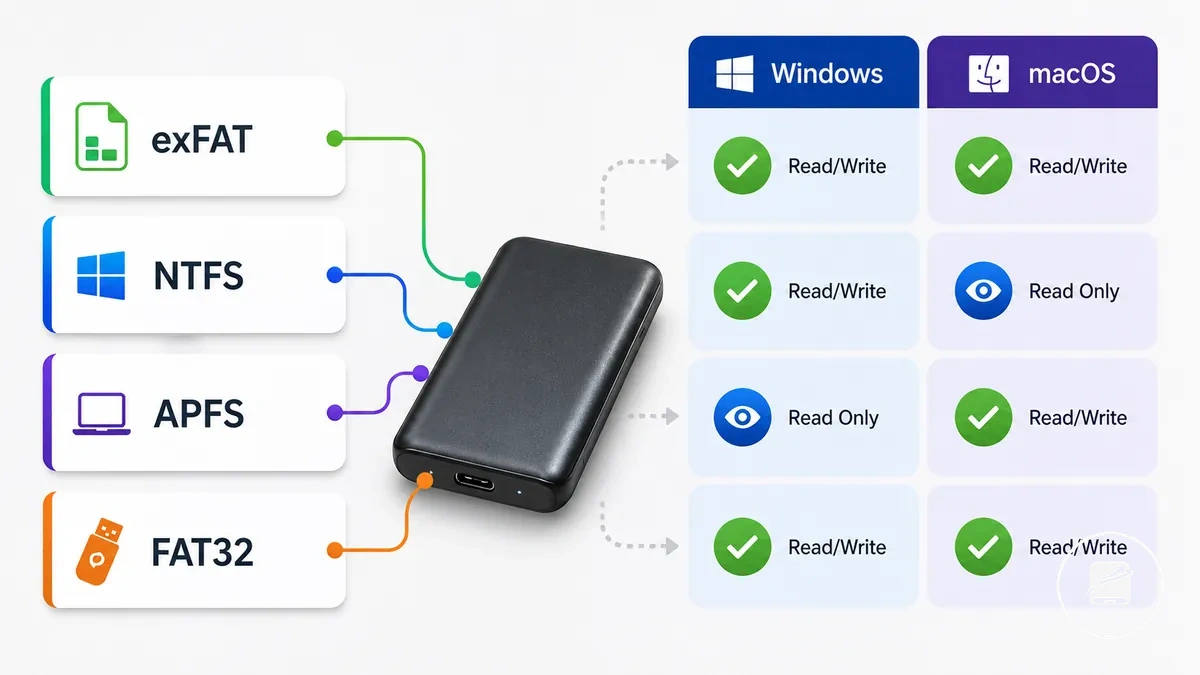
| File system | Strongest fit | Compatibility limitation | Practical caution |
|---|---|---|---|
| exFAT | Shared use between Windows and macOS with native read and write support on current operating systems | Some older devices and embedded systems may not support every exFAT implementation | No 4 GB individual file-size limit, making it suitable for large files shared across supported systems |
| NTFS | Windows with full read access, write access, and permissions support | macOS normally provides native read access, while write access generally requires additional software | Best suited to Windows-focused storage rather than routine Windows-Mac sharing |
| APFS | macOS and the Apple ecosystem with native permissions and modern Apple storage features | Windows does not provide native read-write support for APFS volumes | Recommended when the portable SSD is primarily used with Apple devices |
| FAT32 | Older devices requiring broad legacy compatibility | Individual files are limited to a maximum size of 4 GB | Useful for legacy hardware but restrictive for large videos, backups, and disk images |
For example, a portable SSD used daily between Windows and macOS is commonly formatted as exFAT to support shared read and write access, whereas a drive dedicated to one platform may benefit from NTFS or APFS. According to Microsoft, Apple, and Kingston Technology documentation, native file-system support differs by operating-system version and device, so confirm compatibility before formatting a drive that will be shared across multiple systems.
Best File System for Each Portable SSD Use Case
The best file system depends on the portable SSD use case rather than a single format being suitable for every situation. The primary decision is whether the drive is shared across operating systems or used mainly within one operating-system environment. Use case, operating-system support, and workflow determine the most appropriate file system.
Use case, operating-system support, and workflow determine the most appropriate file system.
Best File System for Each Portable SSD Use Case organizes file-system selection by workflow, operating-system support, and practical trade-offs instead of ranking one format above the others. The comparison below groups common storage scenarios so shared Windows-Mac workflows can be distinguished from platform-focused use.
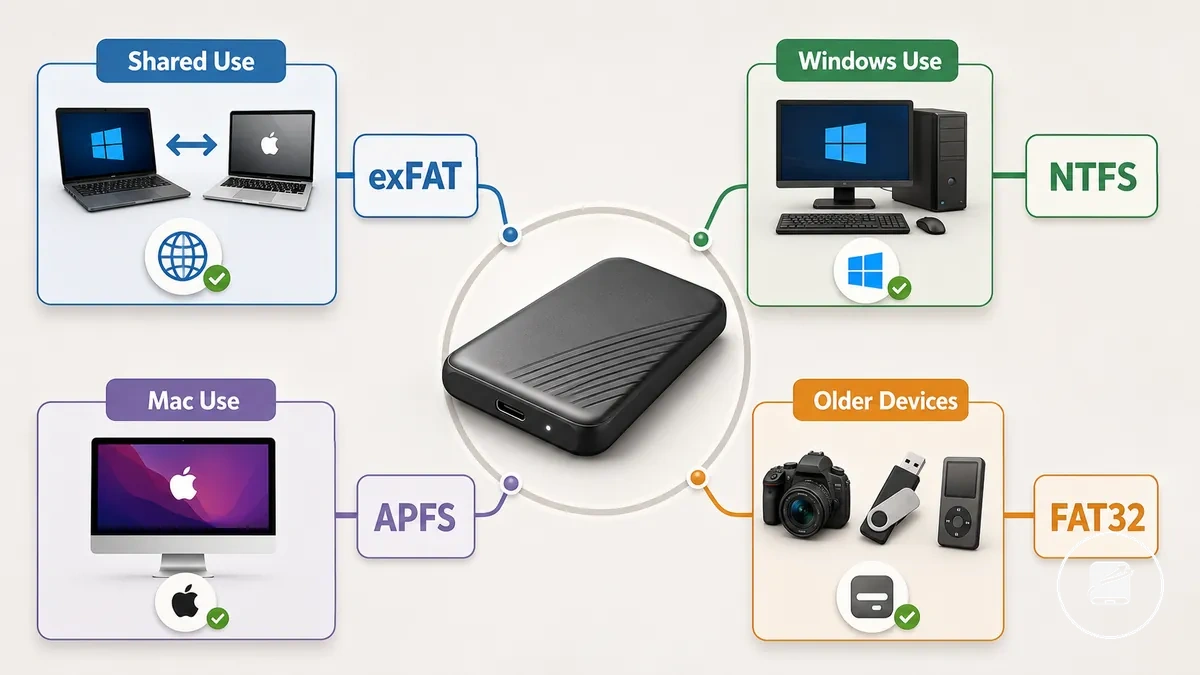
| Use case | File system | Value or condition | Trade-off | Practical decision |
|---|---|---|---|---|
| Shared Windows-Mac use | exFAT | Native read and write support on current Windows and macOS versions | Some older devices may not fully support exFAT | Choose for routine cross-platform file sharing and media transfer |
| Windows-focused use | NTFS | Full Windows permissions support and large-file handling | macOS normally provides native read access, while native write access is limited | Choose when the portable SSD is used primarily with Windows systems |
| Mac-focused use | APFS | Optimized for macOS and the Apple ecosystem with native platform features | Windows does not provide native APFS support | Choose for Mac-only or Apple-focused storage workflows |
| Older-device use | FAT32 | Broad legacy compatibility | Individual files are limited to 4 GB | Choose only when compatibility with older devices is required |
| Backup workflow | NTFS or APFS | Match the file system to the operating system performing backup and recovery | Sharing backups across different operating systems is less convenient | Select the native file system for the primary backup environment |
| Large-file media transfer | exFAT | Supports large files across supported Windows and macOS systems | Legacy hardware support is generally lower than FAT32 | Choose for transferring large videos, project files, and media libraries |
For example, a portable SSD that moves regularly between Windows and Mac computers is generally easier to manage with exFAT, while a workstation drive that remains connected to a single operating system benefits from its native file system. According to Microsoft, Apple, and Kingston Technology documentation, selecting the file system that matches the intended storage workflow provides a more practical outcome than treating any format as universally best.
Selecting the file system according to the intended workflow provides a balanced trade-off while avoiding unnecessary compatibility constraints.
Older devices can require FAT32 despite its 4 GB file-size limit, whereas modern media-transfer workflows commonly benefit from exFAT because it supports larger files on current Windows and macOS systems. Selecting the file system according to the intended workflow provides a balanced trade-off while avoiding unnecessary compatibility constraints.
exFAT for Windows and Mac Sharing
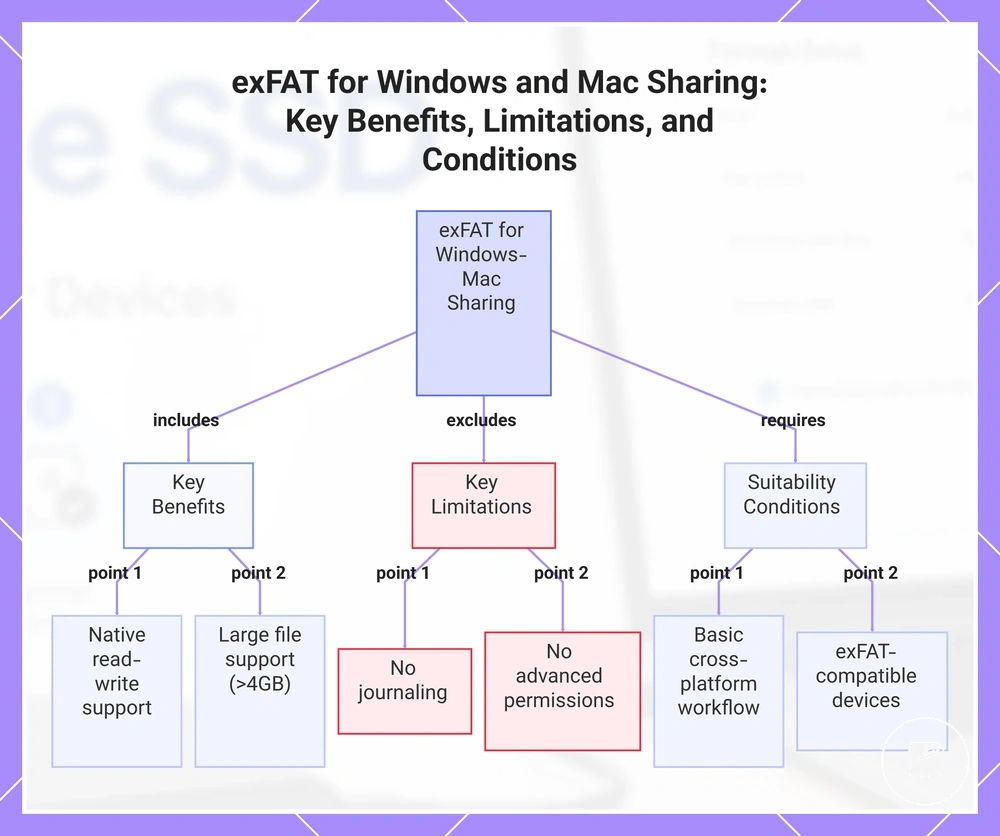
exFAT is usually the practical file system when a portable SSD needs to move files between Windows and Mac computers. It provides native cross-platform read-write support on current versions of both operating systems and supports large files beyond the 4 GB limit imposed by FAT32. This makes exFAT well suited for routine Windows-Mac shared access.
This makes exFAT well suited for routine Windows-Mac shared access.
For example, a portable SSD used to transfer large video projects between a Windows workstation and a MacBook can normally remain in exFAT without being reformatted. According to Microsoft and Apple documentation, exFAT supports large-file transfers across both platforms but does not include the journaling or advanced permissions available in NTFS or APFS, so it is less suitable for workflows that depend on those features. If a shared drive must also work with older devices that do not support exFAT, or a workflow requires native platform-specific features, another file system may be a better choice despite the need for cross-platform sharing.
For example, a portable SSD used to transfer large video projects between a Windows workstation and a MacBook can normally remain in exFAT without being reformatted.
exFAT for Windows and Mac Sharing is usually suitable when these conditions are present:
- Windows and Mac both require native read-write support.
- Large files such as videos, backups, or project archives are transferred regularly.
- Simple permissions are sufficient and advanced permission management is not required.
- Journaling is not essential for the intended storage workflow.
- Connected devices support exFAT; older systems may require an alternate format such as FAT32.
This chart shows the main benefits, limitations, and suitability conditions of using exFAT for sharing files between Windows and Mac computers.
NTFS for Windows-Focused Portable SSD Use
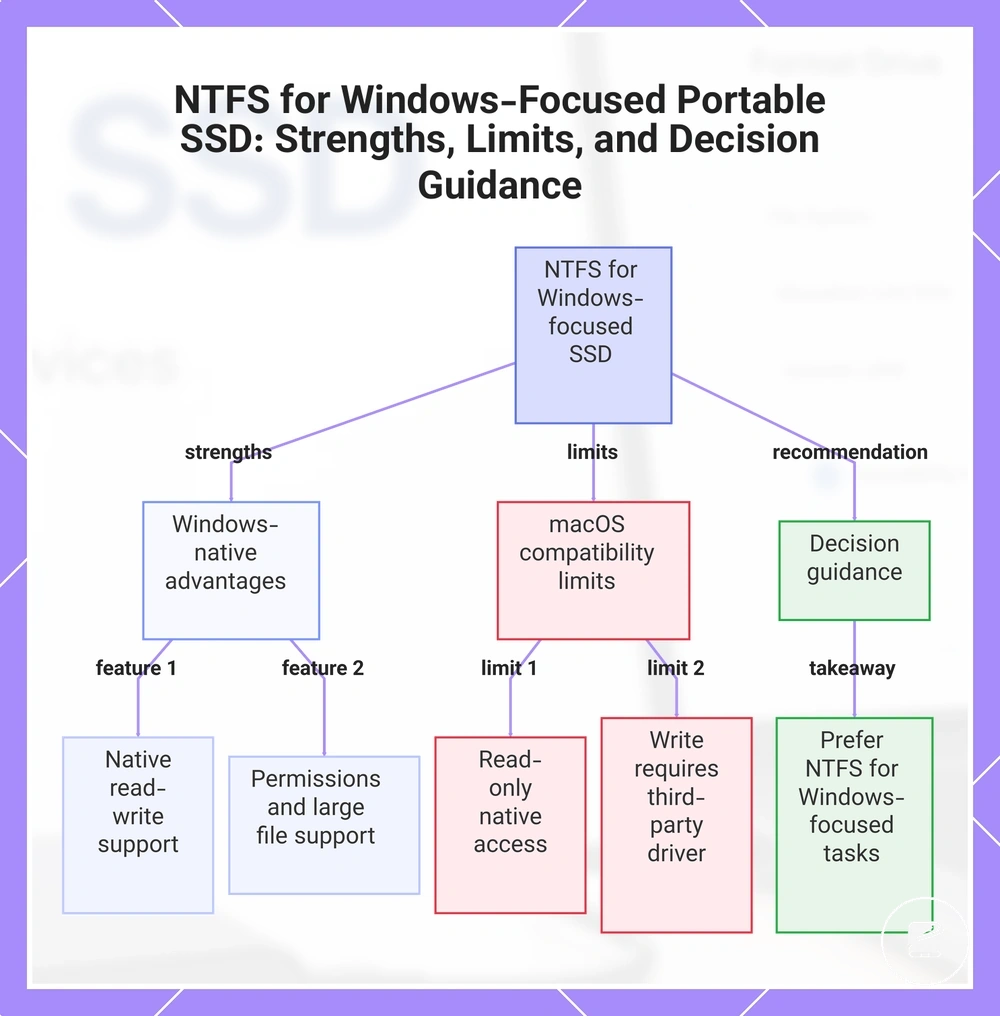
NTFS fits Windows-focused portable SSD use when the drive needs native Windows read-write support and Mac write access is not a primary requirement. Microsoft documents NTFS as the default file system for modern Windows systems, with support for permissions, rich metadata, and large files. On macOS, an NTFS drive normally provides read access only, which creates a compatibility limit for shared editing or file transfer.
NTFS is not a cross-platform default simply because both Windows and macOS can recognise the drive.
NTFS is not a cross-platform default simply because both Windows and macOS can recognise the drive. Apple states that NTFS volumes are read-only on Mac, so writing, deleting, or changing files from macOS requires a compatible third-party driver rather than native support. For example, a portable SSD used for Windows backups and large project files can use NTFS effectively, but a drive that must accept new files from both Windows and Mac is usually better suited to exFAT. Choose NTFS when Windows-native permissions, read-write support, and platform-focused use matter more than direct Mac write compatibility.
Choose NTFS when Windows-native permissions, read-write support, and platform-focused use matter more than direct Mac write compatibility.
NTFS for Windows-Focused Portable SSD Use depends on these strengths and compatibility limits:
- Windows provides native NTFS read-write support.
- NTFS permissions can control access to files and folders within supported Windows environments.
- NTFS supports large files for Windows backups, media libraries, and project storage.
- macOS provides native read access but not native write access to NTFS volumes.
- Mac write access depends on a compatible third-party driver, adding a software requirement to the workflow.
This chart shows the key advantages of NTFS for Windows-focused portable SSDs, its compatibility limits on macOS, and the decision guidance for when to choose NTFS.
APFS for Mac-Focused Portable SSD Use
APFS fits Mac-focused portable SSD use when the drive is used mainly with macOS and remains within the Apple ecosystem. Apple documents APFS as the default file system for macOS 10.13 or later, with support for snapshots and encryption. Its compatibility is strongest in an Apple-only workflow rather than mixed-platform sharing.
Its compatibility is strongest in an Apple-only workflow rather than mixed-platform sharing.
For example, a portable SSD used for Mac photo libraries, video projects, or local backups can use APFS features without requiring cross-platform access. Windows has no native APFS read-write support, so accessing the drive from Windows requires compatible extra software. APFS is therefore a platform-optimized choice for Mac storage, not a general sharing format.
APFS is therefore a platform-optimized choice for Mac storage, not a general sharing format.
APFS for Mac-Focused Portable SSD Use is best understood through its Mac benefits and cross-platform limits:
- macOS provides native APFS support on compatible Apple systems.
- APFS supports snapshots for point-in-time file-system states.
- APFS provides encryption support when encryption is enabled during formatting or through macOS.
- Windows incompatibility remains a practical limit because native access is unavailable without extra software.
How to Format a Portable SSD Without Losing Files
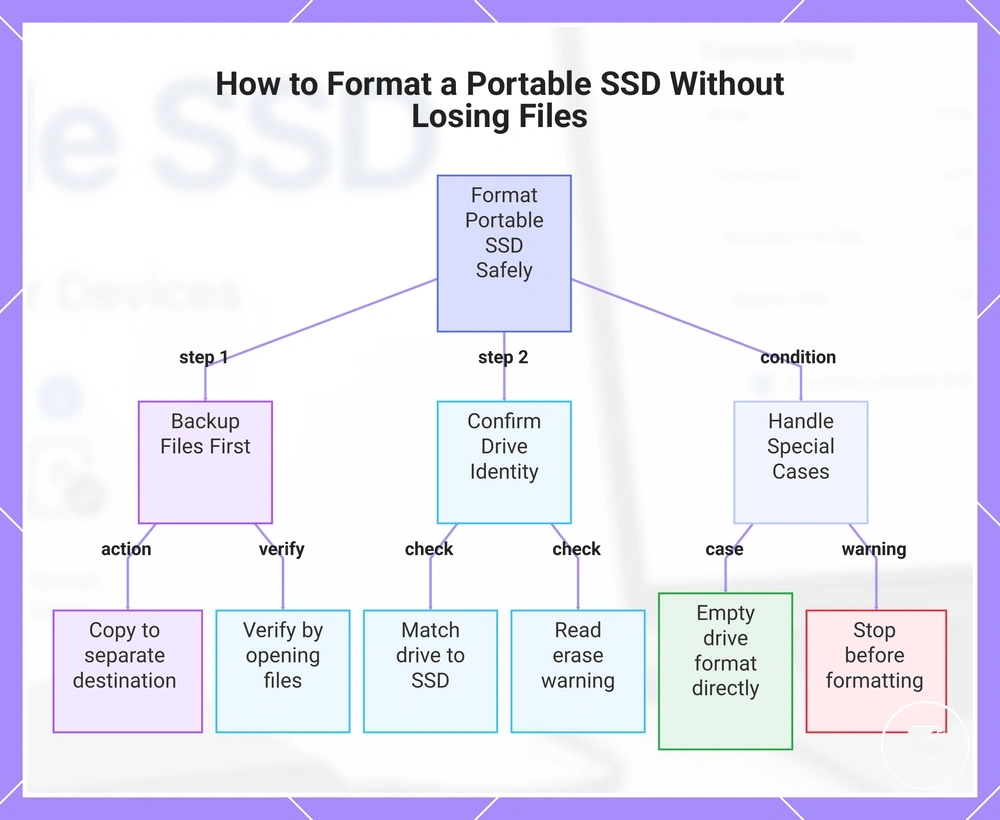
Formatting can erase existing files, so reduce the data risk by creating a verified backup or moving the files before any erase or reformat action. Do not proceed until the data exists in another accessible location.
Do not proceed until the data exists in another accessible location.
Copy the existing files to a separate destination, then complete copy verification by opening representative files from that backup location. Confirm that the selected device is the correct portable SSD, because an incorrect drive selection can erase unrelated data. Read the warning prompt and continue only after the backup and drive identity are confirmed.
- Identify whether the portable SSD contains existing files.
- Choose a separate backup location with enough space for the files.
- Copy or move the files before starting formatting.
- Verify the backup by opening files from the destination.
- Confirm the drive selection matches the intended portable SSD.
- Read the erase warning and proceed only when the backup is verified.
An empty new drive can be formatted once its identity is confirmed because it has no existing files to preserve. A drive with files requires a verified backup, and portable SSD backups provide the relevant safety path before formatting. For an unreadable drive, stop before formatting if the files are still needed, because an erase action can reduce recoverability. Recovery after formatting is uncertain and should not be treated as reversible or guaranteed.
Recovery after formatting is uncertain and should not be treated as reversible or guaranteed.
This chart shows the essential steps and checks to format a portable SSD without data loss, including backup, drive confirmation, and handling special drive conditions.
Back Up or Move Existing Files First
Copy or back up your existing files before changing the drive format. Save the files from the source drive to a separate destination location, then verify the copied files before formatting. Verification is the final safety check before you proceed.
Verification is the final safety check before you proceed.
Back Up or Move Existing Files First means confirming that the copied files are complete and accessible before formatting:
- Identify the existing files on the source drive.
- Copy or move files to the chosen destination location.
- Complete a folder check to confirm the expected folders and files are present.
- Perform an open-test by opening an important copied file from the destination location.
- Proceed with formatting only after the folder check and open-test succeed.
If the copied file opens correctly from the destination location, the verification step is complete. For example, open an important copied document or photo from the backup copy instead of the source drive before formatting. If the file fails to open or expected folders are missing, stop and correct the issue before formatting to reduce the risk of accidental erasure.
Confirm the Drive Before Erasing
Confirm that the selected device is the correct portable SSD before clicking erase, format, initialize, or partition. Match the drive name, capacity, device identifier, and volume label before accepting the erase prompt, because selecting the wrong device can erase a different storage drive.
Confirm that the selected device is the correct portable SSD before clicking erase, format, initialize, or partition.
Confirm the Drive Before Erasing prevents selection of the wrong storage device:
- Disconnect external drives that are not required for the format action.
- Check that the drive name matches the intended portable SSD.
- Compare the displayed capacity with the capacity of the target device.
- Verify the device identifier and volume label shown for the selected drive.
- Read the erase prompt and confirm only when every displayed detail matches the correct portable SSD.
When multiple connected devices appear in the device list, similar drive names or volume labels can make the target volume unclear. Check each external drive by drive name, capacity, and device identifier before returning to the correct portable SSD. Complete the format confirmation only when the selected drive and erase prompt show matching identification details.
How to Format a Portable SSD on Windows
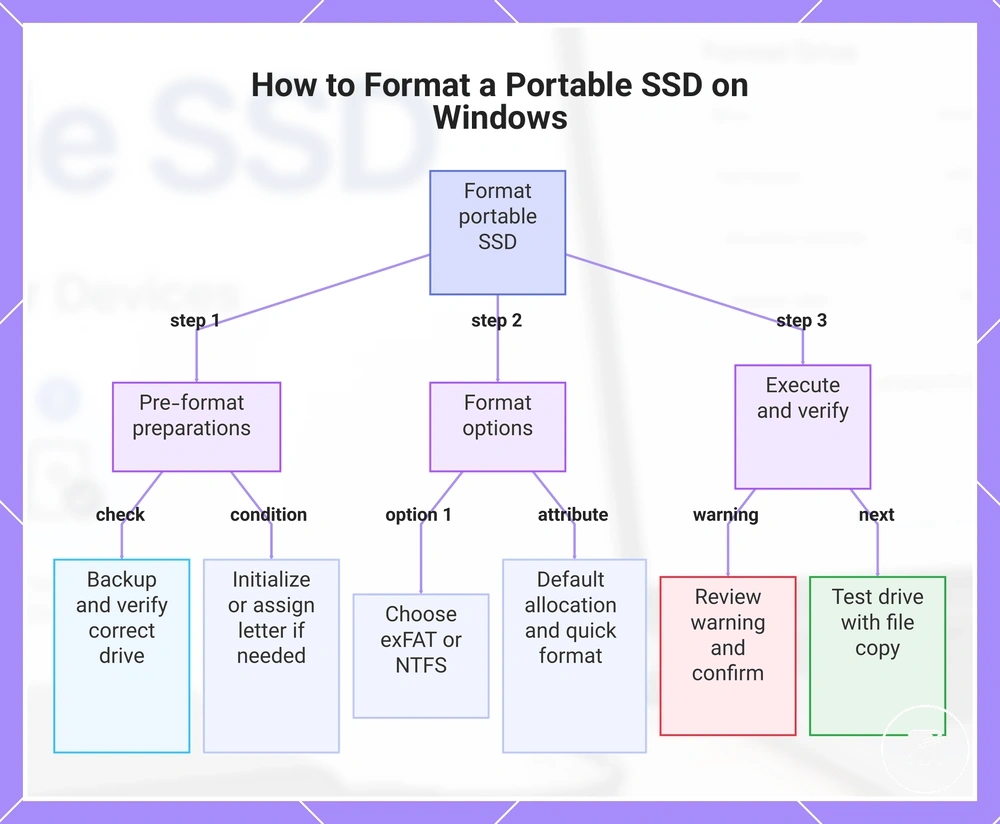
To format a portable SSD on Windows, select the correct portable SSD, choose the appropriate file system, and confirm the format action. Confirm your backup and verify that the selected volume is the intended target before proceeding because formatting removes existing data.
If you are preparing a new external drive, formatting is only one part of first-time portable SSD setup .
File Explorer provides a direct format window for an existing volume, while Disk Management also includes initialization and drive letter options when they are required. If you are preparing a new external drive, formatting is only one part of first-time portable SSD setup. Windows labels and menu names can differ slightly by version, but the following sequence remains the same.
- Connect the portable SSD, then open File Explorer or Disk Management.
- Identify the correct volume by checking its drive name, capacity, and location before selecting the format option.
- If Disk Management shows the drive as uninitialized, initialize the disk before creating or selecting a volume for formatting.
- If the volume does not have a drive letter, assign an available drive letter through Disk Management so it can be accessed in File Explorer.
- Select the required file system. Choose exFAT for compatibility with both Windows and macOS, or choose NTFS for a Windows-focused workflow.
- Leave the allocation unit size at the default setting unless a specific application or device requires a different value.
- Select quick format for a standard format operation, review the erase warning carefully, and confirm only after verifying the correct portable SSD because the action is destructive.
- When formatting is complete, open the new drive letter in File Explorer and copy, then reopen, a test file to confirm the portable SSD is accessible.
This chart shows the main steps to format a portable SSD on Windows, including pre-format checks, format options, and post-format verification.
How to Format a Portable SSD on Mac
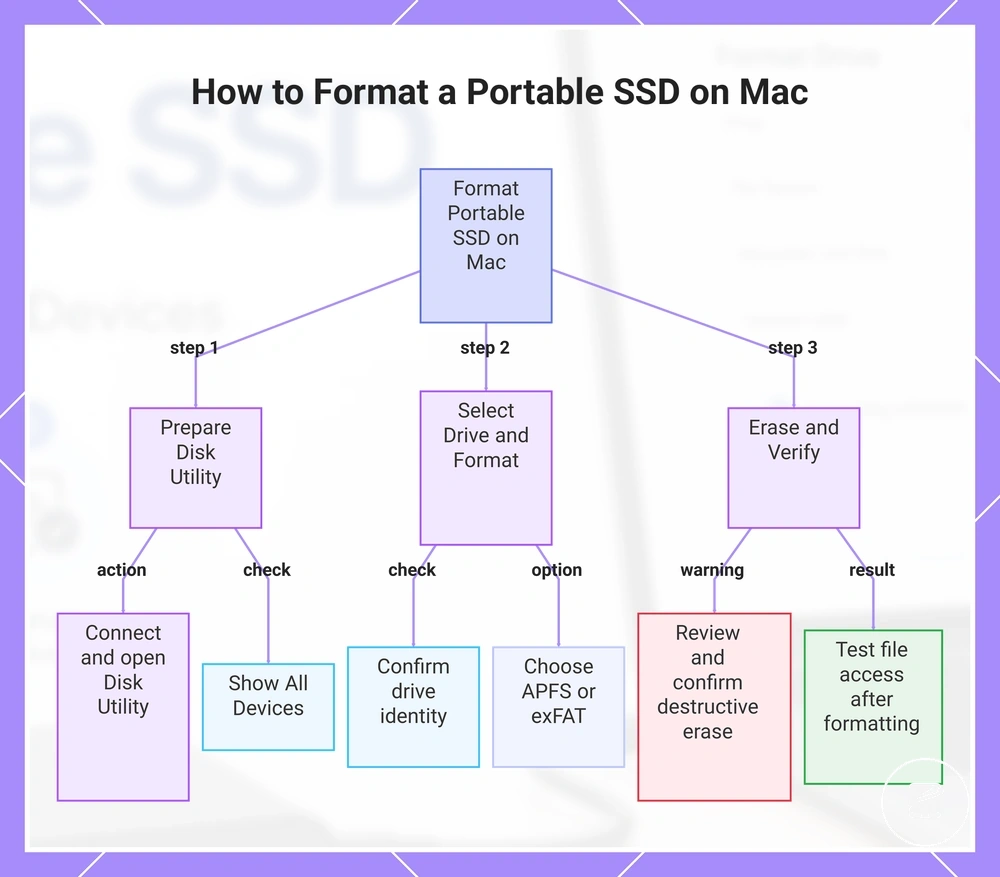
To format a portable SSD on a Mac, open Disk Utility, select the correct portable SSD, choose the required format and scheme, and then confirm the erase action. Verify that you have selected the intended external drive before proceeding because erasing removes the existing data. Choose both the format and the partition scheme before confirming the operation.
Choose both the format and the partition scheme before confirming the operation.
Disk Utility separates the file format from the partition scheme, and it can display both the physical drive and individual volumes. If the physical drive is selected, you can change both the format and the scheme, while selecting a volume typically changes only that volume's format. Interface labels can differ slightly between macOS versions, so confirm the selected item carefully before accepting the erase confirmation.
- Connect the portable SSD to the Mac, then open Disk Utility from Applications > Utilities or by using Spotlight.
- If available, choose View > Show All Devices so the physical external drive and its volumes appear in the disk view.
- Select the correct physical drive or volume by confirming its name, capacity, and position in the Disk Utility sidebar.
- Click Erase, then enter the preferred volume name.
- Select APFS if the portable SSD will be used mainly with macOS, or select exFAT if the drive also needs compatibility with Windows.
- If you selected the physical drive, choose GUID Partition Map as the scheme. If only a volume is selected, the scheme option may not be available.
- Review the selected drive, volume name, format, and scheme, then confirm the erase only after verifying that the correct portable SSD is selected because the action is destructive.
- When Disk Utility finishes formatting, confirm that the external drive mounts in Finder, then copy and reopen a test file to verify normal access.
This chart shows the main steps and key checks to safely format a portable SSD on a Mac, including drive selection, format choice, and post-format verification.
Portable SSD Format Settings That Affect Device Recognition
Portable SSD format settings can affect device recognition even when the physical connection is working correctly. Device recognition depends on the file system, partition scheme, mount state, and other format configuration values that determine whether the operating system can identify and present the drive. If the portable SSD is not detected at the system level, the cause is more likely to involve the connection or hardware than the format settings.
The table below links each format setting to its recognition outcome and the corresponding check.
A partition scheme defines how storage is organized on the drive, while a drive letter or mount state determines whether the formatted volume is visible to the operating system. In Windows, a formatted volume normally requires an assigned drive letter to appear in File Explorer, whereas macOS requires the volume to be mounted before it appears in Finder. The table below links each format setting to its recognition outcome and the corresponding check.
| Setting | Value or condition | Recognition effect | What to check |
|---|---|---|---|
| File system | Use a file system supported by the operating system, such as exFAT for Windows and macOS sharing, NTFS for Windows-focused use, or APFS for Mac-focused use. | An unsupported file system can prevent the formatted volume from mounting or being accessed even though the drive is detected. | Confirm that the operating system supports the selected file system and the intended access mode. |
| Partition scheme | GPT for current systems or MBR only when legacy device support is required. | An unsupported partition scheme can prevent compatible devices from recognizing the volume structure correctly. | Verify that the target device supports the selected partition scheme. |
| Drive letter | An available drive letter is assigned in Windows. | A formatted volume without an assigned drive letter can remain hidden from File Explorer. | Check the drive letter assignment in Disk Management. |
| Mount state | The volume is mounted and online. | An unmounted volume may appear in disk-management utilities but not in the normal file browser. | Confirm that the mounted volume is online and accessible. |
| Volume label | A valid and recognizable volume label is applied. | The volume label helps identify the correct portable SSD but does not determine whether the drive is detected. | Verify that the displayed label matches the intended external drive. |
| Permissions | The current user has the required read or read-write permissions. | Restricted permissions can allow the volume to appear while limiting access to its contents. | Review ownership and permission settings for the active user account. |
For example, a portable SSD can appear in Windows Disk Management but remain absent from File Explorer because no drive letter has been assigned. Similarly, a mounted volume that uses an unsupported file system on the current operating system may remain inaccessible even though the hardware is detected. If the operating system does not detect the physical portable SSD at all, continue with connection or hardware troubleshooting rather than changing format settings.
Partition Scheme and Drive Letter Requirements
The partition scheme and drive letter can determine whether a formatted portable SSD mounts or appears normally. GPT and MBR define the partition style, while Windows uses an assigned drive letter and macOS uses a mount point to present a mounted volume. These conditions affect system visibility after the disk has been recognised and initialized.
On macOS, a volume must be mounted before it appears in Finder.
For example, an initialized disk can appear in Windows Disk Management but remain absent from File Explorer when its formatted volume has no drive letter. On macOS, a volume must be mounted before it appears in Finder. Older devices or specific systems may require MBR instead of GPT, so verify the host’s documented partition support before changing the scheme.
- Partition scheme: Confirm whether the target system supports GPT or requires MBR for older-device compatibility.
- Drive letter: In Windows, verify that the formatted volume has an available assigned letter when it should appear in File Explorer.
- Mount state: In macOS, verify that the mounted volume has an active mount point when it should appear in Finder.
- Initialized disk: In Windows Disk Management, confirm that the disk is initialized, online, partitioned, and formatted before assessing system visibility.
- Older-device condition: Check the device documentation before changing the partition scheme because GPT and MBR support is system-specific.
File Size, Permissions, and Journaling Trade-Offs
File size, permissions, and journaling create different trade-offs for portable SSD use after formatting. exFAT prioritises broad system support for large files, NTFS adds Windows-focused access control and journaling, and APFS provides macOS-focused permission behavior and copy-on-write resilience features. These differences shape daily use when portability, controlled access, or platform integration matters most.
File size, permissions, and journaling create different trade-offs for portable SSD use after formatting.
For example, exFAT suits large media transfers between Windows and macOS because both systems support it, but it provides less detailed permission behavior than NTFS or APFS. NTFS is more suitable for permissions-heavy Windows use, while APFS is more useful for Mac-focused workflows that rely on native Apple file-system features. A technically stronger platform format can therefore be less useful for cross-device sharing when the other operating system lacks full write support.
| File system | File-size handling | Permissions behavior | Journaling or resilience note | Best-fit condition |
|---|---|---|---|---|
| exFAT | Supports large files without the 4 GB single-file limit associated with FAT32. | Provides limited native access control compared with NTFS and APFS. | Does not use file-system journaling, so it offers fewer metadata-recovery features after an interrupted write. | Cross-device sharing between Windows and macOS when large files and broad system support matter more than detailed permissions. |
| NTFS | Supports large files for Windows-focused storage and application workflows. | Supports user and group permissions for file and folder access control. | Uses journaling to record file-system changes and support consistency after an interrupted operation, but journaling does not replace backups. | Windows-based daily use that requires native write support, permissions, and access control. |
| APFS | Supports large files and is designed for flash and SSD storage on Apple platforms. | Supports macOS ownership and permission controls within Apple-focused workflows. | Uses copy-on-write metadata and supports snapshots as resilience features, but these features do not guarantee data safety. | Mac-focused use that benefits from native APFS features and does not require routine write access from unsupported systems. |
When a Portable SSD Is Not Recognized After Formatting
A portable SSD that is not recognized after formatting may have an unsupported file system, an incorrect partition scheme, an unmounted volume, a missing drive letter, or a connection issue involving the cable, port, or device support. Separate format-related visibility issues from connection-related causes before changing the drive again.
Verify these states without erasing, repartitioning, or repeatedly reformatting the portable SSD.
Use a safe check to confirm that the file system is supported by the operating system, the partition is present, and the volume is mounted. In Windows, a formatted volume without an assigned drive letter may appear in Disk Management but not in File Explorer; in macOS, an unmounted volume may appear in Disk Utility but not in Finder. Verify these states without erasing, repartitioning, or repeatedly reformatting the portable SSD.
| Symptom | Likely attribute issue | Safe check | What it means |
|---|---|---|---|
| The SSD appears in Disk Management but not in File Explorer. | No drive letter is assigned in Windows. | Check whether the formatted volume has an available assigned letter. | The disk is detected, and assigning an unused drive letter is the next non-destructive action. |
| The SSD is detected, but the volume cannot be opened. | The file system is unsupported or does not provide full access on the current system. | Compare the formatted file system with the operating system and device support documentation. | The connection works, but the host cannot use the volume normally under its current format. |
| The volume appears in Disk Utility but not in Finder. | The macOS volume is not mounted. | Select the volume in Disk Utility and check whether the Mount action is available. | The physical drive and partition are visible, and mounting the volume is the next non-destructive action. |
| The disk appears, but its partition is unavailable to the target device. | The partition scheme does not match the device support requirement. | Check whether the host requires GPT or MBR before making any partition change. | The drive is detected, but the device cannot interpret the current partition structure. |
| The SSD is absent from disk-management tools. | The cable or port may not provide a stable data connection. | Reconnect the cable securely, then test one known working data-capable port. | The recognition problem occurs before the operating system can inspect the file system or partition. |
| The SSD works on a computer but not on another device. | The second device has a file-system, partition, capacity, or interface support limit. | Check the device documentation for supported formats, partition schemes, capacities, and USB connection requirements. | The portable SSD functions in one environment, but the target device does not support its current configuration. |
For example, if the portable SSD remains absent from both Windows Disk Management and macOS Disk Utility after the cable, port, file-system, partition, mount, and drive-letter checks, the issue is outside this basic post-format diagnostic path. Continue with the dedicated guide for a portable SSD not showing up rather than erasing or formatting the drive again.