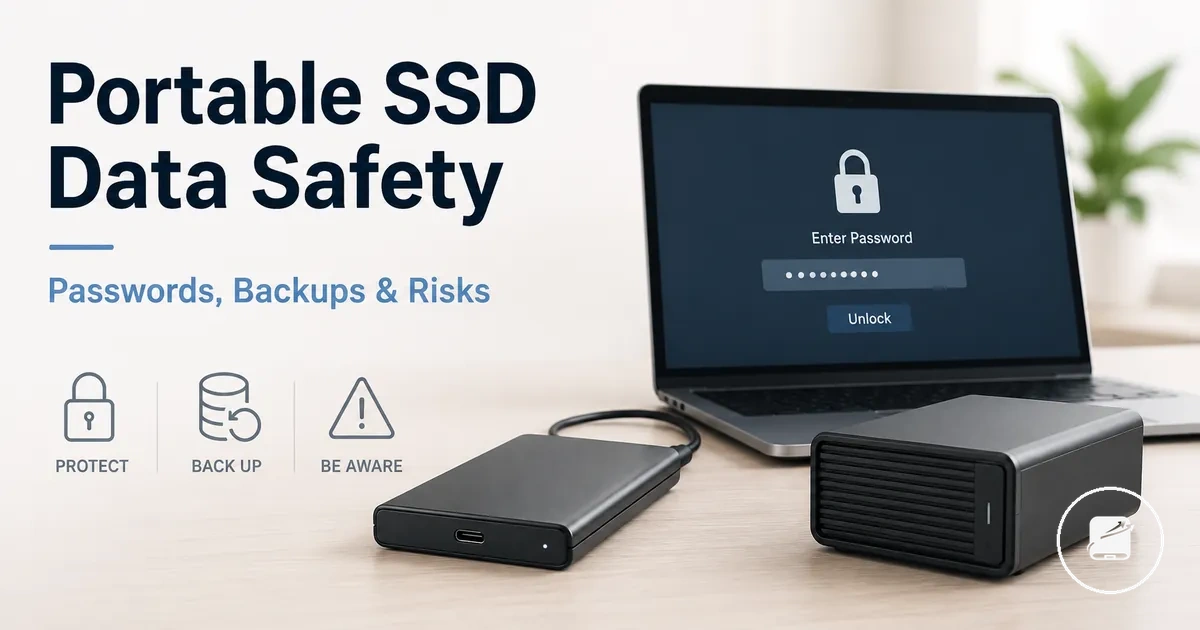
Portable SSD Security and Data Safety
Portable SSD security protects stored files from unauthorized access by using encryption, password protection, and access control, but it does not prevent every type of data risk. According to the National Institute of Standards and Technology (NIST), storage encryption protects the confidentiality of stored information by making data unreadable without the correct authentication or cryptographic key.
Data security and data preservation serve different purposes.
Data security and data preservation serve different purposes. Encryption helps keep private files confidential, while backups preserve data availability by creating separate copies that can be restored after accidental deletion, hardware failure, corruption, loss, or theft. For example, if an encrypted portable SSD is stolen, the encryption can help prevent unauthorized access, but restoring the files still requires a separate backup if the device cannot be recovered.
Portable SSD security therefore protects file access rather than guaranteeing data availability.
Portable SSD security therefore protects file access rather than guaranteeing data availability. Recovery options are conditional on the encryption method, operating-system support, and whether the correct password or recovery key is available, while backup readiness determines whether lost data can be restored. The Australian Cyber Security Centre recommends maintaining regular backups because encryption improves confidentiality but does not replace backup or recovery planning.
Table of Contents
What portable SSD security can and cannot protect
Portable SSD security primarily protects access to stored files by using encryption, password protection, and access control, but it does not protect the drive from every type of loss, damage, or hardware failure. According to the National Institute of Standards and Technology (NIST), encryption protects the confidentiality of stored information rather than guaranteeing data availability.
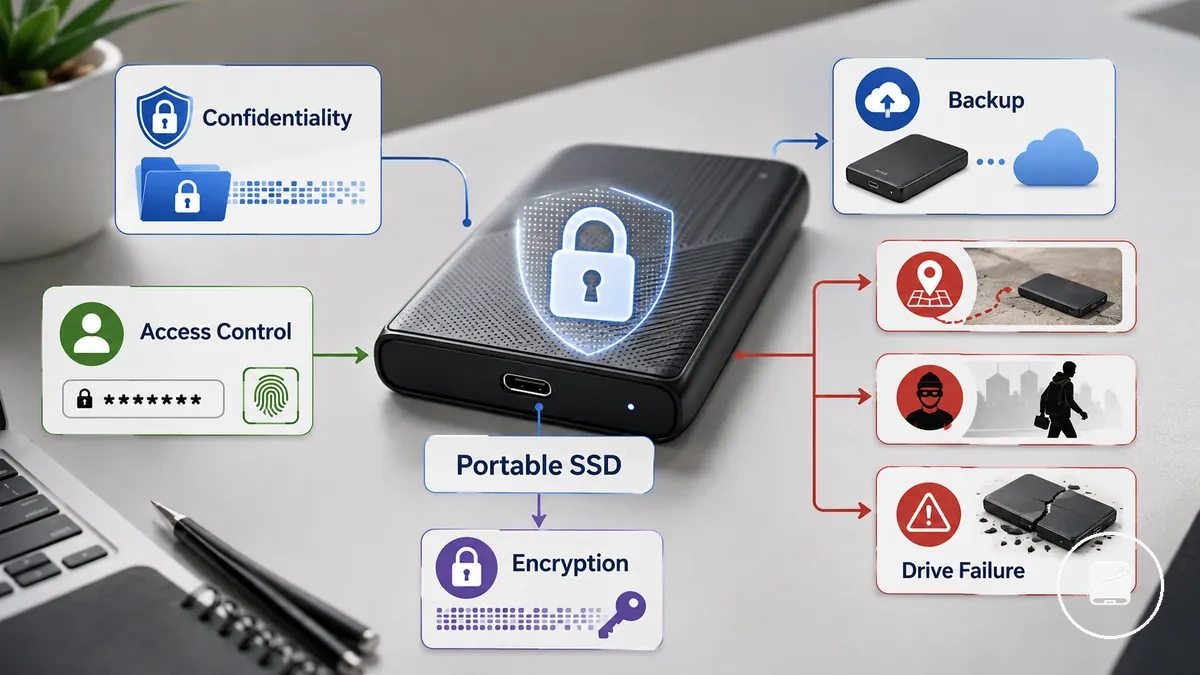
portable SSDs use security features to restrict unauthorized access to stored files. Encryption helps preserve confidentiality if a drive is lost or stolen, but it does not recover deleted files, repair file corruption, or restore data after drive failure; recovery depends on an available backup and, where applicable, the correct password or recovery key.
portable SSDs use security features to restrict unauthorized access to stored files.
The distinction between confidentiality and data availability is the key boundary:
- Encryption and access control: Protect stored files from unauthorized access when the correct credentials are required.
- Lost or stolen drive: Encryption helps keep stored files unreadable to unauthorized users, but it does not recover the missing device.
- Accidental deletion or corruption: Security features do not reverse deleted or corrupted files; restoration requires a usable backup or successful recovery.
- Drive failure: Encryption does not prevent hardware failure or guarantee access to data if the storage device becomes unreadable.
For example, a stolen encrypted portable SSD can still protect confidential documents because the files remain inaccessible without valid authentication. By contrast, if the same drive fails electronically and no backup exists, the encryption remains intact but the data may still be unavailable, demonstrating that portable SSD security protects confidentiality rather than guaranteeing recovery.
Encryption methods for portable SSDs
Portable SSD encryption is a method of making stored data unreadable without the correct cryptographic key, password, or authorized access method. According to the National Institute of Standards and Technology (NIST), encryption protects the confidentiality of stored information by requiring the appropriate cryptographic key to decrypt the data rather than simply restricting access with a password.
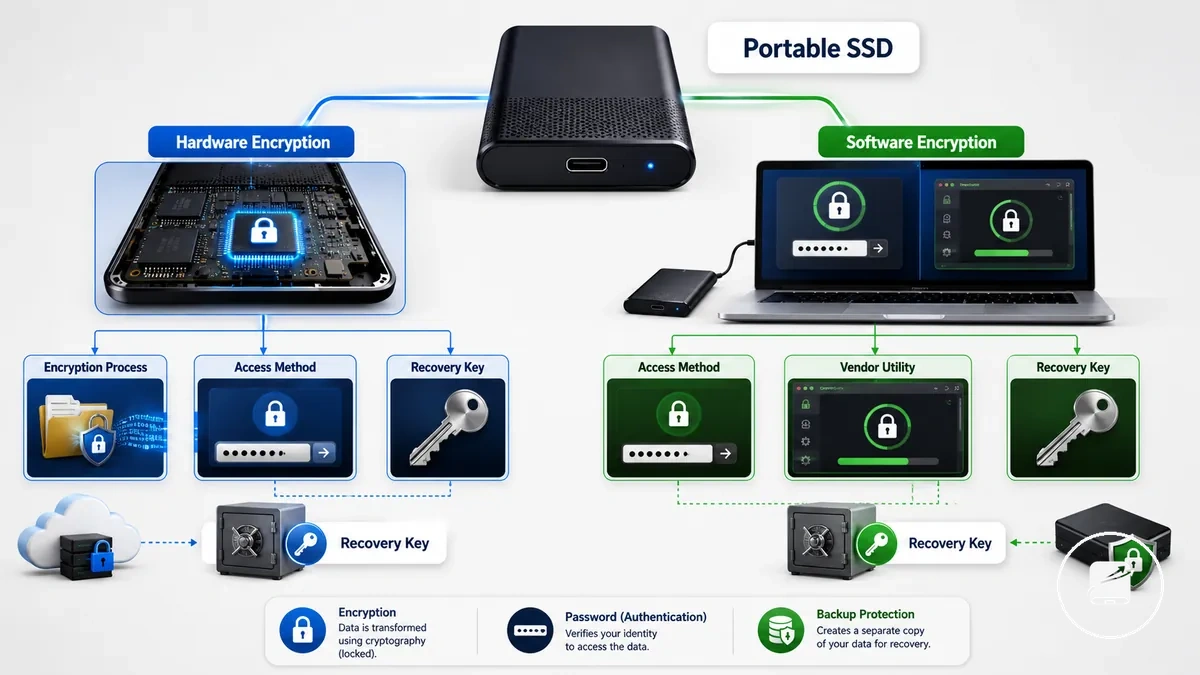
Encryption methods differ by where encryption is performed and how access is controlled. Hardware encryption processes data within the portable SSD using a dedicated encryption controller, while software encryption relies on an operating-system tool such as BitLocker or FileVault, or a compatible vendor utility, to encrypt data before it is written to the drive. A password prompt or fingerprint sign-in alone does not prove that encryption is enabled, and encryption should not be confused with backup protection because backups create separate recoverable copies of data.
Recovery options depend on the encryption method and its setup.
Recovery options depend on the encryption method and its setup. Hardware-encrypted portable SSDs may provide recovery features through supported vendor utilities, while software encryption typically relies on a stored recovery key managed by the operating system. For example, if a user enables BitLocker and safely stores the recovery key, encrypted files can still be accessed after replacing the computer, provided the recovery key remains available.
| Encryption method | Where encryption is handled | Access control | Key storage and recovery |
|---|---|---|---|
| Hardware encryption | Dedicated encryption hardware inside the portable SSD | Password or supported authentication configured through the device or vendor utility | Recovery depends on the device's supported recovery features and correct setup |
| Software encryption | Operating-system tool or encryption software running on the host computer | Password, recovery key, or authorized operating-system credentials | Recovery depends on retaining the recovery key and using a supported operating system or encryption application |
Hardware encryption inside secure portable SSDs
Hardware encryption is a built-in security method in which a secure portable SSD encrypts and decrypts data through a dedicated controller instead of relying on the host operating system. According to NIST Special Publication 800-111, storage encryption protects data by securing the cryptographic keys used to unlock encrypted information, making key management and authentication central to overall protection.
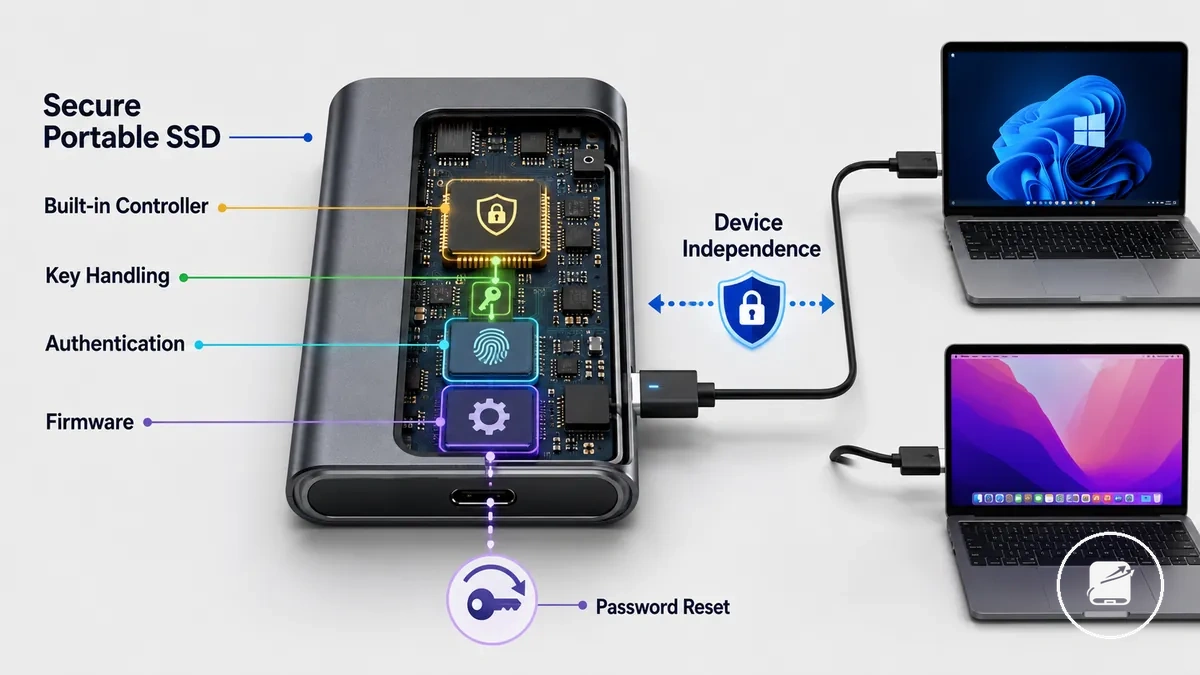
Hardware encryption provides device-independent data protection because cryptographic processing remains inside the drive, but its effectiveness depends on firmware quality, reliable authentication, and the manufacturer's recovery design. Password reset behaviour and lockout responses differ by implementation, so a lost password may be recoverable only when the device supports an approved recovery process; otherwise, encrypted data can remain inaccessible even though the drive is functional. For example, a hardware-encrypted portable SSD connected to another compatible computer still requires the configured authentication method before the encrypted data can be accessed.
Key hardware encryption attributes:
- Built-in controller: Performs encryption and decryption within the secure portable SSD.
- Key handling: Cryptographic keys remain managed by the drive's hardware and firmware rather than the host operating system.
- Authentication: Access requires the configured password or other supported authentication method before encrypted data is released.
- Device independence: Encryption remains active regardless of the compatible operating system used to access the drive.
- Firmware quality: Secure implementation, password reset behaviour, and lockout policies influence practical security and recoverability.
Software encryption on Windows and macOS
Software encryption protects data by using encryption features provided by the operating system or a compatible encryption application rather than a controller inside the portable SSD. The available method is determined by the operating system, the selected encryption tool, supported file system behaviour, and how recovery credentials are stored, so Windows and macOS follow different setup paths.
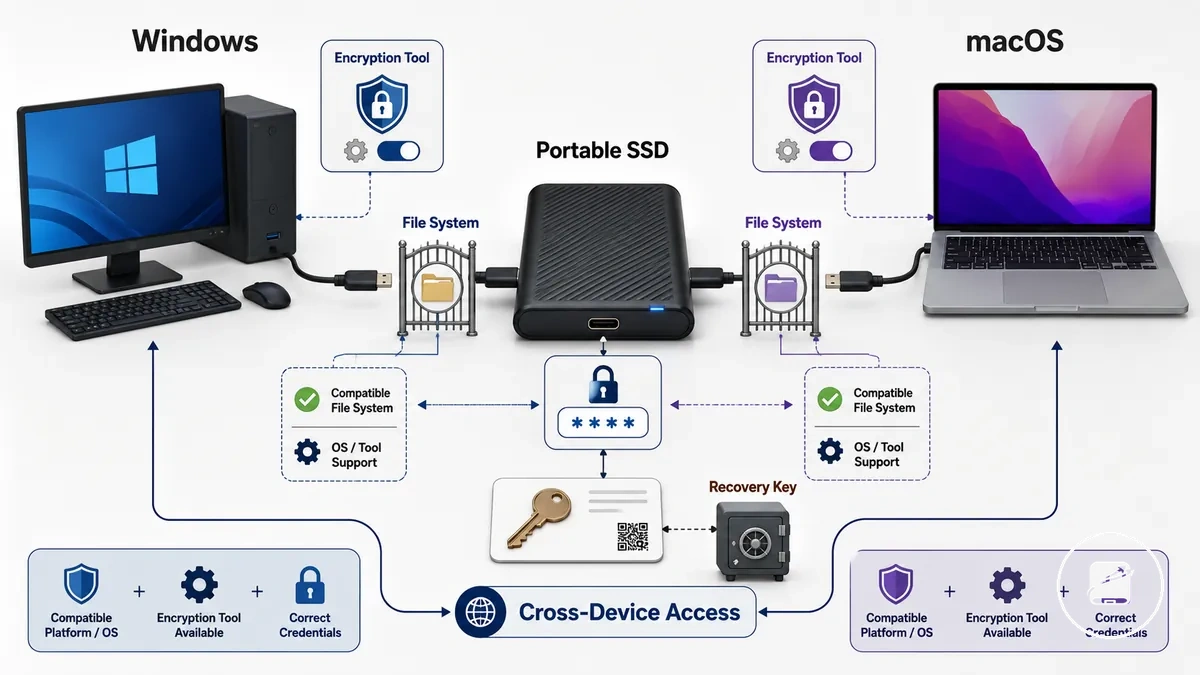
Windows commonly provides whole-drive encryption through supported operating-system features, while macOS supports full-volume encryption for startup drives and encrypted disk images or containers for selected data. According to Microsoft and Apple documentation, recovery keys are intended to restore access when the normal authentication method is unavailable, making secure recovery-key storage an essential part of software encryption. For example, moving an encrypted portable SSD between computers requires compatible encryption support and the correct authentication or recovery credentials before encrypted files can be accessed.
Software encryption checklist:
- Select the encryption method: Choose whole-drive encryption for the entire portable SSD or encrypted containers or folders for selected files.
- Confirm platform support: Verify that the encryption tool is supported on the Windows or macOS devices that will access the drive.
- Store the recovery key securely: Keep the recovery key in a separate protected location because it is the designated recovery method if normal authentication is unavailable.
- Check file system support: Confirm that the selected encryption method is compatible with the file system used on the portable SSD.
- Verify cross-device access: Test that each intended computer has compatible operating-system or encryption-tool support before relying on encrypted data across multiple devices.
Password protection, PIN access, and biometric unlocking
Password protection, PIN access, and biometric unlocking are access-control methods that determine who can unlock a portable SSD, but they do not by themselves confirm that the stored data is protected by strong encryption. The underlying encryption behaviour must be identified separately because authentication controls access, while encryption protects stored data.
The underlying encryption behaviour must be identified separately because authentication controls access, while encryption protects stored data.
Password-protected portable SSDs, keypad drives, app-based unlocks, and fingerprint access differ in convenience, recovery options, and whether authentication depends on dedicated hardware or software. According to Apple Platform Security and Microsoft security documentation, biometric authentication is designed to verify an authorised user, while fallback authentication uses a password, PIN, passcode, or recovery method when biometric verification is unavailable or unsuccessful.
Likewise, an app-based unlock can restrict access to a drive, yet the stored data is protected only when the application or the device also provides documented encryption.
For example, a fingerprint-enabled portable SSD can offer faster access for an authorised user, but the fingerprint sensor alone does not indicate that the drive uses hardware or software encryption unless the manufacturer specifies its encryption behaviour. Likewise, an app-based unlock can restrict access to a drive, yet the stored data is protected only when the application or the device also provides documented encryption.
The comparison below highlights how common access methods differ in authentication purpose, operational dependency, and lockout or recovery considerations for privacy, shared-device use, travel, and forgotten credentials.
| Access method | What it controls | Main dependency | Lockout or recovery risk |
|---|---|---|---|
| Password protection | User authentication | Software or firmware with documented encryption behaviour | Recovery is available only through the product's supported recovery process or stored recovery credentials |
| PIN access | Device or keypad authentication | Integrated keypad or secure firmware | Repeated incorrect PIN entries can trigger a temporary or permanent lockout, depending on the product design |
| Biometric unlocking | User authentication through fingerprint recognition | Compatible biometric hardware and enrolled credentials | Typically falls back to a password, PIN, or passcode if biometric verification fails or the sensor is unavailable |
| App-based unlock | Application-controlled access | Supported operating system and compatible software | Recovery follows the application's documented credential or account recovery process |
Password strength and recovery risk
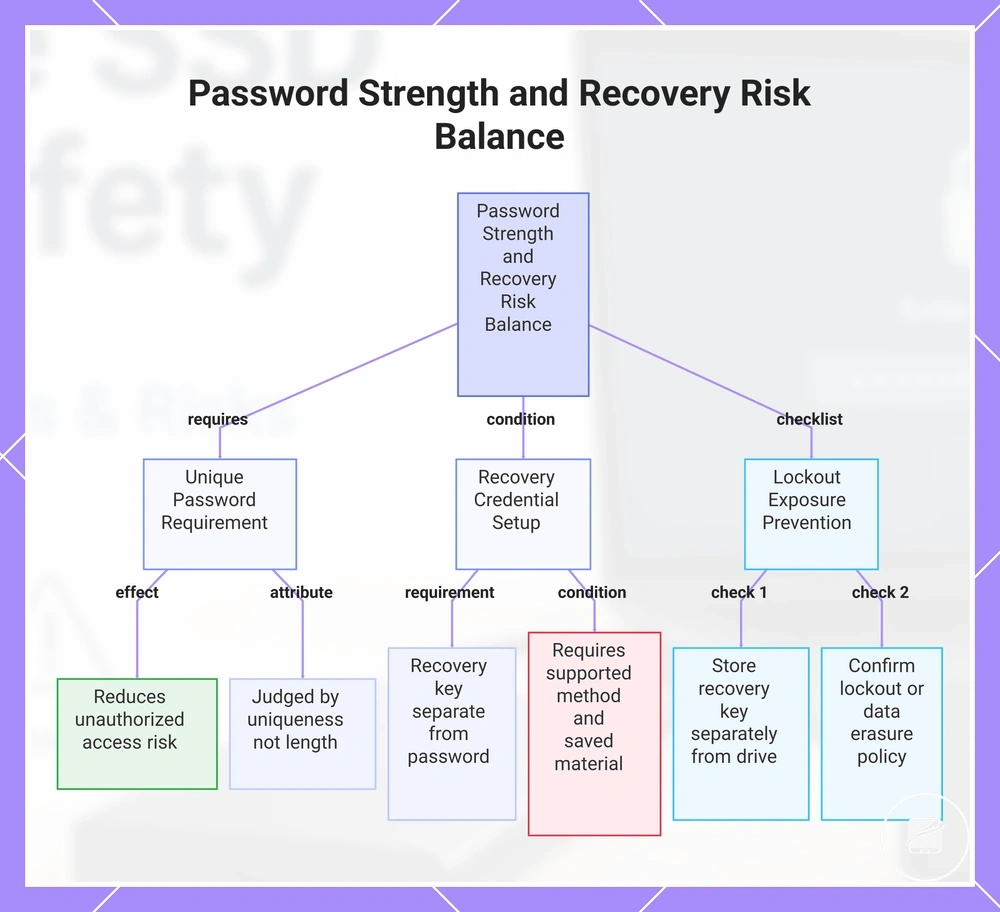
Password strength and recovery risk must be balanced because a unique password reduces the likelihood of unauthorized access, while recoverability exists only when the encrypted drive or its software provides a supported recovery method and the required recovery material has been saved. Password strength should therefore be judged by uniqueness and resistance to reuse rather than by a universal length rule.
Password strength should therefore be judged by uniqueness and resistance to reuse rather than by a universal length rule.
A recovery key is separate from the password and restores access only when the selected hardware drive or software tool supports that recovery path. For example, if a user forgets the password, access can be restored when a valid recovery key or supported backup credential is available; without saved recovery material, the encrypted data can remain inaccessible.
A recovery key is separate from the password and restores access only when the selected hardware drive or software tool supports that recovery path.
Use this checklist to limit unauthorized access without creating avoidable lockout exposure:
- Use a unique password for the encrypted drive rather than reusing a credential from another account or device.
- Store the recovery key separately from the portable SSD so loss or theft of the drive does not expose both items together.
- Retain only backup credentials that the drive or encryption software explicitly supports.
- Confirm whether failed attempts cause a temporary lockout, a permanent lockout, or data erasure before relying on the drive for important files.
- Balance memorability with recoverability so the password remains usable without weakening access control.
This chart shows the key factors in balancing password strength with recovery risk, including the unique password requirement, recovery credential setup, and checklist to avoid lockout exposure.
Keypad, app-based, and fingerprint access limits
Keypad access, app-based unlock, and fingerprint access differ mainly in device dependency, operating-system dependency, fallback access, and lockout exposure. Keypad access keeps the unlock method on the drive, app-based unlock requires a compatible host device and supported software, and fingerprint access requires a recognised enrolled print plus any fallback method provided by the drive.
Keypad access, app-based unlock, and fingerprint access differ mainly in device dependency, operating-system dependency, fallback access, and lockout exposure.
Convenience changes with the failure point: a keypad remains independent of a phone or computer but can become unusable if the keypad is damaged or the code is forgotten; an app-based method can simplify unlocking when the supported operating system and application are available but fails when the host device, account, or software path is unavailable; fingerprint access reduces routine input when recognition succeeds but still requires a documented fallback when the sensor cannot verify the user. For example, a traveller without the paired phone could still use an integrated keypad, while an app-based drive could remain locked until a compatible device and supported application are available.
| Unlock method | Device dependency | Operating-system dependency | Fallback access | Main access limit |
|---|---|---|---|---|
| Keypad access | Integrated keypad and drive electronics | No host operating system is required for direct code entry | Limited to the recovery or reset method documented for the drive | Forgotten code, damaged keypad, unavailable power, or lockout after failed entries |
| App-based unlock | Compatible phone or computer, supported application, and working drive connection | Requires an operating system and application version supported by the drive software | Uses a documented password, recovery key, account process, or hardware alternative when provided | Unavailable host device, unsupported software, lost account access, or failed communication with the drive |
| Fingerprint access | Integrated fingerprint sensor and enrolled biometric record | Direct unlocking can avoid host software, while enrolment or management can still require a supported application | Uses a PIN, password, recovery key, or other documented method when the drive provides one | Unrecognised fingerprint, contaminated or damaged sensor, missing fallback credential, or lockout after repeated failures |
Setting up secure access without locking yourself out
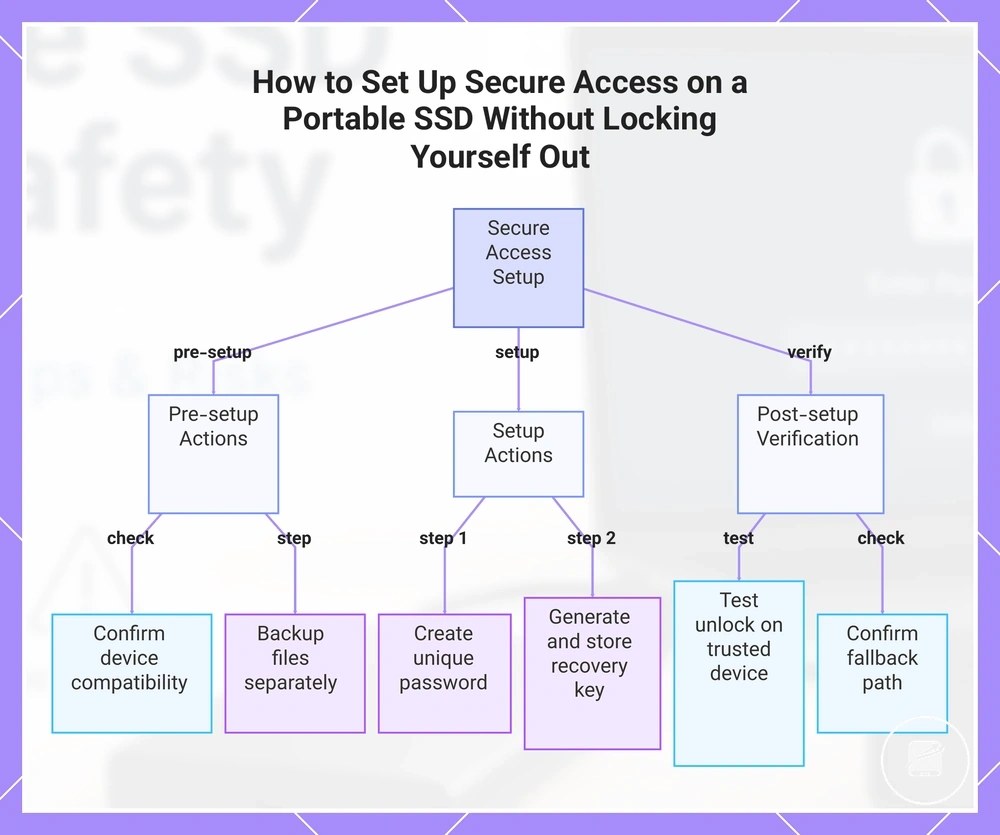
Secure access starts by confirming that the portable SSD, its unlock method, and the trusted device are compatible before important files are placed behind the lock. The setup choice should combine a unique password, any documented recovery material, a verified backup copy, and a successful test unlock so that failure of the normal access path does not leave the encrypted drive as the only copy of the files.
Secure access starts by confirming that the portable SSD, its unlock method, and the trusted device are compatible before important files are placed behind the lock.
Recovery options are model-specific and may be limited to a recovery key, an administrator credential, an account-based process, or a reset that removes access to the stored data. Check the drive manufacturer's documentation before setup and treat recovery material as valid only for the drive, software, account, or encryption system that issued it.
- Confirm that the drive connection, unlock method, and required software are supported by the trusted device and its operating system.
- Create a unique password that you can reproduce accurately without storing it beside the encrypted drive.
- Generate or record the recovery key only when the drive or its software provides one, then store it separately from the drive.
- Keep a backup copy of important files in a separate storage location before enabling or changing secure access.
- Disconnect and reconnect the drive, then complete a test unlock on the main trusted device using the normal access method.
- Confirm the documented fallback path without starting a reset, and record which credential, device, account, or recovery key it requires.
For example, a user preparing an encrypted drive for travel should unlock it successfully on the main laptop, confirm that the backup copy opens independently, and verify that the recovery material is available before relying on the drive away from home. For device-specific connection, formatting, and first-use steps, see setting up a portable SSD.
For device-specific connection, formatting, and first-use steps, see setting up a portable SSD .
This chart shows the essential pre-setup, setup, and verification steps to configure secure access on a portable SSD while preventing accidental lockout.
Data loss risks that encryption does not prevent
Encryption protects the confidentiality of stored data, but it does not prevent deletion, file corruption, physical damage, drive failure, or loss of the credentials needed to unlock the drive. Data safety depends on both access protection and recoverability through a verified backup or another trusted copy.
Privacy protection and data availability are different outcomes.
Privacy protection and data availability are different outcomes. Encryption helps prevent unauthorised access to readable data, but it does not preserve files after accidental deletion, hardware failure, or physical damage, and it cannot restore access when the required password or documented recovery material is unavailable.
| Risk event | Affected attribute | Likely symptom or outcome | Safer response |
|---|---|---|---|
| Accidental deletion | Stored files | Files are removed even though the drive remains encrypted | Restore from a verified backup if one is available |
| File corruption | File integrity | Files may become unreadable or incomplete | Recover from an intact backup rather than relying on encryption |
| Physical damage | Drive hardware | The drive may no longer function or be accessible | Use a separate backup stored on another device or location |
| Drive failure | Storage media | Stored data may become inaccessible regardless of encryption status | Maintain verified backup copies before a failure occurs |
| Misplaced credentials | Password or recovery material | Authorised users may be unable to unlock encrypted data | Store documented recovery material securely and separately when the encryption system provides it |
For example, an encrypted portable SSD that suffers hardware failure can still keep its stored data confidential, but access to the files depends on the condition of the drive and the availability of backups or any supported recovery method rather than on the encryption itself.
Deleted files, corruption, and failed drives
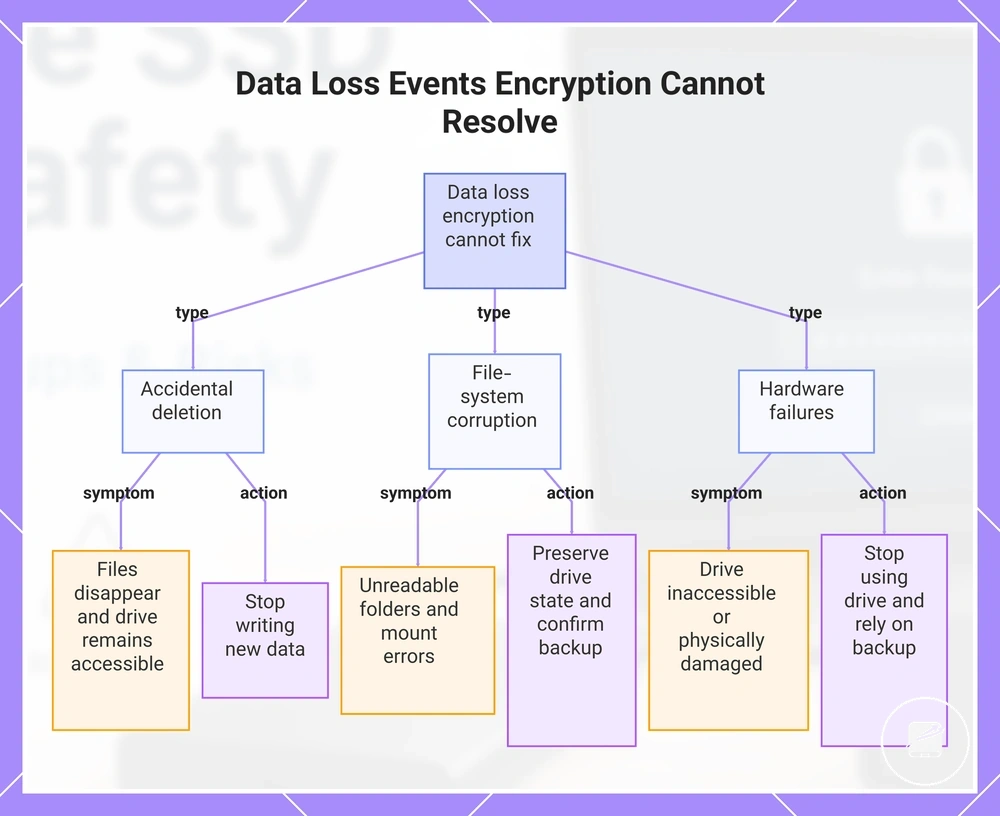
Deleted files, file-system corruption, failed drives, and physical damage are data-loss events that encryption alone cannot resolve. Recoverability depends on the condition of the storage device, whether the encrypted data remains readable, whether valid credentials are available, and whether a usable backup exists.
- Accidental deletion: The visible symptom is that files or folders disappear while the drive itself remains accessible. Recoverability is possible only if the deleted data has not been overwritten or a verified backup is available; stop writing new data to the drive as an immediate risk-reducing response.
- File-system corruption: The visible symptom can include unreadable folders, file-system errors, or a drive that fails to mount correctly. Recoverability depends on whether the storage structure remains sufficiently intact, so preserve the current drive state and confirm backup availability before making changes.
- Failed drive or controller: The drive may disconnect repeatedly, fail to appear in the operating system, or become inaccessible. Recoverability is limited when the storage hardware cannot communicate reliably; disconnect the drive and avoid repeated write, format, or reset attempts.
- Physical damage: The visible symptom may include connector damage, impact damage, or liquid exposure that prevents normal access. Recoverability depends on the extent of the hardware damage and whether encrypted storage remains readable, so stop using the drive and rely on a verified backup if one is available.
For example, if an encrypted portable SSD suddenly reports a file-system error after an unexpected disconnection, the encryption still protects confidentiality, but it does not correct the underlying storage problem. The safest immediate response is to preserve the drive's condition and verify whether an independent backup contains the affected files before considering further recovery measures.
This chart shows the main types of data loss events that encryption alone cannot fix, including their visible symptoms and the recommended immediate actions.
This chart shows the main types of data loss events that encryption alone cannot fix, including their visible symptoms and the recommended immediate actions.
Forgotten passwords and inaccessible encrypted drives
An inaccessible encrypted drive usually indicates that the required credential is unavailable, rejected, or cannot be processed by the drive's security system. Recoverability is limited to the authorised options established during setup, such as the user password, a stored recovery key, an alternative registered credential, or the supported vendor utility.
- Forgotten user password: The lockout condition occurs when the entered password does not match the credential created during setup. On supported Samsung Portable SSDs, Samsung states that a forgotten password prevents access to the stored data, while a factory reset removes the data instead of recovering it.
- Missing recovery key: A BitLocker-protected drive may request its separate 48-digit recovery key when the normal credential is unavailable. Microsoft states that it cannot retrieve or recreate a lost BitLocker recovery key, so the encrypted drive remains inaccessible when neither the correct password nor the recovery key can be located.
- Failed biometric access: A fingerprint-enabled drive can remain locked when the registered biometric credential is rejected or temporarily unavailable. Access may still be possible through the authorised password or another supported credential, but biometric access alone does not provide a separate recovery path.
- Vendor-utility dependency: A security-enabled drive may require its compatible vendor utility to recognise the device and present the authorised unlock process. If the required utility or supported operating environment is unavailable, the encrypted storage area can remain inaccessible even when the hardware itself is detected.
Strong encryption may make stored data unrecoverable when the correct password, recovery key, or supported alternative credential is unavailable, because resetting the security state can erase the encrypted contents rather than reveal them. portable SSD data recovery explains the broader recovery boundary, but it should not be treated as a guaranteed way to unlock data protected by a missing encryption credential.
Backup safety for encrypted portable SSDs
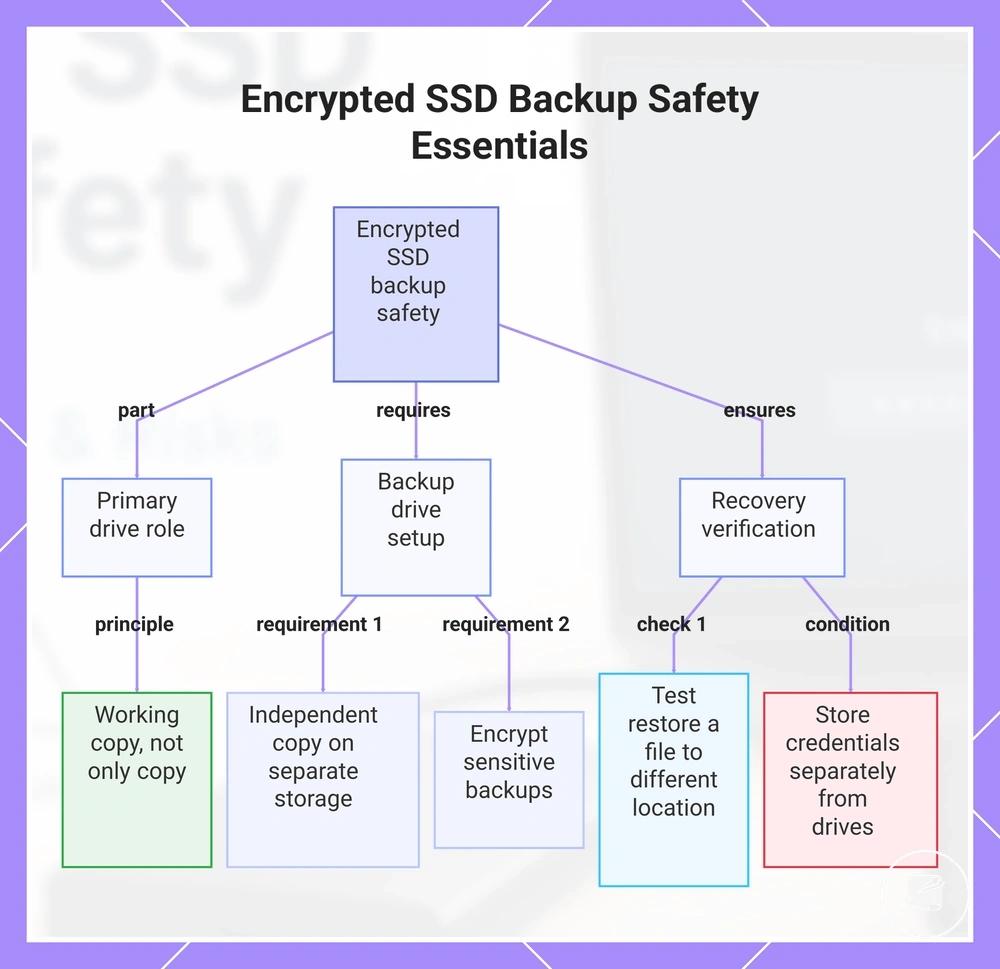
Backup safety requires both confidentiality and recoverability: the primary encrypted portable SSD protects active files, while a separate backup preserves access if the primary drive is lost, damaged, corrupted, or locked by a missing credential. A second copy reduces single-copy risk only when it is stored independently, protected according to the sensitivity of the files, and restorable with the available encryption credentials.
- Primary drive: Treat the encrypted portable SSD as the working copy rather than the only copy when file loss would interrupt work or permanently remove important records.
- Backup drive: Keep at least one independent copy on separate storage so loss, theft, physical damage, or lockout of the primary drive does not remove every accessible copy.
- Encryption status: Encrypt the backup when it contains sensitive files, particularly when the backup drive travels or is stored where unauthorised physical access is possible.
- Backup frequency: Update the backup after meaningful file changes, using a frequency that limits potential loss to an acceptable amount of recent work rather than relying on one exact schedule for every user.
- Storage location: Store at least one backup separately from the primary SSD and disconnect removable backup media when it is not being updated. CISA recommends offline, encrypted backups because connected copies can be affected by destructive attacks.
- Test restore: Restore a representative file to a different location and confirm that it opens correctly. CISA recommends testing backup availability and integrity rather than assuming that a completed copy is recoverable.
- Credential storage: Keep the backup password, recovery key, or other required credential in a protected location separate from both drives. The UK National Cyber Security Centre warns that encrypted backups become inaccessible when their decryption keys are lost or modified.
For example, a traveller carrying an encrypted portable SSD with the only copy of project files faces both theft risk and single-copy risk. Keeping an encrypted backup at a separate location preserves confidentiality while providing a recovery path if the travelling drive is lost or physically damaged.
A backup is not proven usable merely because the files appear on the backup drive.
A backup is not proven usable merely because the files appear on the backup drive. A successful test restore confirms that the storage is readable, the backup contains the expected data, and the required credential is available.
Use portable SSD backup planning to develop the broader copy schedule and storage arrangement.
Backup frequency, retention, and storage location should match the value and change rate of the files without allowing encryption to become a barrier to recoverability. Use portable SSD backup planning to develop the broader copy schedule and storage arrangement.
Backup frequency, retention, and storage location should match the value and change rate of the files without allowing encryption to become a barrier to recoverability.
This chart shows the key principles for backup safety of encrypted portable SSDs, including the role of the primary drive, backup drive requirements, and recovery verification steps.
Secure handling and storage habits for portable SSDs
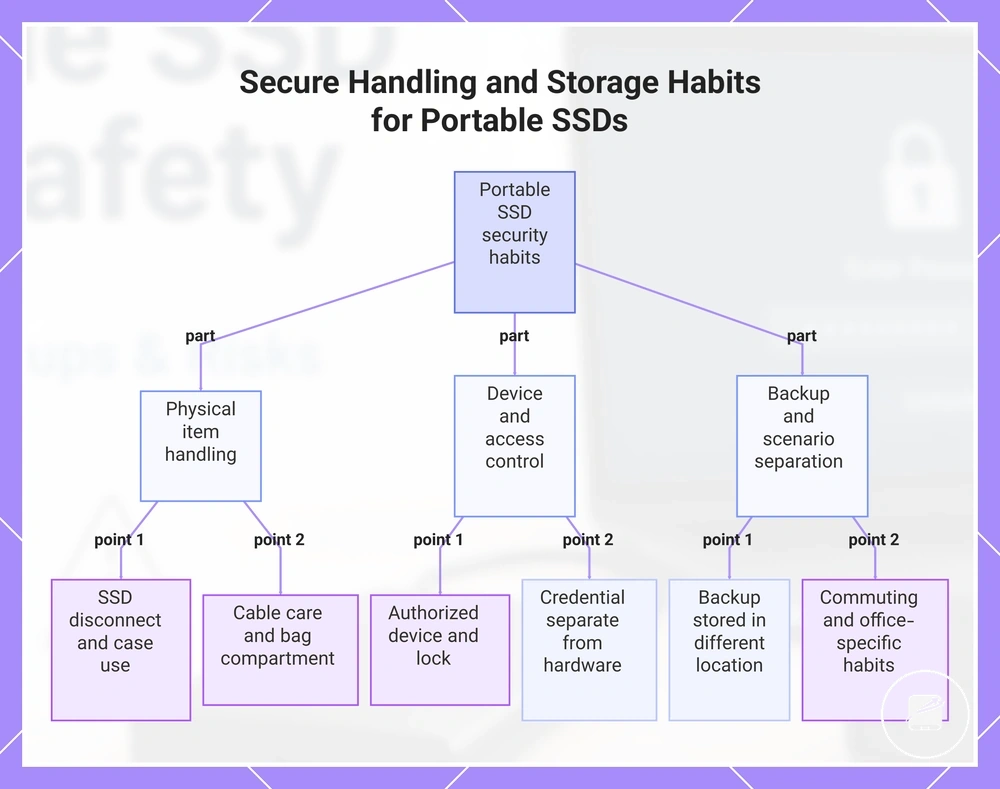
Secure handling reduces exposure to theft, loss, physical damage, and unauthorized access after encryption and backup controls are in place. Real-world data safety improves when the portable SSD, storage case, cable, travel bag, work device, backup location, and credential location are managed as separate security conditions rather than kept together as one loss point.
- Portable SSD: Disconnect the drive after transfers finish and place it under direct control or in access-controlled storage when it is not in use; leaving it connected to an unlocked work device exposes accessible files to anyone who can use that device.
- Storage case: Keep the SSD in a closed protective case that separates it from loose objects and reduces exposure to impact, pressure, dust, and misplacement.
- Cable: Store the cable without sharp bends or tension, and disconnect it by the connector rather than pulling the cable; a damaged cable can interrupt transfers or prevent the work device from recognising the SSD.
- Travel bag: Place the SSD in a closed internal compartment rather than an exposed pocket, and do not keep the only backup in the same bag as the primary work device because one theft or loss event could remove both copies.
- Work device: Connect the SSD only to an authorised device, lock the device before stepping away, and disconnect the SSD when shared access could expose an unlocked volume.
- Backup location: Store the backup separately from the portable SSD so one incident involving theft, loss, fire, or bag damage does not affect both copies.
- Credential location: Keep the password or recovery key in a protected location separate from the SSD, travel bag, and backup drive so possession of the hardware does not also provide the access method.
For commuting, keep the portable SSD inside its storage case and retain direct control of the travel bag rather than leaving it in a shared vehicle or open office area. In an office-sharing scenario, disconnect the SSD before leaving the desk, lock the work device, and place the drive in access-controlled storage so another user cannot reach an already unlocked volume.
This arrangement limits the effect of one lost bag, one stolen work device, or one exposed credential without implying guaranteed theft protection.
For example, users evaluating portable SSDs for travel should carry only the files needed for the trip and keep the drive, backup, and credential in separate locations. This arrangement limits the effect of one lost bag, one stolen work device, or one exposed credential without implying guaranteed theft protection.
For example, users evaluating portable SSDs for travel should carry only the files needed for the trip and keep the drive, backup, and credential in separate locations.
This chart shows the key habits for securely handling and storing a portable SSD, covering physical care, device access control, and separation of backups and credentials.
Choosing portable SSD security features by risk level
Choose portable SSD security features according to file sensitivity, travel exposure, shared-device use, and tolerance for lockout risk rather than marketing labels alone. NIST Special Publication 800-111 frames storage-encryption selection around the information being protected, the operating environment, and the relevant threats.
| Risk level | Useful security feature | Condition that makes it relevant | Limitation to check |
|---|---|---|---|
| Low confidentiality | Password-protected portable SSD and protective storage | Relevant for personal files with limited sensitivity when the drive is used mainly at home or carried infrequently. | Check whether the drive provides a documented recovery method, because a forgotten password can create lockout risk. |
| Moderate confidentiality | Encrypted portable SSD with hardware encryption and a separate backup | Relevant for work files, regular commuting, shared-device use, or travel where loss or theft is a realistic condition. | Encryption protects stored data from access without the credential, but it does not recover deleted files, damaged media, or data locked by lost credentials. |
| High confidentiality | Hardware encryption with strong authentication, separate credential storage, backup, and protective storage | Relevant for confidential business, legal, research, or regulated information used across multiple locations. | Verify the authentication and recovery process before use, because losing both the credential and recovery information can prevent authorised access. |
A password-protected portable SSD is most useful when the password is kept separate from the drive and the recovery method is documented. Hardware encryption is more relevant when the device must protect data at rest without relying solely on software installed on each work device.
A password-protected portable SSD is most useful when the password is kept separate from the drive and the recovery method is documented.
Fingerprint access improves convenience when the drive is unlocked frequently, but it should be treated as an authentication method rather than the encryption layer itself. Check whether the device also supports a recovery credential, because fingerprint failure without an alternative method increases lockout risk.
Check whether the device also supports a recovery credential, because fingerprint failure without an alternative method increases lockout risk.
Backup needs rise with file sensitivity because encryption does not restore files lost through deletion, media failure, physical damage, or credential loss. Protective storage reduces exposure to impact, misplacement, and opportunistic access, but it remains a physical-control layer rather than a substitute for encryption or backup.
Backup needs rise with file sensitivity because encryption does not restore files lost through deletion, media failure, physical damage, or credential loss.
For example, a traveller carrying confidential client files has a stronger risk match with hardware encryption, separate backup storage, protected credentials, and a closed storage case than with fingerprint access alone. A user storing low-sensitivity personal media may reasonably select password protection and protective storage when the consequences of disclosure and lockout are limited.
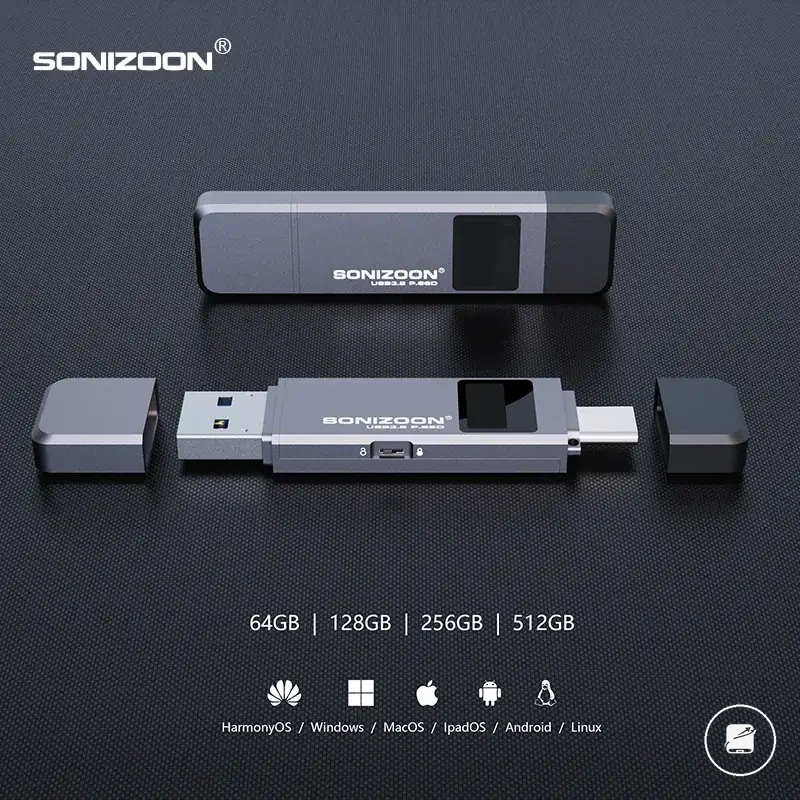
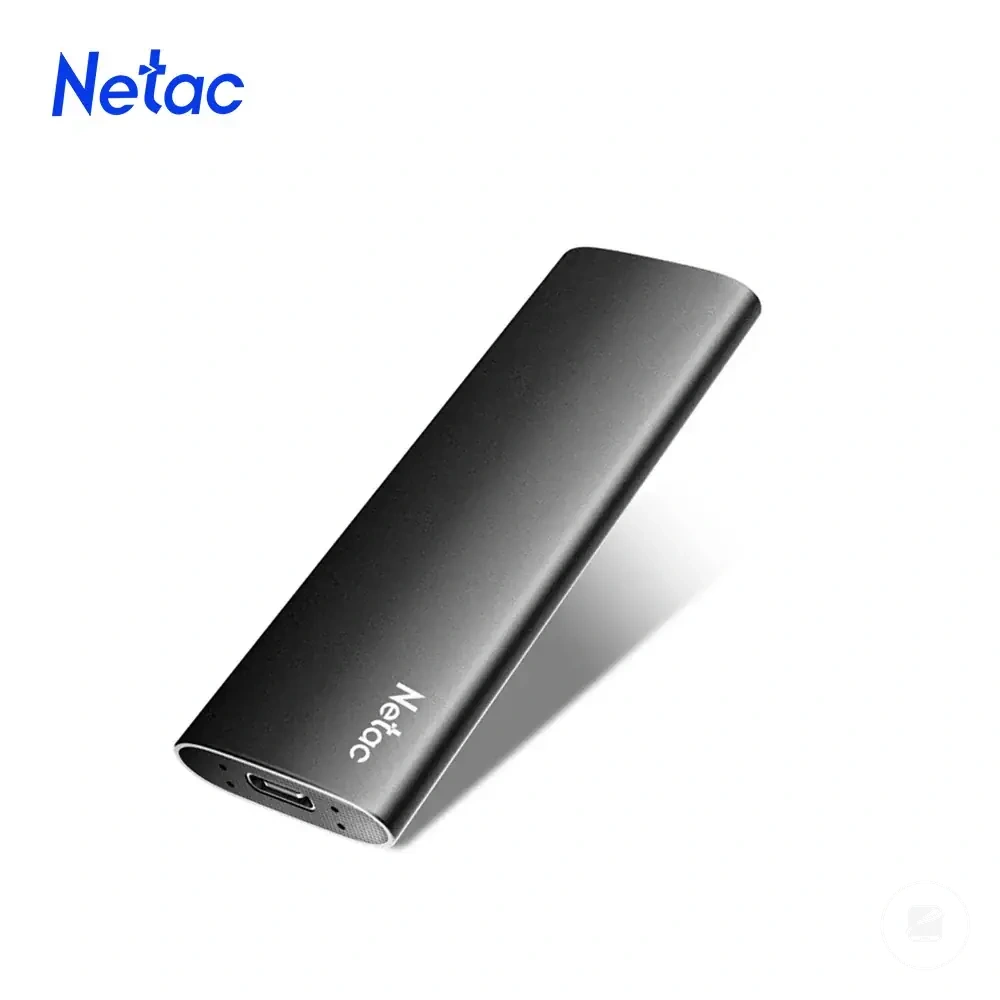
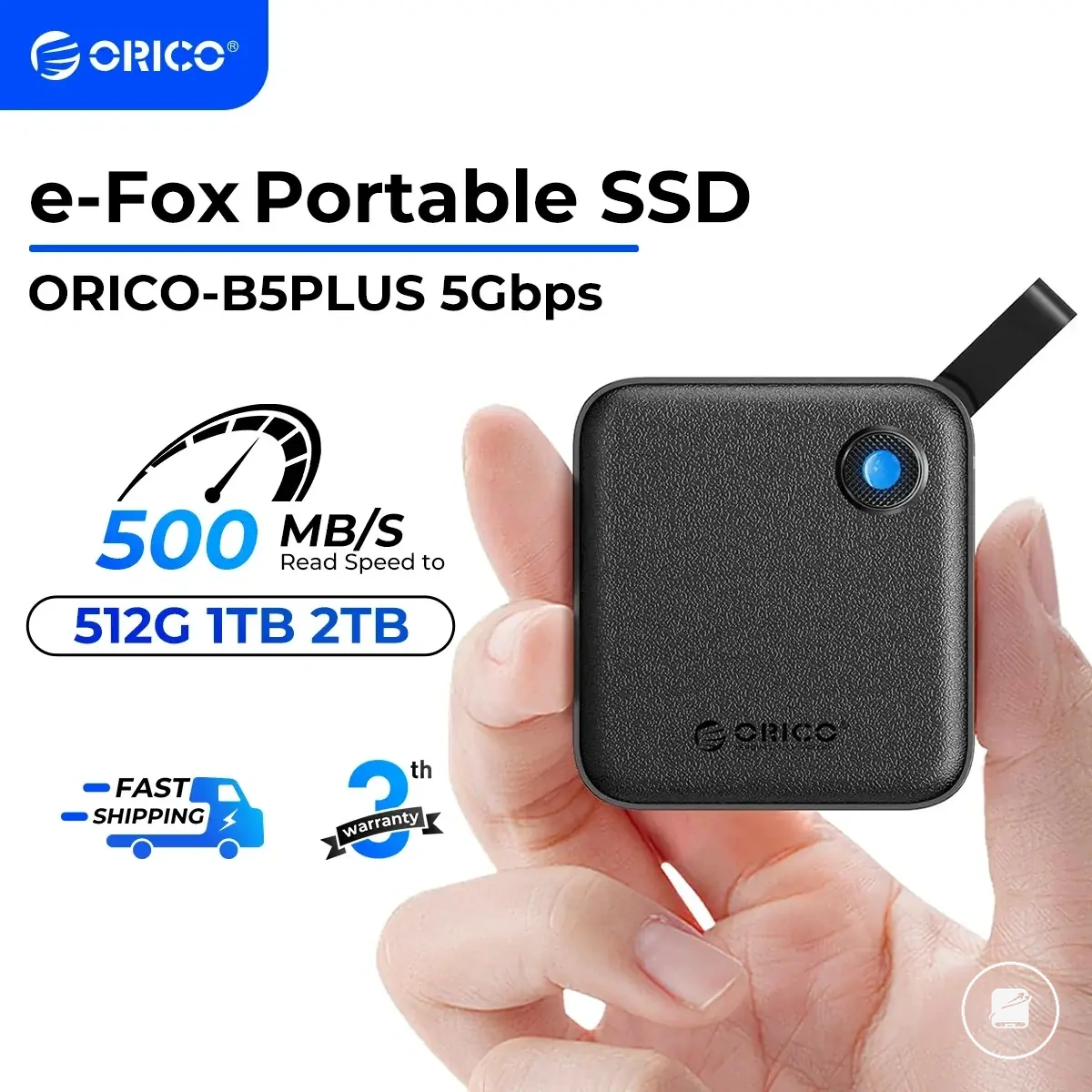
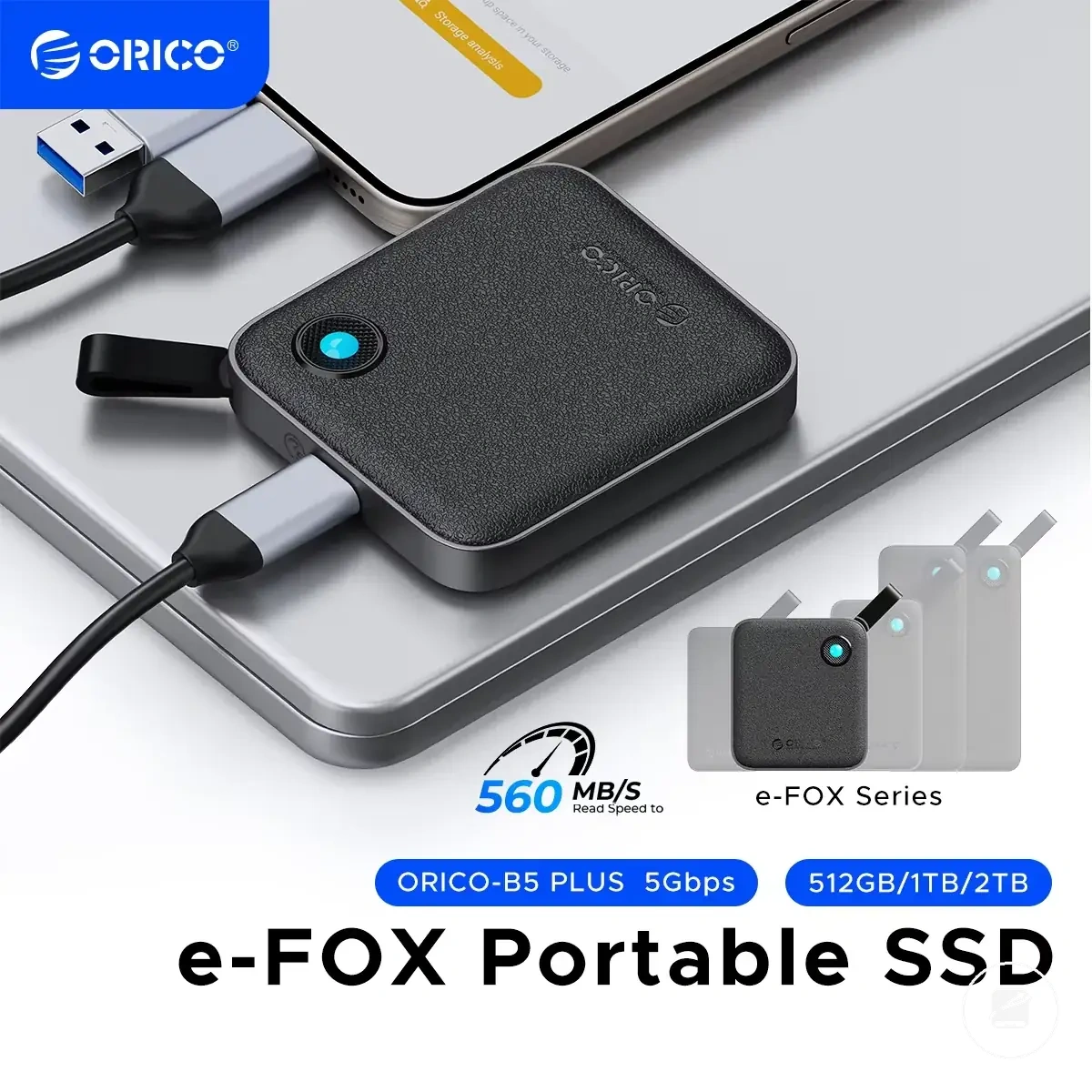
The products below are useful examples for comparing available options.
The products below are useful examples for comparing available options. Before buying, check that the compatibility criteria, key features, and product details match your needs.