Portable SSD Data Recovery After Errors or Failure
If a portable SSD shows errors, disappears intermittently, or stops opening files, disconnect it and stop all writes before attempting data recovery. For portable SSDs, preserving the drive state means avoiding formatting, file-system repair, operating-system installation, and saving recovered files back to the affected drive. The recovery outcome remains conditional on the file-system state, encryption access, TRIM activity, overwritten blocks, controller behaviour, physical condition, and available backup copies.
A current backup provides the lowest-risk recovery path because the files can be restored without modifying the affected portable SSD.
A consistently detected drive with a RAW file system, damaged folders, or inaccessible files indicates a possible logical failure, while repeated disconnections, persistent read errors, unusual heat, or complete non-detection indicate a higher risk of hardware, controller, bridge, or firmware failure. A current backup provides the lowest-risk recovery path because the files can be restored without modifying the affected portable SSD. If encryption is enabled, normal file access requires the correct password or recovery key; without valid credentials, the encrypted content remains inaccessible through ordinary recovery methods.
Use these stop signals to protect recoverable files before selecting a recovery path.
Common symptoms should determine the safe next action rather than trigger an immediate repair attempt. Use these stop signals to protect recoverable files before selecting a recovery path.
- Files open normally: copy essential files to a separate healthy backup drive, then validate the copies before repairing or replacing the portable SSD.
- The file system appears as RAW or unformatted: decline formatting prompts because formatting writes new file-system data and can reduce the usefulness of the original drive state.
- The drive disconnects during reads: stop repeated scans or copy attempts because unstable access can indicate a cable, enclosure, power, controller, or hardware fault.
- Read errors increase during copying: stop ordinary file operations and preserve the portable SSD for a controlled recovery attempt or professional recovery assessment.
- The drive is not detected through a confirmed working port and cable: avoid repeated power cycling and escalate when the files are not available from a backup.
- Files were recently deleted: disconnect the drive promptly because TRIM and later internal cleanup can reduce the amount of deleted data available to recovery methods.
Restore from a validated backup when one exists; otherwise, use a read-only logical recovery path only when the portable SSD remains stable, is detected consistently, and the required encryption credentials are available. Choose professional recovery when the drive repeatedly disconnects, remains undetected through known-good connections, produces persistent read errors, contains irreplaceable files, or appears to require hardware or firmware intervention. For example, a drive that mounts once but disconnects whenever a large folder is copied should be treated as unstable rather than subjected to repeated scans.
For example, a drive that mounts once but disconnects whenever a large folder is copied should be treated as unstable rather than subjected to repeated scans.
Before authorising professional recovery, request a diagnosis, a written price estimate, the charging policy when no files are recovered, and confirmation that recovered data will be returned on a separate device. After recovery, open a representative sample of files, confirm that critical folders are complete, create an independent backup, and replace or reformat the affected portable SSD only after validation.
Table of Contents
What Portable SSD Data Recovery Can and Cannot Recover
Portable SSD data recovery is the attempt to regain access to files after deletion, file-system corruption, recognition errors, or device failure. Recoverable files may include intact data that remains readable through the controller and NAND memory or available from a valid backup, provided the relevant blocks have not been overwritten or cleared. Recovery cannot guarantee that every file will be complete, correctly named, or usable.
Recovery cannot guarantee that every file will be complete, correctly named, or usable.
The recovery outcome is more favourable when the portable SSD is detected consistently, the controller can address the NAND memory, and the file system or stored file content remains readable. Recovery becomes limited when TRIM has released deleted blocks for internal cleanup, persistent read errors prevent stable access, formatting or later writes alter the drive state, or controller or firmware failure blocks communication with the memory. Encryption creates a separate access boundary: encrypted files require the correct password or recovery key, and Microsoft states that it cannot retrieve or recreate a lost BitLocker recovery key.
What portable SSD data recovery can and cannot recover is determined by the remaining state of the stored data, not by the filename or file type alone.
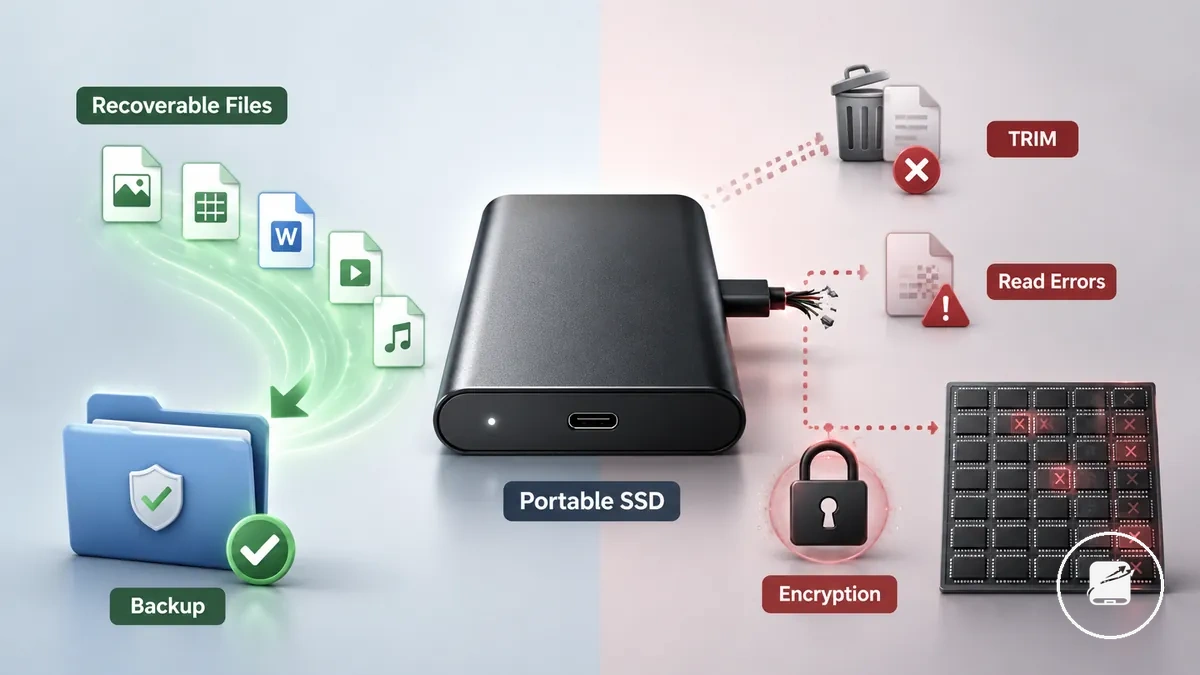
What portable SSD data recovery can and cannot recover is determined by the remaining state of the stored data, not by the filename or file type alone. The diagram and comparison below distinguish conditions that can provide a recovery path from conditions that make file access unavailable or uncertain.
| Portable SSD condition | Potential recovery path | Recovery limit |
|---|---|---|
| Deleted files without confirmed overwrite | File content may remain recoverable when the controller still exposes the relevant NAND blocks and TRIM cleanup has not removed access. | Recovery becomes unlikely after the blocks have been overwritten or cleared through controller-managed operations. |
| Corrupted file system or recognition error | Recoverable files may remain accessible when the portable SSD is stable and the underlying data blocks can still be read. | Formatting or writing new data changes the drive state and can overwrite metadata or file content needed for recovery. |
| Hardware, controller, or firmware failure | Professional recovery may regain access when the NAND memory remains readable and the device-specific failure can be addressed. | Recovery may be unavailable when memory cells are physically damaged, controller-managed mapping cannot be reconstructed, or read errors prevent reliable extraction. |
| Encrypted files | Files can be accessed when the correct password or recovery key is available and the encrypted data remains intact. | Ordinary recovery cannot provide file access when valid encryption credentials are unavailable. |
| Validated backup copy | Files can be restored from the backup without reading the failed portable SSD. | The restore is limited to the files and versions present in the validated backup. |
Data recovery restores file access; it does not establish that a failed drive is safe for continued use. For example, professional recovery might extract files from a portable SSD that disconnects during large reads, but the same unstable drive should not be treated as reliable storage afterward. Recovery should therefore be followed by file validation, replacement of an unstable drive, and appropriate portable SSD data safety controls.
Deleted Files, TRIM, and Overwritten Data
Deleted files can become difficult or impossible to recover when TRIM or later writes remove the remaining recoverable data from a portable SSD. Stop new writes, formatting, and unnecessary repair attempts because each change to the drive state can reduce the available recovery path.
Stop new writes, formatting, and unnecessary repair attempts because each change to the drive state can reduce the available recovery path.
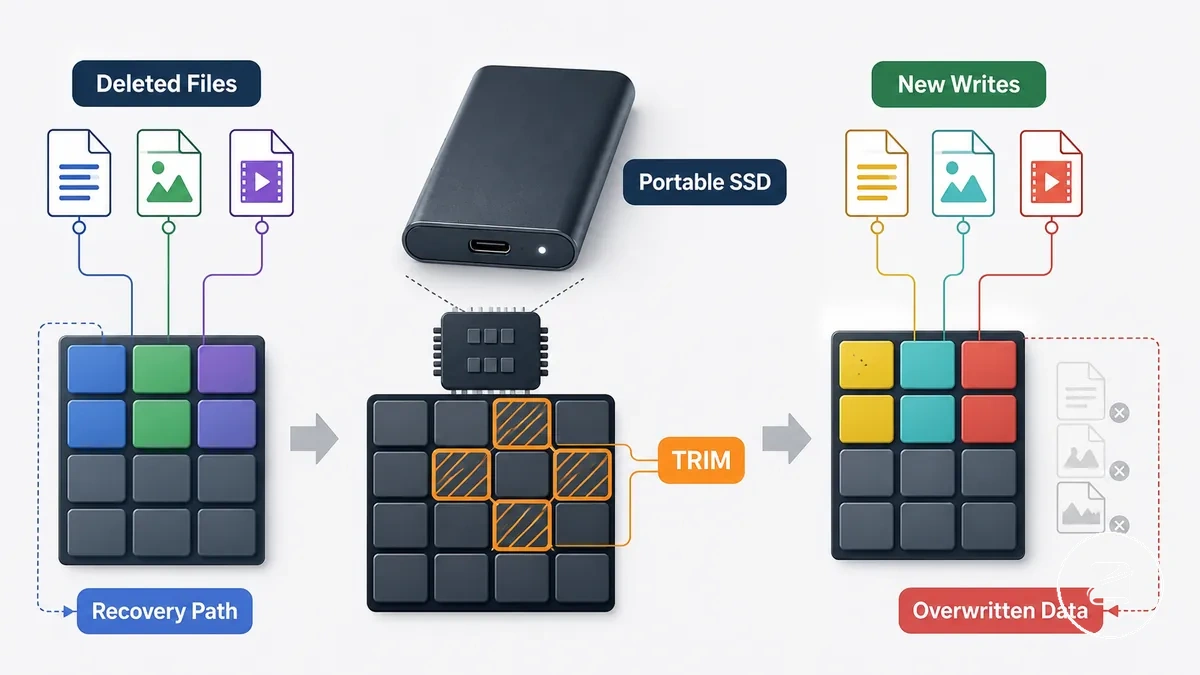
TRIM allows the operating system to mark deleted storage blocks as no longer needed, while the SSD controller and firmware determine when those blocks become available for internal cleanup or reuse. The recovery outcome is more favourable before the affected blocks are cleared or replaced by overwritten data, but TRIM behaviour can differ by operating system, enclosure, connection mode, and firmware. For example, copying new files to the affected portable SSD after deletion can reuse the same logical storage area and replace data that might otherwise have remained recoverable.
The diagram below shows the difference between a deleted-file state that may retain a recovery path and a state limited by TRIM or new writes.
Deleted Files, TRIM, and Overwritten Data must therefore be assessed through deletion timing, later write activity, drive behaviour, and backup availability. The diagram below shows the difference between a deleted-file state that may retain a recovery path and a state limited by TRIM or new writes.
Use this mini-checklist to identify the immediate risk, available recovery path, and point at which further activity should stop.
- Risk: Stop new writes because reused blocks can turn deleted files into overwritten data.
- Timing: Begin recovery assessment promptly, since recovery timing affects whether the original storage blocks remain accessible.
- TRIM condition: Treat TRIM as a conditional recovery limit rather than proof that every deleted block has already been cleared.
- Backup check: Verify whether a backup copy contains the required files before changing the affected drive.
- Drive signal: Stop repeated access attempts if the portable SSD develops persistent read errors, disconnects, or unstable detection.
- Safe boundary: Avoid formatting and file-system repairs until the recovery path and overwrite status have been assessed.
Corrupted Files Versus Corrupted File Systems
Corrupted files and a corrupted file system are different conditions that point to different recovery paths. Corrupted files usually affect specific documents, photos, or videos, while a corrupted file system affects the file-system metadata, folder structure, or partition table that the operating system uses to locate many files.
Individual corrupted files may produce read errors even though the surrounding folders remain accessible.
Corrupted Files Versus Corrupted File Systems can often be distinguished by their symptoms before any repair attempt. Individual corrupted files may produce read errors even though the surrounding folders remain accessible. A corrupted file system is more likely to trigger a format prompt, missing folder structure, damaged file-system metadata, partition table problems, or repeated access prompts that prevent normal file access. For example, if only one spreadsheet fails to open but other folders work normally, the issue is more consistent with corrupted files than a corrupted file system.
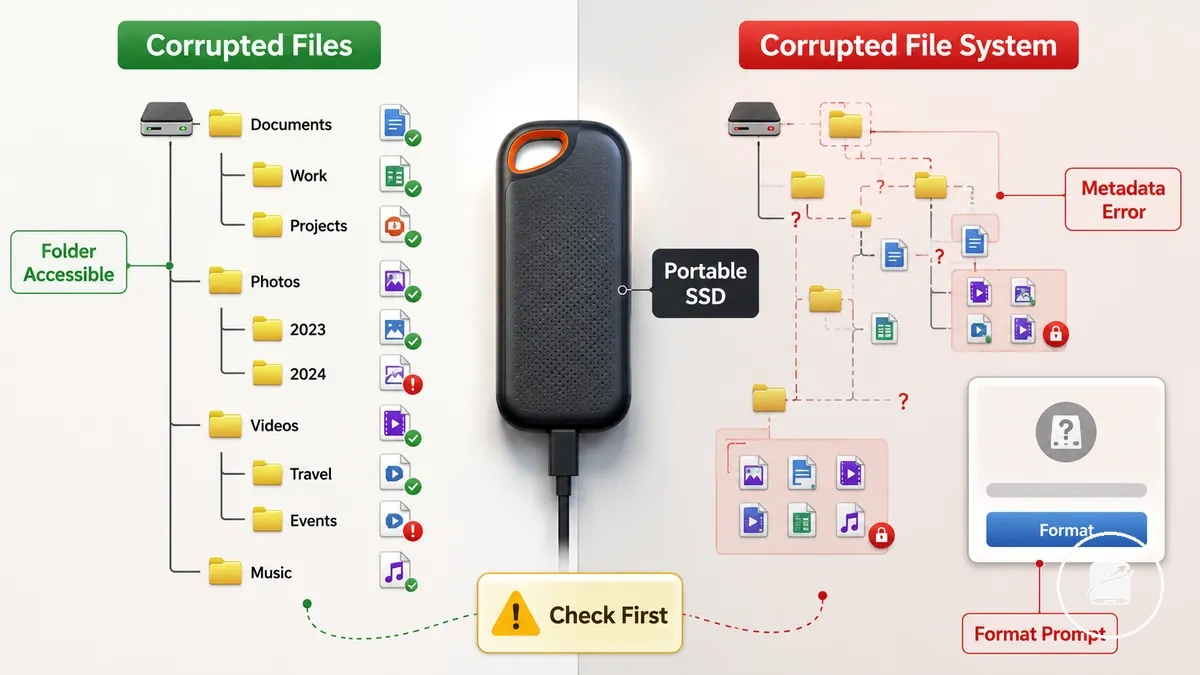
The comparison below highlights the main diagnostic signals before deciding on the next safe action.
| Condition | Diagnostic Signals | Likely Scope |
|---|---|---|
| Corrupted files | Specific files show read errors or fail to open while the remaining folder structure is still accessible. | Individual files or a limited group of files. |
| Corrupted file system | Missing folder structure, damaged file-system metadata, partition table issues, repeated access prompts, or a format prompt affecting normal file access. | Many files or the entire accessible file system. |
A format prompt does not prove that files are permanently gone. It indicates that the operating system cannot currently interpret the file system, so avoid formatting, unnecessary repairs, or new writes until the portable SSD has been assessed and the recovery path has been determined.
Failure Symptoms That Change the Recovery Path
Failure symptoms help determine the safest recovery path before choosing software recovery, restoring a backup, checking connections, or seeking professional recovery. The same symptom can result from different conditions, including cable faults, USB ports, file-system damage, controller issues, firmware problems, or NAND failure, so treat each symptom as a diagnostic indicator rather than a confirmed diagnosis.
Failure Symptoms That Change the Recovery Path become easier to interpret when each visible sign is matched with its likely condition and a safe next action.
Failure Symptoms That Change the Recovery Path become easier to interpret when each visible sign is matched with its likely condition and a safe next action. A readable drive with missing files requires a different response than a disconnecting drive, a portable SSD that is not detected, a password prompt, a formatted drive, corrupted files, or repeated error messages. For example, if a portable SSD appears normally but only one project folder is missing, the recovery path differs from a drive that repeatedly disconnects during file access.
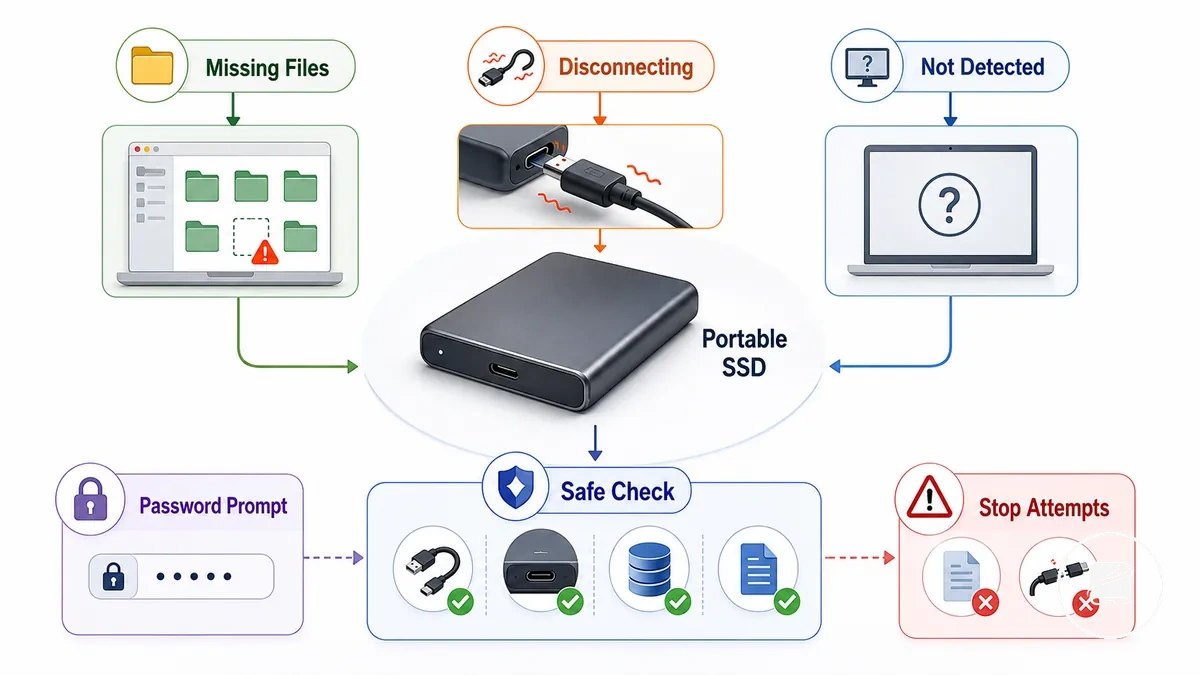
The table below compares common failure symptoms, their likely condition, the safest initial check, and what each symptom generally indicates before further recovery attempts.
| Symptom | Likely Condition | Safe Check | What It Means |
|---|---|---|---|
| Readable drive with missing files | Deleted files, file-system issue, or incorrect folder view | Check expected folders, available backups, and avoid writing new data | The storage is accessible, but recovery success depends on the current file-system state and whether data has been overwritten. |
| Disconnecting drive | Unstable cable, USB port, power delivery, controller, or hardware fault | Test another cable and USB port before running recovery software | Repeated disconnects can interrupt recovery and may indicate an unstable connection or failing hardware. |
| Not detected | Connection problem, firmware issue, controller fault, or hardware failure | Verify whether the drive appears in system firmware or disk-management tools | Recovery software cannot access a drive that is not detected by the operating system. |
| Password prompt | Encrypted drive awaiting authentication | Use the correct password or recovery key | Files remain inaccessible until valid authentication is completed. |
| Formatted drive | File-system replacement or formatting event | Avoid saving new files and assess recovery options first | Original data may still exist if it has not been overwritten. |
| Corrupted files | Individual file damage or broader file-system corruption | Determine whether only specific files or the entire folder structure is affected | The distinction changes the appropriate recovery path. |
| Error messages during access | Read errors, file-system corruption, firmware issues, or hardware faults | Record the message and avoid repeated repair attempts that write to the drive | Persistent errors are a signal to limit consumer-level recovery attempts. |
If the portable SSD repeatedly disconnects, remains not detected across known-working cables and ports, or continues producing read errors, stop consumer-level recovery attempts and reassess the drive before proceeding. If the problem is limited to drive detection, see portable SSD not showing up for focused connection and detection checks.
Readable Drives With Missing or Deleted Files
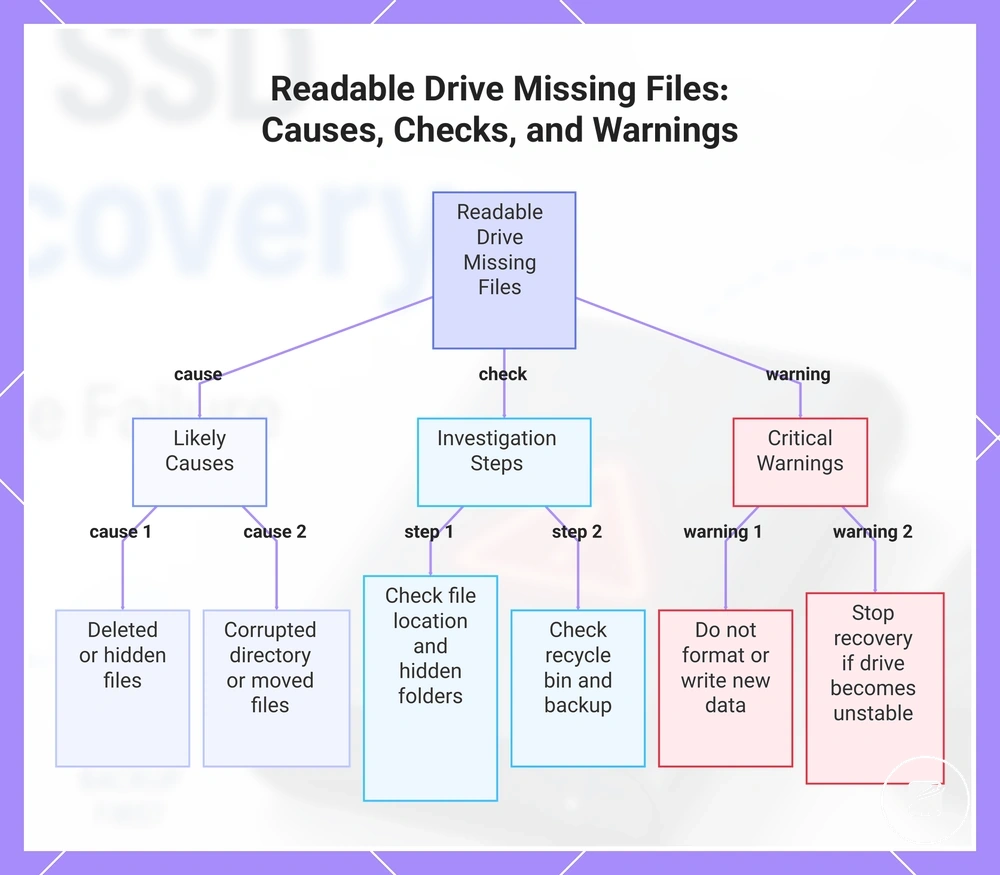
A readable drive with missing files usually indicates that the portable SSD is still accessible, but the missing data is more commonly linked to deleted files, hidden folders, a corrupted directory, or accidental file movement than complete hardware failure. Avoid creating new writes because saving new data can overwrite storage areas that still contain recoverable deleted files.
Avoid creating new writes because saving new data can overwrite storage areas that still contain recoverable deleted files.
Readable Drives With Missing or Deleted Files should be investigated by checking the file location before assuming permanent loss. Verify whether hidden folders are enabled, confirm that files were accidentally moved, check whether deleted files remain in the recycle bin if the deletion originated from the host operating system rather than the portable SSD itself, and look for a backup copy. For example, if only one project folder is missing while the remaining folders open normally, an accidental move or a corrupted directory is a more likely recovery path than complete file-system failure.
The checklist below helps determine the safest next action while the readable drive remains accessible.
The checklist below helps determine the safest next action while the readable drive remains accessible.
- Check whether the missing files were deleted, moved, or stored inside hidden folders.
- Look for a backup copy before attempting further recovery.
- Determine whether only one corrupted directory is affected or multiple folders have become inaccessible.
- Do not format the portable SSD or create new writes while recovery is still being considered.
- Stop consumer-level recovery attempts if additional folders disappear, read errors increase, or the readable drive becomes unstable.
This chart shows the likely causes, investigation steps, and critical warnings for a readable portable SSD with missing or deleted files.
Portable SSDs That Disconnect or Stop Appearing
A disconnecting portable SSD or one that stops appearing during recovery indicates unstable detection, so pause file copying until the connection remains stable. Repeated disconnects interrupt file access, and repeated connection attempts can worsen cases involving a damaged connection, controller instability, or a failing drive.
A disconnecting portable SSD or one that stops appearing during recovery indicates unstable detection, so pause file copying until the connection remains stable.
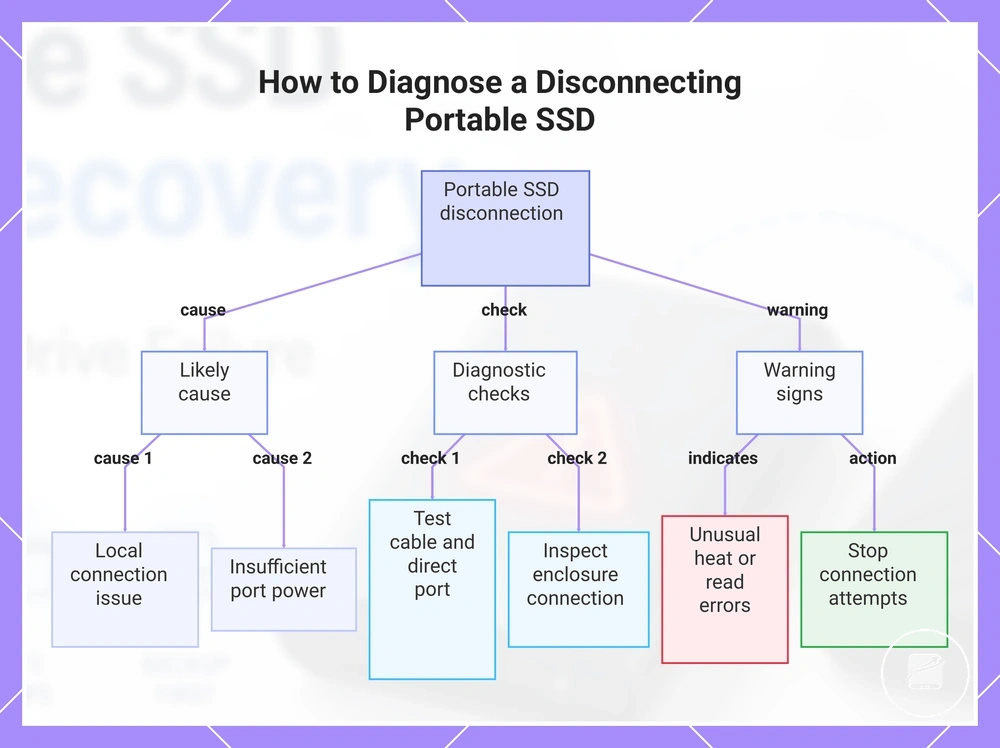
The likely cause is local when detection changes after replacing the USB-C cable, switching to a direct port, removing an adapter or hub, or reseating the enclosure connection. Test one known-working cable and one direct computer port; if the drive remains mounted only after removing the hub or adapter, the removed component or insufficient port power is the likely instability point. For example, a portable SSD that disconnects through an unpowered hub but remains visible through a direct port points toward the hub or port power rather than immediate file-system failure.
Use the following checks only while the portable SSD remains cool enough to handle normally and does not show repeated read errors.
Use the following checks only while the portable SSD remains cool enough to handle normally and does not show repeated read errors. If it disappears across known-working cables and direct ports, follow the broader portable SSD not showing up checks instead of repeatedly reconnecting it.
- Inspect the USB-C cable for loose connectors, visible damage, or movement-sensitive disconnections.
- Connect the drive directly to a known-working port to remove adapter and hub behaviour from the test.
- Check whether the enclosure connection remains firm and whether light movement changes detection.
- Allow the drive to cool if unusual heat appears before or during repeated disconnects.
- Treat continued disappearance across direct ports as possible controller instability, enclosure failure, or broader hardware failure.
- Stop connection attempts if disconnects become more frequent, read errors appear, or the drive remains unusually hot.
This chart shows the likely causes, diagnostic checks, and warning signs for a portable SSD that disconnects or stops appearing during recovery.
Encrypted, Formatted, or Password-Protected Drives
An encrypted portable SSD, password-protected drive, or formatted drive creates a defined access boundary: valid credentials are required for encrypted data, while the format type and later writes determine whether deleted file structures remain recoverable. Stop writing to the drive until its encryption status, password availability, recovery key, and format history are confirmed.
Stop writing to the drive until its encryption status, password availability, recovery key, and format history are confirmed.
Hardware encryption and software encryption keep stored data inaccessible without the correct password or recovery key; recovery cannot substitute for successful authentication. A quick format replaces file-system metadata without intentionally erasing every storage area, so recovery may remain possible only where deleted data has not been overwritten or removed by SSD maintenance processes. A full format performs a more extensive volume operation and can overwrite data, leaving a substantially narrower recovery path. For example, if an encrypted portable SSD still accepts its password but files are missing after a quick format, authenticate first and avoid new writes before assessing the remaining file system.
The table below separates the credential and format conditions that control the safe next action.
The table below separates the credential and format conditions that control the safe next action.
| Drive condition | Access or recovery boundary | Safe next action |
|---|---|---|
| Hardware encryption with the correct password | File access becomes available only after successful device authentication. | Unlock the drive normally, then copy accessible files to a separate backup location. |
| Software encryption with the correct recovery key | Protected data becomes accessible only after the encrypted volume is unlocked. | Use the valid recovery key and avoid changing the encrypted volume before copying files. |
| Encryption without a valid password or recovery key | Encrypted file contents remain inaccessible through ordinary recovery methods. | Locate the original credentials or an existing backup copy rather than attempting to bypass encryption. |
| Quick format | Deleted file structures may remain recoverable only where subsequent writes or SSD maintenance have not removed them. | Stop using the drive and assess recovery before saving new data. |
| Full format | The more extensive formatting operation leaves a much narrower recovery boundary than a quick format. | Avoid further writes and treat any remaining recovery opportunity as conditional. |
| Verified backup copy | The backup provides an independent restore source without relying on the affected drive. | Validate the backup contents before restoring or reformatting the portable SSD. |
Data safety features protect files from unauthorised access, but they also limit recovery when credentials are unavailable or formatting has removed recoverable structures. This access boundary is part of portable SSD data safety, so preserve passwords, recovery keys, and backup copies separately from the affected drive.
First Actions Before Any Repair Attempt
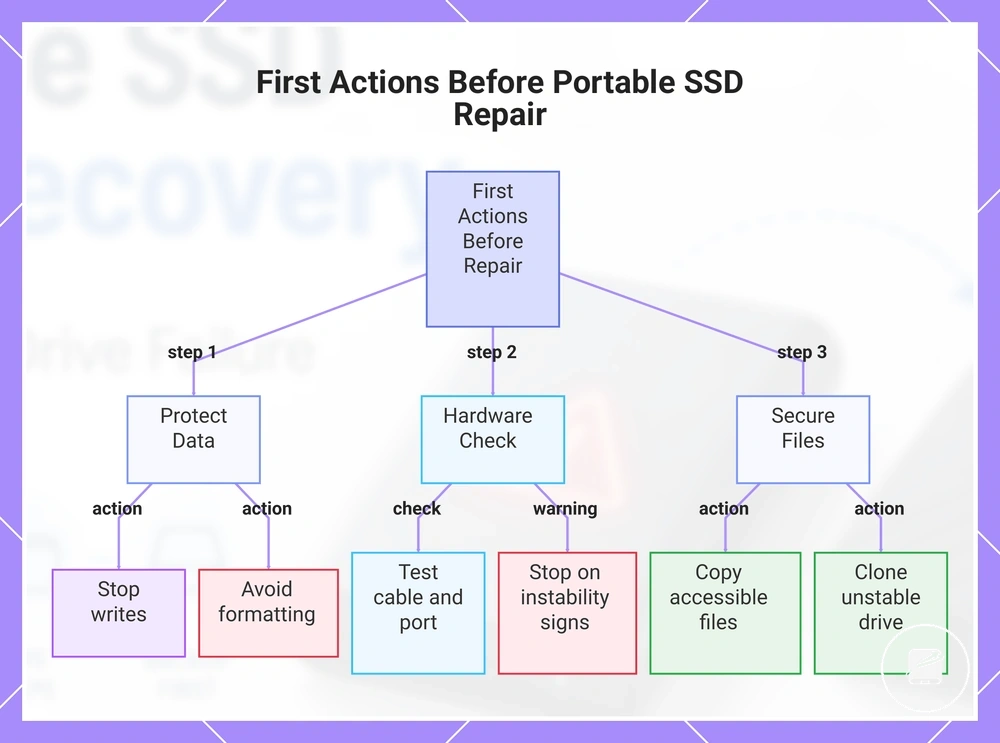
Preserve the portable SSD's current drive state before attempting repair. Stop writes, avoid formatting, and complete only low-risk checks until accessible files are secured or a clone is available.
Preserve the portable SSD's current drive state before attempting repair.
Follow these actions in order because each step protects recoverable data before the next recovery decision. Move beyond observation only when the drive remains stable enough for file access.
- Stop writes: If files are missing, corrupted, or inaccessible, do not save new data or install recovery software on the affected portable SSD because new writes can replace recoverable content.
- Avoid formatting: If the operating system displays a format prompt, cancel it because formatting changes the file system and can narrow the recovery path.
- Complete a connection check: If the drive is not detected or disconnects, test one known-working cable and one direct computer port because repeated troubleshooting through a faulty cable, adapter, or hub can obscure the actual drive condition.
- Copy accessible files: If the portable SSD mounts normally and reads without repeated errors, copy accessible files to separate storage before repair because later actions can change file access.
- Clone before deeper recovery: If the drive remains readable but is unstable, create a sector-level clone where feasible and work from the clone because repeated reads from the original can increase stress on a failing device.
The safe repair boundary separates observation from actions that alter the file system or stored data. For example, checking whether the drive appears through a known-working cable is observational, while formatting, running a repair command, or writing recovered files back to the same SSD changes its state. Stop the sequence if the drive repeatedly disconnects, develops new read errors, becomes unusually hot, or disappears during copying or cloning.
The safe repair boundary separates observation from actions that alter the file system or stored data.
This chart shows the essential steps to protect data before attempting any repair on a portable SSD, including data protection, hardware checks, and file securing actions.
Stop Using the Drive and Avoid New Writes
Stop using the drive immediately if important files disappear or read errors appear because new writes can reduce recoverability. Keep the affected SSD in its current drive state until you decide on the safest recovery path.
New writes include more than creating new files.
New writes include more than creating new files. Use the checklist below to identify everyday actions that change the affected SSD and should be avoided before recovery.
- Do not save files to the affected SSD: Writing new data can overwrite storage areas that recovery might otherwise access.
- Do not install recovery software on the affected SSD: Install and run recovery software from a different drive to avoid additional writes.
- Do not move, rename, or reorganise folders: These actions update file-system metadata and can reduce recovery options.
- Pause syncing backups: Stop syncing backups that automatically write changes to the affected SSD until its condition has been assessed.
- Do not run repair utilities: File-system repairs change drive metadata and should wait until recovery priorities are clear.
- Decline any format prompt: If the operating system requests formatting before opening the drive, cancel the format prompt instead of accepting it.
These precautions reduce unnecessary changes without guaranteeing a recovery outcome. For example, copying recovered files to another storage device is a safe next action, while restoring them directly to the affected SSD creates new writes that can reduce recoverability.
Check Cables, Ports, and Enclosures Without Formatting
Check the connection before attempting any repair because cable, port, and enclosure tests do not alter the portable SSD or its file system. During these checks, do not accept formatting, repair, or disk initialization prompts because they change drive metadata instead of diagnosing the connection.
Check the connection before attempting any repair because cable, port, and enclosure tests do not alter the portable SSD or its file system.
Intermittent detection, unexpected disconnects, or failed file access can result from a faulty USB-C cable, an unstable port, a hub, or an external SSD enclosure rather than immediate file-system damage. Complete these low-risk checks first, but if the same symptoms continue after different connections have been tested, see portable SSD not showing up for broader diagnosis without changing the affected drive.
Intermittent detection, unexpected disconnects, or failed file access can result from a faulty USB-C cable, an unstable port, a hub, or an external SSD enclosure rather than immediate file-system damage.
Use this checklist to eliminate common connection problems while preserving the current recovery path:
- Replace the USB-C cable: Use a known-working data-capable USB-C cable because damaged or charge-only cables can interrupt file access.
- Use a direct connection: Connect the portable SSD directly to the computer instead of through a hub to improve power stability and remove an additional failure point.
- Try another port: Test a different USB port before assuming the portable SSD itself is failing.
- Check the external SSD enclosure: Ensure the enclosure connection is secure and remains stable throughout file access.
- Decline disk initialization: If the operating system requests disk initialization, cancel the prompt because initialization changes disk metadata.
- Stop after repeated disconnects: If the drive repeatedly disconnects during access across known-working cables and ports, stop further connection testing because persistent hardware symptoms require a different recovery path.
For example, if a portable drive works normally after replacing a faulty USB-C cable, the problem was likely the connection rather than the storage device. If repeated disconnects continue despite a direct connection, different ports, and a replacement cable, avoid further troubleshooting that writes to the drive and focus on preserving recoverable data.
Clone the Portable SSD Before Running Recovery Software
Clone the portable SSD before running recovery software if the drive remains readable but is unstable or contains valuable files because a clone creates a safer working copy while preserving the original drive state. Work from the clone whenever feasible, but do not force cloning if the SSD shows severe hardware instability.
Create the clone only while the source drive can still be read.
Create the clone only while the source drive can still be read. Follow these steps to reduce unnecessary access to the original drive during recovery.
- Connect the source drive: Use the affected portable SSD as the source drive only if it remains detectable without repeated disconnects or severe read errors.
- Prepare the destination drive: Select a destination drive with target capacity equal to or greater than the source drive so a complete sector-level copy can be stored.
- Create a sector-level copy: Copy readable sectors from the source drive to the destination drive instead of attempting file recovery directly from the original SSD where feasible.
- Watch for read errors: If read errors increase or the cloning process repeatedly stalls or disconnects, stop the process because continued reading can place additional stress on an unstable SSD.
- Run recovery software on the clone: Recover files from the cloned copy rather than the original source drive whenever the clone has been completed successfully.
For example, if an external SSD remains accessible but occasionally reports read errors, creating a clone first allows recovery software to analyse the copied data instead of repeatedly accessing the original drive. This approach can reduce additional stress on the source drive, but it does not guarantee a successful recovery when firmware or hardware faults are present.
This approach can reduce additional stress on the source drive, but it does not guarantee a successful recovery when firmware or hardware faults are present.
If cloning produces persistent read errors, repeated disconnects, or unusual drive behaviour, stop further attempts and seek professional data recovery because continued cloning is unlikely to improve the recovery path and can increase the risk of losing access to recoverable files.
Recovery Options by Failure Type
The appropriate recovery option depends on the failure type, the value of the lost data, and the risk of further drive damage. A deleted file, a corrupted file system, repeated read errors, and a non-detected portable SSD each require a different recovery path, so choose the least invasive option that matches the observed condition.
Use the decision criteria below before taking further action.
Use the decision criteria below before taking further action. If the data value is high because the files are irreplaceable, or the drive shows signs of hardware failure or firmware failure, stop repeated DIY attempts because further access can reduce recovery opportunities. After recovery, include backup planning to reduce the effect of a future failure.
After recovery, include backup planning to reduce the effect of a future failure.
The matrix compares each condition with a recovery option, its main risk, and its practical limitation.
| Condition | Recovery option | Risk | Limitation |
|---|---|---|---|
| Files exist in a recent, validated backup | Backup restore | Restoring an older version can replace newer files if the backup date is not checked | Only files included in the validated backup can be restored |
| Deleted files or logical corruption while the drive remains readable | Software recovery | Writing new data to the affected SSD can overwrite recoverable information | Recovery becomes limited when deleted data has been overwritten or discarded through TRIM |
| The drive remains readable but reports intermittent read errors | Cloned-drive recovery | Repeated reads can place additional stress on an unstable SSD | A usable sector-level copy must be created before recovery software can work from the clone |
| Hardware failure, firmware failure, repeated disconnects, or non-detection | Professional recovery | Repeated DIY attempts can worsen the drive condition or remove remaining file access | The recovery outcome remains limited by the physical and firmware condition of the failed drive |
| The drive is encrypted and the password or recovery key is unavailable | Restore access with valid credentials or a recovery key | Repeated access attempts do not remove the encryption access limit | File recovery cannot proceed without the required password, recovery key, or another authorised access method |
For example, accidental deletion on a normally detected portable SSD supports software recovery, while repeated disconnects or complete non-detection indicate a higher-risk condition where professional recovery is the safer next action.
Restore From an Existing Backup
Restore from an existing backup when the backup contains the required files and the affected portable SSD is unstable, unreadable, or too risky to access repeatedly. A backup restore avoids writing to or stressing the failed drive, but keep the affected drive untouched until the restored files have passed validation.
After recovery, use backup planning to reduce the impact of a future drive failure.
Use the steps below to check the backup date, confirm the correct file version, and restore from a backup drive or cloud copy. After recovery, use backup planning to reduce the impact of a future drive failure.
- Identify the backup source: Use the backup drive or cloud copy that contains the required folders; avoid reconnecting the failed drive only to compare files because repeated access increases the risk of further instability.
- Check the backup date: Select a backup created before the files were deleted, corrupted, or changed; using a newer backup can preserve the unwanted state instead of the required data.
- Confirm the file version: Compare filenames, modification dates, and available version history where supported; restoring the wrong file version can replace a usable copy with an older or incomplete one.
- Restore to a separate location: Copy the selected files to a healthy storage device instead of the affected portable SSD; restoring directly to the failed drive can overwrite recoverable data or trigger additional write activity.
- Validate the restored files: Open representative documents, images, archives, or project files and confirm that their contents are complete; filenames alone do not verify successful restoration.
- Leave the failed drive unchanged: Keep the affected SSD untouched until the restored files have been verified against the required folders and file versions; reconnect it only if missing data justifies a separate recovery attempt.
For example, an older but complete existing backup is the safer recovery path when a portable SSD repeatedly disconnects and the backup contains every essential file except a few recent non-critical changes. Restoring and validating that backup avoids further stress on the failed drive while preserving the option of a later recovery attempt if important files are still missing.
Use Software Only for Logical Recovery
Use recovery software only for logical recovery when the affected portable SSD remains a readable drive or has been safely cloned. Suitable conditions include deleted files, corrupted directories, and damaged file-system metadata; physical failure requires a different recovery path because software cannot repair failed NAND, controller, or firmware components.
Use recovery software only for logical recovery when the affected portable SSD remains a readable drive or has been safely cloned.
Recovery software is appropriate when the file system is damaged but the drive can still be read without repeated disconnects or escalating read errors. Use a clone-first approach when the SSD is unstable but still readable, so scans run against the clone rather than repeatedly stressing the original device. Review the file preview before restoration and save recoverable files to a separate destination drive to avoid writing to the affected SSD.
Use this checklist to confirm suitability and identify the point at which software recovery should stop.
Use this checklist to confirm suitability and identify the point at which software recovery should stop.
- Logical signal: Missing files, corrupted directories, or damaged file-system metadata on a drive that remains readable support a software-based recovery attempt.
- Drive-state check: Stable detection and consistent read access indicate a logical condition; repeated disconnects, non-detection, or worsening read errors indicate a higher risk of physical failure.
- Clone-first preference: If the portable SSD is readable but unstable, scan a sector-level clone instead of the original drive to reduce repeated access to the affected hardware.
- File preview: Confirm that the software can display a usable preview of the required files before restoration; a filename without a readable preview does not confirm that the file content is recoverable.
- Destination drive: Restore files to a different healthy device because saving them to the affected SSD can overwrite data that remains recoverable.
- Stop condition: Stop repeated scans if the SSD disconnects, disappears from the system, or produces increasing read errors because software cannot correct failed NAND, controller, or firmware problems.
For example, a portable SSD that is detected consistently but shows deleted folders can follow the logical recovery path, while a drive that repeatedly disconnects during scanning should be cloned first or removed from software-based recovery attempts if a stable clone cannot be created.
Use Professional Recovery for Hardware or Firmware Failure
Choose professional SSD recovery when the failure appears physical, firmware-related, or too unstable for safe DIY recovery. Non-detection, repeated disconnects, failed cloning, severe read errors, or unusual heat indicate conditions where continued DIY attempts increase risk without improving the recovery path.
Data value should guide the decision as much as the failure symptoms.
Data value should guide the decision as much as the failure symptoms. Professional SSD recovery is more appropriate when the lost files are irreplaceable, business-critical, or legally important because preserving the remaining recovery opportunity becomes more valuable than continuing repeated DIY attempts. Encryption is also a practical boundary: recovered data still requires the correct password, recovery key, or another authorised access method before encrypted files can be opened.
Use the checklist below to determine when escalation is the safer recovery decision.
Use the checklist below to determine when escalation is the safer recovery decision. If multiple conditions apply, stop unnecessary DIY attempts before requesting a diagnostic quote.
- Non-detection: Escalate when the portable SSD is not recognised after confirming known-good cables, ports, and power because the likely condition extends beyond ordinary file-system corruption.
- Repeated disconnects or severe read errors: Stop repeated scans when the drive loses connection or read errors increase because continued access can reduce the chance of creating a stable recovery image.
- Failed cloning: Choose professional SSD recovery if a clone cannot be completed successfully because the storage device is too unstable for a reliable software-based recovery path.
- Firmware failure or unusual heat: Power down the affected SSD if firmware faults are suspected or the enclosure becomes unusually hot because continued operation can place additional stress on failing components.
- High data value and encryption: Request a diagnostic quote before further DIY attempts when the files are highly valuable or encrypted because recovery planning should account for both data value and the encryption access limit.
For example, professional recovery is a risk-control decision when a portable SSD repeatedly disconnects, cannot be cloned successfully, and contains the only encrypted copy of important project files. Requesting a diagnostic quote at that stage preserves the remaining recovery options without implying that recovery or decryption can be guaranteed under every failure condition.
Repair Actions That Can Reduce Recovery Chances
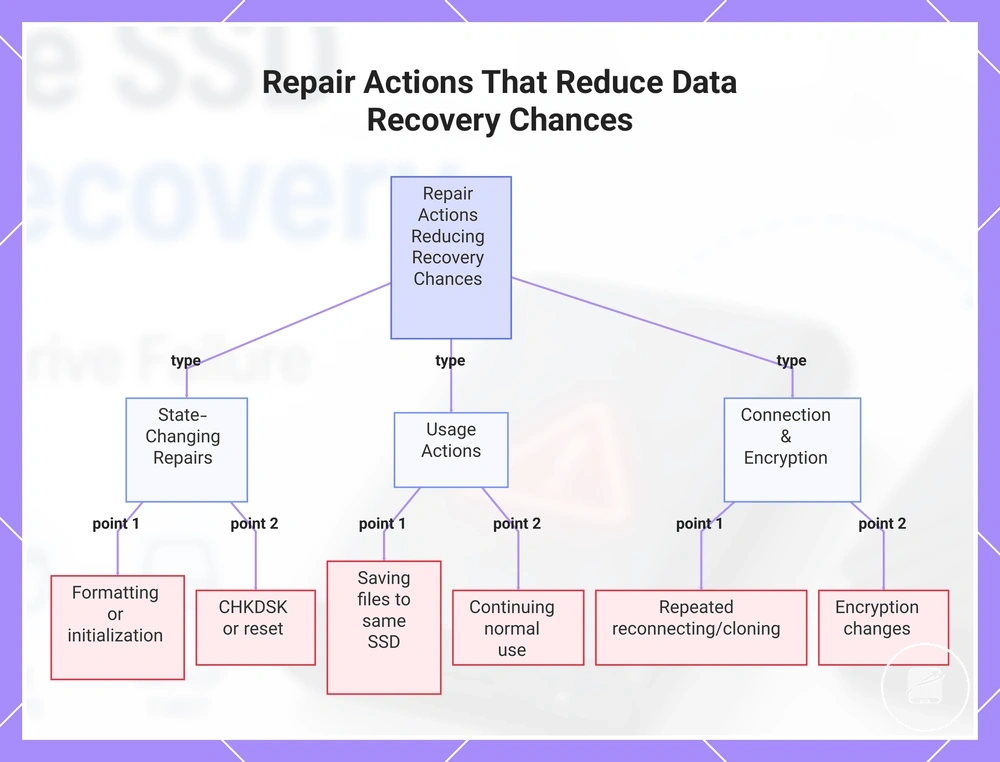
Repair and data recovery are not always the same goal because some repair actions change the portable SSD's drive state before recoverable files have been copied elsewhere. If important data is still missing, avoid state-changing repairs until you have a backup, a verified recovery copy, or a professional recovery plan.
If important data is still missing, avoid state-changing repairs until you have a backup, a verified recovery copy, or a professional recovery plan.
Harmless inspection, such as checking cables, confirming detection, or reviewing available drive information, does not intentionally modify stored data. In contrast, formatting, initialization, file-system repairs, reset prompts, or other write operations can change metadata or user data, making later data recovery more difficult under some conditions.
Use the checklist below to identify repair actions that are safer to avoid before recovery.
Use the checklist below to identify repair actions that are safer to avoid before recovery. If the portable SSD already shows persistent read errors or failed cloning attempts, stop further state-changing actions before considering professional recovery.
- Formatting or initialization: Do not accept prompts to format or initialize the portable SSD before recovering files because these actions rewrite file-system structures and can reduce access to recoverable files.
- CHKDSK-style repairs or reset prompts: Avoid repair utilities or reset operations before recovery because they can modify file-system metadata or the drive state needed for later recovery attempts.
- Repeated reconnecting or failed cloning attempts: Stop repeated connection or cloning attempts if the SSD repeatedly disconnects or cloning cannot complete because continued read errors can increase stress on an unstable drive.
- Saving recovered files to the same SSD: Restore recovered files to a different storage device because writing new data to the affected SSD can overwrite recoverable files. On TRIM-enabled SSDs, deleted blocks can become unavailable after subsequent write activity.
- Continuing normal use: Stop using the affected portable SSD for everyday storage until recovery is complete because creating, editing, or deleting files can overwrite recoverable data.
- Encryption changes: Do not reset or remove encryption settings unless you have the correct password or recovery key because changing encryption settings can complicate later access to encrypted files.
For example, reconnecting a portable SSD through another verified cable is an inspection that does not intentionally change stored data, whereas formatting the drive to regain access changes its drive state before data recovery is complete. If the drive also experiences repeated read errors or failed cloning, stopping further repair attempts and considering professional recovery is the safer boundary.
This chart groups the repair actions that can reduce the chances of successful data recovery from a portable SSD, showing which actions to avoid before recovery.
This chart groups the repair actions that can reduce the chances of successful data recovery from a portable SSD, showing which actions to avoid before recovery.
CHKDSK, Formatting, and Reset Prompts
Do not accept a repair prompt, formatting request, initialization prompt, or reset prompt while recoverable files still matter because these actions prioritize drive usability rather than file preservation. If important data has not yet been recovered, leave the portable SSD unchanged until the recovery path has been completed.
If important data has not yet been recovered, leave the portable SSD unchanged until the recovery path has been completed.
CHKDSK and other file-system repair tools are intended to repair file-system structures and metadata rather than recover missing files. Formatting, partition initialization, and reset prompts also perform metadata writes that change the drive state, which can reduce later recovery options when deleted or damaged files still need to be recovered. These actions can restore a usable file system while no longer preserving the original metadata needed for the best remaining recovery path.
Review the checklist below before responding to any repair prompt.
Review the checklist below before responding to any repair prompt.
- CHKDSK: Do not run CHKDSK solely to recover missing files because its purpose is file-system repair rather than file preservation.
- Formatting: Decline formatting prompts while recoverable files remain on the portable SSD because formatting rewrites file-system metadata.
- Partition initialization: Avoid initializing an unrecognized drive before recovery because initialization creates new partition metadata that changes the original drive state.
- Reset prompts: Do not approve reset or repair prompts intended to restore drive usability until the required files have been recovered.
- Metadata writes: Minimize operations that write new metadata because additional metadata writes can reduce recovery options for missing files.
For example, an operating system may offer to format or repair a portable SSD after detecting file-system corruption. Accepting the prompt can restore normal access to the drive while reducing the opportunity to recover missing files that depended on the original file-system metadata.
Power Cycling and Repeated Connection Attempts
Repeated power cycling or repeated reconnecting becomes risky when a portable SSD remains in an unstable mount or disconnect loop because persistent failures can indicate an underlying hardware, firmware, or read-error condition rather than a temporary connection issue. If the same symptoms continue after reasonable checks, stop repeated attempts and preserve the current recovery path.
If the same symptoms continue after reasonable checks, stop repeated attempts and preserve the current recovery path.
Repeated connection attempts can trigger the same read requests again while file copies repeatedly fail, increasing the risk of read-error escalation on an unstable device. Heat generated during continuous reconnecting or repeated recovery attempts can add stress to a failing portable SSD, although a single reconnect to confirm the symptom is different from repeatedly cycling power. Changing to another compatible port or enclosure once is a reasonable diagnostic check, but repeating the same changes after identical failures is unlikely to improve the recovery outcome.
Review the checklist below before continuing repeated connection attempts.
Review the checklist below before continuing repeated connection attempts.
- Unstable mount: Stop repeated reconnecting if the portable SSD repeatedly mounts and disappears without remaining accessible.
- Disconnect loop: Treat continuous disconnect-and-reconnect cycles as a stop condition instead of repeatedly power cycling the drive.
- Failed file copies: If the same files repeatedly fail to copy because of read errors, avoid restarting the transfer again and again.
- Heat: Stop repeated recovery attempts if the portable SSD becomes unusually warm during continuous reconnecting or read activity.
- Port or enclosure changes: One change to another compatible port or enclosure can help isolate the fault, but repeated changes after identical symptoms are unlikely to improve the recovery path.
- Read-error escalation: Persistent read errors after repeated attempts are a signal to stop further retries because continued attempts can reduce the chance of a successful recovery.
For example, a portable SSD that disconnects halfway through every file copy may reconnect after a power cycle but fail at the same point each time. In that situation, stopping repeated retries preserves the current drive state more effectively than repeating the same unsuccessful recovery attempt.
When Professional SSD Recovery Is Worth the Cost
Professional SSD recovery is worth the cost when the data value exceeds the recovery expense and the portable SSD shows conditions that make further DIY attempts risky. Irreplaceable files, business records without a complete backup, hardware failure, firmware failure, failed cloning, or inaccessible encrypted data create a stronger case than replaceable files that can be restored elsewhere.
The decision should combine file importance, drive condition, and DIY risk.
The decision should combine file importance, drive condition, and DIY risk. Failed software recovery, non-detection, repeated read errors, or suspected hardware or firmware faults increase the risk that more attempts could reduce the remaining recovery path. Encryption also limits access because recovery still requires the correct password or recovery key. A transparent quote should identify the suspected fault, the proposed recovery process, evaluation terms, likely limitations, and any conditions affecting the recovery outcome without promising success.
The matrix below compares data value with failure severity and the risk of continued DIY recovery.
The matrix below compares data value with failure severity and the risk of continued DIY recovery. Professional recovery is a better fit as the files become harder to replace and the portable SSD condition becomes less stable.
| Data value | Failure severity | DIY risk | Professional recovery fit |
|---|---|---|---|
| Low-value files | Accessible drive with a logical file-system issue | Low when no repair, formatting, or repeated write attempts are made | Usually not cost-effective when the files are easy to replace |
| Replaceable files | Software recovery has failed, but the drive remains detectable | Moderate because repeated scans or repair attempts can change the drive state | Consider only when replacement is difficult or the remaining files still have meaningful value |
| Backup-covered files | Any failure with a complete and validated backup available | Low because the files can be restored from the verified backup | Usually unnecessary unless the backup is incomplete, corrupted, or inaccessible |
| High-value or irreplaceable files | Non-detection, hardware failure, firmware failure, failed cloning, or encrypted access problems | High because continued DIY attempts can increase the risk to the remaining recovery path | Often justified when preserving access to the files is more important than the quoted recovery cost |
For example, family photos or business records with no usable backup can justify a professional assessment after failed software recovery or persistent non-detection. By contrast, files already held in a complete, validated backup are usually better restored from that backup than submitted for professional SSD recovery.
After Recovery: Backup, Replacement, and Drive Health Decisions
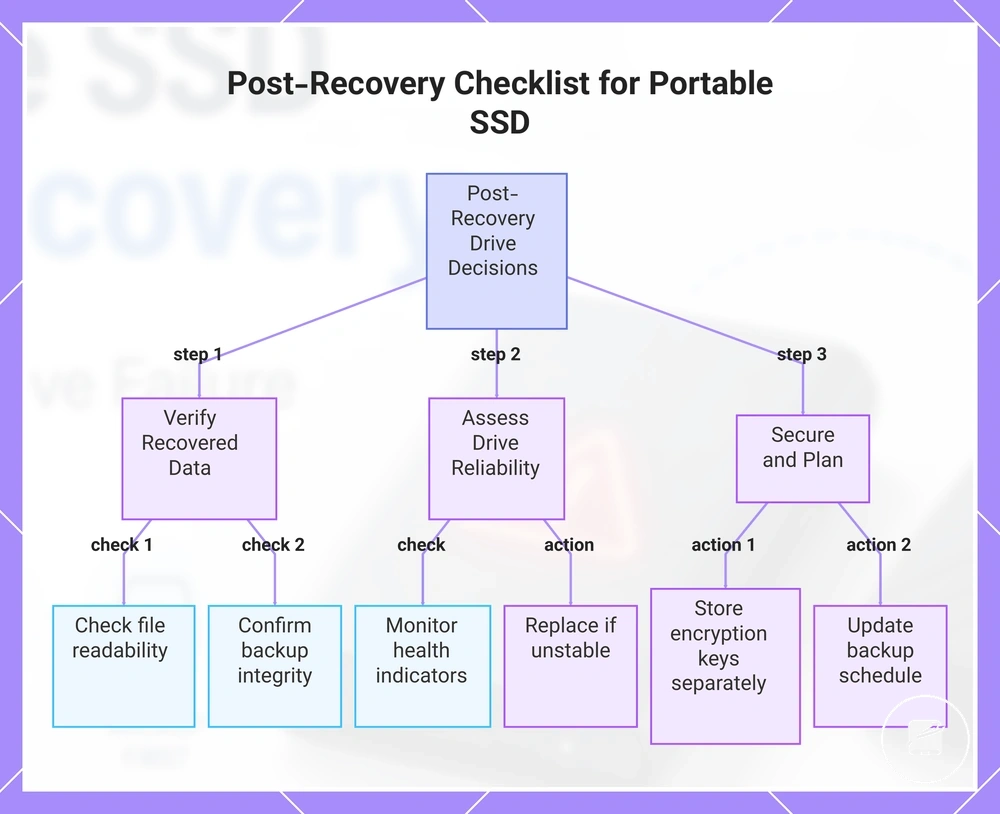
After recovery, the next goal is to reduce repeat failure and future data-loss risk before the portable SSD returns to normal use. Verify recovered files first, then decide whether the affected drive is suitable for limited reuse or should be replaced.
The checklist below turns recovery into a prevention plan.
The checklist below turns recovery into a prevention plan. Complete each action before treating the restored files or the original portable SSD as dependable.
- Verify files: Open representative recovered files, confirm that they are readable and complete, and keep the recovery copies until this check is finished.
- Validate backups: Confirm that the recovered files exist in a separate backup and that the backup can be opened or restored before removing any duplicate recovery copy.
- Replace an unreliable SSD: Use a replacement drive when the original portable SSD continues to disconnect, reports persistent read errors, or shows recurring hardware or firmware symptoms.
- Check drive health: Review available health indicators and connection behaviour; recurring warnings or unstable detection are stop signals for continued primary use.
- Document encryption keys: Store the password, recovery key, or other required encryption credentials separately so future file access is not blocked by a missing key.
- Update the backup routine: Add the restored data to a regular backup schedule and repeat backup validation after important file changes.
Prevention should combine a trustworthy replacement drive, verified backup copies, and ongoing drive health and maintenance. A drive that remains unstable after recovery should not return to primary storage, while a stable drive should still be treated as only one copy of the data. This transition from recovery to backup planning reduces reliance on a single portable SSD and makes future restore decisions clearer.
Prevention should combine a trustworthy replacement drive, verified backup copies, and ongoing drive health and maintenance .
For example, if recovered business records open correctly but the original SSD still disconnects, copy the verified files to a validated backup, record the encryption keys, move ongoing work to a replacement drive, and retire the unstable device from primary use.
This chart shows the three main steps to follow after recovering data from a portable SSD to prevent repeat failure and future data loss.
This chart shows the three main steps to follow after recovering data from a portable SSD to prevent repeat failure and future data loss.