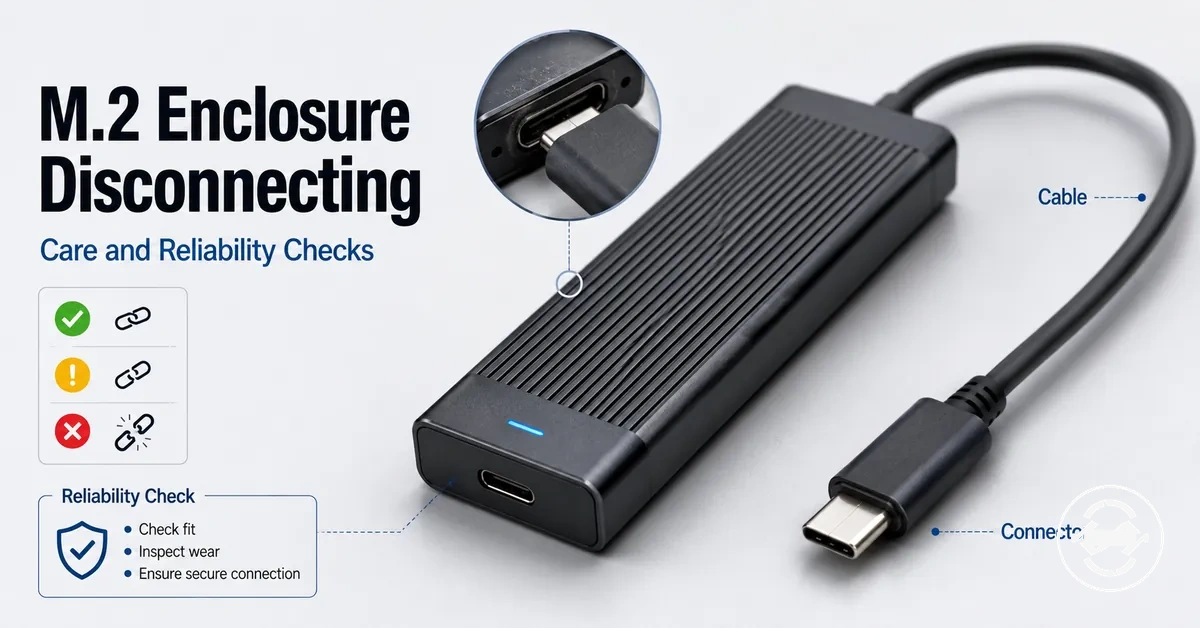
M.2 SSD enclosure reliability and disconnecting checks
When an M.2 SSD enclosure keeps disconnecting, the cause may be an unstable cable, USB port, power path, heat condition, drive seating issue, enclosure fault, or drive health problem. This page focuses on separating connection instability from broader storage failure signals, with intermittent disconnects as the core reliability signal.
M.2 SSD enclosure reliability checks should start with the most exposed cause families before assuming replacement is needed. A cable can lose contact, a USB port can behave inconsistently, power can vary through a hub or host device, heat can increase during sustained work, and drive seating can create intermittent contact inside the enclosure. Diagnosis matters before replacing a cable, enclosure, or drive because the same dropout symptom can come from different conditions.
Movement-triggered disconnecting often points toward cable fit, connector movement, port looseness, or enclosure fit. Dropouts during heavier transfers may point toward workload, power, heat, or controller behavior. Reconnecting after idle time may involve power-saving behavior or a host-side connection state. These symptom patterns guide the checks that should come before any replacement decision.
Disconnecting does not automatically mean the SSD has failed. Intermittent connection drops are different from a drive that is never detected, a drive that only transfers slowly, or a drive showing broader failure symptoms. Drive health should be considered more carefully when instability repeats across known-good cables, ports, power sources, and enclosure checks.
The safest starting point is to treat connection drops as signals to interpret, not as proof of one fault. The next sections separate external connection issues, internal fit, heat behavior, care habits, and replacement cues so each reliability check stays tied to the symptom that triggered it.
What connection drops reveal about an M.2 SSD enclosure
Connection drops usually indicate an unstable link between the M.2 SSD enclosure, enclosure controller, cable, USB port, power source, or operating conditions rather than confirming a single fault. They should be treated as diagnostic signals that guide further checks instead of proving that one component has failed.
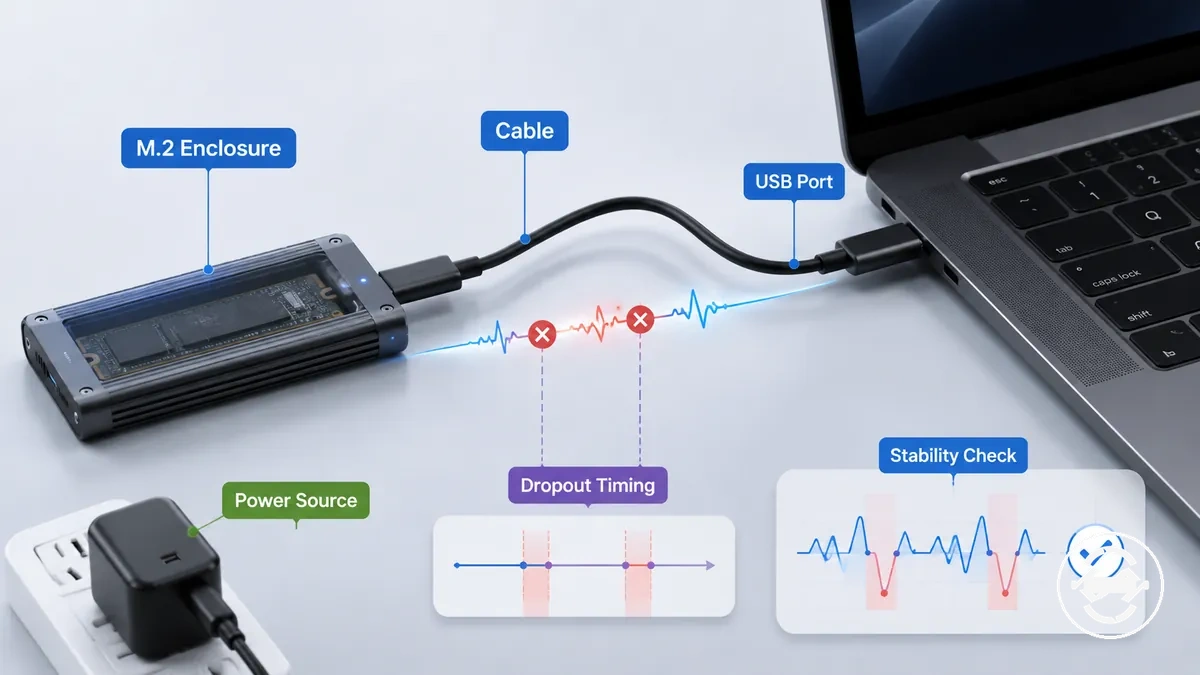
Connection stability refers to the enclosure's ability to maintain a consistent link with the SSD during normal use. When stability changes, the timing of the disconnect often helps identify the most likely area to inspect. This relationship also supports the broader context covered in the M.2 SSD enclosure hub, where dropout timing helps narrow the likely cause.
Connection drops can point toward different causes depending on when they occur and what triggers them. The patterns below help separate likely connection issues before assuming a defective component.
- Movement-related disconnects may indicate an unstable cable, connector, or enclosure fit.
- Heavy-transfer dropouts can coincide with increased workload, heat, or changing power demands.
- Idle disconnects may relate to changing operating conditions or power behaviour.
- Repeated reconnecting across different situations may justify broader enclosure reliability checks before assuming the SSD, cable, or enclosure is defective.
- Connection drops that occur only on one USB port may suggest a port-specific issue rather than a general enclosure fault.
Disconnecting versus not detected, slow transfer, and drive failure symptoms
Disconnecting, not detected, slow transfer, and possible drive failure symptoms describe different diagnostic paths even though they can appear related. An intermittent connection usually requires a different investigation than a drive that never appears or one that only transfers data slowly. Following the wrong symptom pattern too early can lead to unnecessary replacement or missed maintenance checks.
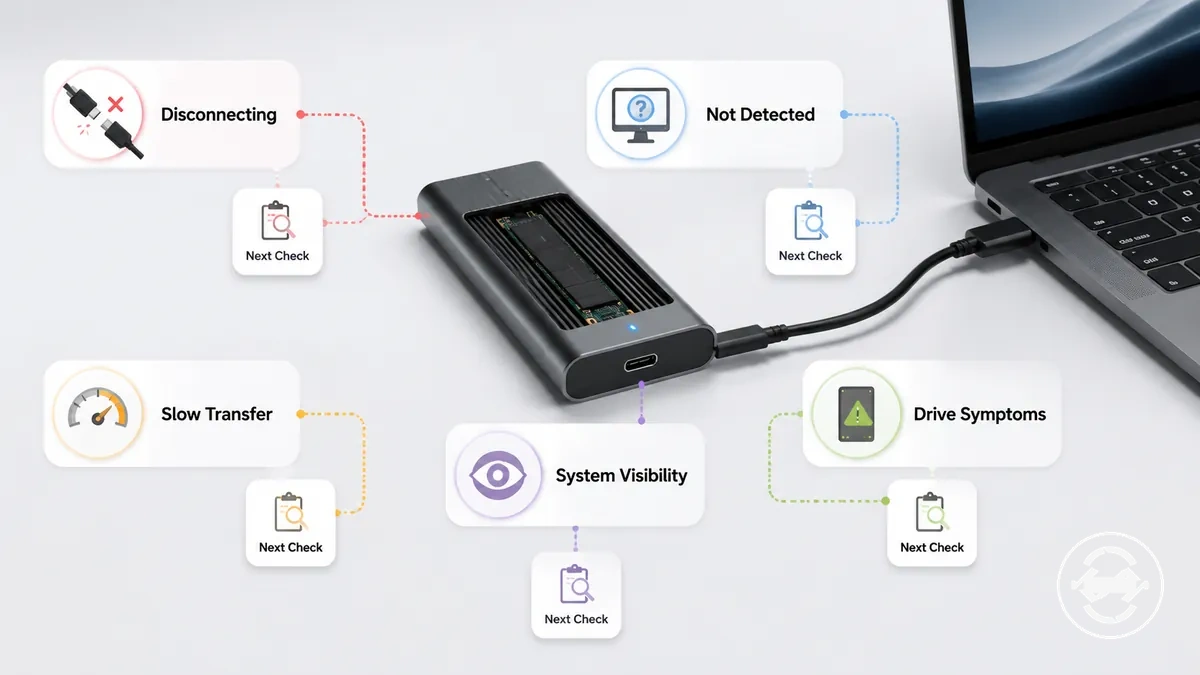
The comparison below separates the most common symptom patterns by how they behave and what they usually change during diagnosis. Focus on symptom behaviour, trigger condition, persistence, system visibility, and the most appropriate next check rather than assuming a single cause.
| Symptom pattern | What it looks like | What it usually changes | Best next check |
|---|---|---|---|
| Disconnecting | The device reconnects or disappears intermittently, often after movement or during use. | Connection stability while the system can still detect the enclosure at other times. | Check the cable, enclosure fit, USB port, power source, and trigger condition. |
| Not detected | The enclosure is not showing up and remains absent from the system. | System visibility rather than intermittent connection behaviour. | Check the detection path before assuming hardware failure. |
| Slow transfer | Files continue to copy, but speed drops noticeably during use. | Transfer performance instead of repeated connection loss. | Compare whether the slowdown is separate from disconnecting. |
| Possible drive failure | Broader errors or persistent problems continue across repeated checks. | Drive health may require closer evaluation after other causes have been considered. | Repeat basic connection checks first, then assess whether symptoms remain consistent across different conditions. |
Symptoms can overlap, so one sign does not automatically confirm another. A disconnecting enclosure may still have normal system visibility between dropouts, while a slow transfer does not necessarily mean the device will disconnect. Use dedicated not detected fixes when the device remains absent, and compare slow transfer issues when throughput changes without repeated connection loss. The next check should depend on the symptom pattern, persistence, and trigger condition rather than on a single observation.
Common causes of M.2 enclosure disconnects
When M.2 enclosure disconnects occur, the cause is often related to cable contact, USB port stability, power delivery, hub behavior, enclosure controller behavior, heat under load, drive seating, or physical wear rather than a single fault. The most useful approach is to identify the trigger pattern first so the likely cause family can be isolated before narrower checks.
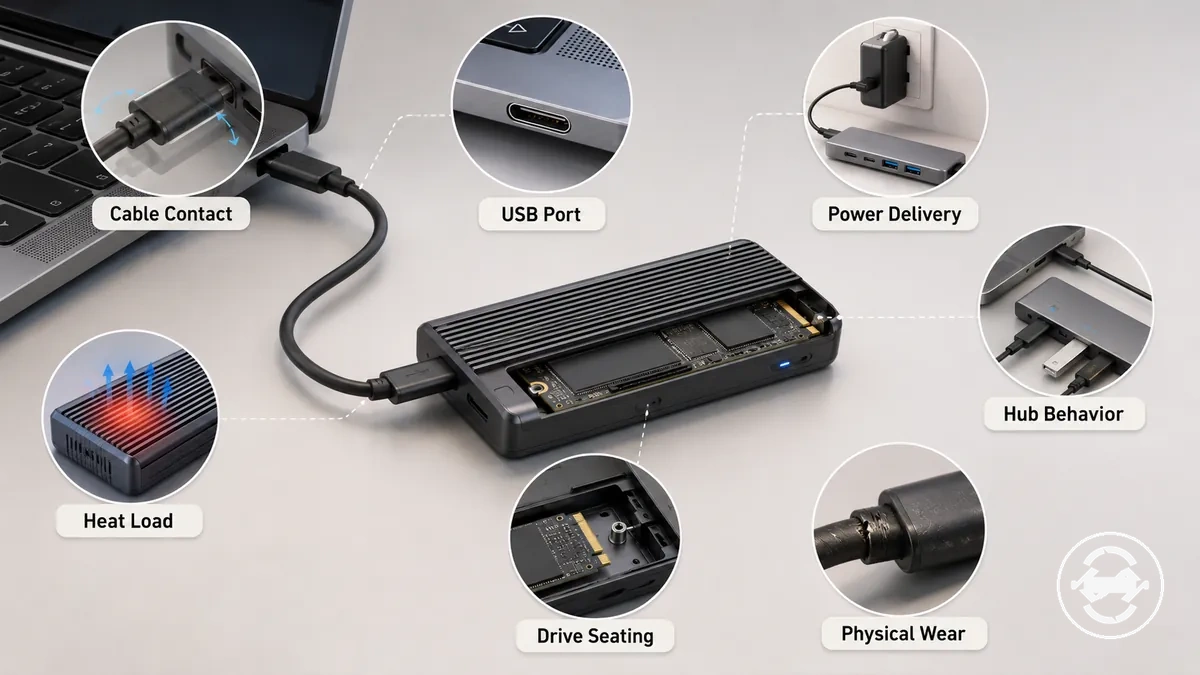
If disconnects happen after movement, cable contact, connector fit, or USB port stability may deserve attention first. If they appear during heavy transfers or sustained use, heat under load, power delivery, hub behavior, or the enclosure controller may become more relevant. Idle periods, sleep transitions, and repeated use can also change the likely cause, making simple first checks more appropriate than assuming one explanation.
The diagnostic table below groups common causes by trigger pattern. It is intended to organize likely cause families and first checks without replacing the more detailed troubleshooting covered later.
| Trigger pattern | Likely cause family | First check | Boundary note |
|---|---|---|---|
| Movement | Cable contact, connector fit, USB port stability | Inspect cable seating and enclosure connections. | Movement-related symptoms may differ from workload-related disconnects. |
| Heavy transfers | Heat under load, enclosure controller, power delivery | Compare behaviour during sustained activity. | Long transfers can reveal conditions that may not appear during light use. |
| Idle or sleep | Power delivery or hub behavior | Check whether the disconnect appears after inactivity. | The trigger may differ from one that occurs during active transfers. |
| One-port-only behavior | USB port stability or hub behavior | Compare another compatible port or connection path. | A single-port pattern may not represent the enclosure as a whole. |
| Repeated disconnects across setups | Drive seating, physical wear, or enclosure controller | Review physical fit and connector contact before drawing conclusions. | Repeated symptoms across different conditions may justify broader diagnosis. |
These common causes should remain condition-based rather than absolute. The same symptom can result from different trigger patterns, so separating movement, workload, power, and physical connection conditions usually provides a clearer starting point before more specific troubleshooting.
Loose cable, port movement, and unstable USB contact
When disconnects happen after touching the cable or moving the enclosure, a loose cable, port movement, or unstable USB contact may be affecting the connection. A wobbly connector, cable strain, or intermittent contact can interrupt communication even when the drive works normally. These movement-triggered disconnects make physical contact stability the first area to verify.
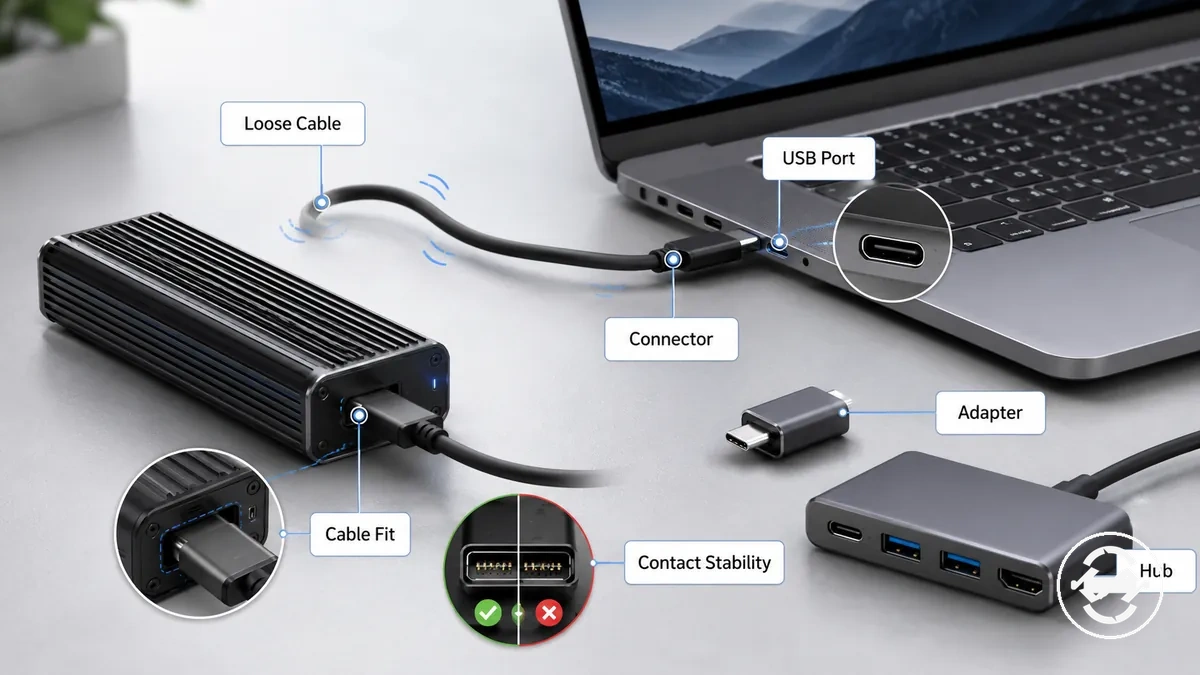
Cable fit should remain firm at both the enclosure and host device, while the connector, adapter, or hub should not shift noticeably during normal use. A loose port or adapter movement can reduce contact stability and contribute to intermittent disconnects when the connection is disturbed. Basic verification should focus on the physical connection before assuming a more complex fault.
- Confirm the cable is fully seated at both ends.
- Test with another compatible cable if available.
- Try a different USB port to compare contact stability.
- Remove unnecessary adapters or hubs during the initial check.
- Gently perform a movement test to see whether the disconnect is consistently triggered by cable or connector movement.
Power delivery limits and USB power-saving behavior
When disconnects appear during heavier workloads or after idle periods, power delivery or USB power-saving behavior may be contributing to the condition. An M.2 SSD enclosure can become unstable when the available power from the port source, hub, or current power policy does not match changing workload demand. The first step is to consider power source stability before assuming a hardware fault.
Power delivery can vary between a direct USB port, a hub, and different cable capabilities, so the same enclosure may not behave identically in every setup. USB power-saving, laptop battery mode, or other USB power management policies may also affect connection behavior, particularly when workload demand changes between active transfers and idle states. These conditions should be treated as variables rather than definite causes, making simple verification more useful than immediate replacement.
- Compare a direct port connection with a hub connection when possible.
- Remove the hub temporarily to see whether the disconnect pattern changes.
- Try another compatible cable if cable capability is uncertain.
- Review general USB power-saving settings because power policy varies by system.
- Note whether disconnects occur mainly during heavy transfers or after idle periods.
Heat, sustained transfers, and workload-related dropouts
When disconnects occur during sustained transfers such as long writes, cloning, or backup tasks, heat may be contributing to workload-related dropouts. A warm enclosure is not necessarily a problem, but disconnects that repeatedly appear during extended transfer activity can indicate that workload and thermal conditions deserve closer attention. The timing of the dropout often helps connect workload to heat conditions.
Thermal pad contact, enclosure material, airflow, controller behavior, and SSD heat output can influence how heat is managed during prolonged activity. Different enclosure designs and workloads may change how quickly heat builds, so the same SSD may behave differently in another enclosure or environment. Heat-related conditions should be evaluated together with dropout timing rather than assuming every warm enclosure is overheating.
| Transfer condition | Heat clue | Stability signal | What to check |
|---|---|---|---|
| Long write | Enclosure becomes warmer during extended activity | Disconnect appears later in the transfer | Airflow and enclosure material |
| Cloning | Heat increases over time | Dropout timing repeats during long operations | Thermal pad contact |
| Backup | Warm enclosure under continuous workload | Intermittent connection during prolonged transfers | Controller behavior |
| Poor airflow | Heat remains around the enclosure | Connection may become less consistent | Ventilation around the enclosure |
| Thermal pad contact | Heat transfer may be less effective | Workload-related dropouts continue | Thermal pad fit and condition |
Normal warmth can occur during sustained transfers, while repeated disconnects that consistently follow rising workload may justify closer investigation of heat-related risks. The relationship depends on workload, enclosure design, airflow, and operating conditions rather than on temperature alone.
Cable, port, and power stability checks
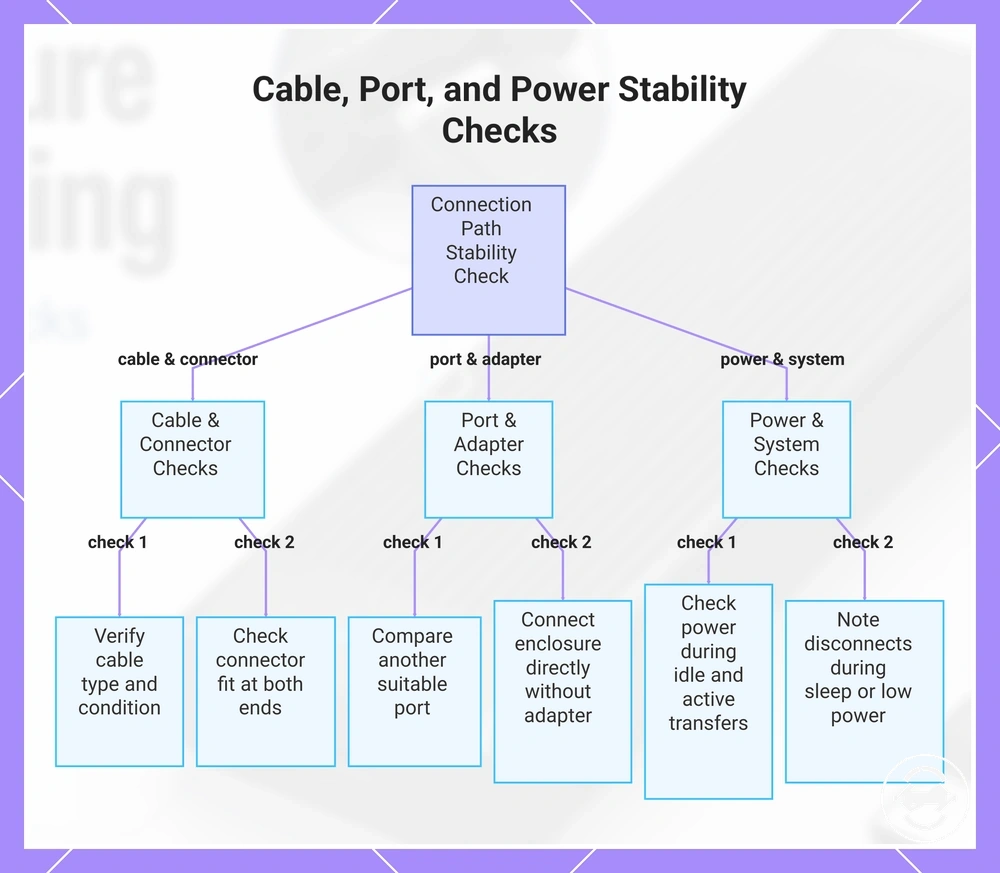
Cable, port, and power stability checks help verify the external connection path before assuming the enclosure or SSD is failing. The external connection path includes the cable, connector fit, USB port, adapter, hub, power source, and system power behavior. Each check should isolate one variable at a time so the result points to a clearer stability outcome.
Use the checklist below to separate cable, port, hub, and power variables in a consistent order. It verifies how each part and its condition can influence connection stability. For broader connection criteria, compare these checks with ports and cables, while keeping the diagnosis focused on disconnecting rather than cable recommendations or speed claims.
- Check the cable by confirming the cable type and cable condition. If movement or visible wear changes the disconnect pattern, cable condition may be affecting stability.
- Check connector fit at both ends of the USB link. If the connector shifts during normal handling, unstable contact may be contributing to disconnects.
- Check the USB port by comparing another suitable port. If the issue remains limited to one port, port stability may be the primary variable.
- Check any adapter or hub by connecting the enclosure directly when practical. If the disconnect pattern changes, the adapter, hub, or shared connection path may be influencing stability.
- Check the power source during both idle and active transfers. If disconnects mainly appear as workload changes, power stability may require closer evaluation.
- Check system power behavior by noting whether disconnects coincide with sleep, low-power mode, or inactivity. If timing consistently matches power policy changes, continue verifying power management before replacing hardware.
A replacement cable becomes more reasonable when repeated testing continues to identify the same cable after USB port, adapter, hub, connector fit, and power source variables have been isolated. If instability follows the enclosure across different cables and ports, further diagnosis may be more appropriate than replacing the cable alone. Replacement decisions should remain conditional because a single test result does not confirm which component is responsible.
This chart shows the main variable groups for verifying the external connection path before assuming enclosure or SSD failure.
Drive seating, enclosure fit, and connector condition checks
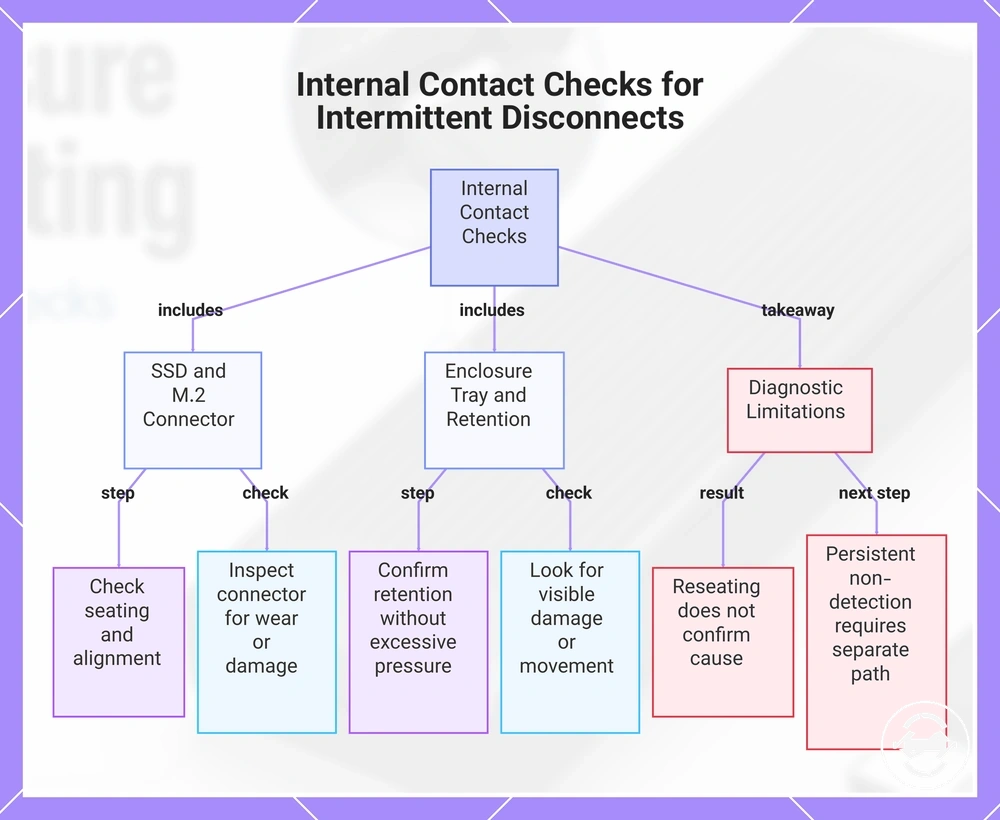
Drive seating, enclosure fit, and connector condition checks help identify internal contact issues that may cause intermittent disconnects even when the outside cable appears normal. The SSD, M.2 connector, enclosure tray, and housing fit can influence contact quality when alignment, retention, or movement tolerance changes. These checks focus on internal fit rather than external cable or port conditions.
Safe inspection should begin with careful enclosure handling and observation of the internal connection points. Check the SSD seating, connector alignment, retention, and contact areas without forcing any component into place.
- Check the SSD and drive seating to confirm the module appears correctly positioned in the M.2 connector.
- Inspect the M.2 connector and connector condition for alignment issues, visible wear, or signs that contact may be inconsistent.
- Check the enclosure tray and retention screw or retention latch to confirm the SSD is held in place without excessive pressure.
- Review thermal pad pressure and housing fit to see whether the internal fit appears consistent with stable enclosure contact.
- Look for visible damage, wear, or movement around the SSD, connector, and enclosure components before further testing.
If reseating changes the disconnect pattern, internal fit, connector alignment, or movement tolerance may have contributed to the issue, but it does not confirm that reseating alone resolves the cause. Visible damage or repeated movement may indicate that further evaluation is needed. Persistent non-detection is outside this local maintenance scope and requires a separate diagnostic path.
This chart shows the internal fit checks for drive seating, enclosure fit, and connector condition, plus how to interpret the results.
Care habits that protect enclosure reliability
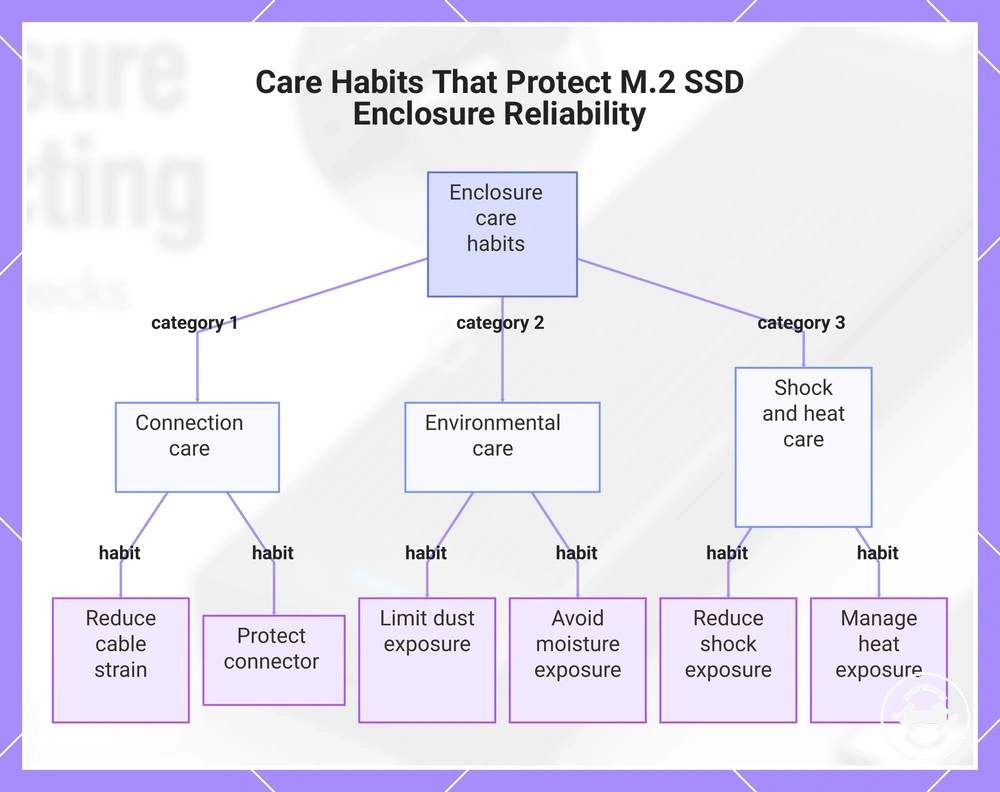
Care habits can reduce avoidable wear and help protect M.2 SSD enclosure reliability during regular use. Handling, storage, cleaning, and safe use practices can lower the chance of connection drops caused by preventable conditions. These habits support more consistent reliability without guaranteeing a specific lifespan.
Safe handling focuses on protecting the cable connection, enclosure body, and internal components during daily use. Portable use can introduce different risks because movement, storage conditions, and transport may change exposure to cable strain, dust, moisture, shock, or heat exposure. Using safe ejection practices and managing transfer workload during important operations can also help reduce unnecessary data risk.
The checklist below groups practical maintenance habits by the condition they help manage. Each habit supports safer use, but the effect on lifespan depends on handling conditions, workload, and the environment where the enclosure is used.
- Reduce cable strain: Keep the cable positioned without repeated pulling or sharp bends, especially during portable use where movement can increase stress on connections.
- Protect the connector: Avoid unnecessary connector movement and keep connection points protected when the enclosure is stored or transported.
- Limit dust exposure: Keep the enclosure and connection areas clean because accumulated debris may affect physical condition over time.
- Avoid moisture exposure: Store and use the enclosure in conditions that reduce the chance of moisture affecting the housing or connections.
- Reduce shock exposure: Handle the enclosure carefully during transport because impacts may affect enclosure condition or internal components.
- Manage heat exposure: Avoid placing the enclosure in conditions that restrict airflow or add unnecessary heat during sustained transfer workload.
- Use safe ejection: When working with important files, use safe ejection practices where available to reduce unnecessary connection and data risks.
This chart groups practical maintenance habits by the condition they help manage, focusing on physical reliability of the enclosure.
Safe handling, storage, and connector protection
Safe handling practices reduce physical stress on the M.2 SSD enclosure, cable, and connector during regular use. Carrying, unplugging, and storage habits can help limit cable strain and unnecessary connector stress. These habits support connector protection by reducing avoidable movement and handling pressure.
Portable use can change the risk profile because carrying, storage conditions, and repeated handling may increase exposure to dust, moisture, or impact risk. The following habits connect common handling situations with the physical risks they may reduce.
- Align connectors before insertion: Careful connector positioning can reduce unnecessary stress during connection and help maintain connector protection.
- Reduce cable strain: Avoid pulling, twisting, or sharply bending the cable because repeated strain may increase stress on the connection area.
- Use protected storage: A protective case can help reduce contact with other objects during carrying and may lower physical wear risks.
- Limit dust exposure: Keeping connection areas clean can help reduce debris buildup that may affect enclosure condition over time.
- Avoid moisture exposure: Store the enclosure in suitable conditions because moisture exposure may affect the enclosure body and connectors.
- Handle unplugging carefully: Hold the connector area when disconnecting instead of pulling the cable to reduce unnecessary strain.
Cooling, thermal pad condition, and safe operating use
Cooling habits can support stable operation by helping manage thermal conditions during normal M.2 SSD enclosure use. They do not guarantee that a specific disconnect will be prevented, but thermal pad condition, airflow, and workload patterns can influence dropout risk. The main consideration is how the enclosure manages heat during different operating conditions.
Enclosure material, ventilation, thermal pad contact, SSD workload, and the operating environment can all influence heat behavior. During sustained use, restricted airflow, longer transfer duration, or changing workload demand may affect thermal conditions around the enclosure. These factors should be treated as possible contributors to instability rather than confirmed causes of every disconnect.
- Maintain ventilation: Keep airflow around the enclosure when possible because restricted ventilation may increase heat exposure during longer workloads.
- Observe surface heat: Normal warmth can occur during use, while warmth combined with repeated instability may justify closer inspection of operating conditions.
- Review thermal pad condition: Thermal contact between components may influence heat management depending on enclosure design and fit.
- Consider SSD workload: Longer transfer activity can create different thermal conditions than short, lighter tasks.
- Allow resting periods: After extended workloads, allowing the enclosure to return toward normal conditions may reduce continued heat exposure.
When to replace the cable, enclosure, or drive
Replacement decisions depend on repeated test results, failure signals, and risk level rather than one isolated symptom. A cable, enclosure, or drive becomes a stronger replacement candidate when the same issue remains after relevant checks have been compared. The three possible replacement targets are the cable, enclosure, and drive.
The decision table below compares the part being evaluated, the observed condition, the test result that supports further action, and the safer next action. It separates replacement cues from situations where continued observation may still provide more information.
| Part to consider | Replacement signal | Check before deciding | Safer next action |
|---|---|---|---|
| Cable | Repeated connection problems continue with the same cable after other connection variables have been checked. | Compare the cable condition, connector fit, and results from another compatible cable. | Consider a replacement cable if the test result consistently points back to the cable. |
| Enclosure | The enclosure remains unstable across different cables, ports, and connection conditions. | Check whether the issue follows the enclosure rather than the external connection path. | Investigate enclosure replacement when repeatability points to the enclosure as the remaining variable. |
| Drive | Broader failure signs continue after connection and enclosure checks have been considered. | Review repeatability, drive behaviour, and any signs that indicate a wider drive health concern. | Investigate the drive condition carefully and consider data risk before further action. |
| Observe longer | The symptom is inconsistent or cannot be reproduced after basic checks. | Monitor the trigger condition, frequency, and whether the problem returns. | Continue observation until a clearer decision signal appears. |
Edge cases can change the decision because an intermittent issue may appear only under a specific workload, connection path, or operating condition. A single failed check does not prove that one part is defective, so replacement should follow repeatable evidence and a clear test result. The next action depends on the remaining risk level and whether the failure signal continues.
Reliability checks before important transfers
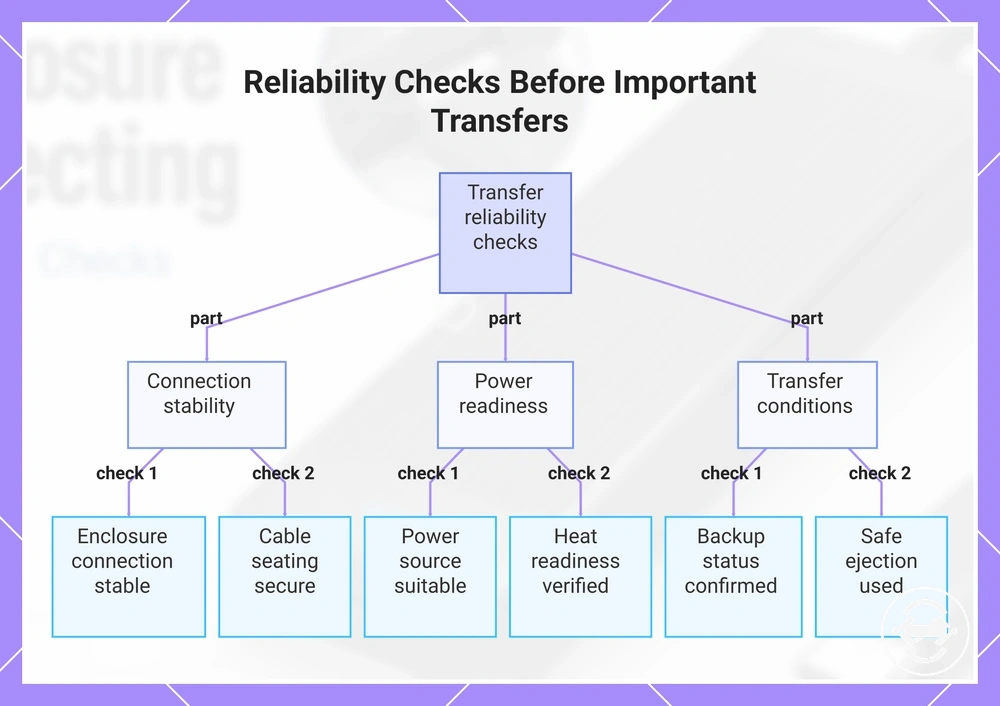
Reliability checks before important transfers help reduce avoidable risk before large file moves, backups, cloning, or other important file work. These checks do not guarantee data safety, but they can help identify conditions that may affect transfer reliability. The main areas to confirm are connection stability, power readiness, and transfer conditions.
The checklist below verifies key stability factors before starting an important transfer. It compares connection, cable, power, heat, timing, backup status, and safe ejection conditions so potential issues can be identified earlier.
- Check connection stability: Confirm that the enclosure remains connected during normal use because unstable connections may interrupt important transfers.
- Check cable seating: Verify that the cable connections are secure because poor seating may affect connection stability during a large file move.
- Check the power source: Confirm the power source is suitable for the setup because changing power conditions may influence transfer reliability.
- Check heat readiness: Consider ventilation and operating conditions before sustained transfers because heat-related conditions may contribute to dropout risk.
- Check available time: Start important transfers when enough time is available because interruptions during longer operations may increase handling risk.
- Check backup status: Confirm whether important files exist elsewhere because an unstable enclosure should not be trusted as the only copy of critical data.
- Use safe ejection: Complete file activity before disconnecting the enclosure because safe ejection can help reduce unnecessary data handling risks.
Important files require extra care when an enclosure becomes the only available copy of data. For broader backup and transfer use, the transfer method should match the importance of the files and the reliability of the setup. The safer decision depends on the connection condition, backup status, and observed stability before the transfer begins.
This chart shows the key areas and specific checks to perform before starting an important file transfer to reduce avoidable risk.
Common lifespan and safe-use questions
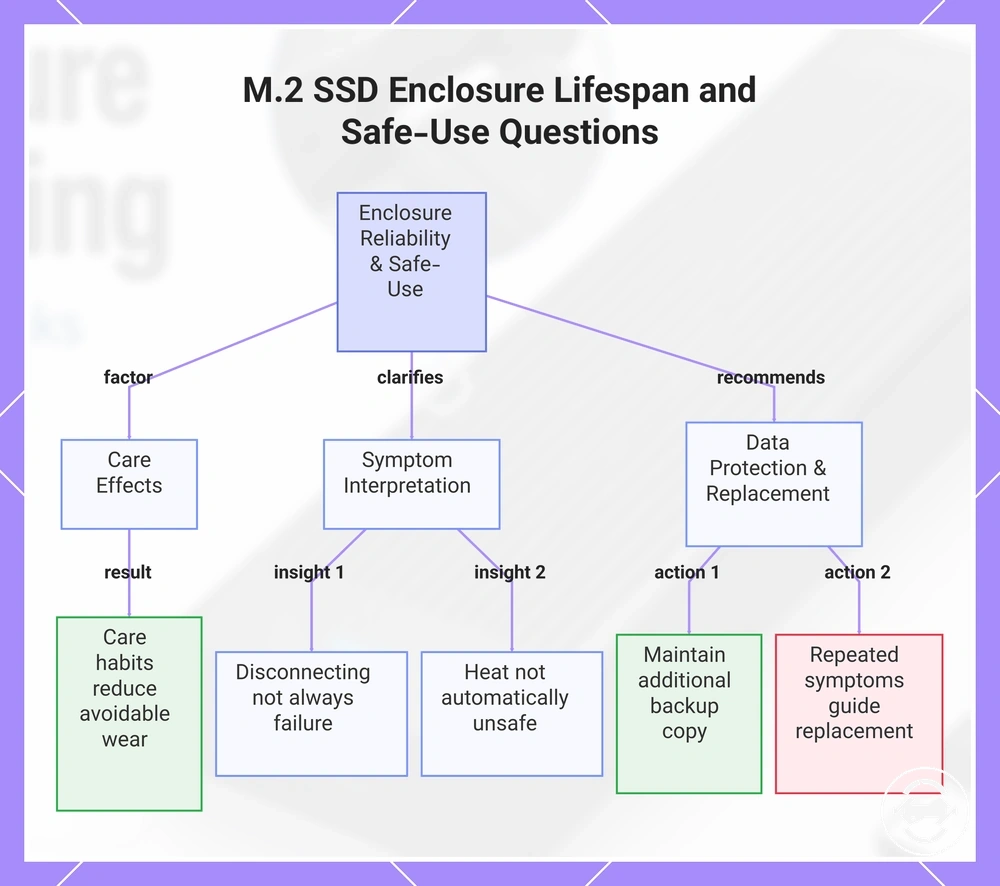
Lifespan and safe use depend on handling, heat, workload, cable condition, and enclosure condition rather than a single fixed outcome. Care practices, operating conditions, and repeated symptoms can influence M.2 SSD enclosure reliability over time. The questions below address residual doubts about disconnecting, maintenance, and safe use without repeating earlier troubleshooting sections.
Can care habits improve enclosure reliability?
Yes, careful use can help reduce avoidable wear and support reliability. Handling, storage, connector protection, and suitable operating conditions may help reduce unnecessary stress on the enclosure and cable. The result depends on usage conditions and maintenance.
Is a disconnecting enclosure always failing?
No, disconnecting does not always mean a component has failed. Intermittent drops can relate to cable condition, heat, workload, or enclosure condition. Repeated symptoms across different checks may provide a clearer indication of the underlying issue.
Does heat mean the enclosure is unsafe to use?
No, heat during operation does not automatically mean unsafe use. Thermal conditions depend on workload, airflow, enclosure condition, and operating environment. Repeated disconnecting alongside heat changes may require further attention.
Should important data rely on only one enclosure copy?
No, important data should not rely on only one copy when the enclosure shows unstable behaviour. A single copy can create higher data risk if repeated disconnecting or other reliability concerns occur. Maintaining another copy can provide additional protection for important files.
How do repeated disconnecting symptoms affect replacement decisions?
Repeated disconnecting can become a stronger replacement consideration when the same symptoms continue after relevant checks. A cable, enclosure, or drive may need further investigation depending on repeatability, test results, and risk level. One symptom alone does not confirm a specific failed component.
When should safe ejection be used?
Safe ejection should be considered before disconnecting the enclosure after file activity. It can help reduce unnecessary interruption during important file work, although it does not replace stable connections, suitable care, or backup practices.
This chart shows the key factors affecting M.2 SSD enclosure reliability, how to interpret common symptoms, and recommended data protection actions.