
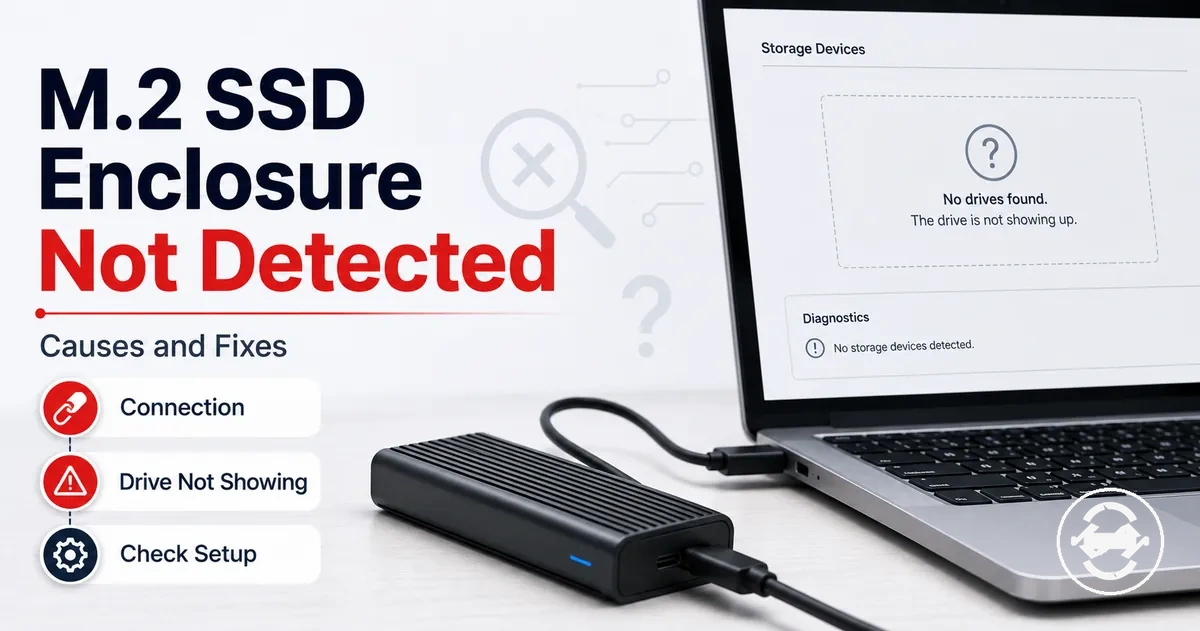
M.2 SSD Enclosure Not Detected or Not Showing Up
When an M.2 SSD enclosure is not detected or not showing up, the issue may be related to the physical connection, operating-system recognition, usable drive state, or compatibility. A missing enclosure is not visible to the computer or storage tools. A recognized enclosure may still fail to appear in File Explorer. A drive that is not detected at all requires a different diagnosis from one that is detected but not usable.
Physical detection depends on the M.2 SSD enclosure, the USB cable, the host port, and available power. Operating-system recognition depends on whether Device Manager and Disk Management can detect the enclosure or the SSD. File Explorer only shows the drive after it becomes visible as a usable storage volume. For broader background and related topics, see the M.2 SSD enclosure guide.
The safest approach is to confirm the physical connection before evaluating software recognition, then consider NVMe or SATA compatibility and the drive state before making changes such as formatting or initialization. This diagnostic order keeps the focus on the M.2 SSD enclosure while avoiding unnecessary troubleshooting outside the scope of the enclosure itself.
If the SSD may contain important files, avoid formatting or initialization until the detection state and potential data risk are understood. A new SSD may require setup before it becomes visible, while an SSD with existing data may require a more cautious approach.
What the Missing Drive State Means
The missing drive state refers to where the M.2 SSD enclosure or SSD stops becoming visible, and that visibility point changes the next diagnostic step. A drive that is not showing up in File Explorer is not necessarily the same as an enclosure that is not detected. Identifying whether the enclosure, SSD, or storage volume is visible helps separate connection issues from operating-system recognition issues before any corrective action is considered.
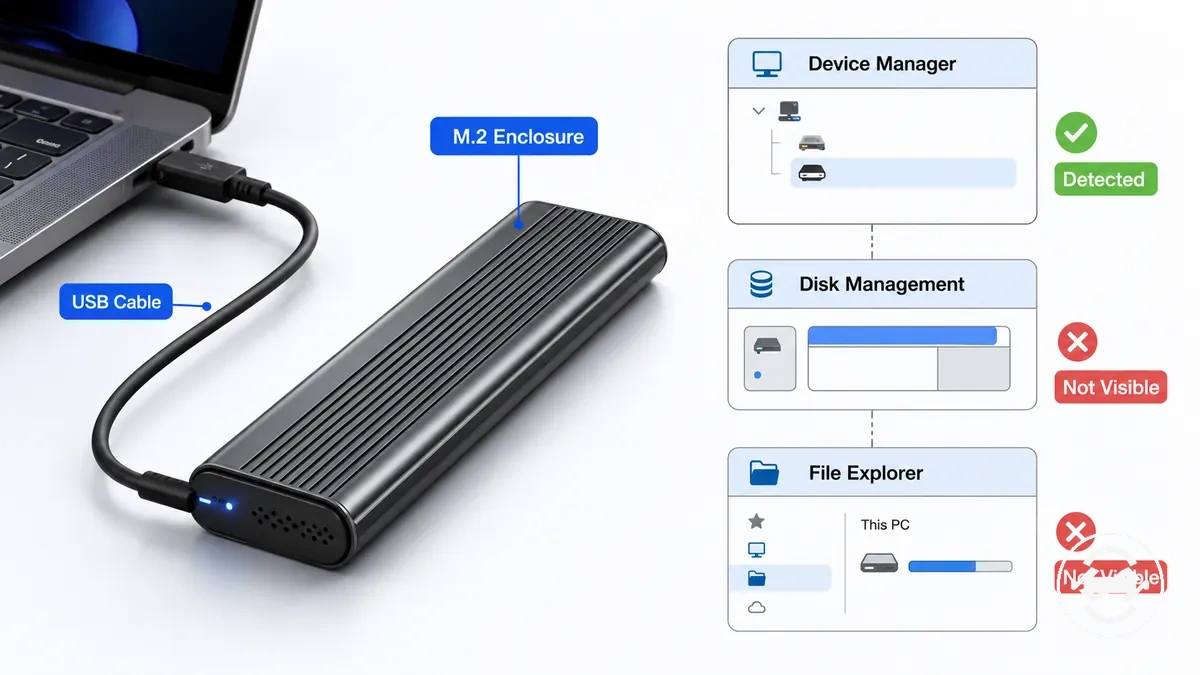
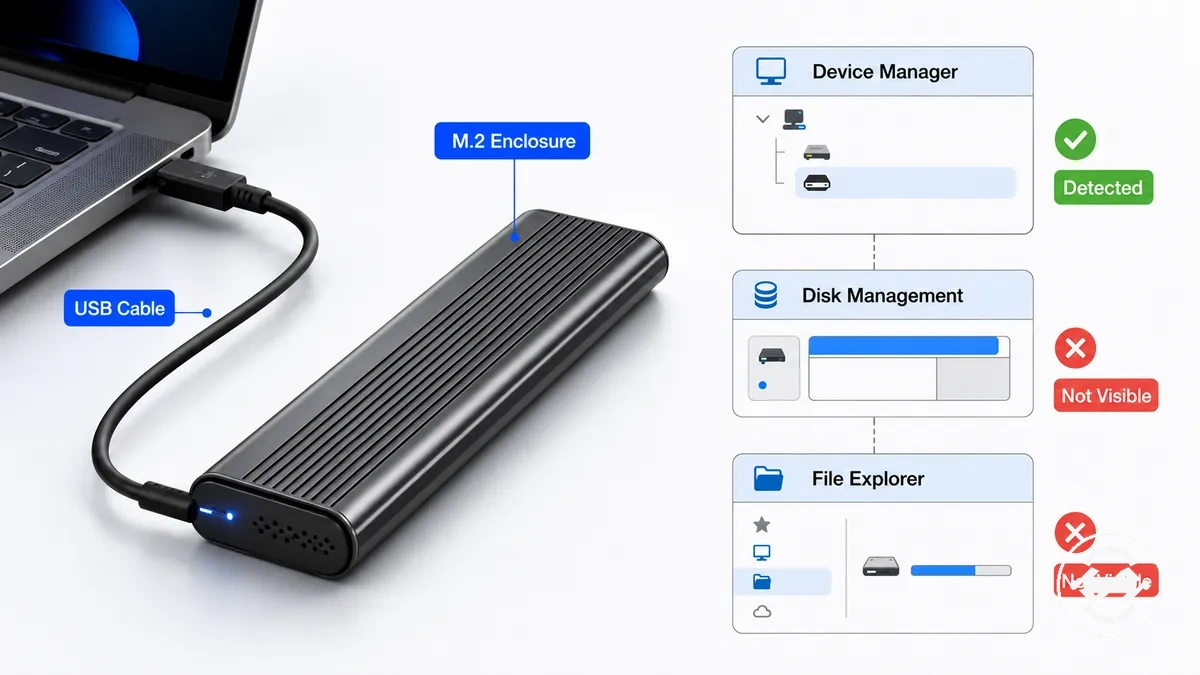
What the missing drive state means depends on where detection stops. If the enclosure is detected but the SSD is not visible, the condition differs from an enclosure that is not recognized at all. Comparing Device Manager, Disk Management, and File Explorer helps narrow the diagnostic path without assuming formatting is the next step.
| Visibility state | Suggested next diagnostic direction |
|---|---|
| The enclosure is not detected in Device Manager and does not appear in Disk Management. | Check the USB cable, USB port, available power, enclosure condition, and host compatibility before changing SSD settings. |
| The enclosure is detected in Device Manager or Disk Management, but the drive is not showing up in File Explorer. | Check SSD visibility, drive condition, compatibility, and whether initialization or formatting is appropriate rather than assuming it is required. |
If the enclosure is recognized but the SSD remains missing, the outcome may depend on NVMe or SATA compatibility, host support, or the SSD condition. A drive that is visible in one storage tool but not another provides a useful boundary for the next diagnostic step instead of indicating a single universal cause.
Visible in Disk Management but Missing from File Explorer
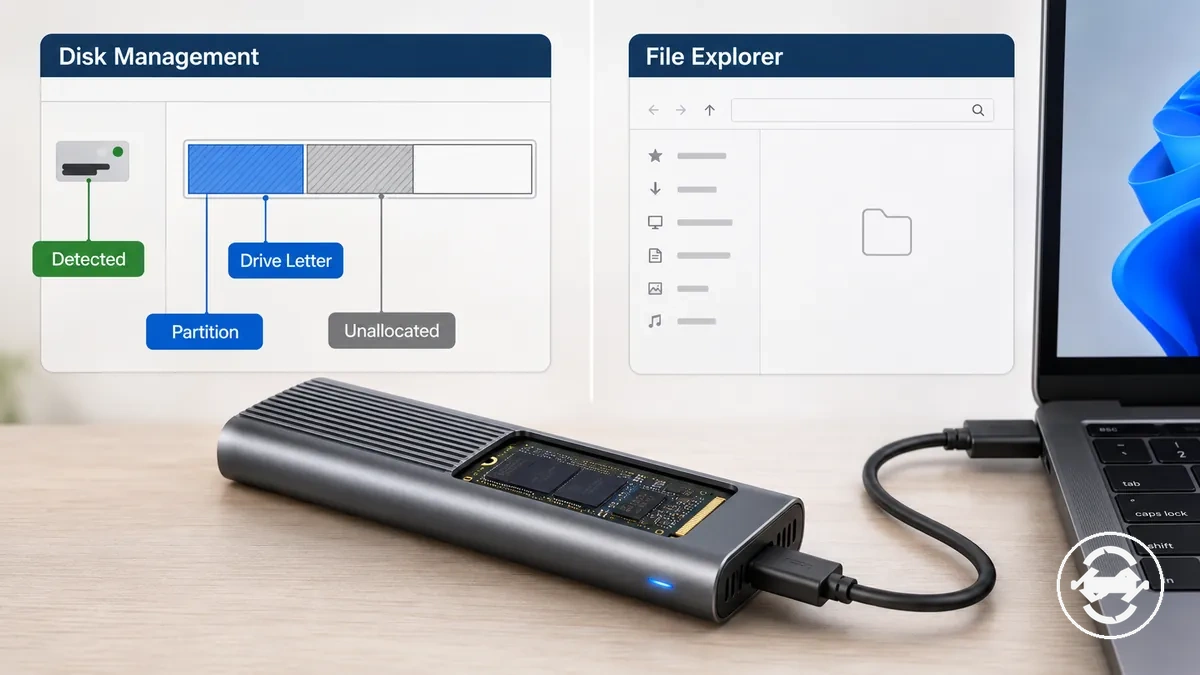
When a drive is visible in Disk Management but missing from File Explorer, the computer usually detects the storage device, but the drive may not have a usable volume or drive letter. This often indicates a drive-state condition rather than a physical connection problem. The SSD can be detected while its partition, file system, or allocation status still prevents it from appearing in File Explorer.
Visible in Disk Management but missing from File Explorer usually means the next checks should focus on the storage state instead of the USB connection.
- Check whether a drive letter is assigned.
- Confirm that a partition and readable file system are present.
- If the SSD appears as unallocated, it may be a new SSD that has not yet been prepared for use.
- If the drive may contain important data, avoid formatting until the drive state is understood.
If Disk Management detects the SSD but File Explorer does not display it, the difference in visibility helps narrow the diagnosis without confirming a single cause. Use the storage-tool information to determine the next safe action before making changes that could affect existing data.
Missing from Disk Management or Device Manager
When an M.2 SSD enclosure is missing from both Disk Management and Device Manager, the operating system usually is not enumerating the device, so the issue may be related to the USB connection, enclosure power, compatibility, or hardware recognition rather than formatting. If the enclosure is not visible in either tool, changes to the partition or file system are unlikely to help. This differs from a drive that is visible but unallocated, which follows a different diagnostic path.
Missing from Disk Management or Device Manager means the next checks should focus on why the operating system cannot complete device enumeration.
- Confirm the USB connection and try another compatible host port if appropriate.
- Check whether the enclosure power state appears normal.
- Verify that the SSD is seated correctly inside the enclosure.
- Consider whether the enclosure chipset or compatibility could affect recognition.
- Avoid formatting or partition changes while the device remains absent from both tools.
If the enclosure later appears in Disk Management, even as an unallocated disk, the diagnosis shifts toward a storage-state issue instead of an operating-system visibility problem. Use that distinction before deciding on the next troubleshooting step.
Physical Connection and Installation Causes
When an M.2 SSD enclosure is not detected, the cause may be a physical connection or installation issue before any software problem is involved. Detection depends on the SSD making reliable contact inside the M.2 SSD enclosure and the enclosure maintaining a stable USB connection with sufficient power. If either connection is incomplete, the drive may not be recognized by the operating system.
Physical Connection and Installation Causes should be checked before focusing on software diagnostics because connection quality directly affects detection reliability.
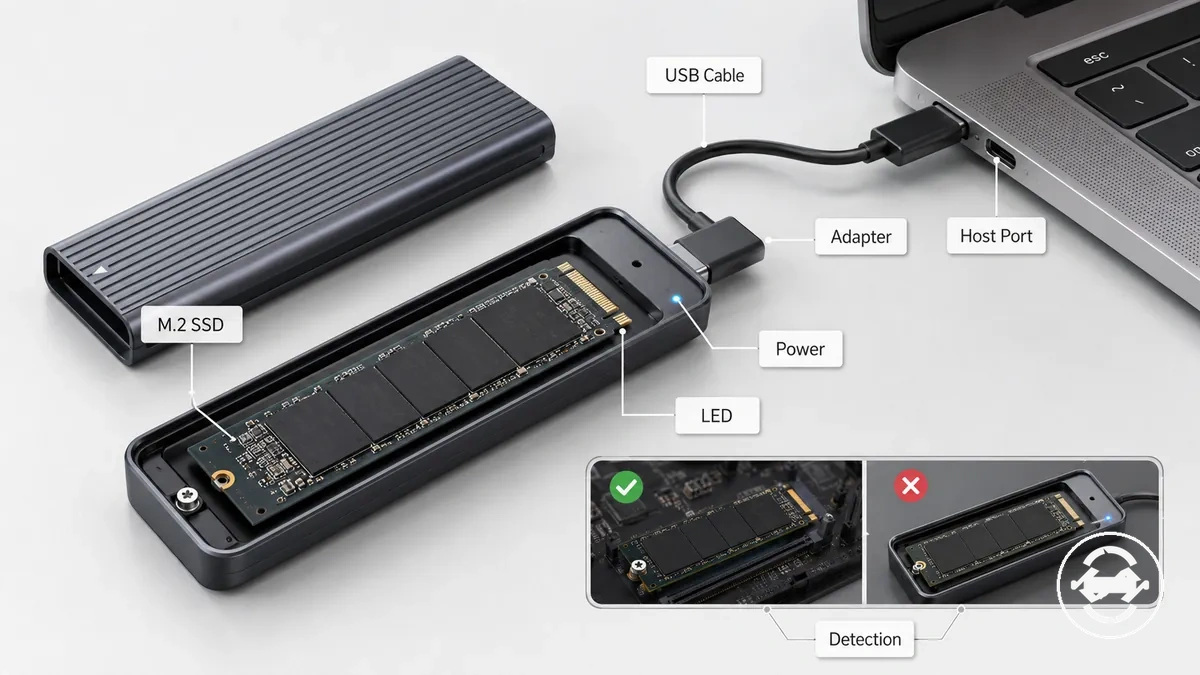
- Confirm the SSD is fully seated in the M.2 socket and secured correctly.
- Check that the enclosure is fully closed so internal contacts remain stable.
- Inspect the USB cable, adapter, and host port for a reliable connection.
- Verify that the enclosure receives sufficient power and observe whether the LED behavior suggests normal operation.
A drive that worked inside a computer may still fail to be detected after being placed in an enclosure if SSD seating, enclosure contact, USB connection, power delivery, or compatibility changes. If the enclosure is still not recognized after these checks, continue with software-based diagnosis rather than repeating the same physical inspection.
For detailed installation steps, follow the dedicated installation guide before moving to advanced troubleshooting.
Loose SSD Seating Inside the Enclosure
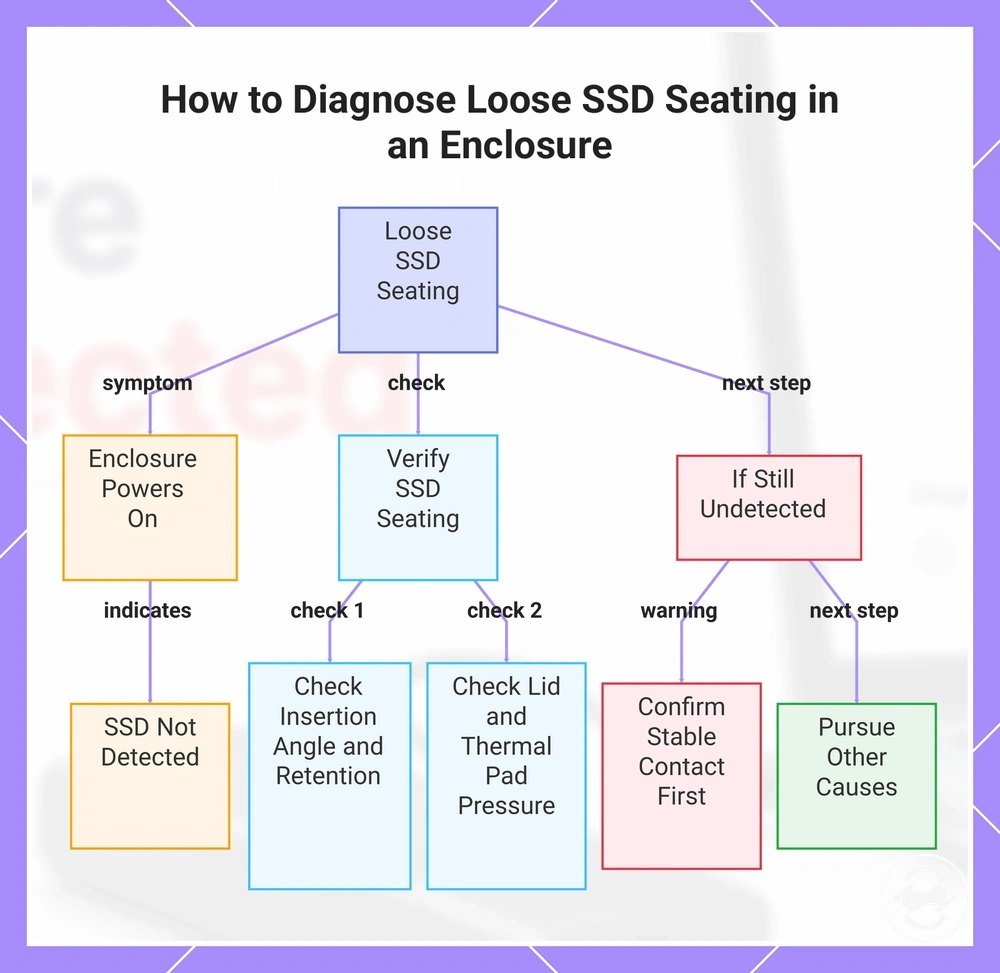
A slightly loose SSD seating can prevent detection even when the enclosure powers on. If the M.2 connector is not making stable contact, the drive may not be recognized although the enclosure appears to operate normally. A powered enclosure indicates that power is available, but it does not confirm reliable SSD contact.
If SSD seating appears correct but the drive is still missing, inspect the contact points before considering other causes. Power off and unplug the enclosure before reseating the SSD, then check:
- Whether the SSD is fully inserted into the M.2 connector at the correct angle.
- Whether the retention screw or latch holds the SSD securely without movement.
- Whether the enclosure lid closes without shifting the SSD from its seated position.
- Whether the thermal pad applies even pressure without lifting the SSD away from the connector.
If the SSD still appears correctly seated but remains undetected, another condition may be affecting recognition. Confirm stable connector contact before moving to the next diagnostic step rather than assuming reseating alone will resolve the issue.
This chart shows the symptom, key checks, and next steps for diagnosing an SSD that is not detected due to loose seating inside the enclosure.
USB Cable, Adapter, Port, and Power Problems
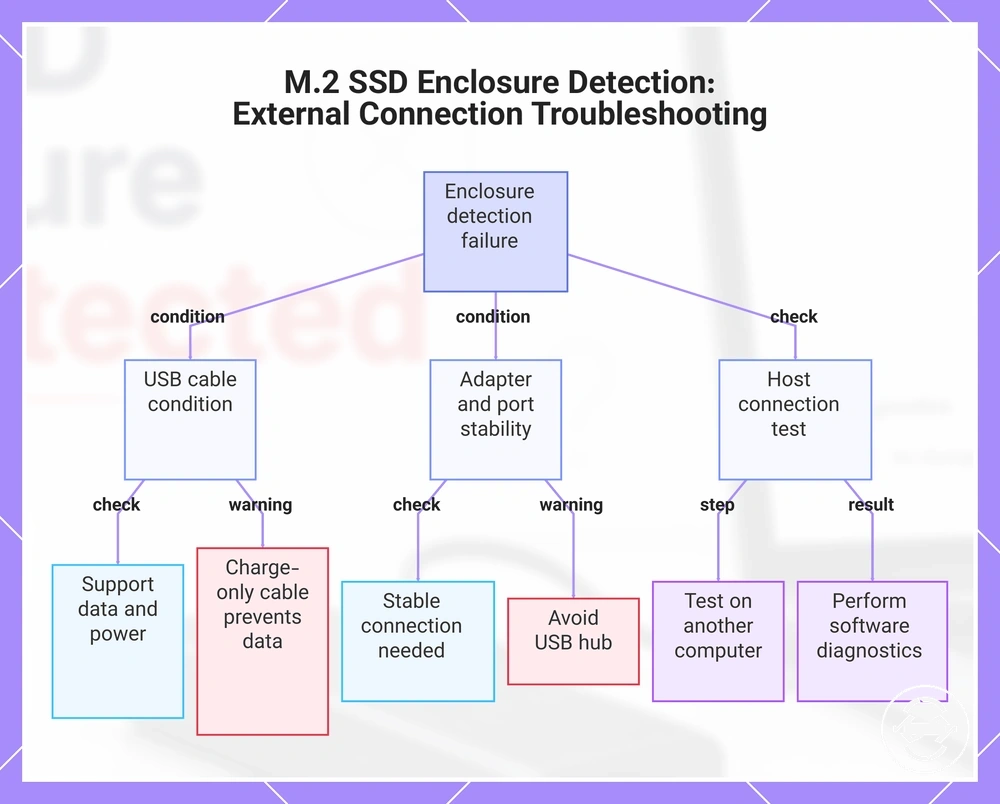
When an M.2 SSD enclosure is not detected, the external USB connection path may prevent the enclosure from appearing even if the SSD is compatible. Detection depends on the USB cable, adapter, port, and available power working together to maintain communication with the host. A charge-only or weak USB cable may power the enclosure while preventing data detection.
If the M.2 SSD enclosure appears intermittently or is not recognized, isolate the external connection before assuming the SSD or enclosure is faulty. Check the following conditions:
- Confirm the USB cable supports both data transfer and power.
- Check whether the adapter and host port provide a stable connection.
- If a USB hub is being used, test a direct connection to the computer because available power may vary.
- Try the enclosure on another compatible computer to see whether the issue is related to the original host.
If the enclosure remains missing after these isolation checks, continue with software-based diagnostics instead of replacing components prematurely. For more detail on ports and cables, use the dedicated guide.
This chart shows the key external connection checks to perform when an M.2 SSD enclosure is not detected, including USB cable, adapter, port, and host tests.
LED Status and Enclosure Power Signs
LED status is only a diagnostic signal and cannot confirm full detection of an M.2 SSD enclosure. An LED may indicate enclosure power, but it does not prove that the SSD is recognized, compatible, or visible in storage tools. Detection should be confirmed separately through Disk Management or Device Manager.
LED Status and Enclosure Power Signs can help narrow the diagnosis when interpreted alongside storage tools rather than on their own.
| LED behavior | Possible interpretation |
|---|---|
| LED off | The enclosure may not be receiving power, or the connection may not be active. |
| LED on | Enclosure power may be present, but the SSD may still not be detected. |
| Blinking LED | A blinking LED may indicate activity, but successful enumeration or data transfer remains uncertain. |
| No drive activity | The enclosure may have power without the drive being recognized by storage tools. |
If the LED indicates enclosure power but the drive is still not visible, use Disk Management and Device Manager to confirm detection before drawing further conclusions. LED behavior should be treated as one diagnostic signal rather than proof of SSD recognition or data availability.
Compatibility Causes That Prevent Detection
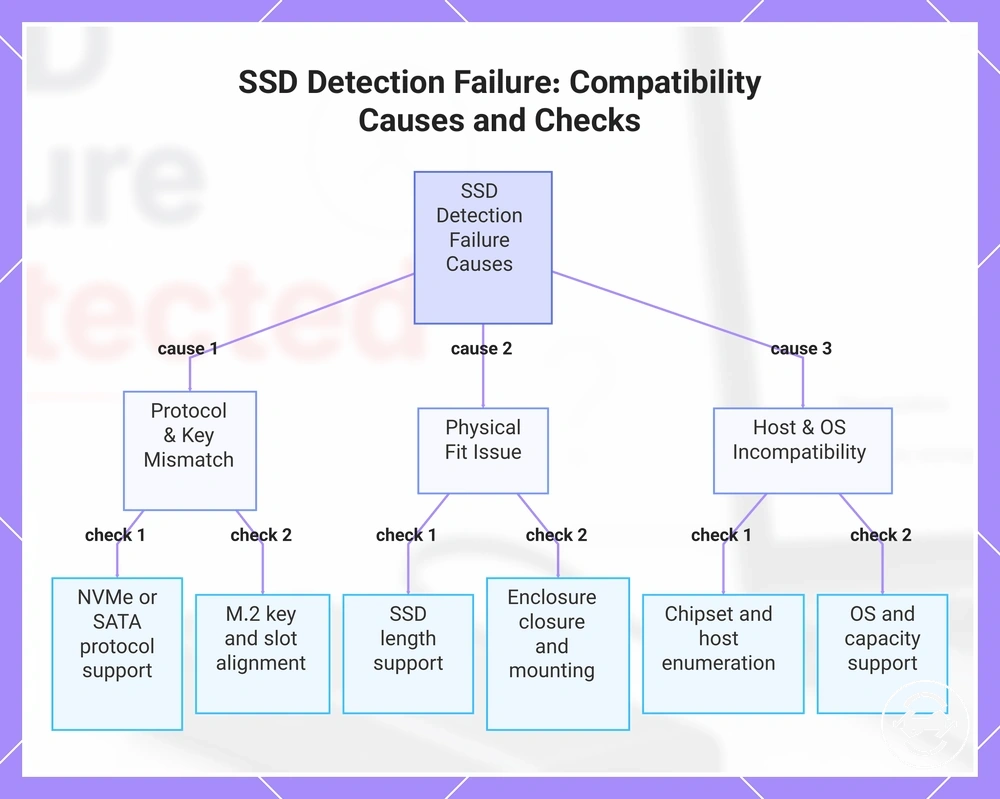
Compatibility depends on the enclosure, SSD, and host supporting the same connection requirements before detection can occur. Even when an SSD fits inside an enclosure, the drive may not be recognized if the NVMe or SATA protocol, M.2 key, enclosure chipset, or host support does not match. Physical fit alone does not confirm successful communication.
Compatibility Causes That Prevent Detection should be evaluated by comparing each required criterion instead of assuming a single mismatch is responsible. If the enclosure, operating system, or controller does not support the installed SSD, the drive may remain missing even though the hardware appears correctly installed.
- Confirm that the enclosure supports the SSD protocol, such as NVMe or SATA.
- Check that the M.2 key matches the enclosure slot and supported interface.
- Verify that the SSD length is supported so the drive mounts and the enclosure closes correctly.
- Consider whether the enclosure chipset and host support allow proper device enumeration.
- Check whether the operating system and capacity support could affect recognition before assuming an SSD fault.
These compatibility checks are limited to causes of non-detection rather than overall product selection or performance. For more detailed compatibility checks, refer to the dedicated guide before moving to more advanced diagnostics.
This chart shows the main compatibility causes that prevent SSD detection and the corresponding checks to identify mismatches.
NVMe, SATA, Key, and Size Mismatches
Physical fit does not always mean protocol compatibility between an M.2 SSD and an enclosure. An NVMe drive and a SATA M.2 SSD can use different communication paths even when the module shape looks similar. The M.2 key, slot support, and supported length can also affect whether the drive is recognized after installation.
NVMe, SATA, key, and size mismatches should be checked by comparing the drive type, physical keying, and enclosure slot support before assuming the SSD has failed.
| Compatibility point | Why it affects detection |
|---|---|
| NVMe or SATA | An enclosure may support one protocol, both protocols, or only specific drive types, so a SATA M.2 drive in an NVMe-only enclosure may not be detected. |
| M.2 key | M-key and B+M-key shapes can affect physical fit and slot support, but key shape alone does not prove protocol support. |
| Supported length | If the SSD length is not supported, the drive may not mount securely or the enclosure may not close correctly. |
| Enclosure slot support | The slot and drive type must align before recognition can occur. |
If the drive fits but remains missing, verify protocol support before moving to other causes. Treat physical fit as one compatibility signal, not as proof that the enclosure and SSD can communicate.
Enclosure Chipset, Capacity, and Host Support Limits
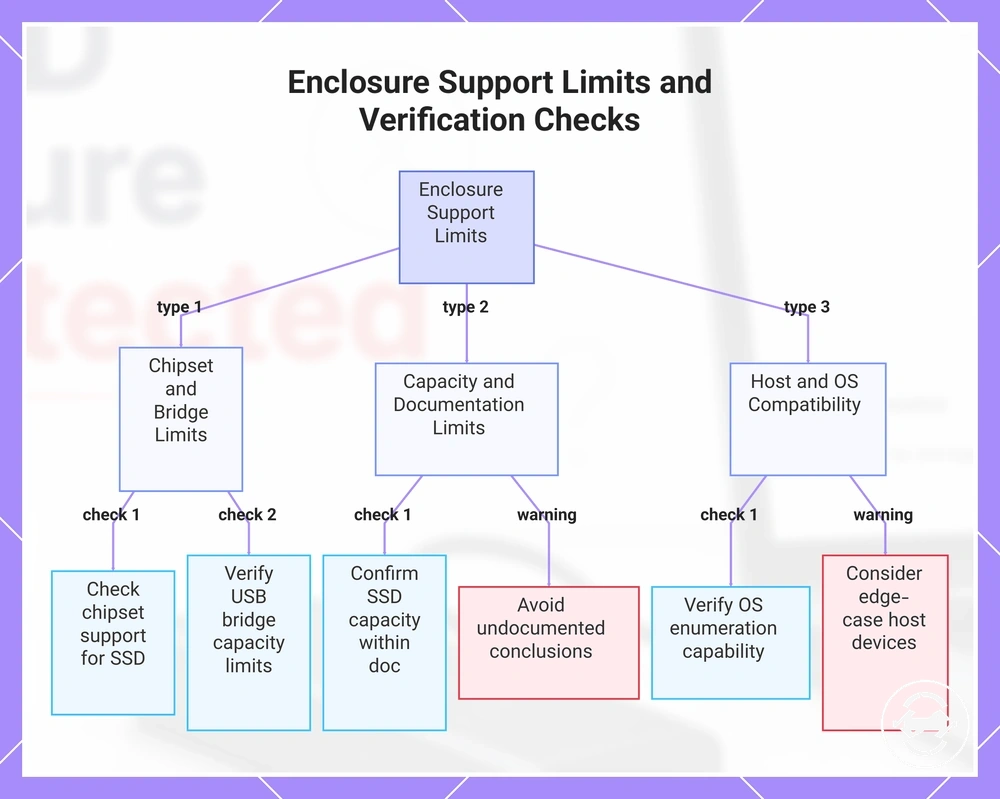
Enclosure chipset, capacity, and host support limits can prevent detection even when the SSD appears to fit correctly. The controller and USB bridge must support device enumeration between the SSD, enclosure, and host device. If that support path is limited, the drive may remain missing from the operating system.
Enclosure Chipset, Capacity, and Host Support Limits should be checked through device documentation rather than assumed from physical fit. Firmware behavior, SSD capacity, USB bridge support, operating system support, and host-device limitations can vary by enclosure and host environment.
- Check whether the enclosure chipset or controller supports the installed SSD type.
- Confirm whether the USB bridge has any documented capacity limit or support limit that may affect recognition.
- Review whether the SSD capacity is within the enclosure documentation rather than assuming support.
- Verify that the operating system and host device can enumerate the enclosure correctly.
- Treat tablets, consoles, mini PCs, and older computers as possible edge cases where host support may differ.
If protocol and physical fit appear correct but detection still fails, use documentation-based support checks before assuming the SSD is faulty. Avoid undocumented chipset or firmware conclusions unless the enclosure documentation clearly supports them.
This chart shows the main categories of enclosure support limits that can prevent SSD detection and the documentation-based checks to verify each category.
Windows Recognition and Drive-State Causes
Windows recognition can detect the enclosure hardware without making the SSD usable in File Explorer. Device Manager may show a device while Disk Management shows a drive state that still needs interpretation. A missing drive letter, unsupported file system, partition issue, or driver condition may keep the drive not showing even after hardware recognition occurs.
Windows Recognition and Drive-State Causes should be checked after physical and compatibility causes have been separated. If Windows sees the hardware but the volume is not mounted, the next step depends on what Disk Management, Device Manager, and File Explorer show rather than assuming formatting is required.
| Windows state | What it may mean |
|---|---|
| Visible in Device Manager only | The enclosure or controller may be recognized, but the usable drive state may still be missing or affected by a driver condition. |
| Visible in Disk Management without a drive letter | The partition may exist, but File Explorer may not show it until a usable drive letter is assigned. |
| Visible as unallocated or not initialized | The SSD may not have a usable partition yet, but destructive changes should wait if the drive may contain needed data. |
| Visible with an unreadable file system | Windows may detect the drive but not mount it normally, depending on the file system, permissions, or drive condition. |
Before initialization, formatting, driver changes, or permission changes, confirm the detection state and the value of any data on the SSD. Treat Disk Management and Device Manager as diagnostic signals first, then choose the least destructive next action that fits the visible drive state.
Uninitialized, Unallocated, or Unformatted SSD State
An uninitialized, unallocated, or unformatted SSD can be detected but still not appear as a usable drive in File Explorer. A new SSD or wiped SSD may be visible in Disk Management while remaining unavailable until its storage state is prepared. Detection confirms that Windows recognizes the device, but it does not mean the drive is ready for normal use.
Uninitialized, Unallocated, or Unformatted SSD State should be interpreted by checking the drive state before making changes. The following checks help distinguish detection from usability:
- An uninitialized SSD may require initialization before a partition can be created.
- An unallocated SSD has no partition, so it may not appear as a visible drive in File Explorer.
- An unformatted partition may require a supported file system before Windows can mount it as a usable drive.
- A usable partition also needs a drive letter before it normally appears in File Explorer.
For example, a brand-new SSD installed in an enclosure for first use may appear as unallocated in Disk Management until it is prepared for use. If the SSD may contain existing data, avoid initialization or formatting until the value of that data is understood because those actions may affect recovery options. For more information about formatting and initialization, refer to the dedicated guide.
Drive Letter, Partition, and File System Problems
A recognized SSD may stay missing from File Explorer when the drive letter, partition, or file system prevents normal mounting. Windows may detect the device and still fail to show it as a visible drive. This is a visibility problem after recognition, not the same as an enclosure that is absent from Windows storage tools.
Drive Letter, Partition, and File System Problems should be checked by matching each Disk Management state to its likely effect on File Explorer appearance.
| Drive state | Visibility effect |
|---|---|
| Missing drive letter | The partition may be recognized but not mounted as a normal File Explorer volume. |
| Unsupported file system | Windows may detect the partition but not display it as a usable mounted drive. |
| Damaged partition | The SSD may be visible in storage tools while normal mounting remains uncertain. |
| Offline disk | The disk may be recognized but kept unavailable until its state is reviewed. |
| Hidden volume or conflicting volume | The hidden volume or conflicting volume may exist but remain missing from normal File Explorer visibility. |
Repair or formatting choices depend on whether stored data matters. If the SSD may contain needed files, confirm the visible disk state and data value before making changes that could increase formatting risk.
Driver, Chipset, or Operating System Recognition Problems
When an M.2 SSD enclosure is not detected, the operating system may not be recognizing the device correctly even if the physical installation is sound. Recognition can depend on the driver, chipset, USB mass-storage support, storage controller behavior, and recent operating system changes. A hardware connection alone does not confirm that the enclosure will appear normally.
Driver, Chipset, or Operating System Recognition Problems should be checked with simple operating-system diagnostics before assuming the enclosure or SSD has failed. Review the following conditions:
- Check whether the USB mass-storage driver and storage controller appear to be operating normally.
- Consider whether a recent Windows update or other operating system change happened before the detection problem began.
- Verify whether chipset software or enclosure bridge recognition shows an obvious recognition issue.
- Restart the computer and test the enclosure on another compatible computer to determine whether the problem is limited to one system.
If an enclosure previously worked but stopped appearing after a system change, the timing may help identify an operating-system recognition issue rather than a physical fault. Driver updates or operating-system changes can help in some situations, but the outcome depends on the underlying cause.
Safe Troubleshooting Sequence
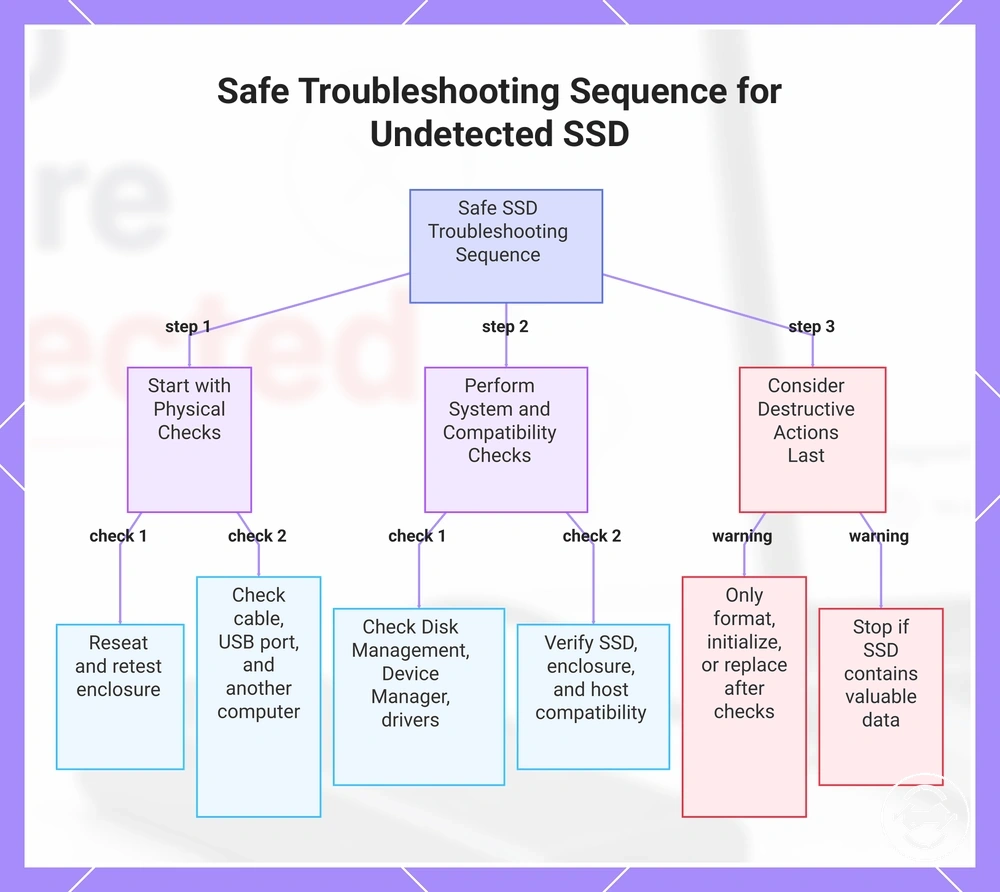
A safe troubleshooting sequence starts with non-destructive checks before any formatting or replacement decision. This order helps protect data and reduces unnecessary part replacement by verifying the connection, recognition, and drive state step by step. Avoid formatting first unless the SSD state and the value of any stored data are already understood.
Follow the sequence below and stop to retest whenever a step restores detection. If one check changes the result, complete that path before moving to the next step.
- Reseat the SSD, reconnect the enclosure, and retest. If the enclosure is detected after reseating, the physical connection may have been the cause.
- Test cable, USB port, and another computer to isolate the external connection. If detection changes after a cable or port swap, that connection becomes the likely issue.
- Check disk tools such as Disk Management and Device Manager. If the enclosure appears there, continue with drive-state checks instead of repeating hardware checks.
- Verify compatibility between the SSD, enclosure, and host device. If a compatibility mismatch is identified, resolve that condition before continuing.
- Review driver and operating-system recognition, especially if the problem started after a Windows update or another system change.
- Consider formatting, initialization, or replacement only after the earlier checks have been completed and any data risk has been assessed.
If the SSD may contain important files, stop before making destructive drive-state changes. Use the first step that changes the detection result as the primary decision signal before escalating to more advanced troubleshooting.
This chart shows the step-by-step safe troubleshooting sequence for an SSD that is not detected, starting with non-destructive hardware checks and escalating only after verifying system, compatibility, and data risk conditions.
Reseat and Reconnect Before Changing the Drive State
Reseat and reconnect the enclosure before changing any partition, file system, or initialization state. These low-risk physical checks can identify connection problems before drive-state changes are considered. If the SSD may contain important data, confirm the physical connection first and retest before making further changes.
Reseat and Reconnect Before Changing the Drive State verifies whether the enclosure can be detected after simple physical checks. Follow these steps in order, then retest in storage tools before continuing.
- Unplug the enclosure and power off the connected device before opening the enclosure.
- Reopen the enclosure carefully, use safe static handling practices, and avoid force on the M.2 connector.
- Reseat the SSD, then reconnect the enclosure after closing it securely.
- Change the USB cable or port and reconnect the enclosure.
- Retest in storage tools such as Disk Management and Device Manager to determine whether the enclosure is now recognized.
If detection returns after one of these checks, stop and confirm that the result remains consistent before moving on. If the enclosure is still not detected, continue with the next diagnostic step instead of changing the drive state at this stage.
Check Disk Tools Before Formatting
Check Disk Management or equivalent storage tools before any formatting action. Formatting can erase access to existing data, so the drive state and data importance should be reviewed first. The information shown in storage tools helps determine whether formatting or initialization is an appropriate next action.
Check Disk Tools Before Formatting uses the current drive state to guide the safest next step. Review the following before responding to any warning prompt:
- Confirm whether the SSD is detected in Disk Management or another storage tool.
- Check whether the drive appears unallocated, offline, or without a drive letter.
- Review the visible file system before considering formatting or initialization.
- Consider data importance and the recovery risk before accepting any warning prompt or making a change.
When a new SSD is being prepared for first use, formatting or initialization may be part of the setup process. If the SSD may contain stored data, use caution and confirm the drive state before taking any action that could increase recovery risk.
Test Another Cable, Port, Computer, or Enclosure
Isolation testing separates a cable problem, port problem, computer problem, enclosure problem, or SSD problem by changing one variable at a time. A single failed test should not be treated as proof that a component is faulty. Repeated pass-or-fail patterns give stronger evidence about the likely cause.
Test Another Cable, Port, Computer, or Enclosure means each swap should show whether detection changes under a different condition.
- Swap the cable, port, or adapter, then retest the enclosure. If detection changes only after that swap, the connection path becomes the likely issue.
- Test the enclosure on another computer or operating system. If the SSD appears on another computer, the original host becomes the likely issue.
- Try another enclosure when available to compare whether the same SSD is detected in a different housing.
- Use a known-working SSD only as a controlled comparison, not as a reason to declare the original SSD failed from one result.
If one variable changes the result, repeat that test before replacing parts or changing the drive state. Use the most consistent pass-or-fail pattern as the next diagnostic boundary.
When the Cable, Enclosure, or SSD May Need Replacement
A replacement cue depends on consistent isolation testing after the likely failed part has been identified. One failed detection is usually not enough to justify replacing a cable, enclosure, or SSD because the result may still depend on the host, connection path, protocol support, or drive state. Repeated known-good test results provide stronger evidence for the next decision.
When the Cable, Enclosure, or SSD May Need Replacement should be judged by repeated outcomes rather than a single failure. Compare the results across multiple known-good tests before deciding whether replacement may be appropriate.
| Repeated test outcome | Possible replacement cue |
|---|---|
| Failed detection across multiple ports | A cable failure may be more likely if another cable restores recognition. |
| SSD is detected in another enclosure | An enclosure failure may be more likely than an SSD failure. |
| No recognition across known-good setups | An SSD failure may be possible after other variables have been isolated. |
| Recurring disconnects during repeated testing | Recurring disconnects may indicate a reliability issue that should be evaluated before replacement. |
Before replacing any component, consider warranty status, data importance, and device compatibility because these factors can affect the safest next action. If the main symptom is persistent disconnecting issues, complete those targeted checks before deciding that replacement is necessary.