
Portable SSD Lifespan and Health Maintenance
Portable SSD lifespan and health maintenance covers how long portable SSDs remain usable and how their condition can be monitored over time. Lifespan is not a universal expiry date; it is shaped by the drive's write workload, NAND type, controller behaviour, storage conditions, heat exposure, handling, firmware behaviour, and use pattern.
Maintenance therefore needs to match the drive's actual use and storage condition.
A portable SSD used for frequent file transfers receives more write activity and connection cycles than a portable drive kept mainly for storage. For example, a drive used for daily project files faces active wear, while a stored backup drive is more affected by long periods without power, moisture, temperature changes, and physical impact. Maintenance therefore needs to match the drive's actual use and storage condition.
A separate backup remains the protection against data loss if the device fails or becomes unreadable.
Drive health describes the SSD's reported condition, including SMART status, temperature readings, media errors, and remaining-life indicators when the model provides them. Maintenance can reduce avoidable stress through careful handling, cable care, safe ejection, clean storage, and firmware checks, but these actions do not make the drive failure-proof. A separate backup remains the protection against data loss if the device fails or becomes unreadable.
Drive health describes the SSD's reported condition, including SMART status, temperature readings, media errors, and remaining-life indicators when the model provides them.
The practical boundary is clear: lifespan describes wear over time, health monitoring identifies reported changes in condition, and backup readiness determines whether important files remain available after a device problem.
Table of Contents
How Long Portable SSDs Usually Last
Portable SSD lifespan is the service life during which a drive remains usable and its stored data remains readable under the device's actual workload and storage conditions. How long portable SSDs usually last is condition-based because write volume, retention needs, device quality, and operating conditions place different pressures on each drive.
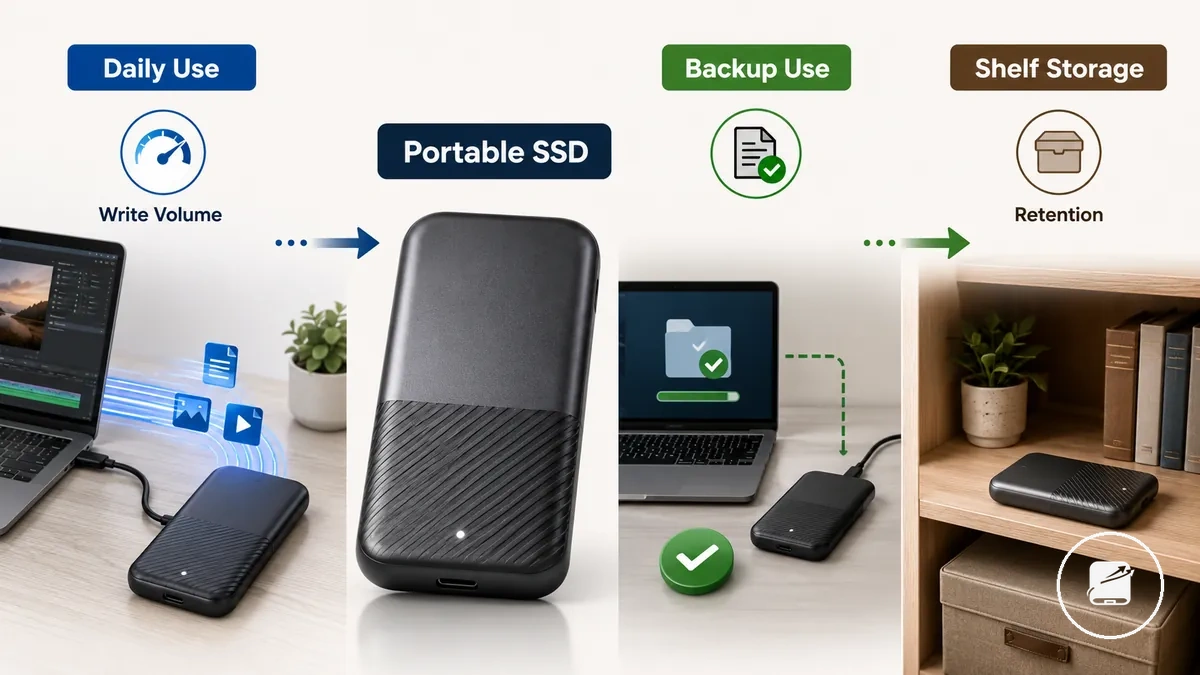
Active daily work creates continuing write wear, while backup use usually involves less frequent writing and more emphasis on verifying a readable copy. Shelf storage creates a different reliability question because the portable SSD remains powered off and must retain data without routine access confirming its condition. For example, a drive used for daily video projects faces greater write-volume pressure than one used for periodic backups. A drive kept inactive for long periods faces a retention question rather than the same workload pattern.
A drive kept inactive for long periods faces a retention question rather than the same workload pattern.
For active use, monitor cumulative write volume and changes in drive status; for backup use, verify that stored files remain readable. Active daily use primarily tests endurance, while shelf storage primarily tests retention, so neither condition provides one universal expiry date for every portable SSD.
What Affects Portable SSD Lifespan
Workload, drive management, environmental conditions, and handling are the main factor groups that affect portable SSD lifespan. These groups interact rather than acting independently, so two portable SSDs with the same capacity can experience different wear because of differences in write activity, maintenance, and storage conditions.
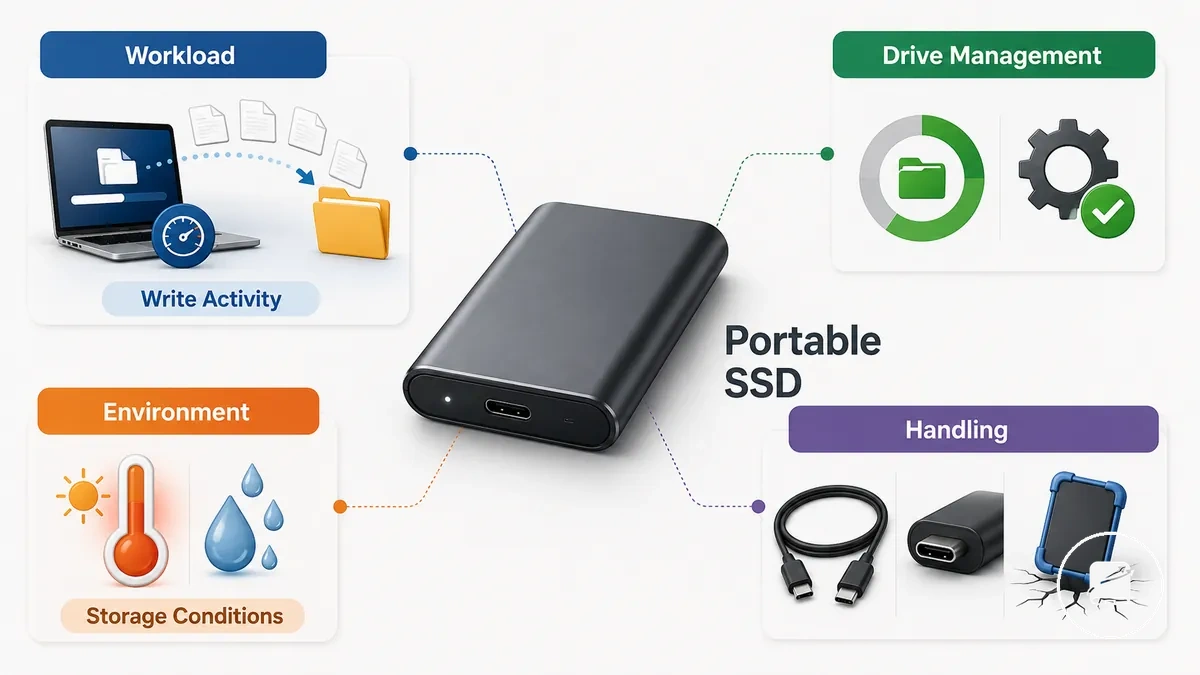
What affects portable SSD lifespan is easier to understand when the factors are organised by condition and effect. Workload influences how quickly write activity consumes endurance, while drive management supports stable operation through adequate free space, TRIM, firmware updates, and wear leveling. For example, two identical portable SSDs can age differently if one performs frequent large file transfers while the other is used mainly for occasional backups with much lower daily write activity.
| Factor group | Attribute or condition | What it can affect | Maintenance response |
|---|---|---|---|
| Workload | Write activity and daily data volume | Write endurance consumption | Reduce unnecessary write-intensive tasks where practical |
| Drive management | Free space | Background maintenance efficiency | Maintain sufficient available free space |
| Drive management | TRIM, firmware, and wear leveling | Write management, wear distribution, and long-term stability | Enable TRIM where supported and keep firmware up to date |
| Environment | Heat | Higher operating stress during prolonged exposure | Avoid extended operation in high-temperature environments |
| Environment | Moisture and storage conditions | Risk of physical damage and reduced reliability | Store the drive in a cool, dry location |
| Handling | Impact | Potential enclosure or connector damage | Protect the drive from drops and heavy impacts |
| Handling | Cable condition and port connection | Connection stability and unexpected disconnects | Replace damaged cables and use secure connectors |
Environmental stress and handling stress also influence portable SSD lifespan through heat, moisture, impact, cable condition, and storage conditions. For instance, a portable SSD stored in a cool, dry place with an undamaged cable is exposed to fewer environmental risks than one repeatedly subjected to heat, damp conditions, or physical knocks.
Write Cycles, TBW, and Daily Write Volume
Write cycles describe how NAND flash memory is programmed and erased over repeated use, TBW (total bytes written) is an endurance rating that indicates how much data can typically be written during the drive's supported write endurance, and daily write volume is the amount of data written during normal use. Together, these metrics explain write-related wear, but they do not predict an exact lifespan because wear pressure is also influenced by workload and the drive's available endurance.
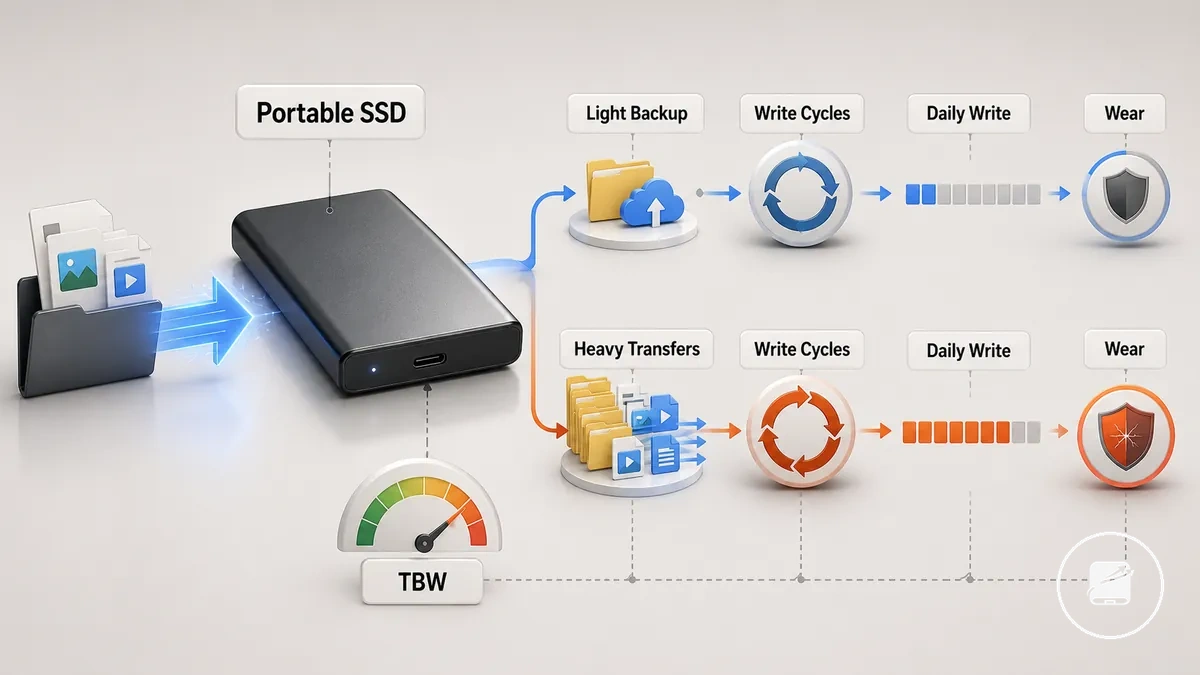
Write cycles, TBW, and daily write volume help relate write workload to wear. According to manufacturer guidance from Kingston Technology and ADATA Industrial, write-heavy use increases wear pressure compared with light backup use because more data is written to the NAND over time, making endurance monitoring more relevant for sustained workloads.
- Light backup use: Low daily write volume places lower write pressure on the NAND, so occasional health and endurance monitoring is generally sufficient.
- Write-heavy use: Frequent large file transfers, such as repeated video editing or media exports, consume available TBW more quickly and justify closer endurance monitoring.
For example, two identical portable SSDs can age differently if one stores occasional backup files while the other performs large file transfers every day. The second workload uses a greater share of the drive's available write endurance over time, but TBW remains an endurance metric rather than an exact failure date.
Free Space, TRIM, Firmware, and Wear Leveling
Free space, TRIM, firmware, and wear leveling support healthier long-term operation by helping a portable SSD manage writes more efficiently across its NAND storage. Keeping reasonable free space is a user-controlled maintenance habit, while TRIM support, firmware behaviour, and wear leveling depend on the drive controller, enclosure, and compatible system support.
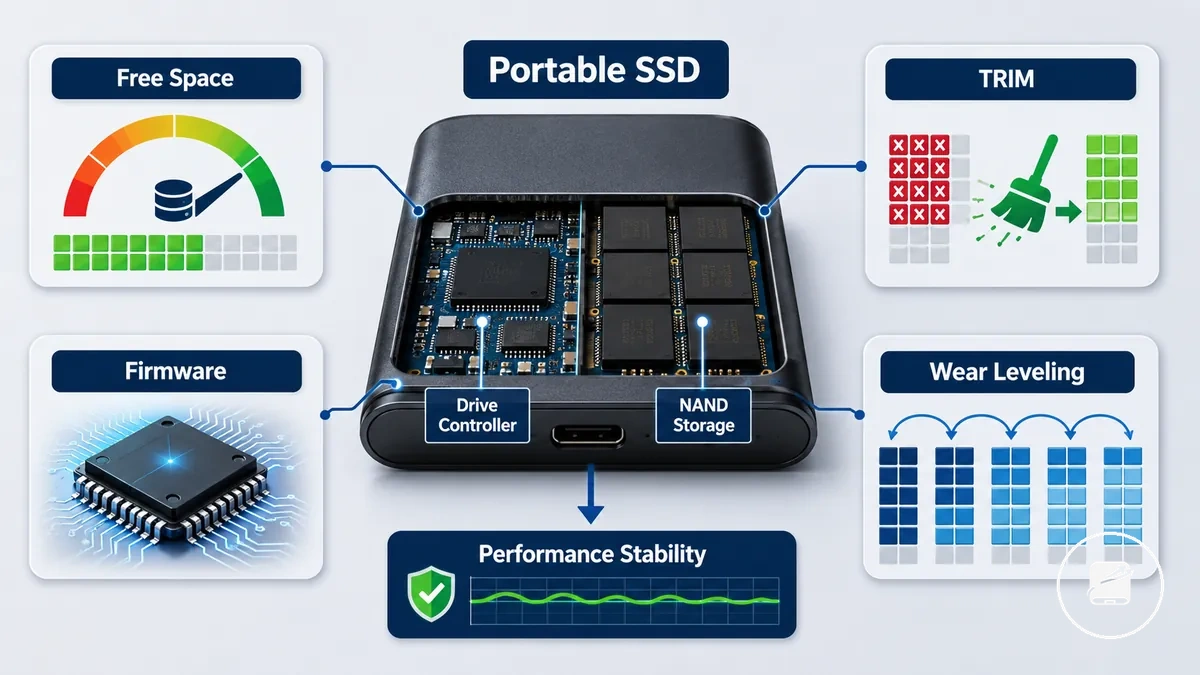
These drive-management conditions influence how writes are organised and how evenly wear is distributed. According to manufacturer guidance from Kingston Technology and Crucial, they help support performance stability over time, although available features remain model specific.
- Free space: Maintaining reasonable spare space gives the drive controller more flexibility to organise writes, helping support performance stability and more balanced wear.
- TRIM: When supported by both the portable SSD and the connected system, TRIM identifies deleted data blocks that can be prepared through background maintenance before future writes.
- Firmware: Firmware updates can improve compatibility, stability, or reliability when the manufacturer provides a model-specific update, so updates should follow the official guidance for that drive.
- Wear leveling: Wear leveling automatically distributes writes across NAND memory cells to reduce repeated stress on the same areas and support more even long-term wear.
For example, a portable SSD used for regular backups can benefit from leaving reasonable free space available while allowing supported background maintenance features to operate normally, without requiring OS-specific setup or manual tuning.
Heat, Moisture, Impacts, and Storage Conditions
Heat, moisture, impacts, and poor storage conditions increase maintenance risk for a portable SSD, but exposure does not guarantee failure. The effect depends on the affected part, exposure duration, physical severity, and the protection provided by the drive body, enclosure, cable, or case.
| Condition | Part affected | Possible risk | Maintenance response |
|---|---|---|---|
| Heat | Drive body and enclosure | Prolonged exposure to elevated temperature increases thermal stress and can reduce operating stability. | Use and store the portable SSD away from direct heat sources and keep ventilation around the enclosure unobstructed. |
| Moisture | Port and cable connectors | Humidity or liquid reaching electrical contacts increases the risk of corrosion or connection faults. | Disconnect the drive, keep the port and cable dry, and follow the manufacturer's guidance before reuse after liquid exposure. |
| Impact | Enclosure, port, and cable | A drop, crushing force, or cable strain can damage the enclosure, connector, or internal components. | Carry the drive in a protective case, avoid loose transport, and disconnect the cable before moving it. |
| Storage conditions | Case and storage location | Dust, pressure, moisture, or an unstable storage environment increases contamination and accidental-damage risk. | Store the drive in a clean, dry case where it is protected from dust, compression, and unnecessary handling. |
For example, placing a portable SSD in a padded case with its cable disconnected reduces impact, connector-strain, and dust exposure during transport. Heat-specific operating criteria belong under heat and drive health, while routine care here focuses on reducing avoidable environmental stress.
A broader assessment of enclosure construction and physical resilience belongs under portable SSD durability .
Daily maintenance lowers exposure risk but does not establish how a drive performs under formal shock, water, or ruggedness testing. A broader assessment of enclosure construction and physical resilience belongs under portable SSD durability.
How to Check Portable SSD Health
Check portable SSD health by reviewing drive-reported status, SMART status, health percentage, temperature, errors, speed behavior, cable checks, and connector condition. These checks can confirm current warning signs and observable behavior, but they cannot guarantee that the drive will remain free from future failure or data loss.
Treat every reading as one diagnostic signal rather than proof that the drive is completely safe.
Use a compatible diagnostic utility that can read the information exposed by the SSD and its USB enclosure. According to Western Digital, SMART attributes and status help identify reported drive issues, while manufacturers such as Kingston provide software that displays health information when the hardware and connection support those values. Treat every reading as one diagnostic signal rather than proof that the drive is completely safe.
- Check SMART status: A normal SMART status indicates no currently reported critical SMART warning. A failed or critical SMART status is a strong indication to back up data immediately and investigate further.
- Review health percentage: Use the reported health percentage as the diagnostic tool's estimate of remaining drive condition. Compare future readings with the same software because health calculations are not standardized across all manufacturers or utilities.
- Monitor temperature: Observe the reported temperature during idle use and sustained file transfers when the enclosure exposes this information. Repeated high temperatures combined with instability provide a stronger warning than a single isolated reading.
- Check for errors: Repeated file-copy failures, unexpected disconnects, freezes, or read/write errors indicate a recurring problem when they occur under the same conditions. Record the workload and connection used before drawing conclusions.
- Evaluate speed behavior: Repeat the same transfer using the same files, port, cable, and workload. Consistent slow performance under identical conditions is more meaningful than one unusually slow benchmark.
- Perform cable checks and inspect connector condition: Test the SSD with a known-good compatible cable and inspect both connectors for contamination, looseness, bent contacts, or visible damage. If the problem disappears after replacing the cable or changing the port, the connection path is more likely to be responsible than the SSD itself.
For example, if a portable SSD reports a normal SMART status but repeatedly disconnects during large file transfers, replacing the cable and repeating the same test can help distinguish a connection fault from an internal drive problem. Use portable SSD health checks to support backup and replacement decisions, but never treat a healthy status or health percentage as a substitute for maintaining current backups.
Use portable SSD health checks to support backup and replacement decisions, but never treat a healthy status or health percentage as a substitute for maintaining current backups.
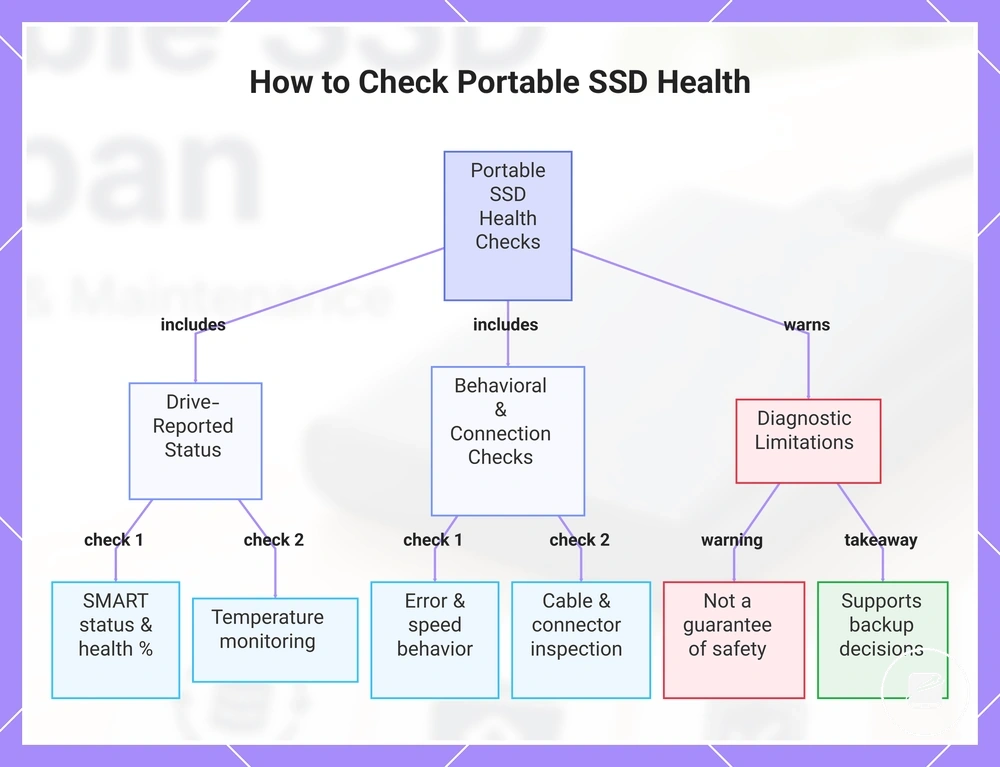
This chart shows the main diagnostic checks for portable SSD health, including drive-reported status, behavioral signs, and connection path inspections, along with important diagnostic limitations.
SMART Status, Health Percentage, and Temperature
SMART status, health percentage, and temperature are reported signals used to interpret a portable SSD's current condition; they do not provide an exact failure date or prove that the drive is guaranteed safe. Backblaze explains that SSD manufacturers choose which SMART attributes their models report, so the meaning and availability of each reported attribute must be interpreted within the drive and tool that produced it.
| Signal | What it may show | What to do |
|---|---|---|
| SMART status | A normal condition means no current threshold or critical warning has been reported, while a failed or critical condition indicates a reported warning. | Continue monitoring a normal status, but protect current data and investigate when the status changes to warning or failed. |
| Health percentage | A vendor-calculated health reading may represent remaining endurance, used life, or another model-specific condition; percentages from different vendors are not directly equivalent. | Compare the value with earlier readings from the same drive and tool, and treat a sustained decline or warning state as a reason for closer monitoring. |
| Temperature | The temperature reading reports current drive heat when the SSD and enclosure expose that attribute; its meaning changes with workload and the manufacturer's operating limits. | Compare idle and active-workload readings, then investigate repeated heat-related warnings or instability rather than relying on one isolated value. |
Interpretation should separate normal, warning, and unclear results. A normal reading supports routine monitoring, a warning requires prompt attention because the drive has reported an adverse condition, and an unclear or unavailable value means that the tool or connection has not provided enough information for that indicator. For example, a normal SMART status paired with a falling vendor health percentage and repeated temperature warnings should be treated as a combined monitoring concern rather than three interchangeable measurements.
Speed Tests, Cable Checks, and Connector Condition
Slow transfer speed, pauses, or unexpected disconnects can result from either connection problems or developing drive-health issues. Speed tests, cable checks, and connector condition should therefore be evaluated together, because an isolated bottleneck usually points to the connection path, while repeatable degradation across consistent tests warrants closer attention to the portable SSD.
- Repeat the speed tests: Run the same transfer under similar conditions. Consistent repeatability indicates a persistent symptom rather than a one-time slowdown.
- Check the cable rating: Verify that the cable supports the portable SSD's interface. If transfer speed returns to normal with a known-compatible cable, the original cable was the more likely bottleneck.
- Inspect the port: Test the drive with another suitable port. If reduced performance or disconnects occur only on one port, the port condition is the more likely cause.
- Examine connector condition: Look for debris, looseness, wear, or poor connector fit. If slight movement causes repeated disconnects, the physical connection is unstable.
- Observe enclosure behavior: Check for repeated disconnects, unusual heat, or consistent performance drops during the same workload. If these symptoms remain after cable and port checks, the issue is more likely related to the enclosure or drive.
For example, if a portable SSD performs normally after changing only the cable, the original symptom was likely a connection issue rather than drive wear. If reduced transfer speed or disconnects remain repeatable across suitable cables, ports, and connector checks, the symptom should be investigated further as a potential drive-health problem.
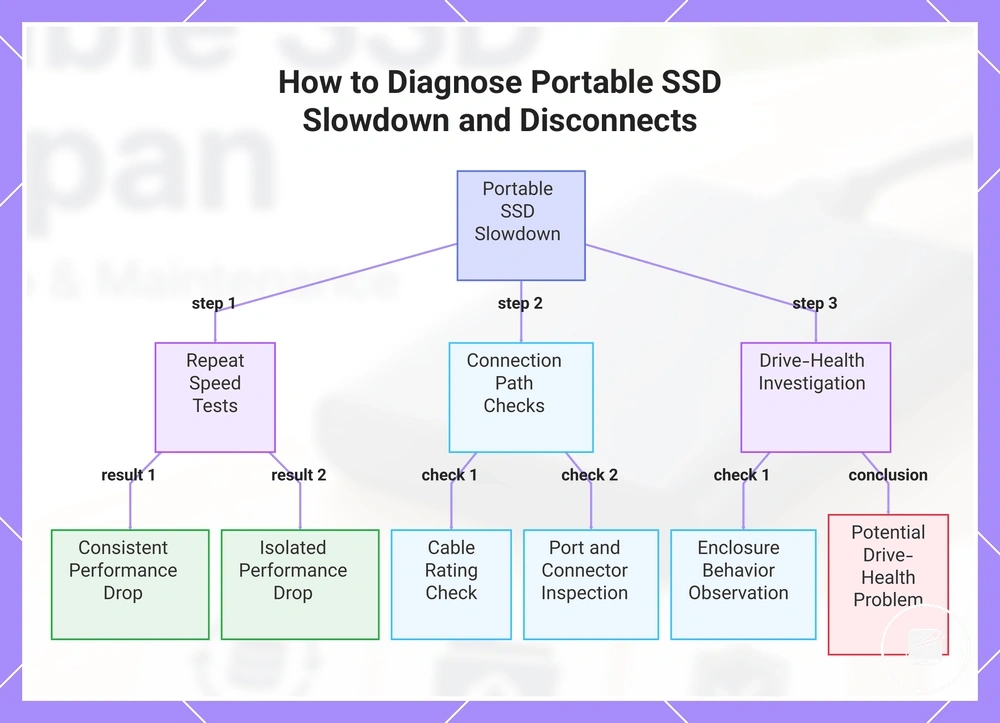
This chart shows the diagnostic steps to identify whether a portable SSD slowdown is caused by connection path issues or drive-health problems.
This chart shows the diagnostic steps to identify whether a portable SSD slowdown is caused by connection path issues or drive-health problems.
Portable SSD Maintenance Habits That Reduce Wear
Portable SSD maintenance habits reduce avoidable physical stress, file-system errors, unnecessary writes, and exposure to data loss. These care habits improve operating conditions, but they do not prevent every controller, memory, or electronic failure.
These care habits improve operating conditions, but they do not prevent every controller, memory, or electronic failure.
For a drive carried between home and work, protective handling, cable care, and clean storage reduce avoidable strain and environmental exposure. Safe ejecting, regular use, and adequate free space support orderly software behaviour, while backup discipline limits the consequence of loss or failure. For example, finishing a transfer, safely ejecting the SSD, disconnecting it by the plug, and storing it in a dry case addresses software, connector, and handling risks in one routine.
- Use safe ejecting: Allow active transfers to finish, then use the operating system's eject function before disconnecting the SSD. Microsoft states that safely removing external storage helps prevent file loss or corruption, although ejecting cannot prevent hardware failure.
- Maintain clean storage: Keep the disconnected SSD in a clean, dry location or case that limits dust and moisture exposure. Western Digital advises protecting stored drives from water, high humidity, and extreme temperatures, but a case does not make an SSD waterproof or impact-proof.
- Practise regular use: Use an infrequently accessed SSD often enough to keep its stored files and backup routine current. Regular use supports maintenance confidence, but it does not reverse wear or guarantee future readability.
- Apply cable care: Disconnect the cable by holding the plug rather than pulling the lead, and avoid sharp bends or tension near the connector. This handling practice reduces avoidable strain on the cable and port but does not correct an internal drive fault.
- Use protective handling: Secure the SSD during transport and avoid drops, crushing pressure, or movement while the cable is connected. Protective handling lowers impact and connector-damage risk without eliminating electronic failure.
- Preserve free space: Avoid filling the SSD to capacity; Kingston recommends keeping at least 10% of the drive free for maintenance and background operations. This space supports normal drive management but does not provide a fixed lifespan increase for every model or workload.
- Limit unnecessary rewrites: Avoid repeatedly copying, deleting, and rewriting unchanged data without a practical reason. Reducing avoidable writes conserves finite flash endurance while preserving normal use.
- Maintain backup discipline: Keep important files in another independent location and update that copy after meaningful changes. A separate backup reduces data-loss exposure if the portable SSD is damaged, lost, corrupted, or unreadable.
The highest-value habits are safe ejecting, careful cable and connector handling, clean storage, usable free space, and a current independent backup. Routine maintenance reduces avoidable risk; it does not make a portable SSD immune to failure.
Routine maintenance reduces avoidable risk; it does not make a portable SSD immune to failure.
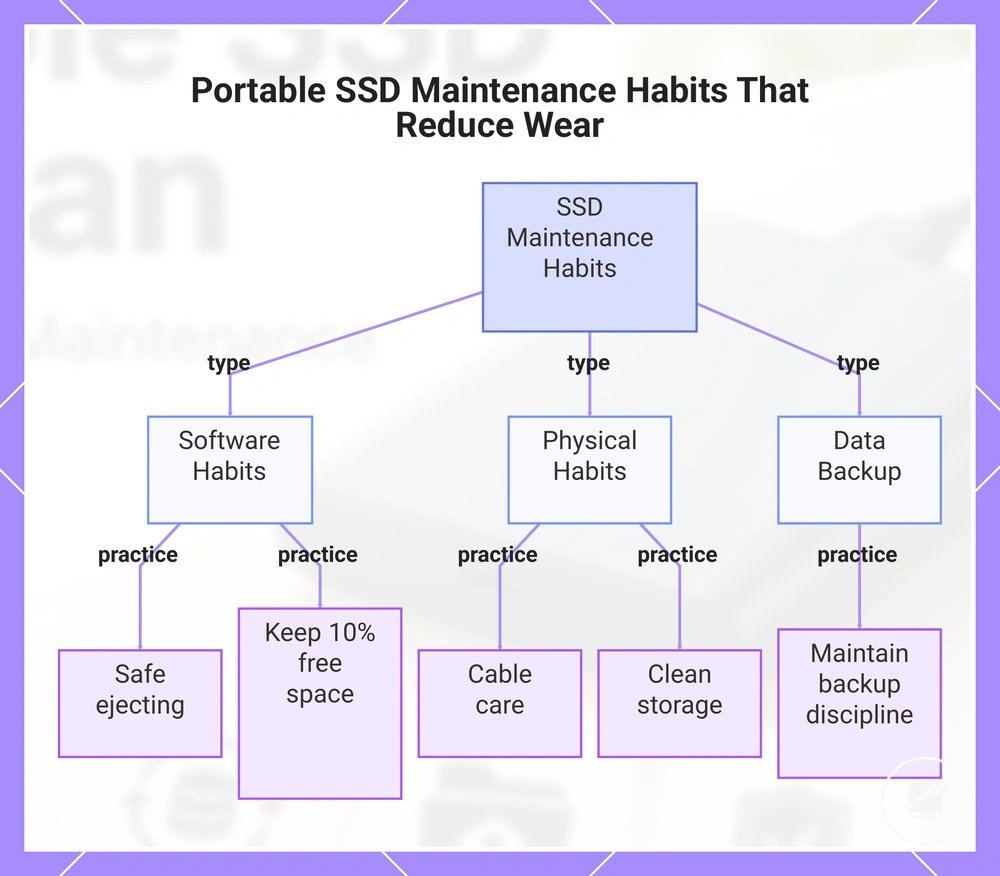
This chart shows the highest-value maintenance habits for portable SSDs, grouped by software, physical, and data practices, which reduce avoidable wear but do not prevent all failures.
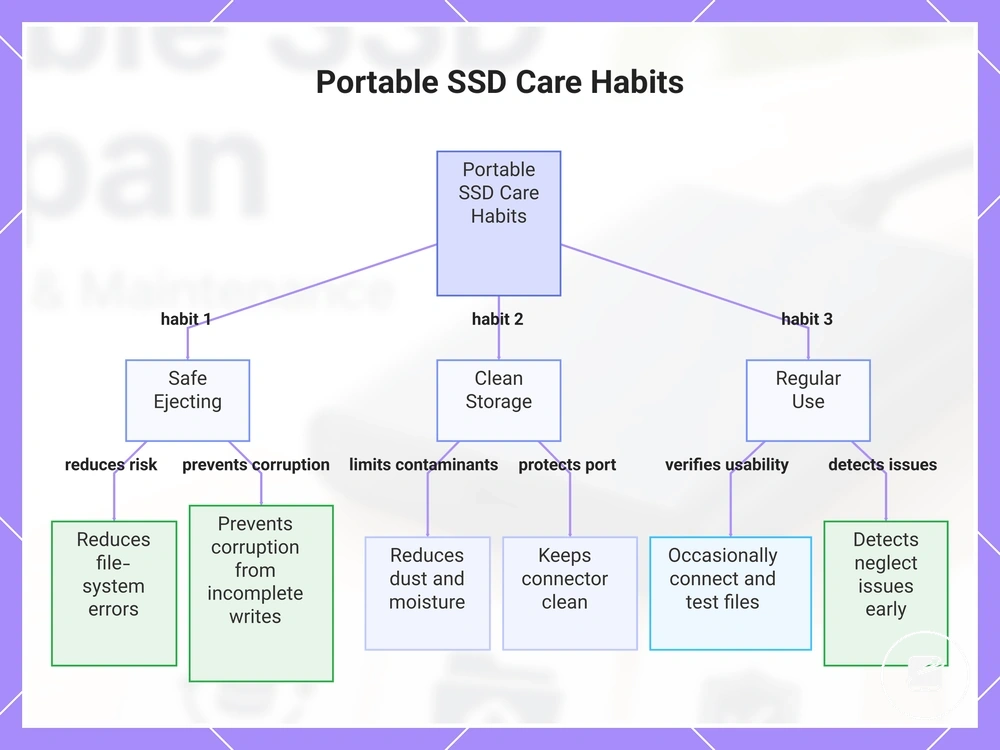
Safe Ejecting, Clean Storage, and Regular Use
Safe ejecting reduces the risk of file-system errors by allowing active file transfers and pending write operations to finish before a portable SSD is disconnected. Microsoft recommends using the operating system's eject function before unplugging removable storage because it helps prevent file corruption caused by incomplete write activity. Missing the eject step occasionally does not automatically result in corruption, but disconnecting a drive during active writes increases that risk.
- Safe ejecting: Eject the portable SSD only after file transfers have completed to reduce corruption risk from interrupted write operations.
- Clean storage: Store the disconnected SSD in a clean environment that limits dust, moisture, and debris from reaching the enclosure or port, reducing storage-condition risk.
- Port protection: Keep the connector free from dust and contamination so the port maintains a reliable physical connection during future use.
- Regular use: Connect an archived SSD occasionally and open representative files to confirm that the storage condition remains usable and that neglected access issues are detected earlier.
For example, after copying family photos to a portable SSD, complete the file transfer, eject the drive safely, store it in a clean, dry case, and reconnect it occasionally to confirm the files still open correctly. These practical habits reduce avoidable file-system, dust, moisture, and neglect risks without guaranteeing long-term data retention or preventing every hardware failure.
This chart shows the three main habits for reducing risks to portable SSDs: safe ejecting, clean storage, and regular use, along with their key benefits.
This chart shows the three main habits for reducing risks to portable SSDs: safe ejecting, clean storage, and regular use, along with their key benefits.
Cable Care, Protective Cases, and Portable Handling
Physical handling affects the ports, connectors, and enclosure of a portable SSD most when the drive is moved frequently. Good cable care and careful handling reduce avoidable physical strain, while a protective case or storage pouch helps limit dust and minor impact exposure without preventing every type of damage.
When carrying a portable SSD between locations, begin with cable care.
When carrying a portable SSD between locations, begin with cable care. Disconnect the drive by gripping the connector instead of pulling the cable so the strain relief can reduce repeated stress on the connector and port. Keep the port free of visible debris, and clean the enclosure with a soft, dry cleaning cloth when needed. For example, placing the cable loosely in a bag instead of wrapping it tightly around the SSD reduces unnecessary strain during transport.
Keep the port free of visible debris, and clean the enclosure with a soft, dry cleaning cloth when needed.
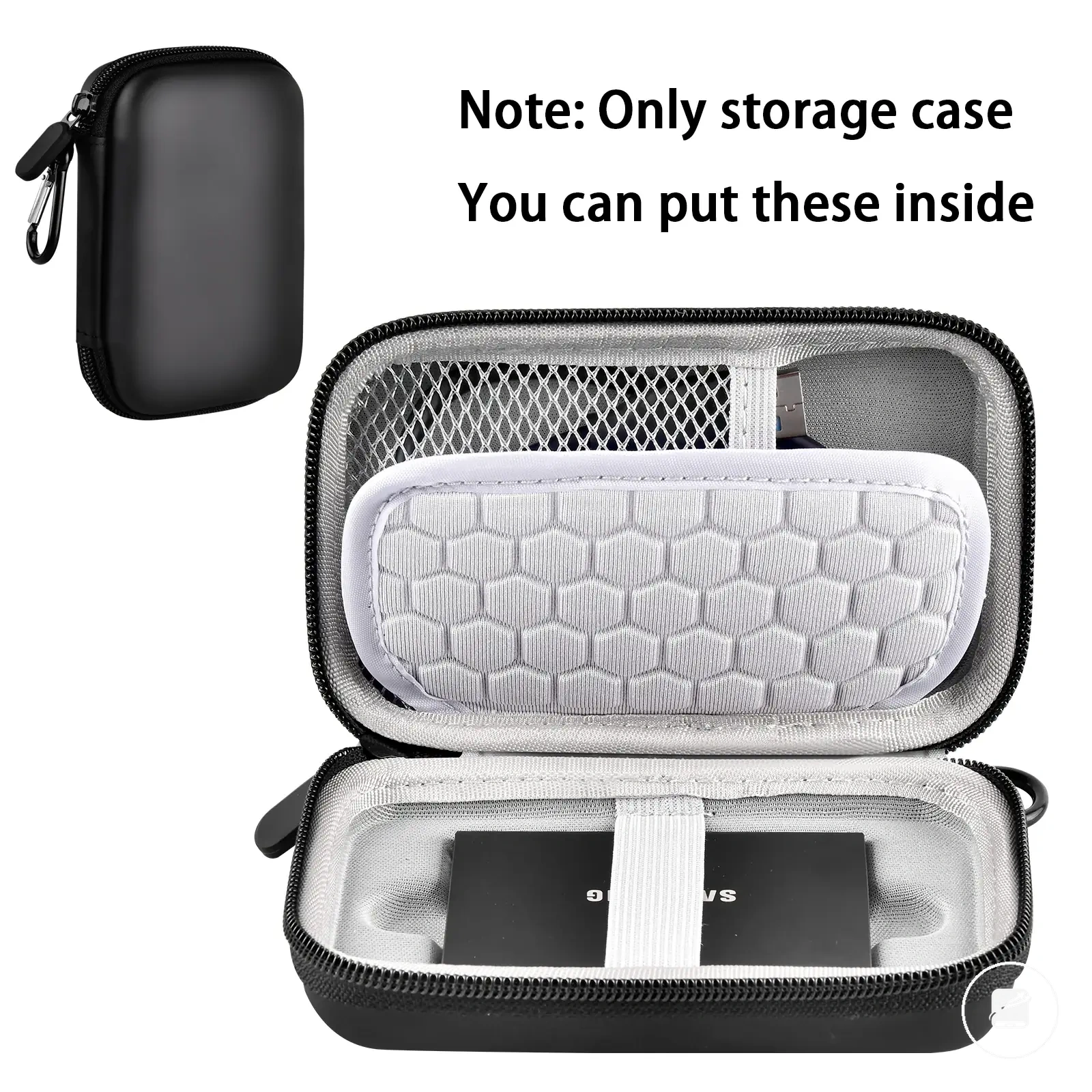
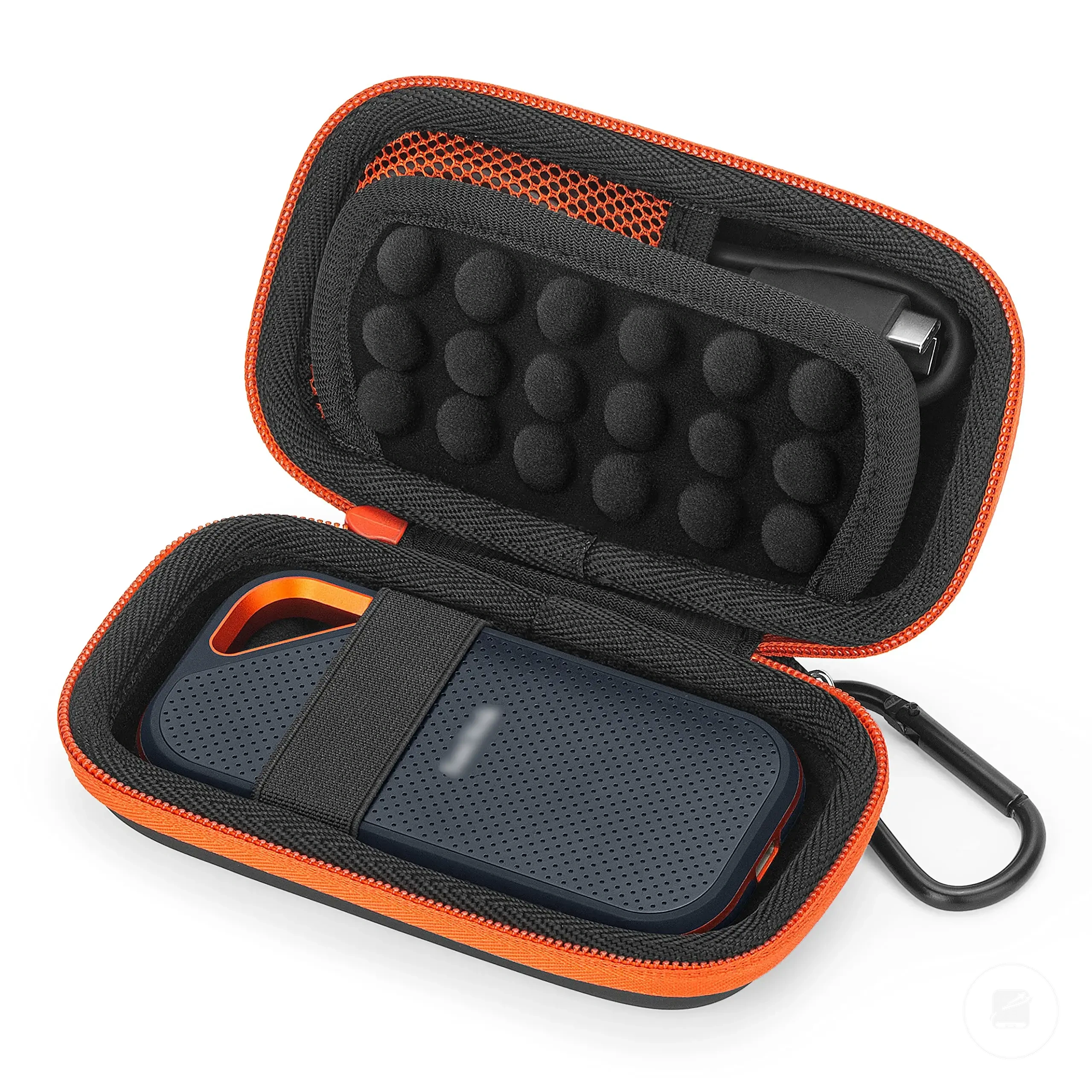
A protective case or storage pouch reduces handling risk by improving fit, adding padding, and helping keep dust away from the enclosure. These accessories reduce the likelihood of scratches, connector contamination, and minor bumps during travel, but they do not guarantee protection from severe impact or make the drive shockproof.
Use the following checklist to choose handling accessories based on maintenance criteria rather than appearance or marketing claims.
Use the following checklist to choose handling accessories based on maintenance criteria rather than appearance or marketing claims.
Here are product examples that may make comparison easier.
Here are product examples that may make comparison easier. Before buying, always review the compatibility criteria, essential features, and product details.



- Cable: Maintain cable care by avoiding tight bends so the strain relief continues to protect the connector; careful routing cannot prevent every cable failure.
- Connector and port: Grip the connector during removal and inspect the port for dust before reconnecting; this reduces physical wear but cannot repair existing damage.
- Protective case or storage pouch: Choose a snug fit with light padding to reduce movement during transport; padding lowers impact risk but does not eliminate it.
- Cleaning cloth: Use a soft, dry cloth to remove dust from the enclosure and around the port area; avoid pushing debris into the connector.
- Portable handling: Store the SSD securely inside a storage pouch or protective case to improve portability and organization while reducing unnecessary movement during travel.
Backup Maintenance for Portable SSD Data
Backup maintenance keeps portable SSD data readable, current, and available if the primary copy becomes unavailable. It protects access to your files rather than improving the health of the SSD itself. Recovery confidence depends on the quality, recency, verification, and availability of backup copies instead of relying on a single drive.
It protects access to your files rather than improving the health of the SSD itself.
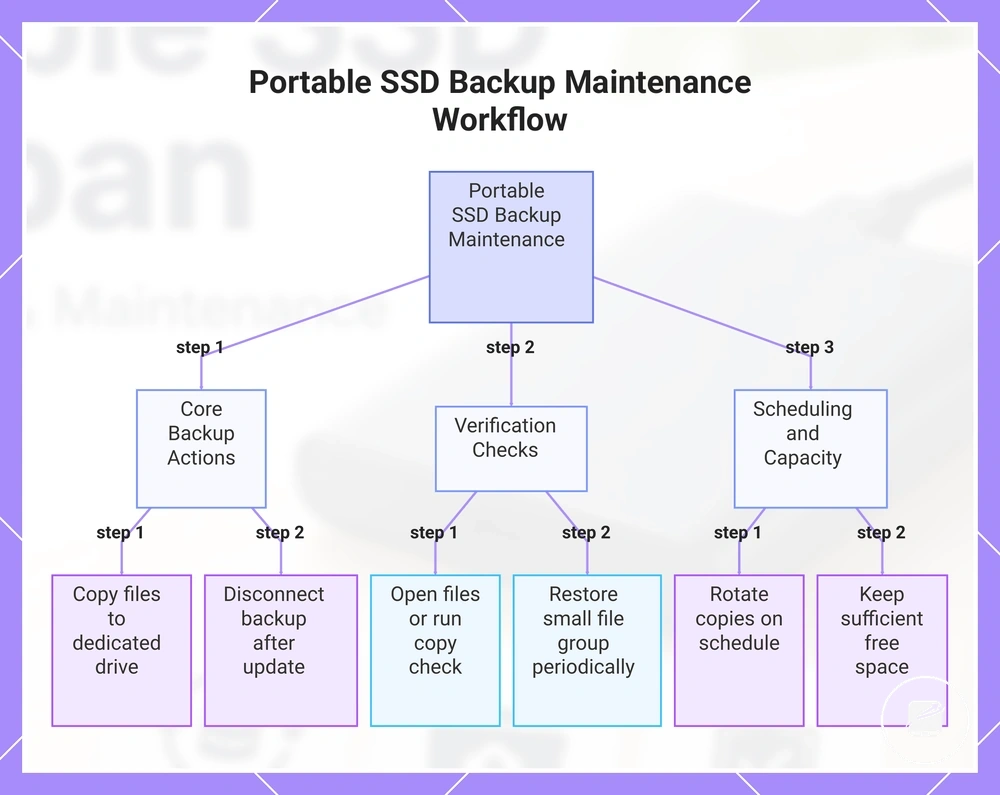
Use the following workflow to maintain reliable backup copies:
- Copy primary files: Save important files to a dedicated backup drive and confirm the copy finishes successfully to reduce the risk of incomplete backups.
- Maintain an offline copy: Disconnect at least one backup copy after updating it to reduce exposure to accidental deletion, malware, or ransomware.
- Perform verification: Open selected files or run a copy check after each backup so unreadable or incomplete copies are identified before they are needed.
- Follow a rotation schedule: Rotate backup copies on a consistent schedule to keep recent versions available while preserving older recovery points.
- Monitor backup drive capacity: Keep sufficient free space available so scheduled backups can complete without interruption.
- Test restore readiness: Restore a small group of files periodically to confirm the backup remains usable instead of assuming recovery is guaranteed.
For example, if one portable SSD stores active photo editing projects, treat it as working storage while maintaining a separate backup drive with verified copies. An offline copy updated on a scheduled rotation serves as an archive copy, improving restore readiness if the working drive becomes unavailable.
An offline copy updated on a scheduled rotation serves as an archive copy, improving restore readiness if the working drive becomes unavailable.
After completing these backup maintenance checks, continue with backup planning to select an appropriate backup schedule, rotation pattern, and recovery approach for different types of portable SSD data.
This chart shows the key steps to maintain reliable backup copies for portable SSD data, grouped into backup actions, verification checks, and scheduling tasks.
This chart shows the key steps to maintain reliable backup copies for portable SSD data, grouped into backup actions, verification checks, and scheduling tasks.
Offline Storage, Power Connection, and Backup Rotation
Offline storage keeps a backup copy disconnected from routine device activity, while backup rotation updates or alternates copies through a defined backup cycle. Recovery confidence depends on maintaining readable copies through verification rather than simply owning another drive.
- Storage state: Keep an offline copy disconnected when it is not being updated, then confirm that it is stored securely; this reduces exposure to accidental deletion or changes affecting connected storage.
- Power connection: Connect the drive for a periodic check when the data is important or the copy has remained inactive for an extended period, then confirm that the device mounts and selected files open; this identifies access problems before recovery is required.
- Backup rotation: Update or alternate copies on a schedule matched to how often the source files change; this limits the gap between current data and the newest usable copy.
- Verification condition: Check selected files after an update or long storage period and confirm that the expected folders are present; this improves confidence that the copy remains usable rather than merely detectable.
For travel, keep the backup disconnected except when copying or checking files so the working copy and backup are not exposed to the same device event. For a home backup, connect it after meaningful source-file changes, verify the updated copy, and disconnect it again. For long inactive storage, use a periodic check based on the importance of the data and the time since the last successful verification. Power connection and backup rotation schedules should reflect data use, change frequency, and the consequence of loss rather than a universal interval.
Portable SSD Failure Signs to Take Seriously
Portable SSD failure signs become serious when slow transfers, freezes, corrupted files, missing drives, read-only behavior, repeated disconnects, heat spikes, or error messages recur or worsen. A single symptom does not prove permanent drive failure, but repeated symptoms justify an immediate backup and cautious diagnosis before repair attempts.
Read each symptom by its repeatability, urgency, and effect on data access.
Read each symptom by its repeatability, urgency, and effect on data access. Symptoms that block access, corrupt files, or recur across connections require faster action than an isolated slowdown, while connection-related symptoms should first be separated from drive-related faults with a cable, port, or host-system test.
| Symptom | Possible cause class | Urgency | Safer next step |
|---|---|---|---|
| Slow transfers | Interface limitation, connection fault, background activity, or declining drive condition | Moderate when isolated; high when speed continues to fall or other errors appear | Back up important files, test another cable or port, and check whether the slowdown repeats |
| Freezes | Connection instability, storage errors, or host-system faults | High when recurring during file access | Copy accessible data first, then test the connection path and host system before further writes |
| Corrupted files | Read or write errors affecting stored data | High | Stop writing new data because further writes can overwrite recoverable content, then back up readable files |
| Missing drives | Cable, port, power, detection, or drive fault | High when the drive remains absent across repeated connection tests | Test another compatible cable, USB port, and computer before treating the drive itself as the confirmed cause |
| Read-only behavior | Protective firmware state, file-system problem, or operating-system restriction | High when write access was previously available | Copy readable files and diagnose the cause without forcing write operations |
| Repeated disconnects | Cable, port, power-delivery, enclosure, or drive instability | High when disconnects recur during transfers | Back up accessible data and test each connection component separately |
| Heat spikes | Sustained workload, poor heat dissipation, or an abnormal operating condition | Moderate alone; high when accompanied by freezes, disconnects, or errors | Pause transfers, allow the drive to cool, and check whether the same symptoms return under lighter use |
| Error messages | File-system, communication, permission, or hardware fault | High when the same message persists or data becomes inaccessible | Record the exact message, back up readable data, and diagnose before repeating write operations |
For example, if a portable SSD begins disconnecting during transfers and then reports corrupted files, create a backup of every readable file before testing cables, ports, or the host computer. Failure symptoms should trigger backup and diagnosis first, not invasive repair attempts, because preserving accessible data has higher priority than confirming the final fault immediately.
Slow Transfers, Freezes, Corrupted Files, and Missing Drives
Slow transfers, freezes, corrupted files, and missing drives become more serious when they appear as repeated symptoms rather than isolated events. A single transfer slowdown can result from a cable, port, or host-device issue, while recurring symptoms across repeated checks increase the likelihood of an underlying storage problem and justify an immediate backup before further testing.
- Slow transfers: If transfer speed remains slow after you test cable connections, USB ports, or another compatible device, verify backup copies before continuing large file transfers.
- Freezes: When freezes recur during file access or coincide with disconnects or error messages, stop the current transfer and preserve accessible data before additional testing.
- Corrupted files: If file corruption appears more than once, stop writing new data because additional writes can overwrite recoverable information, then verify backup integrity.
- Missing drives: Test the drive with another compatible cable, connector, port, and device; if the drive remains undetected across those checks, treat the symptom as a persistent storage risk rather than an isolated connection issue.
An isolated connection problem often disappears after replacing a cable or changing devices, whereas repeated symptoms continue under multiple test conditions and deserve more cautious handling. For example, if corrupted files appear again after reconnecting the portable SSD to another computer, preserve readable files before continuing diagnosis instead of repeatedly retrying transfers.
If transfer slowdown remains the primary symptom after these immediate checks, see slow transfer symptoms for focused guidance on diagnosing performance-related issues.
If transfer slowdown remains the primary symptom after these immediate checks, see slow transfer symptoms for focused guidance on diagnosing performance-related issues.
When Maintenance Is No Longer Enough
Stop routine maintenance when a portable SSD develops unreadable files, repeated disconnects, SMART warnings, failed backup verification, physical damage, or worsening symptoms. At that threshold, data protection and recovery preparation take priority over cleaning, cable management, performance tuning, or repeated write tests.
Preserve accessible data before attempting further diagnosis.
Preserve accessible data before attempting further diagnosis. Stop writing new files when corruption, read errors, or unstable detection appears, because additional writes can replace recoverable data. Verify backup copies by opening representative files from the backup destination rather than relying only on a completed-copy message.
- Unreadable files: If files that previously opened now return read errors, stop writing and copy the remaining readable data to a separate verified destination.
- Repeated disconnects: If disconnects continue after testing another compatible cable, port, and device, end routine maintenance checks and preserve accessible files.
- SMART warnings: If the host system or manufacturer-supported diagnostic tool reports recurring health warnings, treat the result as a failure-response trigger rather than a maintenance reminder.
- Failed backup verification: If copied files cannot be opened, checksums do not match, or the backup destination reports errors, do not treat the backup as valid; create another verified copy where possible.
- Physical damage: If the connector, enclosure, or drive shows impact, liquid, burn, or deformation damage, disconnect it and avoid repeated power-on tests.
- Worsening symptoms: If slow transfers progress to freezes, corruption, or missing-drive events, shift immediately from routine care to data preservation and recovery planning.
For example, recurring SMART warnings combined with a backup that completes but contains unreadable files indicate that maintenance has not restored reliable access. Preserve any files that still open, avoid further write-heavy testing, and treat the failed verification as an urgent data-protection issue.
Physical damage or symptoms that become more frequent mark a stronger failure threshold than an isolated connection problem.
Physical damage or symptoms that become more frequent mark a stronger failure threshold than an isolated connection problem. When damage is visible or the drive repeatedly disappears across compatible devices, stop routine care and seek cautious recovery guidance rather than opening the enclosure or attempting invasive repairs.
After urgent data preservation is complete, follow the appropriate failure response for the remaining recovery steps.
After urgent data preservation is complete, follow the appropriate failure response for the remaining recovery steps.